# DHCP / Router class
Tuesday, Nov 19th 2024
---
## Static DHCP leases
### In **`router`**
Execute `sudo vim /etc/dnsmasq.conf`:
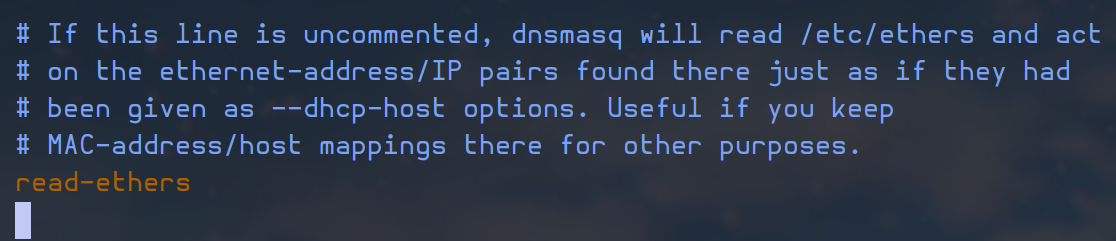
uncomment read-ethers to enable the /etc/ethers configuration file
Create a new file `/etc/ethers` to assign an `IP address` to the specific `MAC adresses` of the `www` and `sql` machines:
```bash
sudo vim /etc/ethers
```
```
# www MAC address and static DHCP lease
ff:ff:ff:ff:fd 192.168.56.80
# sql MAC address and static DHCP lease
ff:ff:ff:ff:fe 172.16.13.54
```
you need to retrieve the MAC addresses of sql and www(these here are dummy addresses)
Add the two new static `IP addresses` to the `/etc/hosts` file:
```
127.0.0.1 localhost router
192.168.56.10 router
172.16.13.10 router
192.168.56.80 www
172.16.13.54 sql
```
Restart the `dnsmasq` service:
```bash
sudo service dnsmasq restart
```
### In **`www`** and **`sql`**
Renew the `DHCP lease`:
```
sudo dhclient -r ens19 && sudo dhclient ens19
```
here ens19 is the interface connected to the router
Now we should have the correct `IP addresses` on `sql` (`172.16.13.54`) and on `www` (`192.168.56.80`).
---
## Router `forwarding` and `SNAT`
### In **`router`**
First we need to enable the `forwarding` feature of `IPv4` for `sql` and `www` to be able to communicate:
```Bash
sudo sysctl -w net.ipv4.conf.all.forwarding=1
```
Now we need to enable the `SNAT` for `www` and `sql` to be able to send requests to the outside (through the `WAN` interface of the `router`):
```bash
sudo apt install iptables
sudo iptables -t nat -A POSTROUTING -o ens18 -j MASQUERADE
```
here ens18 is the WAN interface
### In **`www`** and **`sql`**
We have two `network interfaces` in `www` and `sql` so far, and they are using the wrong one as default, so we need to change that.
Command for **`www`**:
```bash
sudo ip route del default
sudo ip route add default via 172.16.13.10
```
Command for **`sql`**:
```bash
sudo ip route del default
sudo ip route add default via 172.16.13.10
```
Now `www` and `sql` shouldn't be able to communicate to each other nor have access to the web.
---
## Traffic rules
As we are now, everyone has access to everything, because `iptables` has an `ACCEPT` default policy for `INPUT`, `FORWARD` and `OUTPUT`.
The first thing we'll do here is restrict the communications between `sql` and `www`.
For that, we can add rules to the `FORWARD` section of the `iptables`, but that would be bothersome to add `DROP` rules for every protocol/port we want to block, so we'll instead modify the default policy of the `FORWARD` section to `DROP` and then add all accepted transactions.
Change the `FORWARD` default policy to `DROP`:
```bash
sudo iptables --policy FORWARD DROP
```
You shouldn't be able to `ping` or connect via `ssh` or any other communication over the network between `sql` and `www`.
Now we want to be able to `ping` across the `router`, so we'll add a rule to accept all requests using the `ICMP` protocol:
```bash
sudo iptables -I FORWARD -p icmp -j ACCEPT
```
We can see what we've done so far with that command:
```bash
sudo iptables -L -nv
```
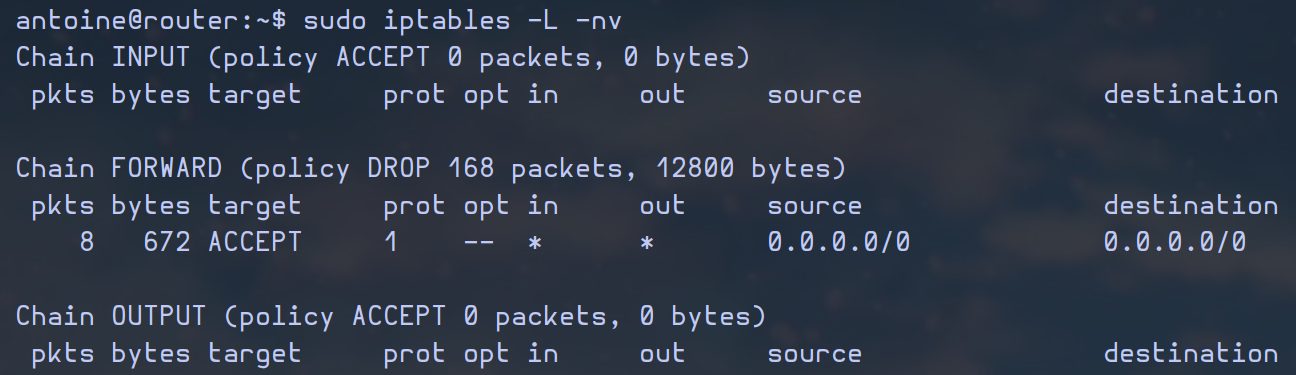
output of the command