# pfSense Installation
Antoine de Barbarin
---
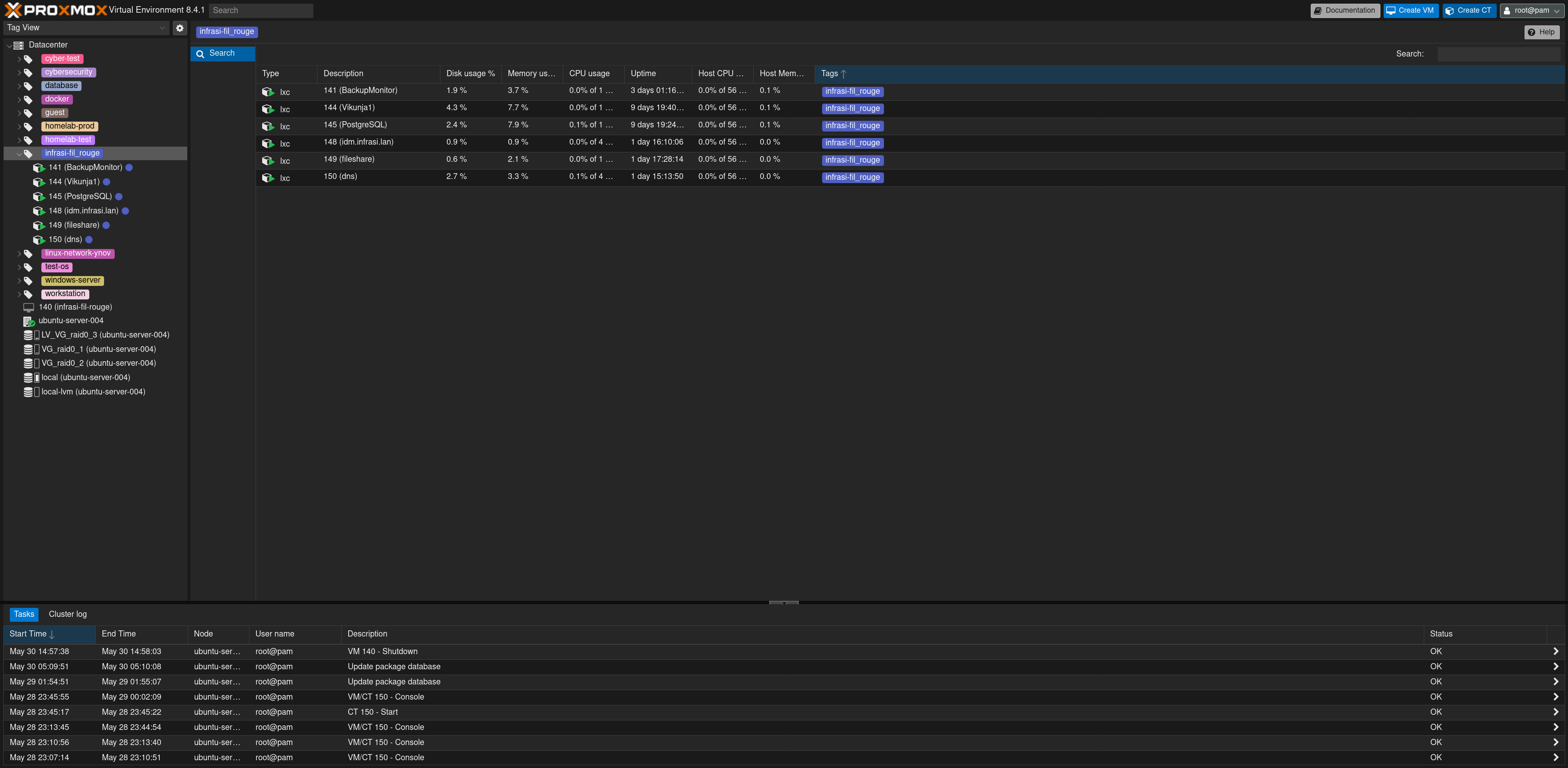
Click on  on the top right of the screen
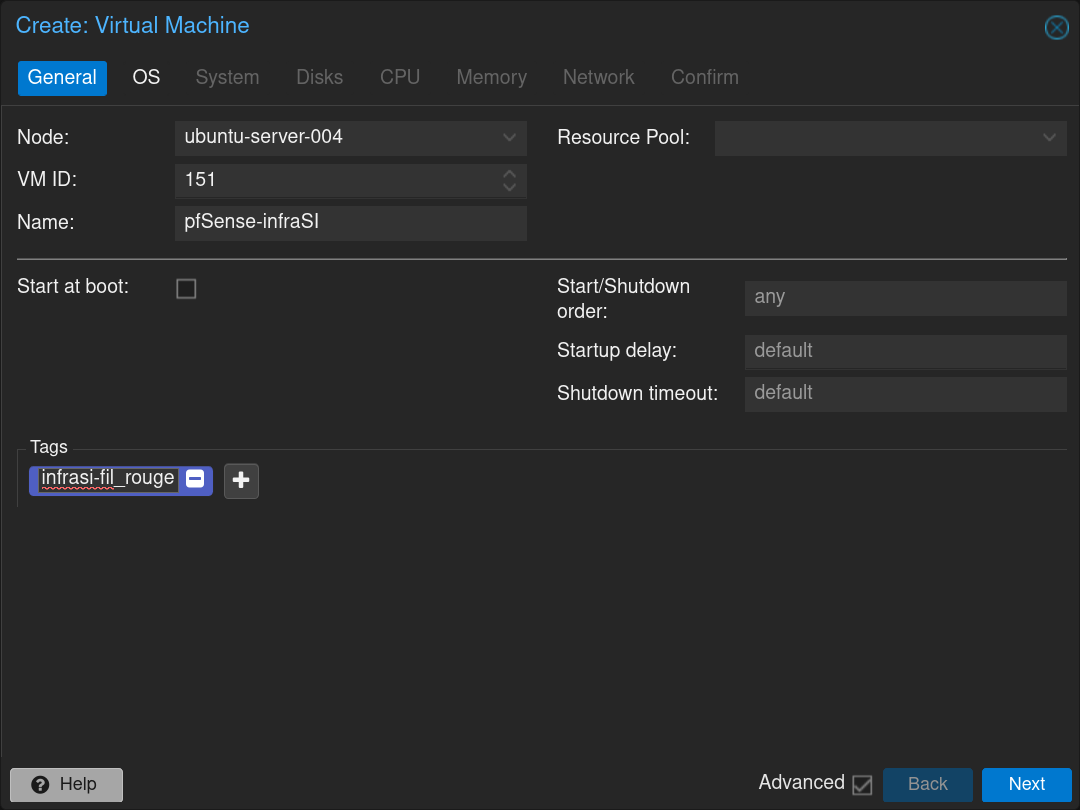
Fill the form with the name of the VM `pfSense-infraSI` and click Next
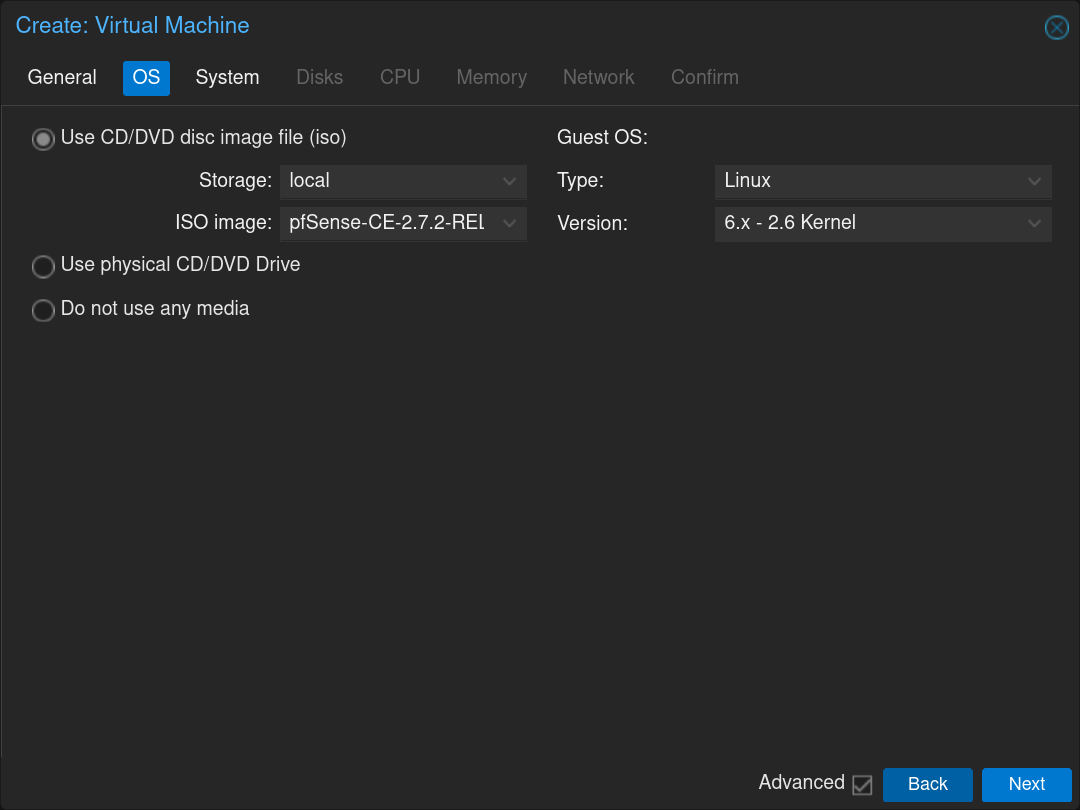
Select the pfSense `.iso` image and click Next
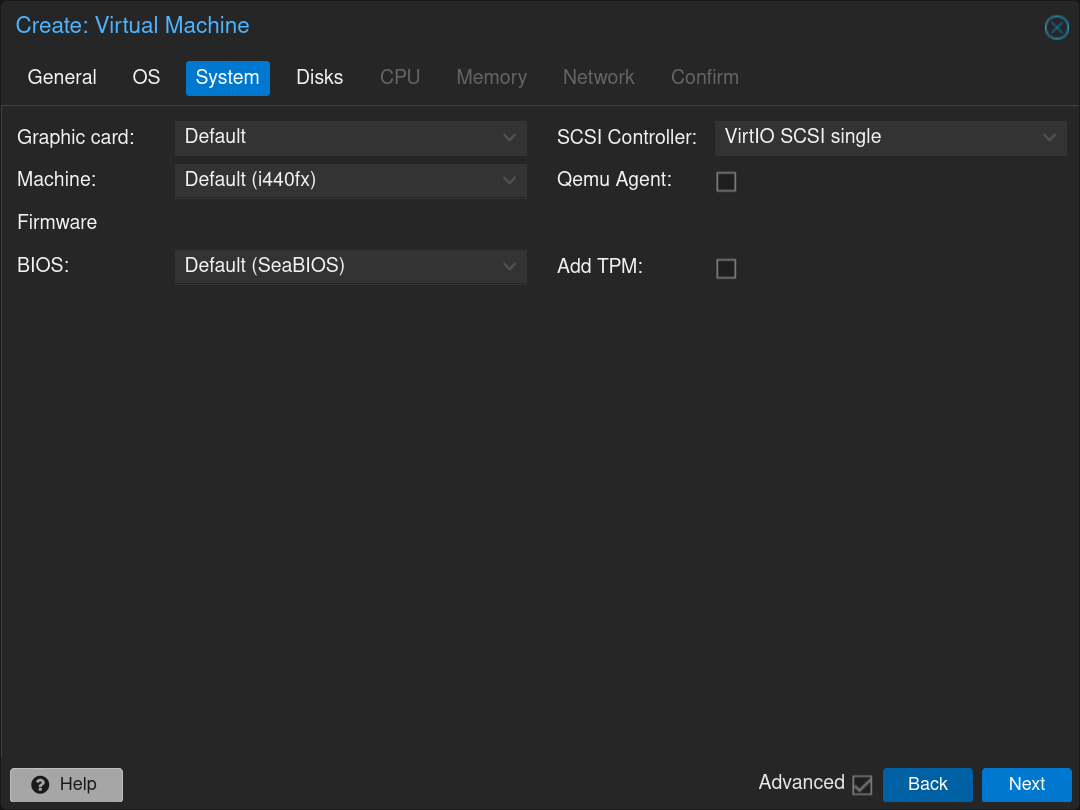
Click Next
Select the disk in which install it and the size of the partition `32GiB` and click Next
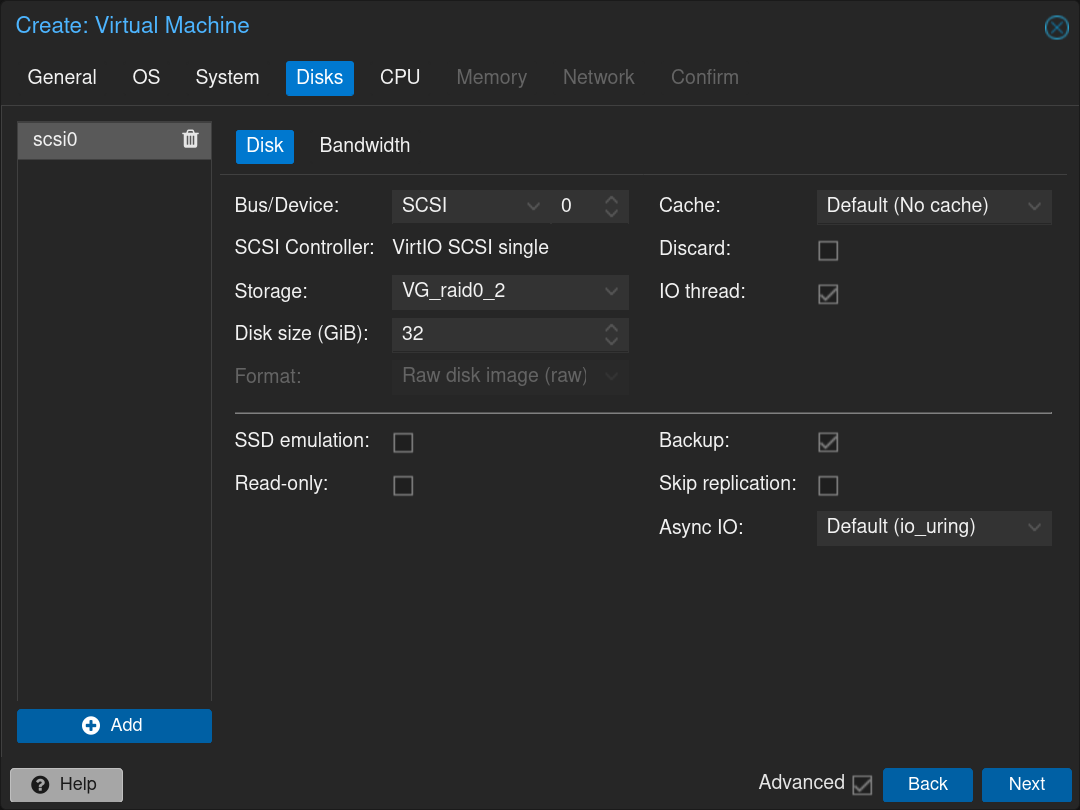
Select the number of CPUs to allocate: 1 CPU with 2 cores and click Next
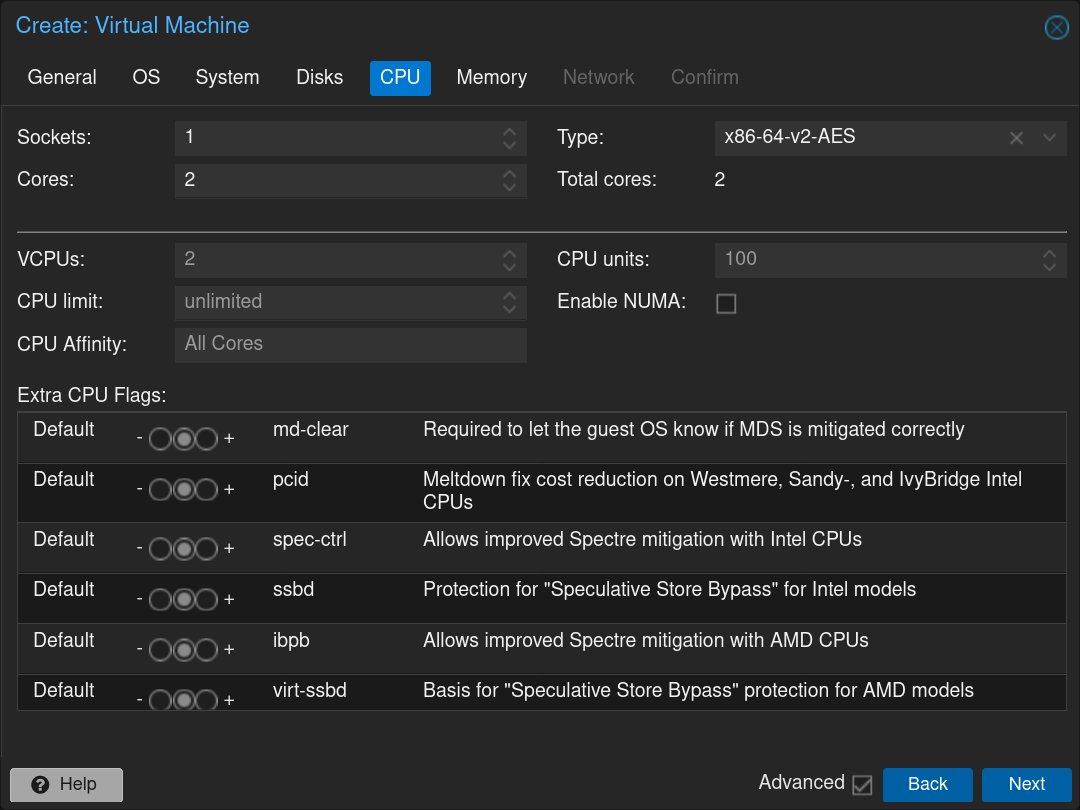
Select the RAM to allocate: `2048MB` and click Next
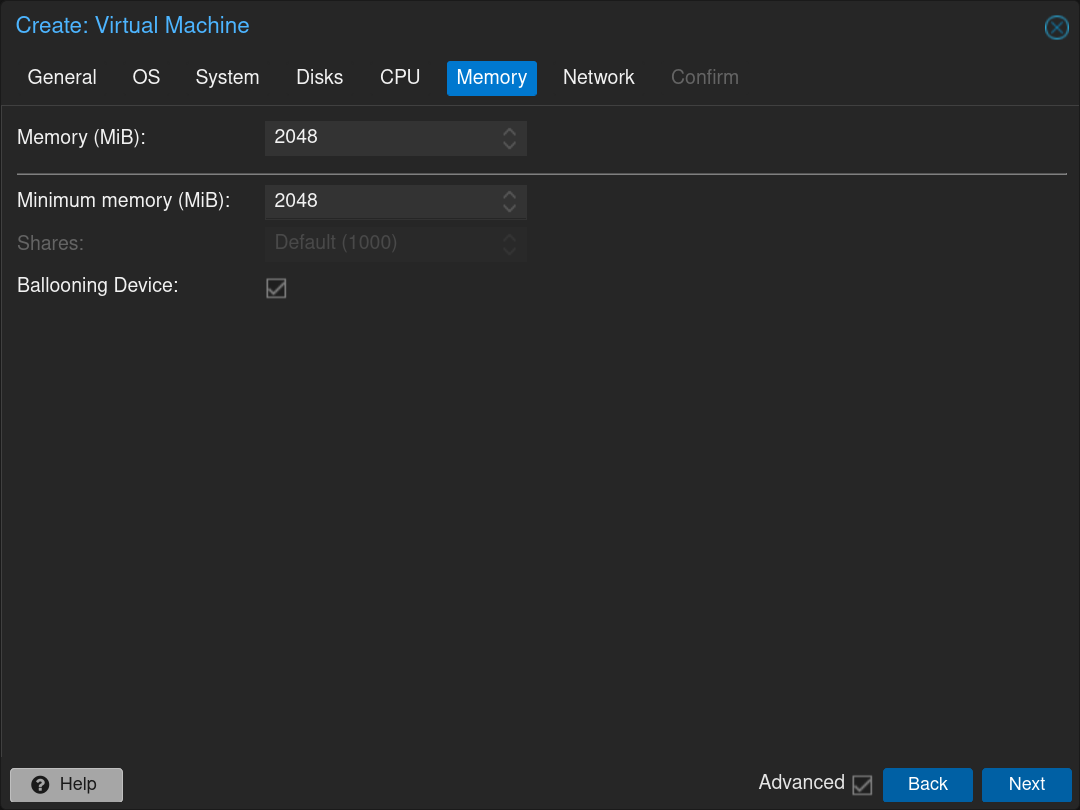
Select the first network interface: `vmbr0` (WAN interface) and click Next
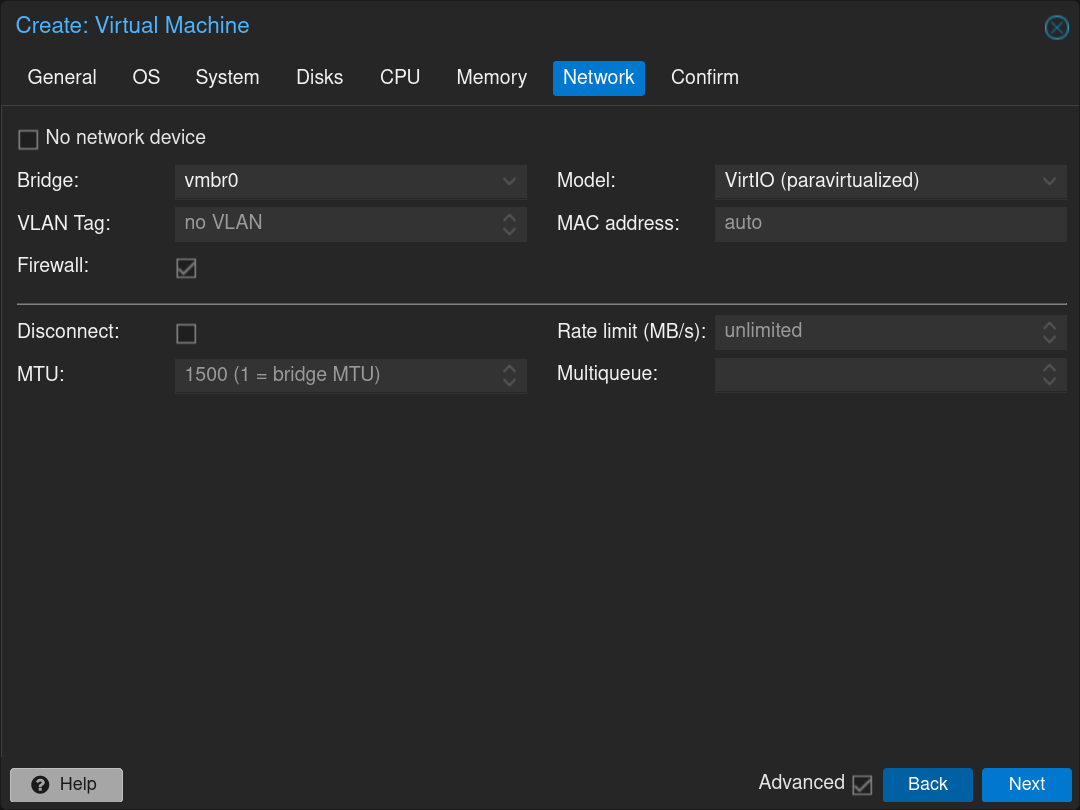
Confirm the creation of the pfSense VM
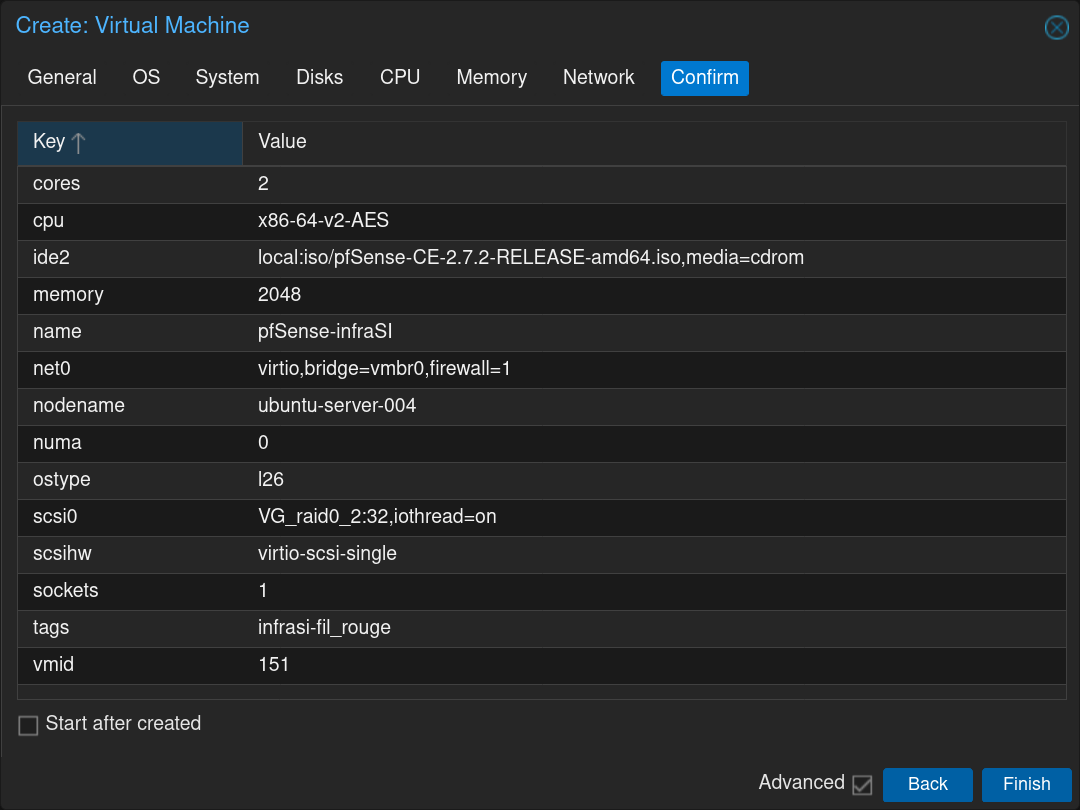
Click on the newly created VM and then click on the tab **Hardware**
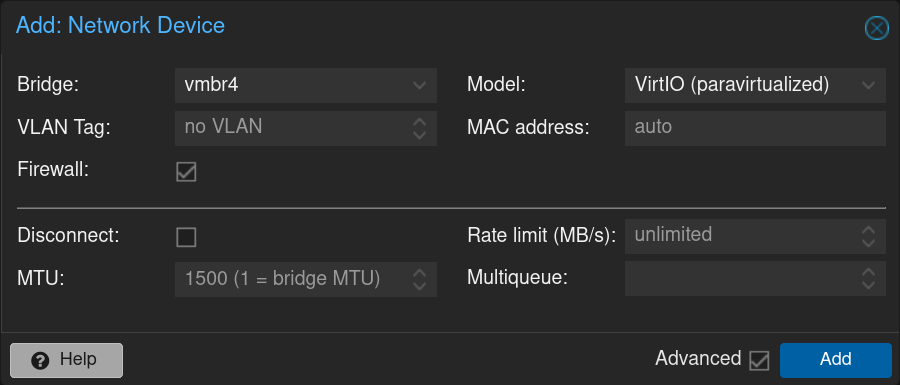
Click on **Add** and then on **Network Device** and select the Bridge `vmbr4` dedicated to the **DMZ** network then click on the **Add** button
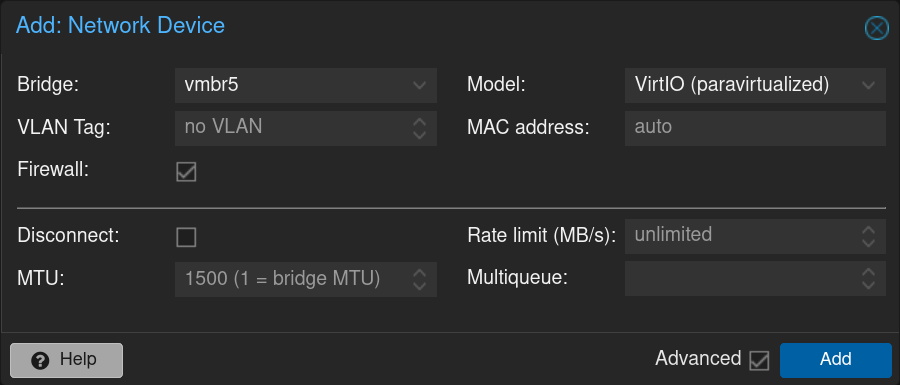
Repeat the process with the Bridge `vmbr5` dedicated to the **LAN** network with the VLANs
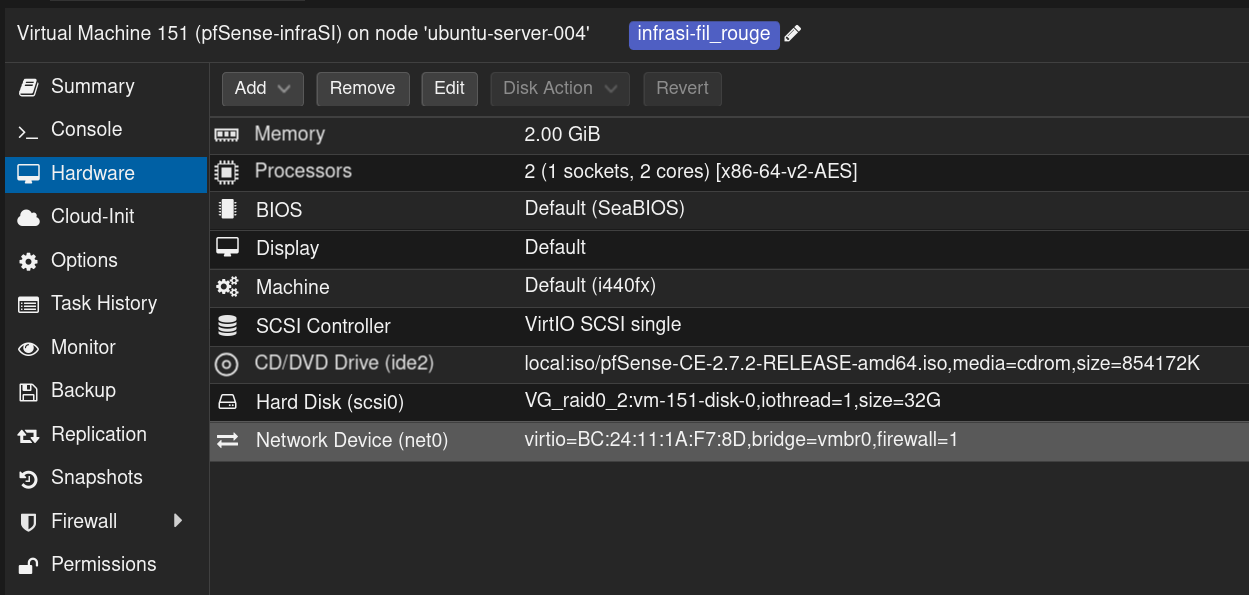
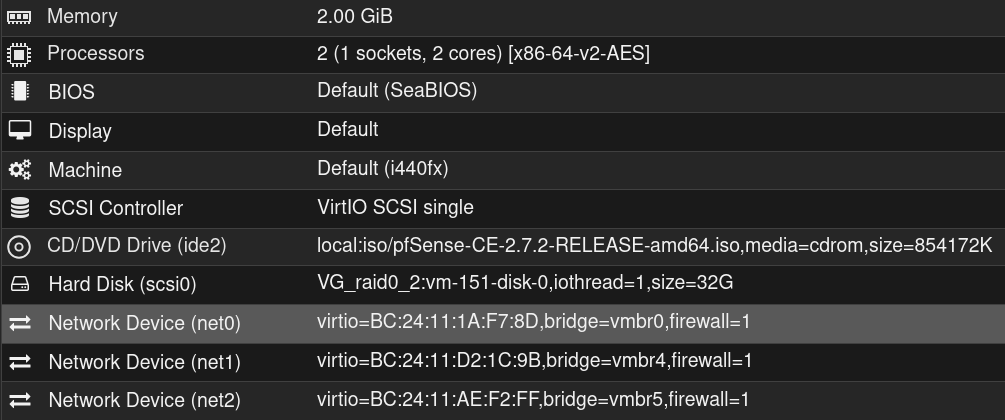
Here is the result
Click on
on the top right of the screen

Fill the form with the name of the VM `pfSense-infraSI` and click Next

Select the pfSense `.iso` image and click Next

Click Next

Select the disk in which install it and the size of the partition `32GiB` and click Next

Select the number of CPUs to allocate: 1 CPU with 2 cores and click Next

Select the RAM to allocate: `2048MB` and click Next

Select the first network interface: `vmbr0` (WAN interface) and click Next

Confirm the creation of the pfSense VM

Click on the newly created VM and then click on the tab **Hardware**

Click on **Add** and then on **Network Device** and select the Bridge `vmbr4` dedicated to the **DMZ** network then click on the **Add** button

Repeat the process with the Bridge `vmbr5` dedicated to the **LAN** network with the VLANs

Here is the result

Click on  and then on
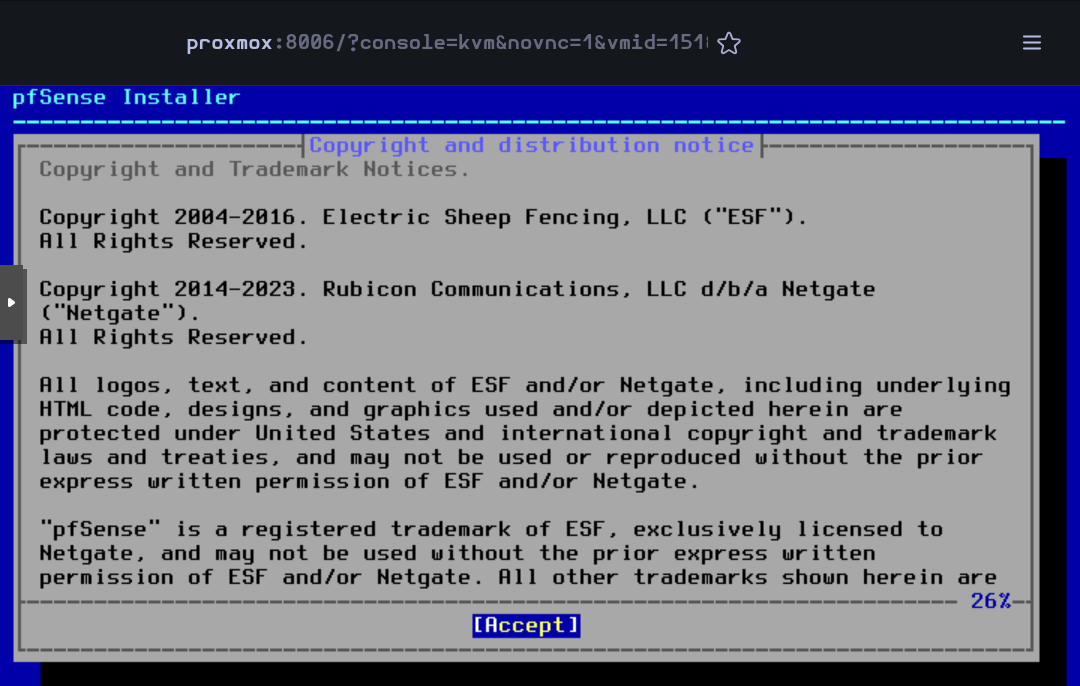
  Then the VM will boot and the installer will start. Accept the license and rights
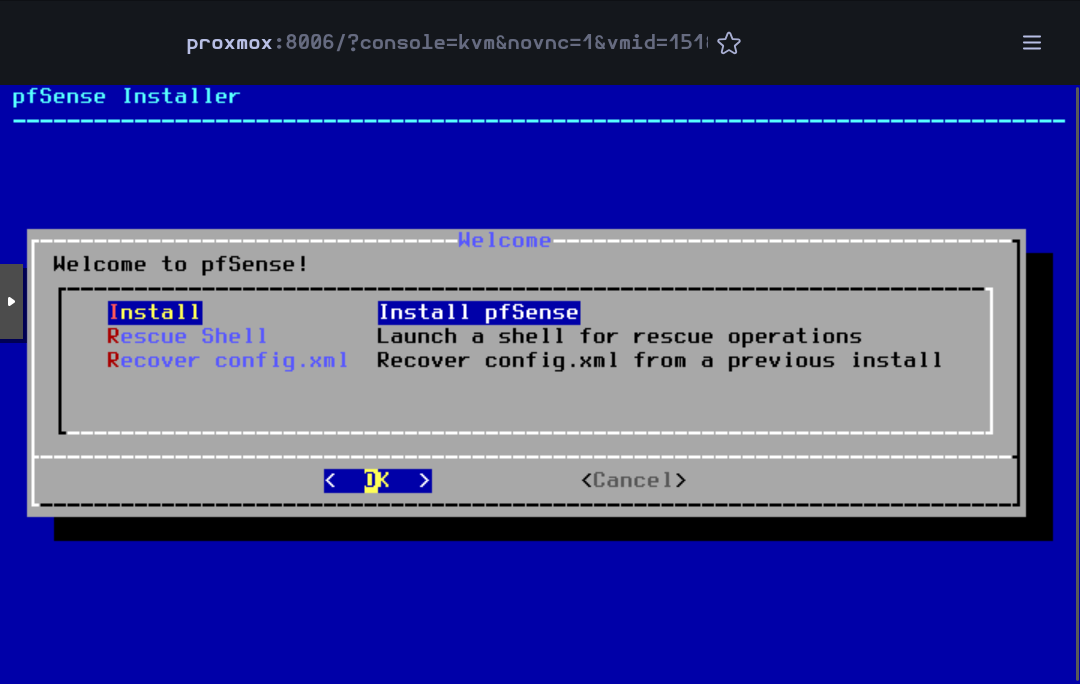
Press on `Enter` to begin the installation
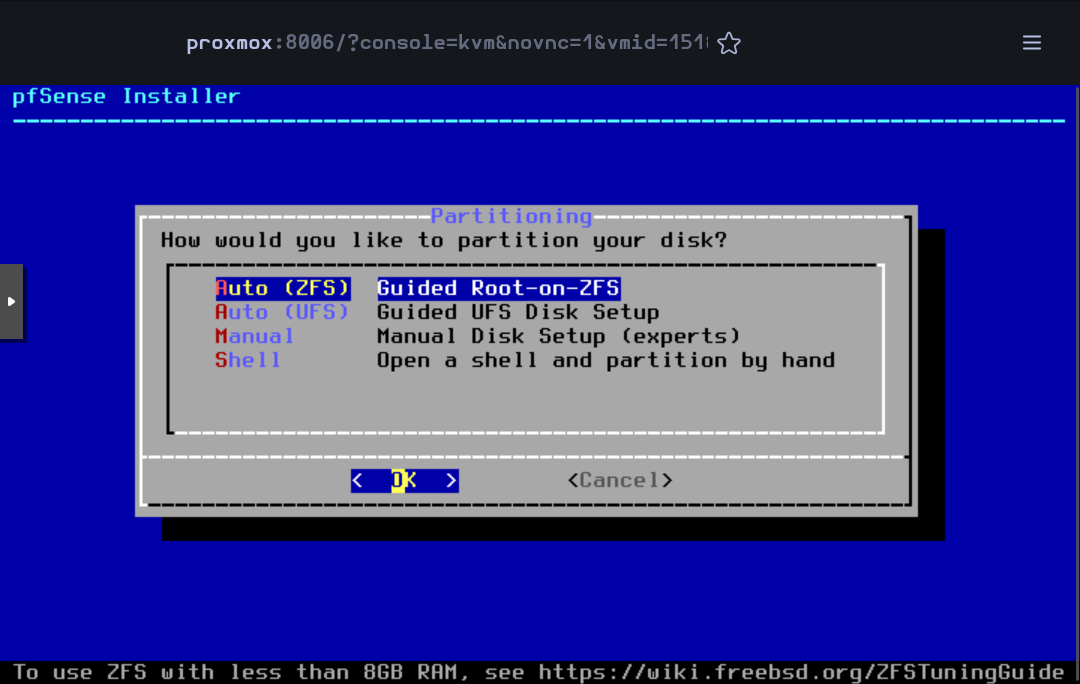
Accept the default partitioning option `Auto (ZFS)`
Press `Enter` to begin the installation
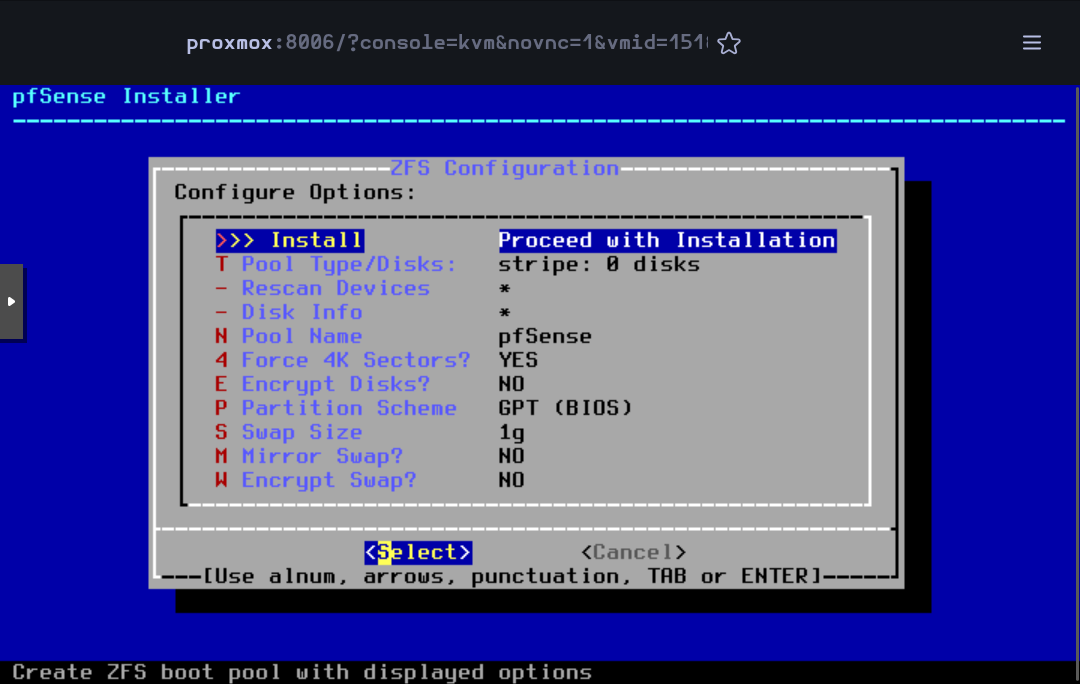
Press `Enter` to accept the default `Stripe` mode
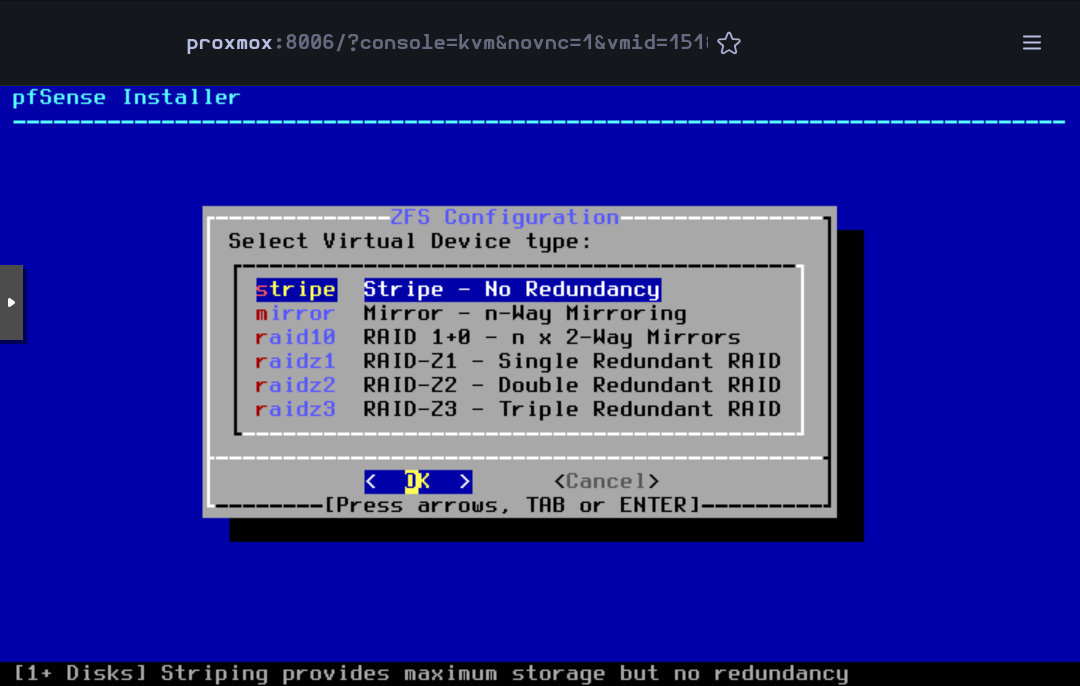
Press `Space` to select the disk and then `Enter` to go on
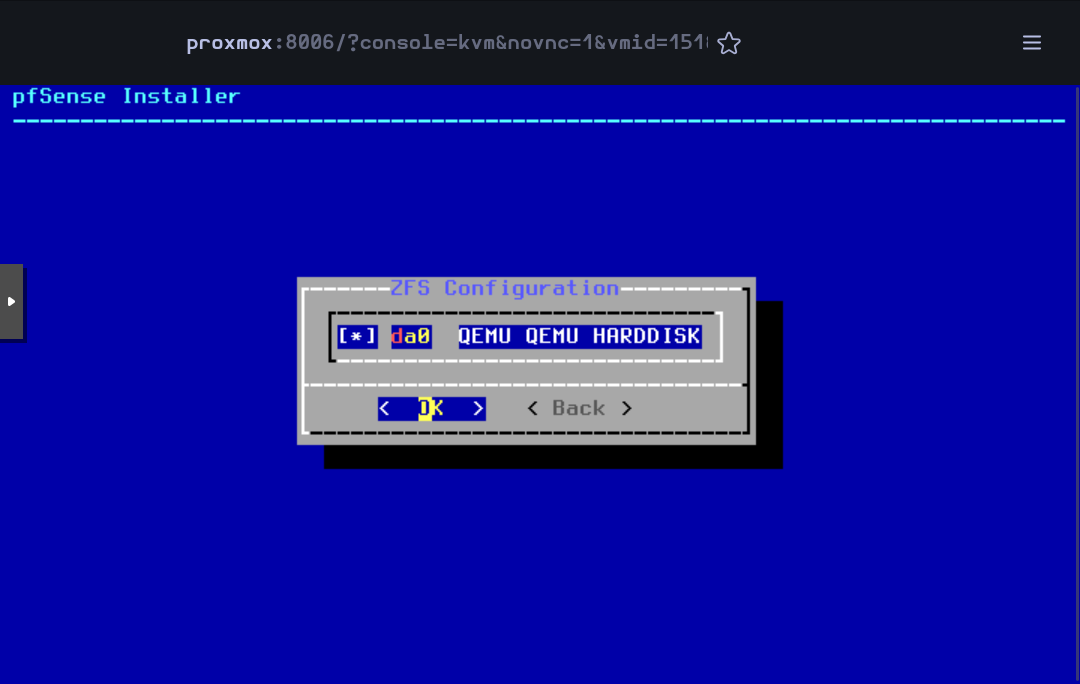
Select `Yes` and press `Enter`
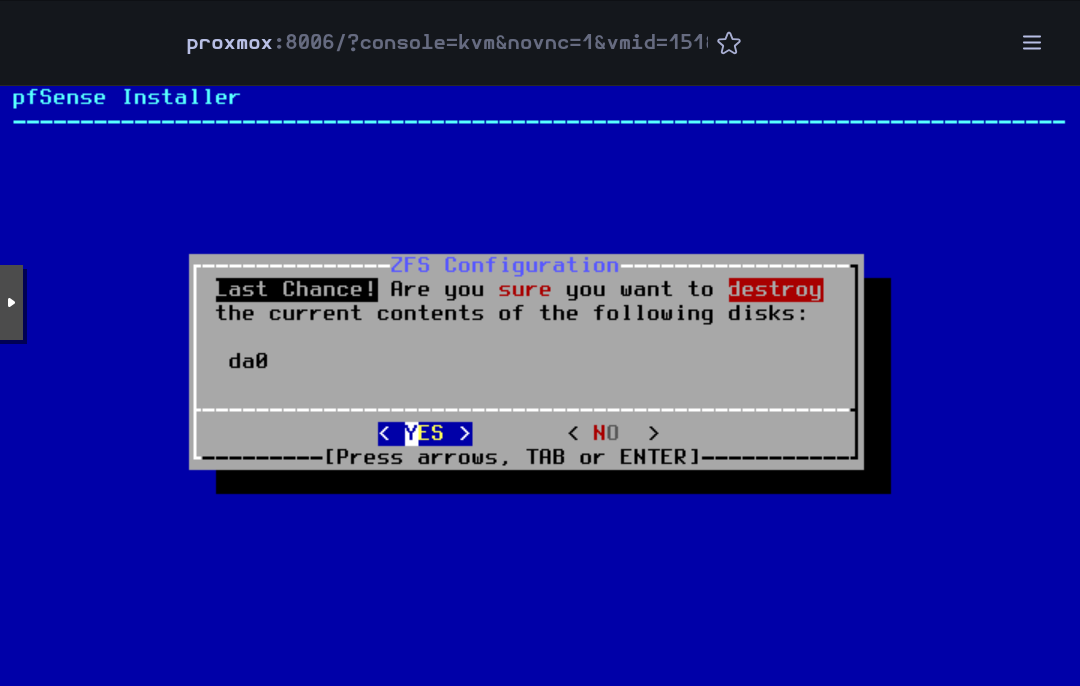
Then, the installation will begin
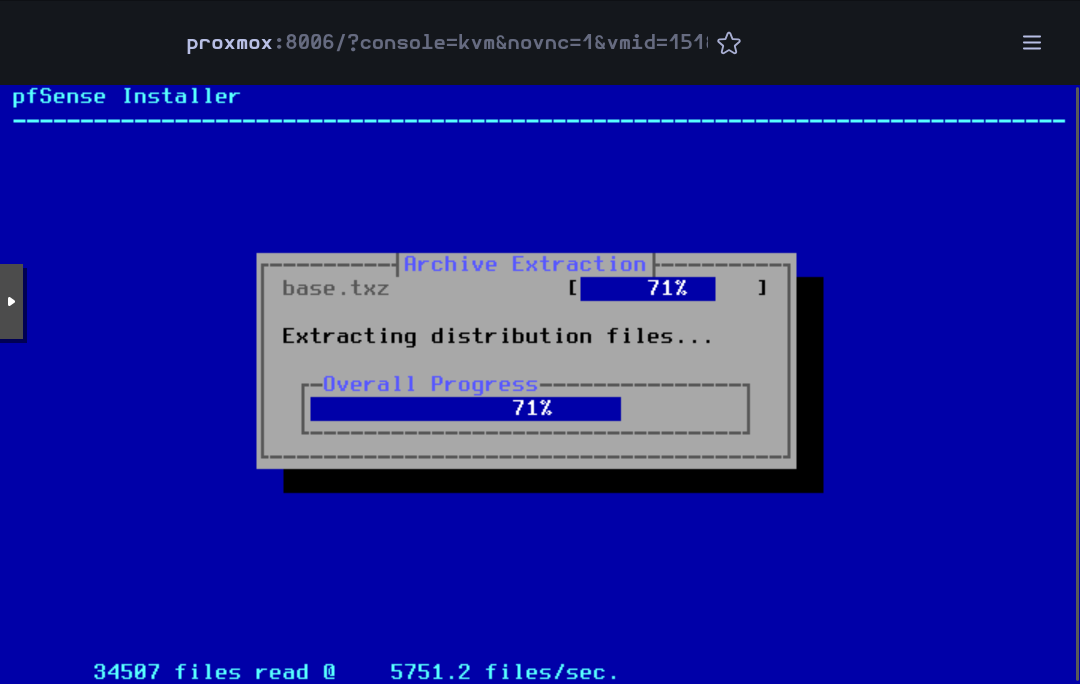
When finished, accept to reboot the VM
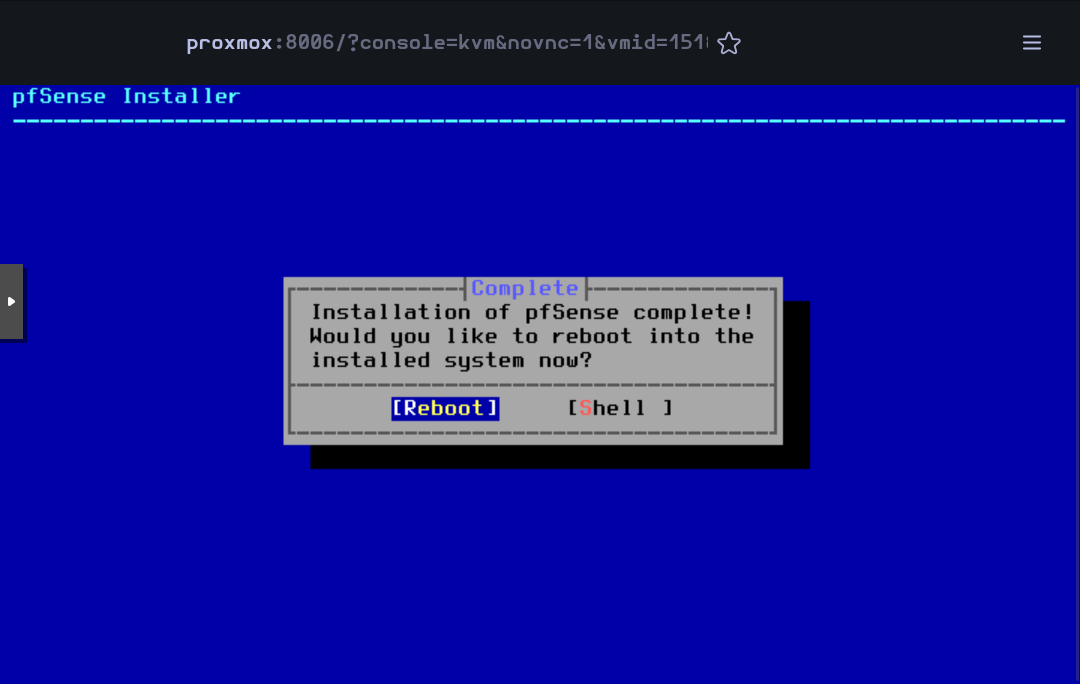
While rebooting, you can remove the `.iso` image editing the **CD/DVD Drive** in the **Hardware** section
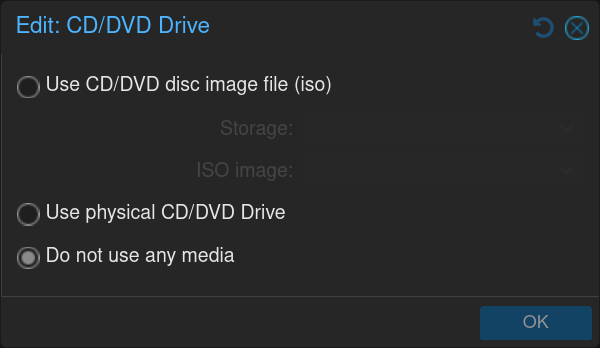
When the VM has rebooted, some basic configuration will be done in the command line interface.
For the VLANs, type `n` for the moment (they will be created in the web interface)
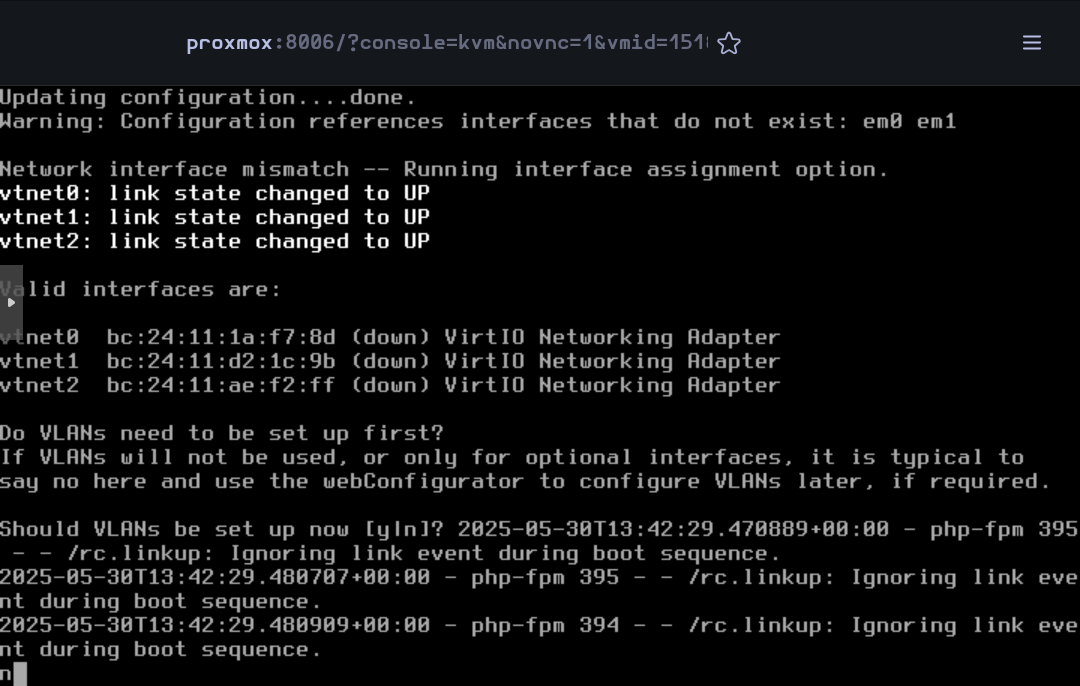
Type `vtnet0` for the **WAN** interface, `vtnet1` for the **LAN** and `vtnet2` for the **OPT1**
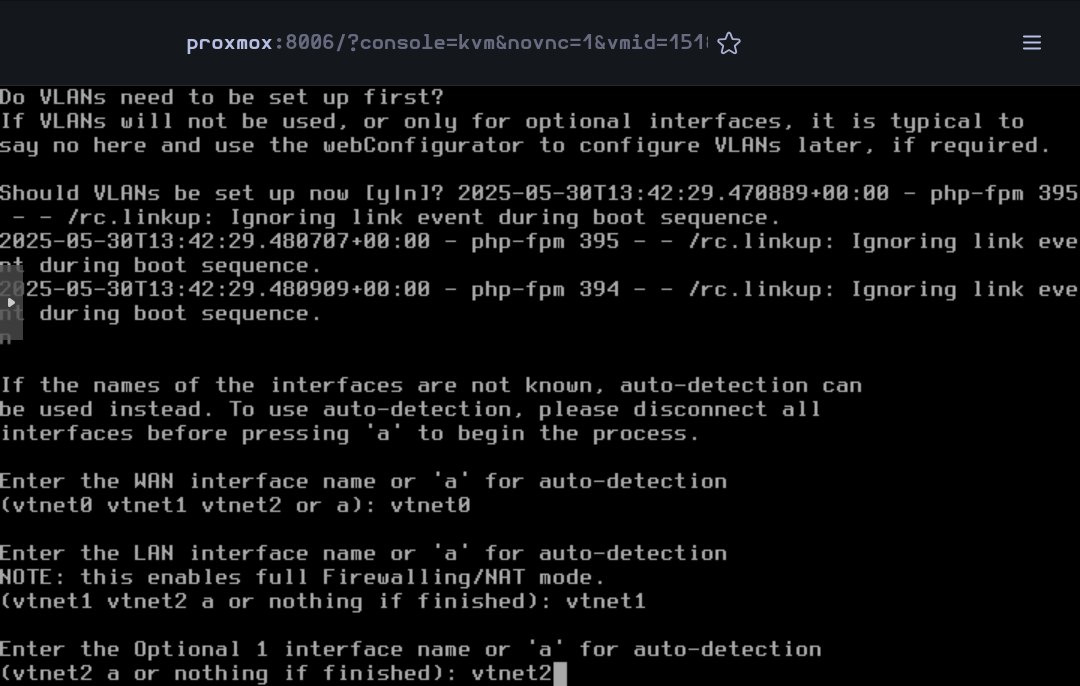
Confirm the network interface configuration
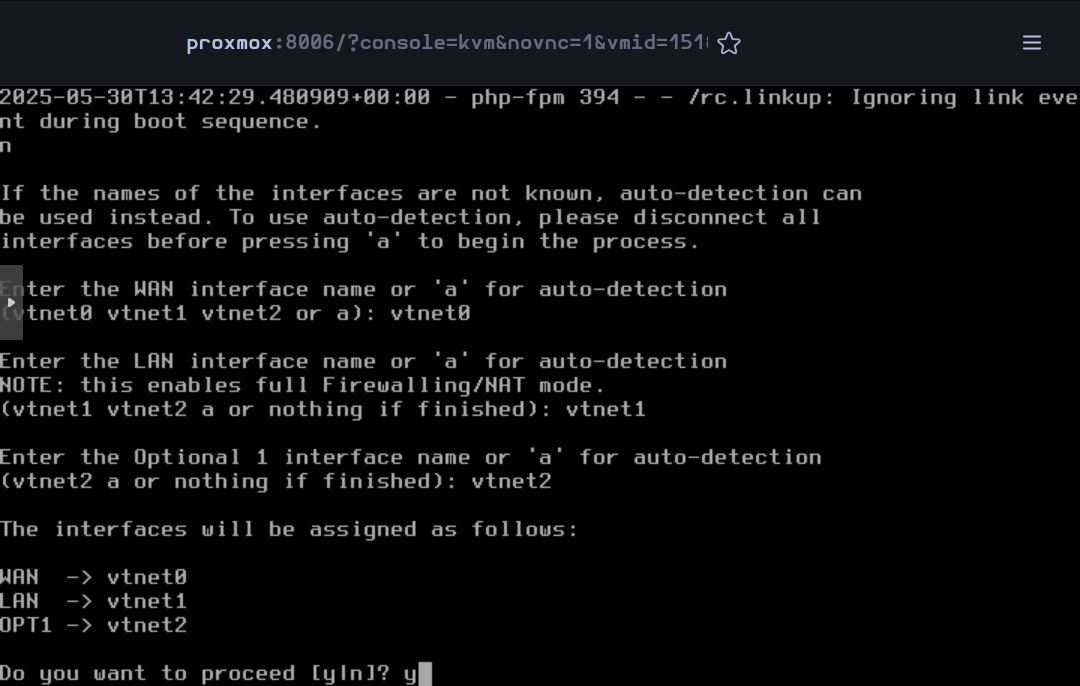
Now the installation is complete. The rest of the configuration will be done on the web interface.
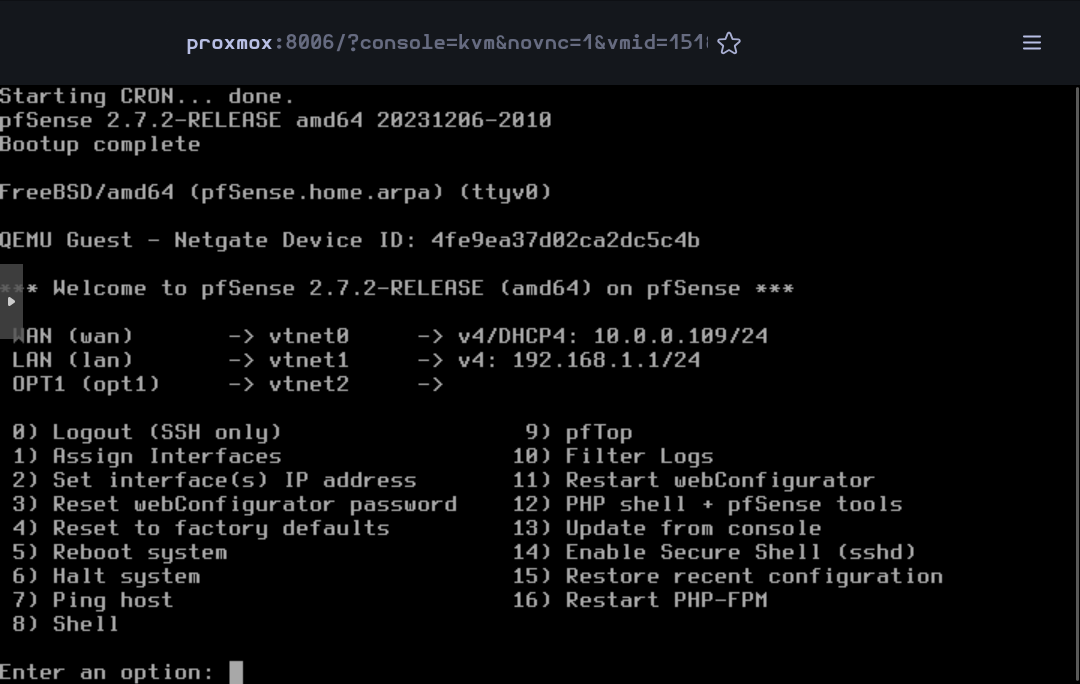
Open the browser and go to pfSense's web interface. Accept the warning to continue.
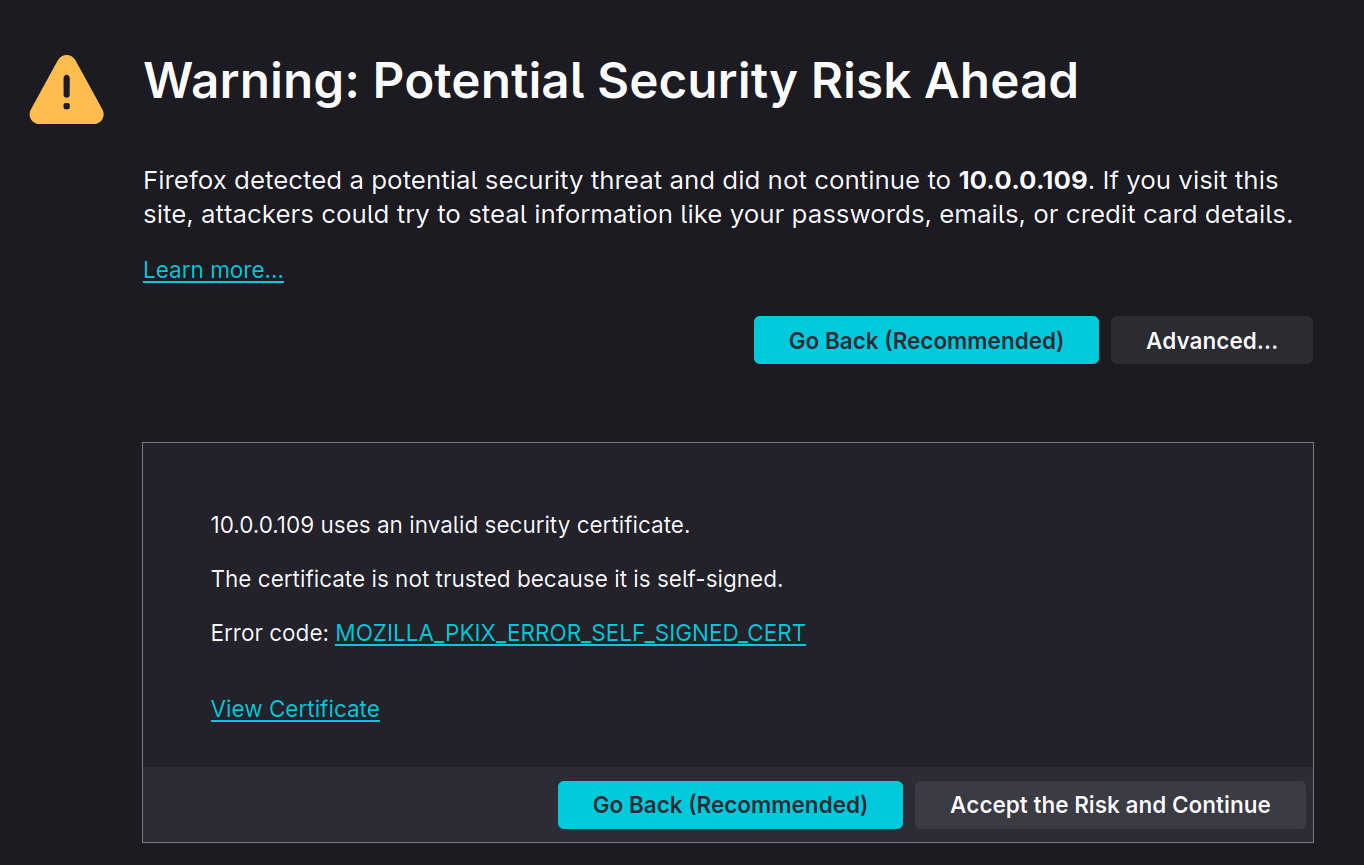
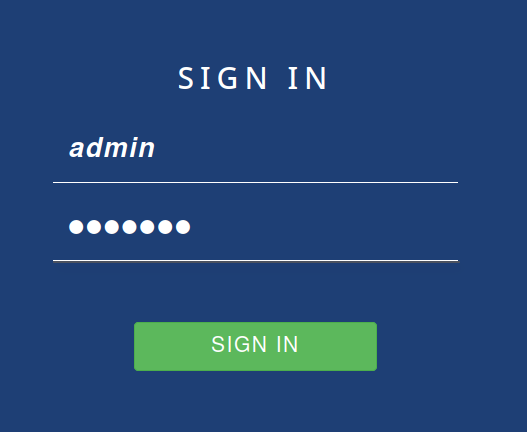
Then log in the web configurator with the default credentials (`admin` - `pfsense`)
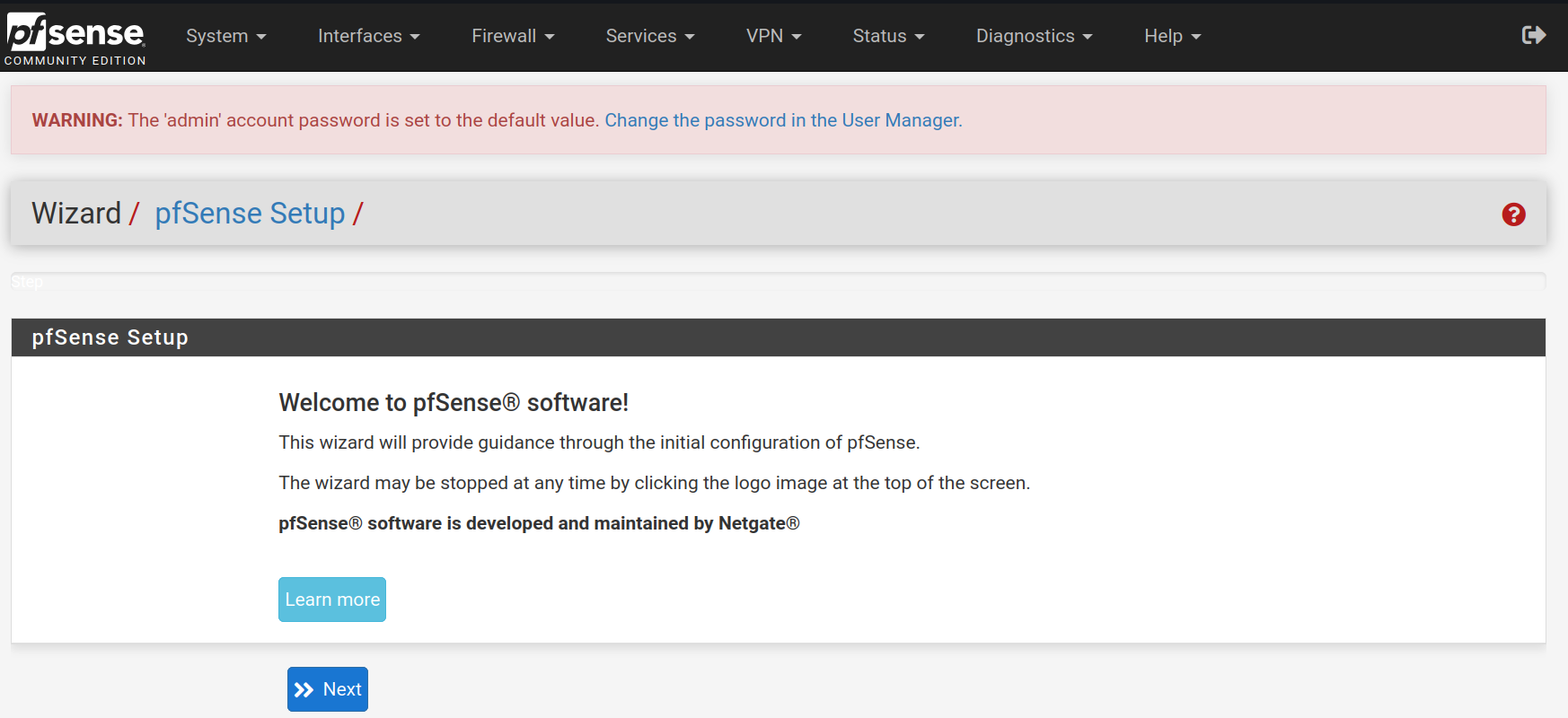
The first thing to do when signing in the web configurator is to follow a setup wizard. Click on `Next`
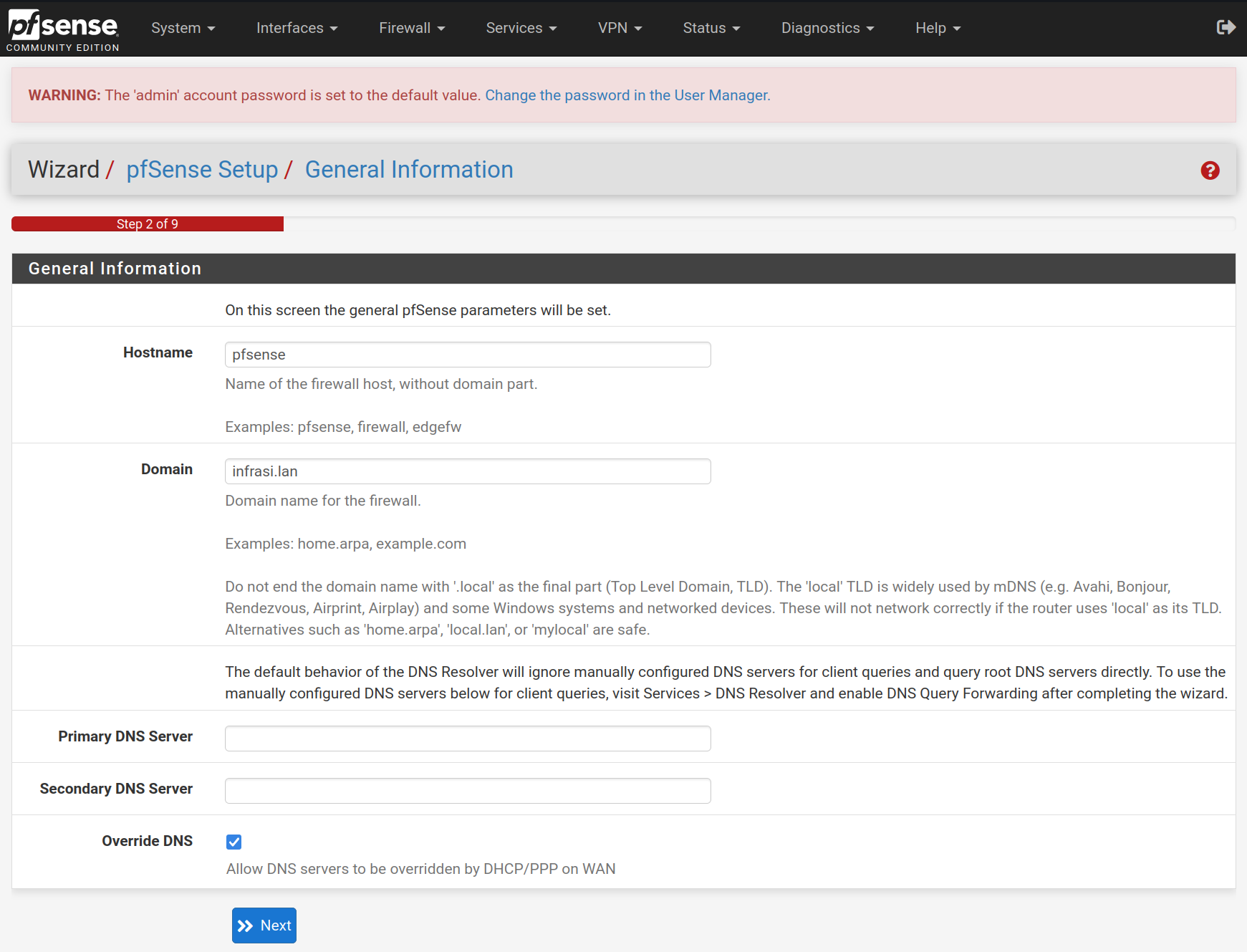
Type `pfsense` in lowercase for the hostname and `infrasi.lan` for the domain name, then click on `Next`
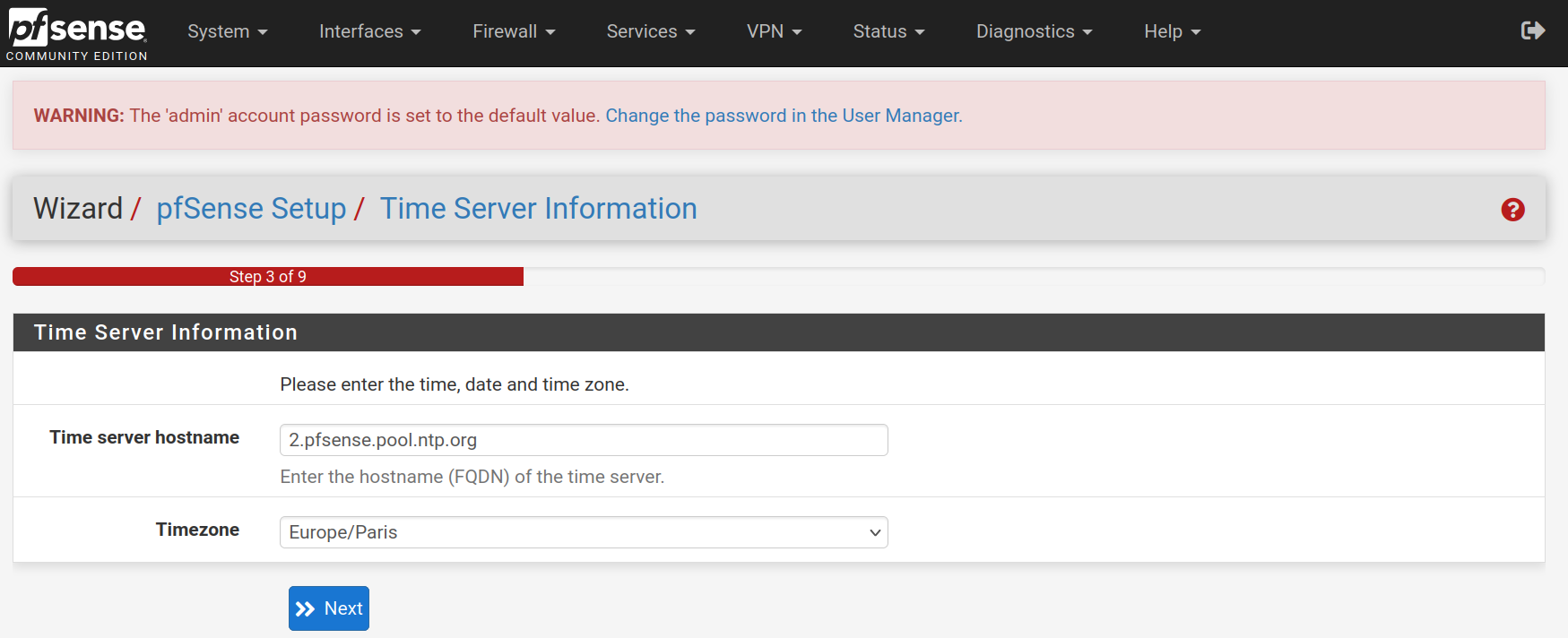
Select the timezone `Europe/Paris` for the **NTP** configuration
Keep the **WAN** interface set on `DHCP` and uncheck the `Block RFC1918 Private Networks` and `Block bogon networks` rules and click on `Next`



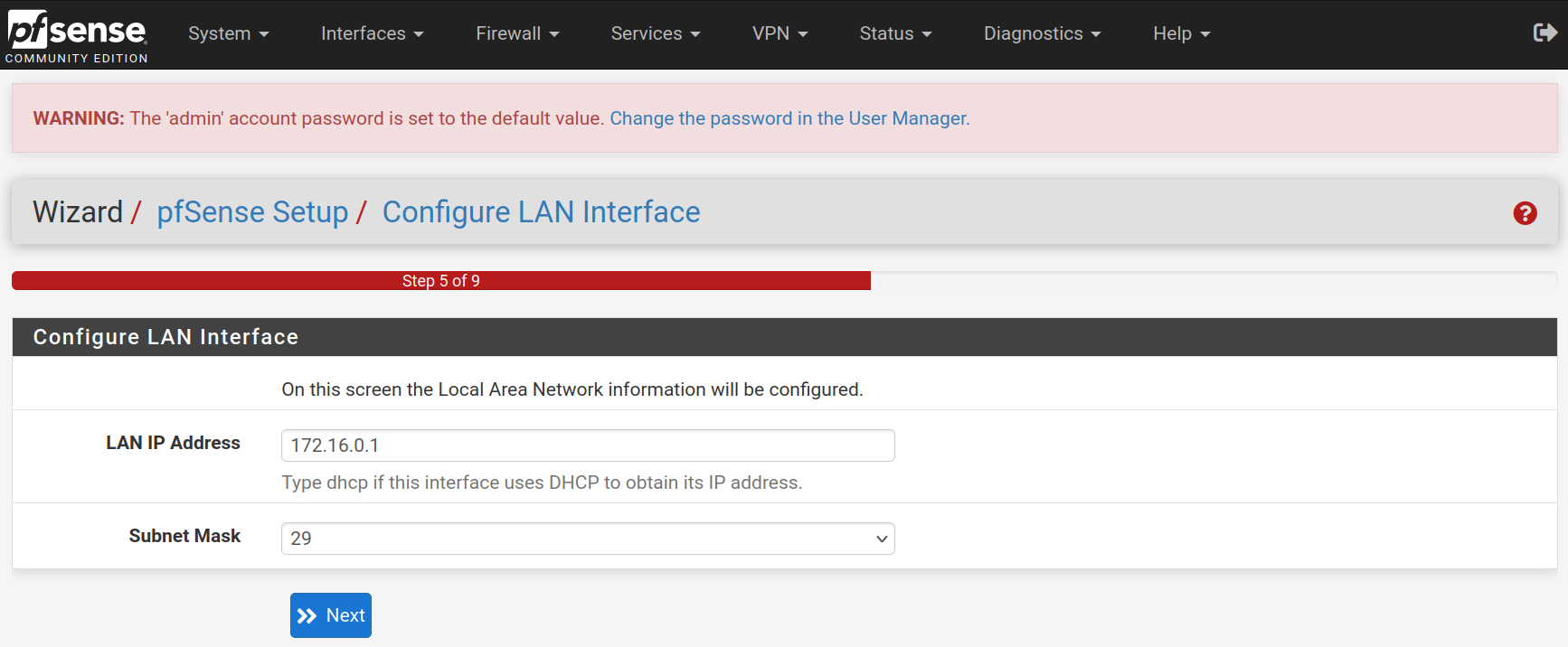
For the **LAN** interface, type the static IP address `172.16.0.1` and the subnet mask `29` to allow 6 hosts for the moment. It will be easily upscaled afterwards. Then click on `Next`
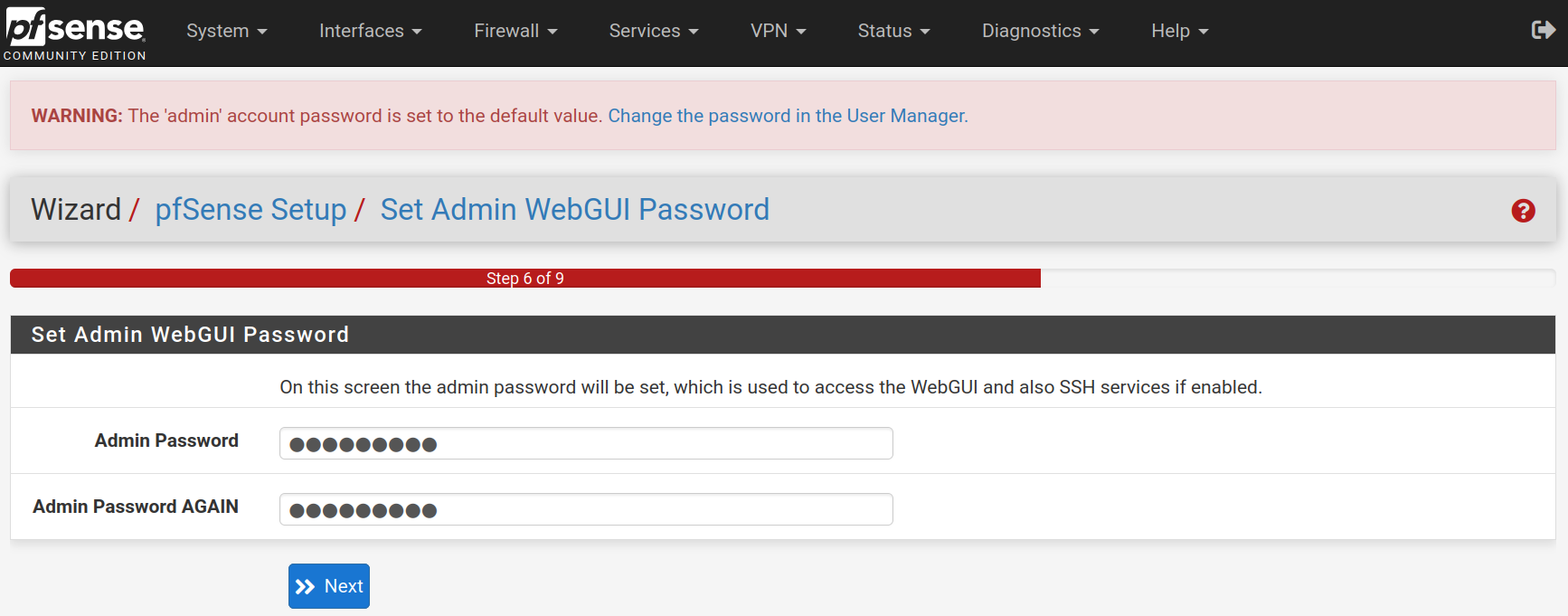
Type a new password and confirm it. Click on `Next`
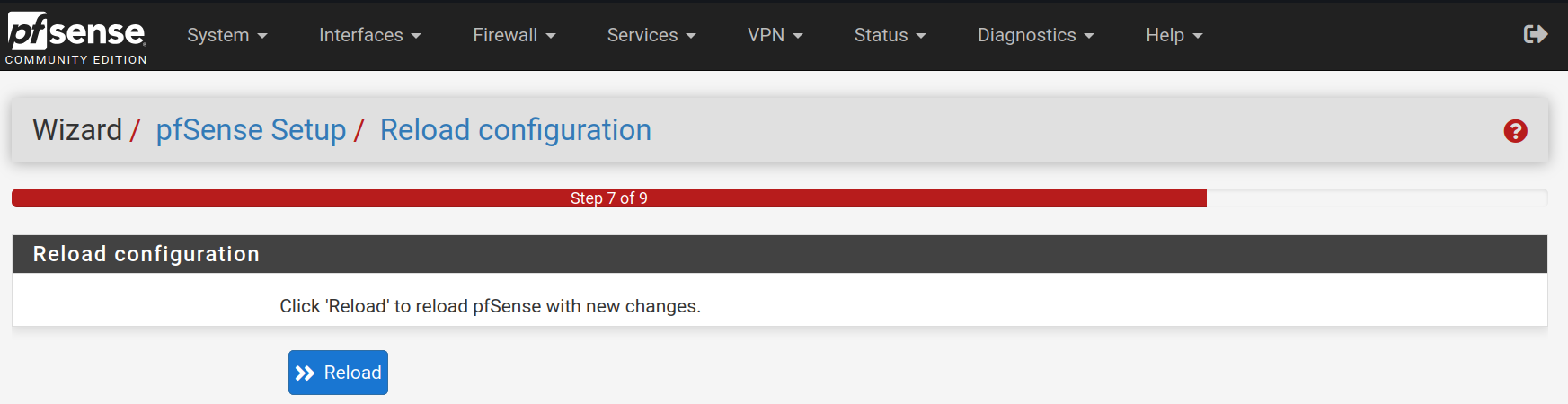
Click on `Reload` to accept and apply the new configurations.
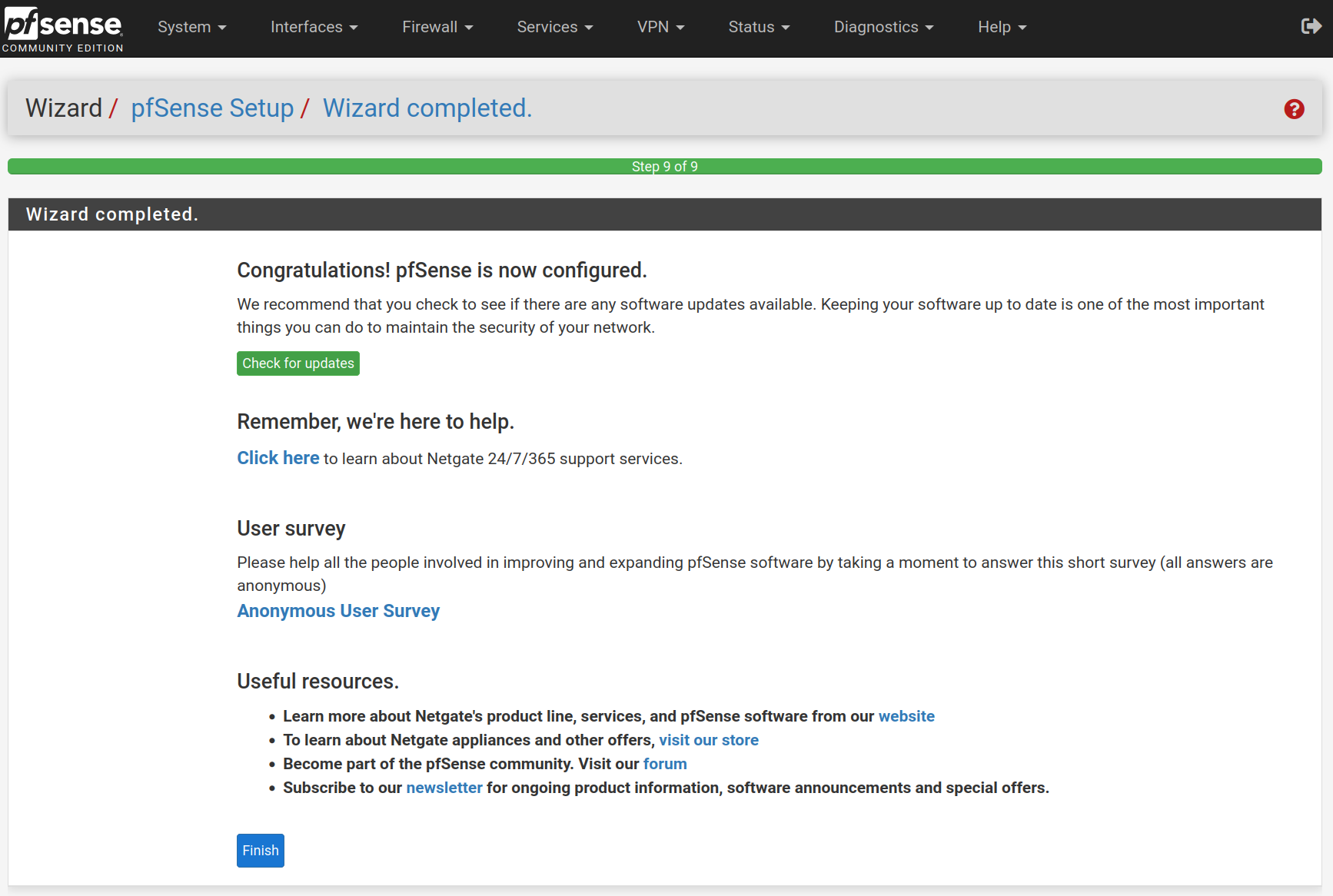
Click on `Finish`
Accept the license and right.
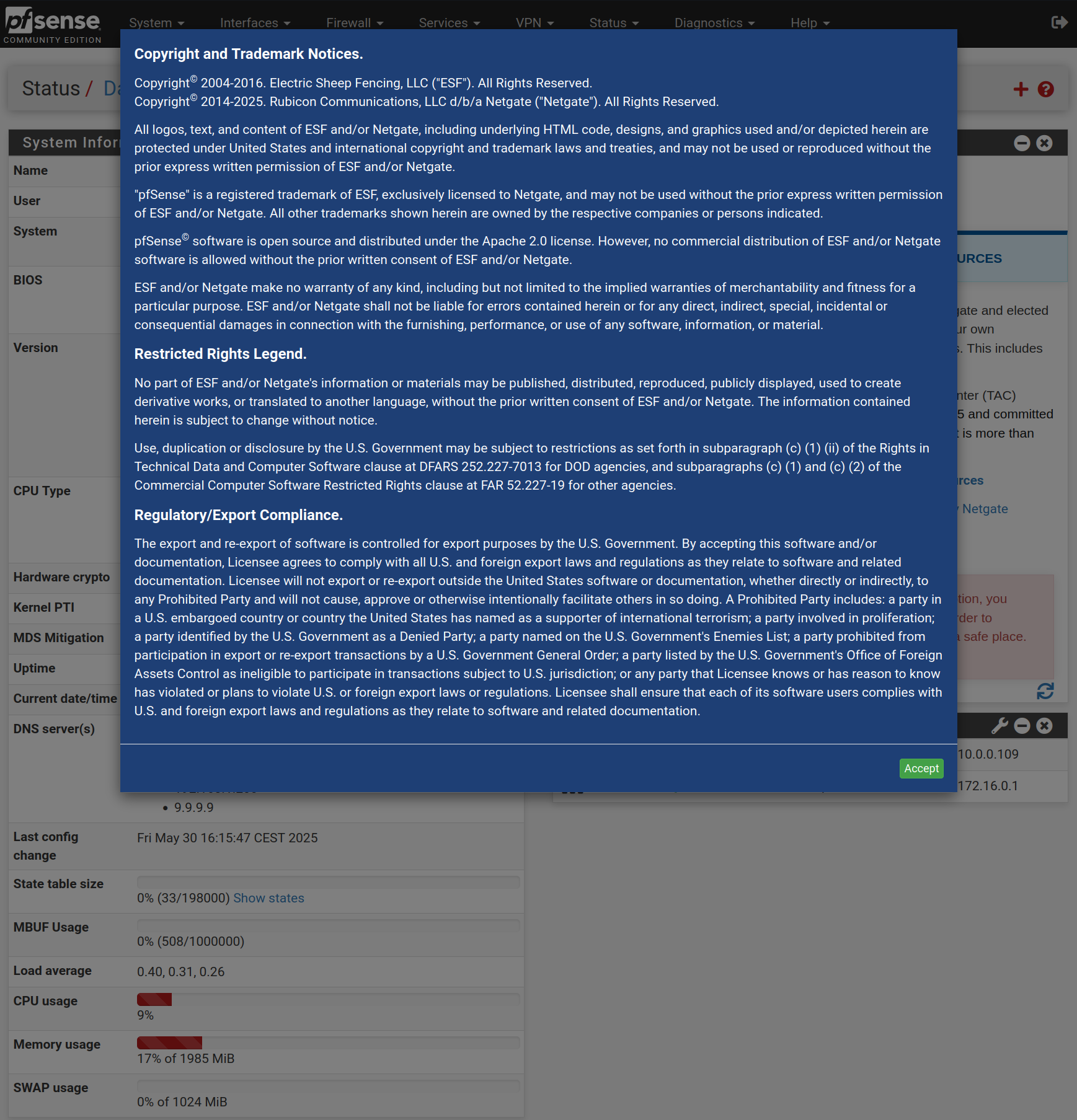
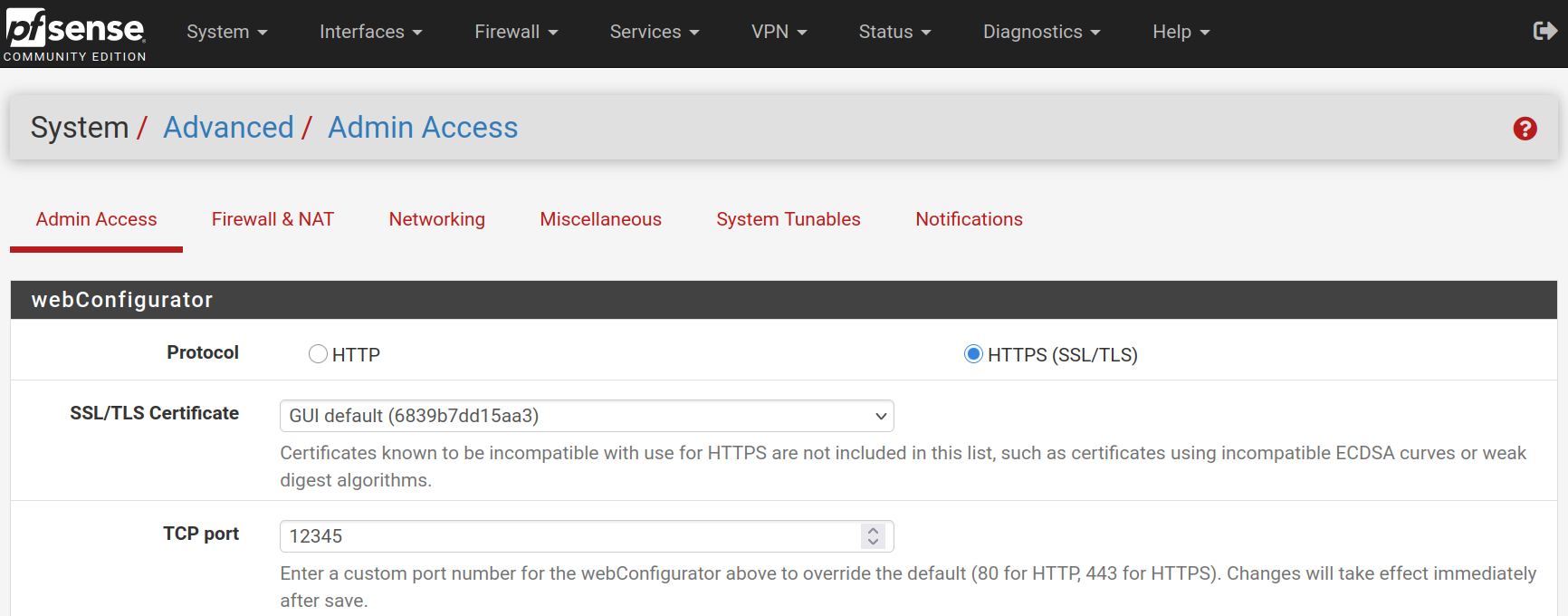
Go to **System > Advanced** and change the web configurator port to `12345` to free the **HTTPS** port.
If you want, you can go to **System > General Setup** to change the CSS theme of the web configurator

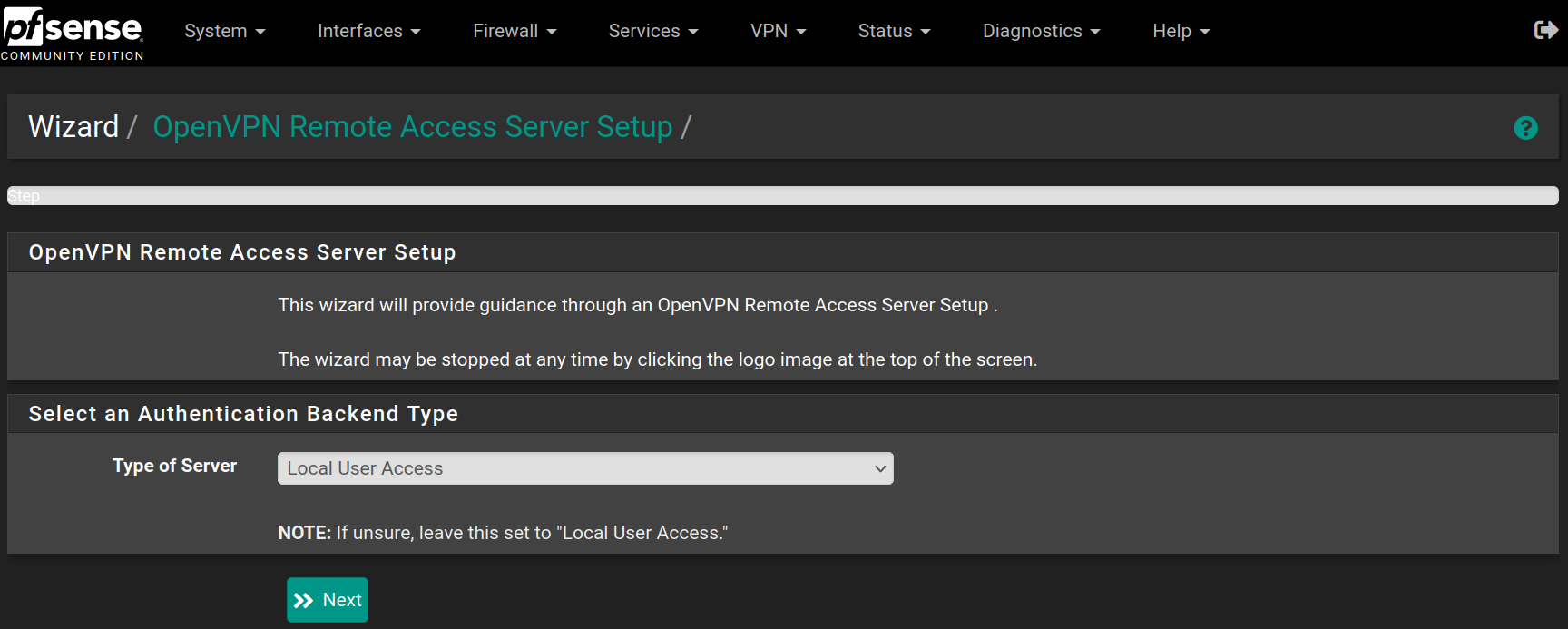
Go to **VPN > OpenVPN** in the **Wizard** tab and click `Next`
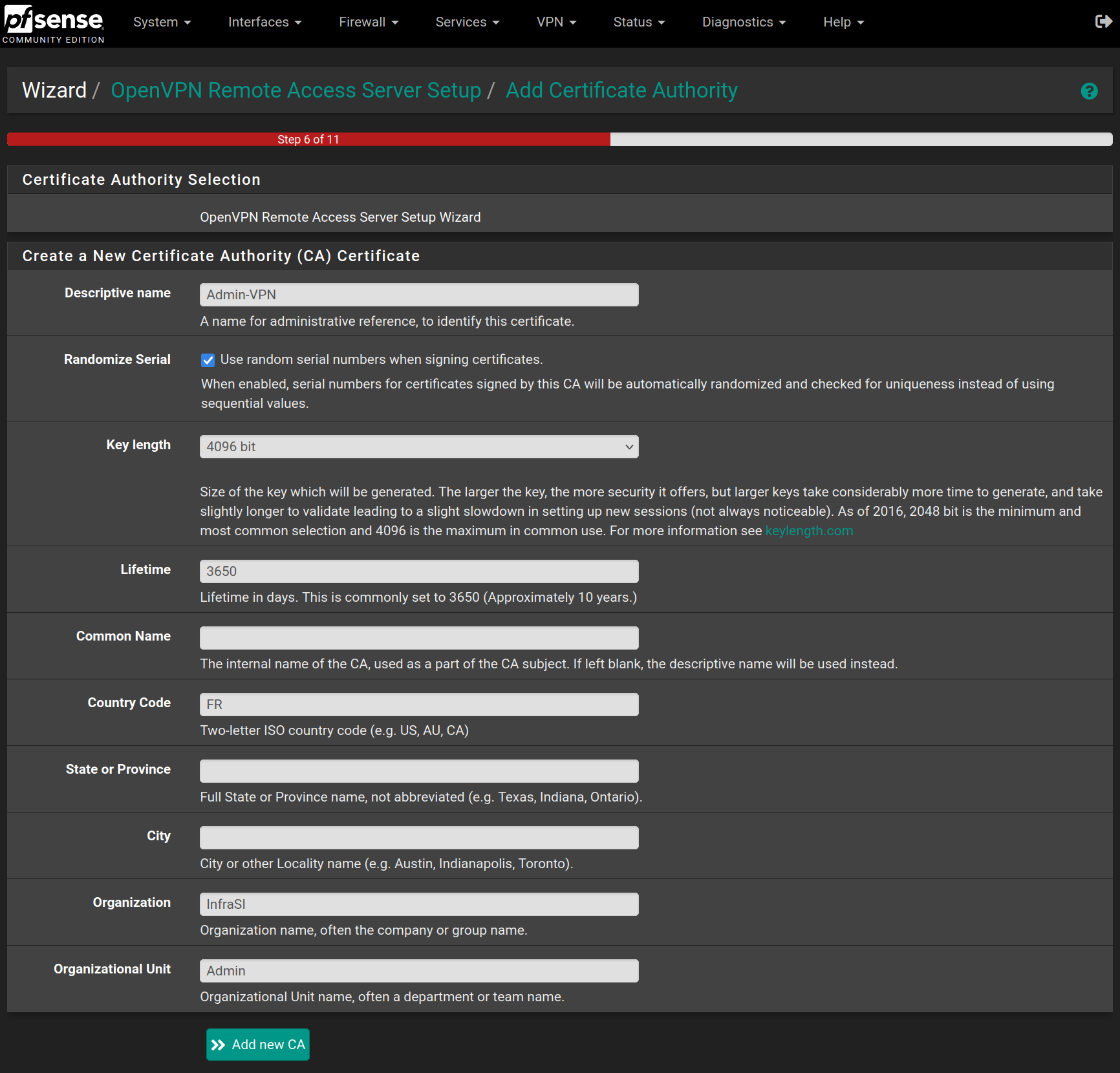
Fill the form with the following values and click on `Add new CA`
Then click on Add new Certificate
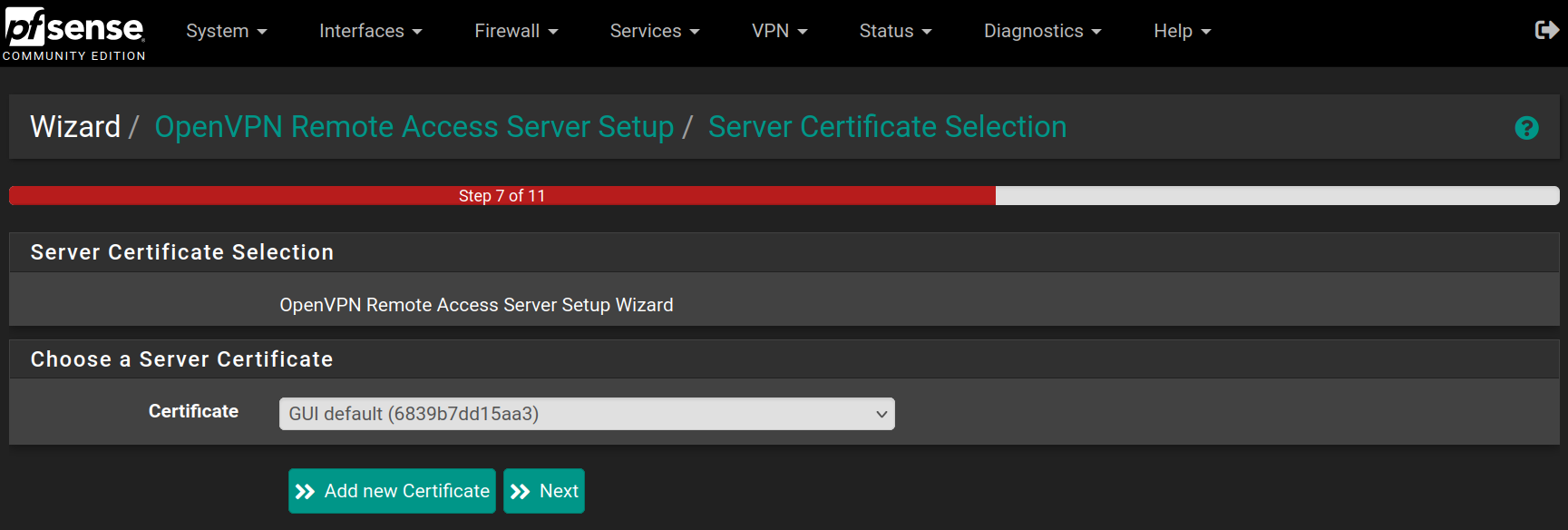
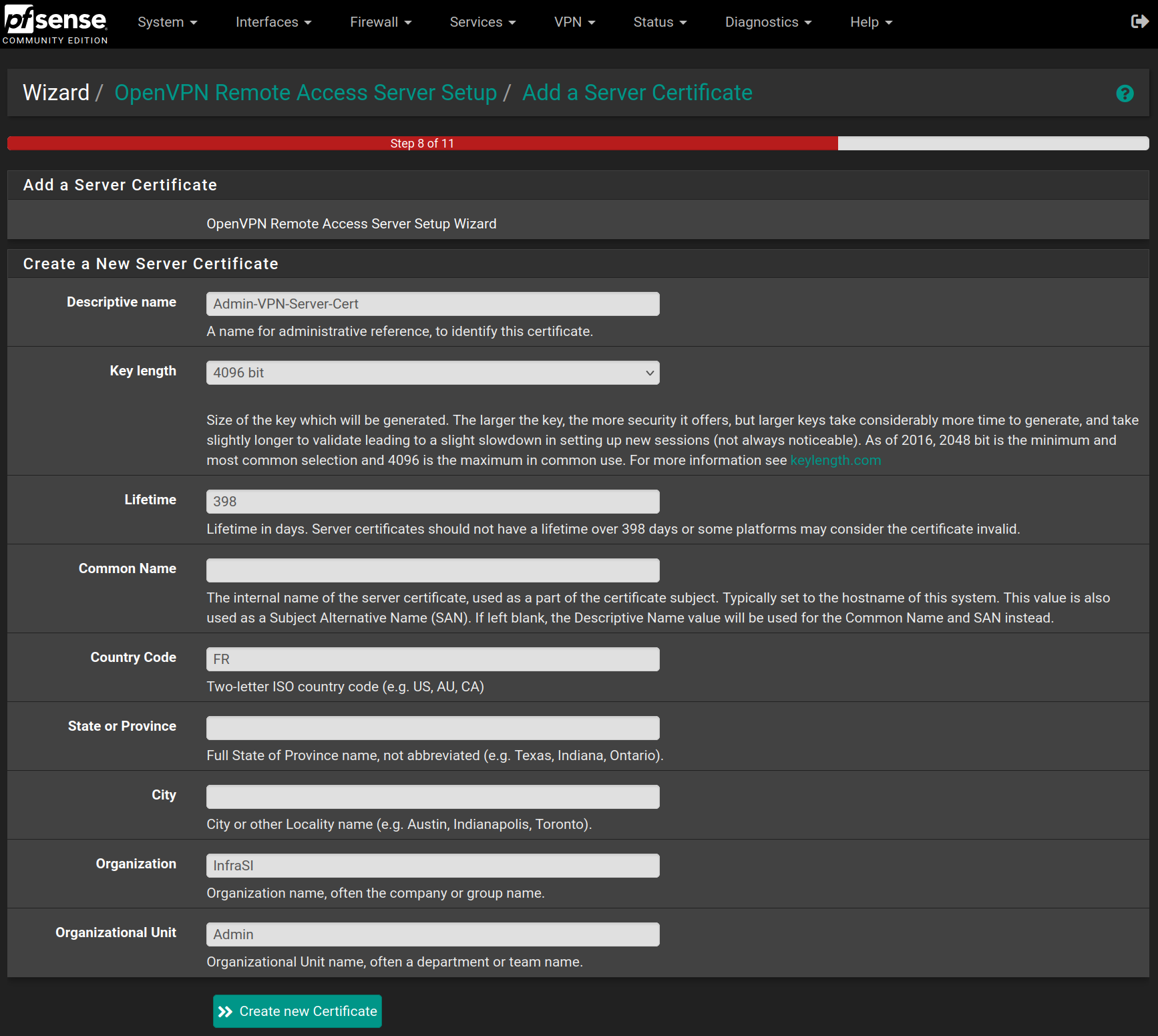
Fill the form with the following values and click on `Create new Certificate`
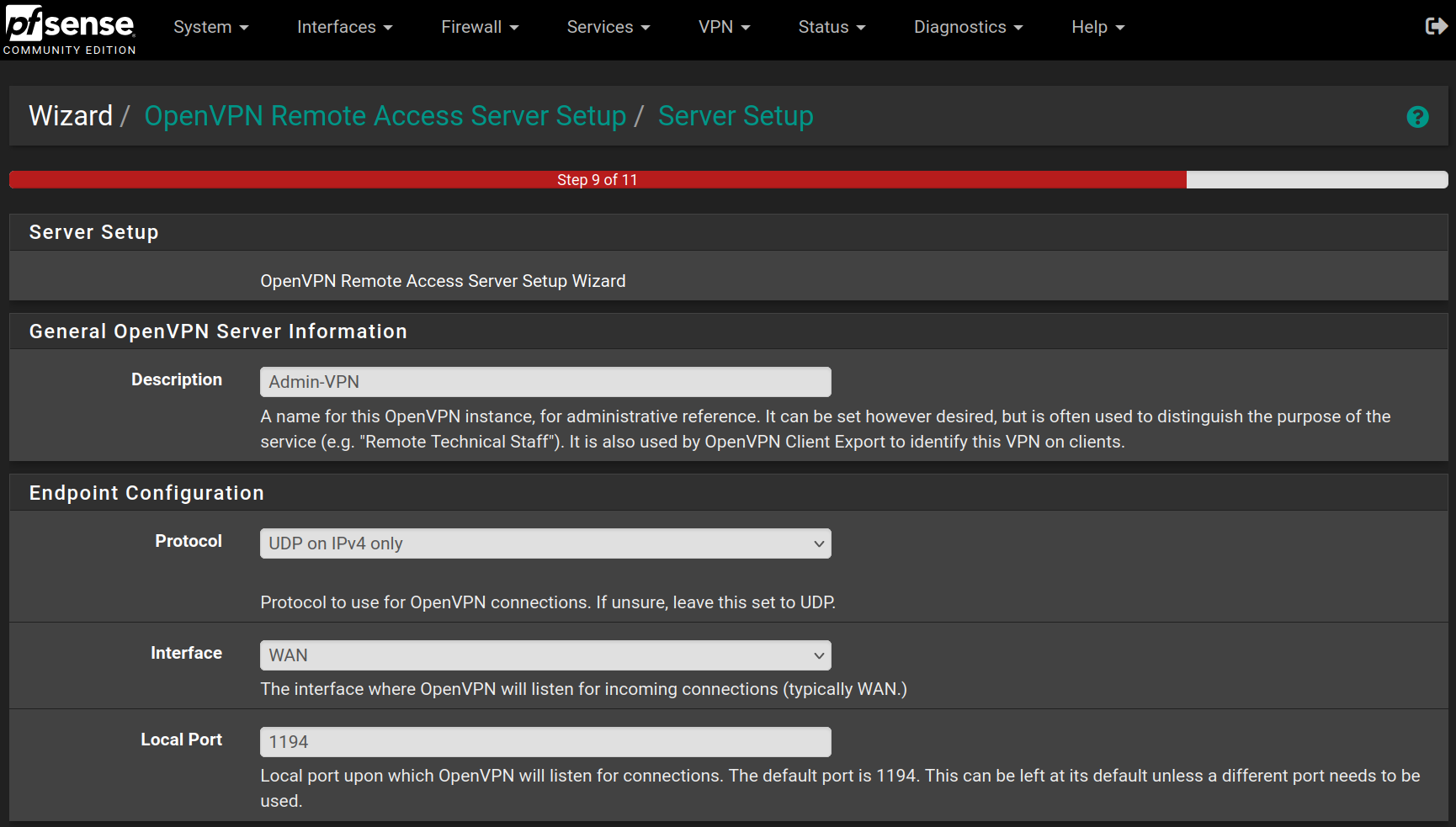
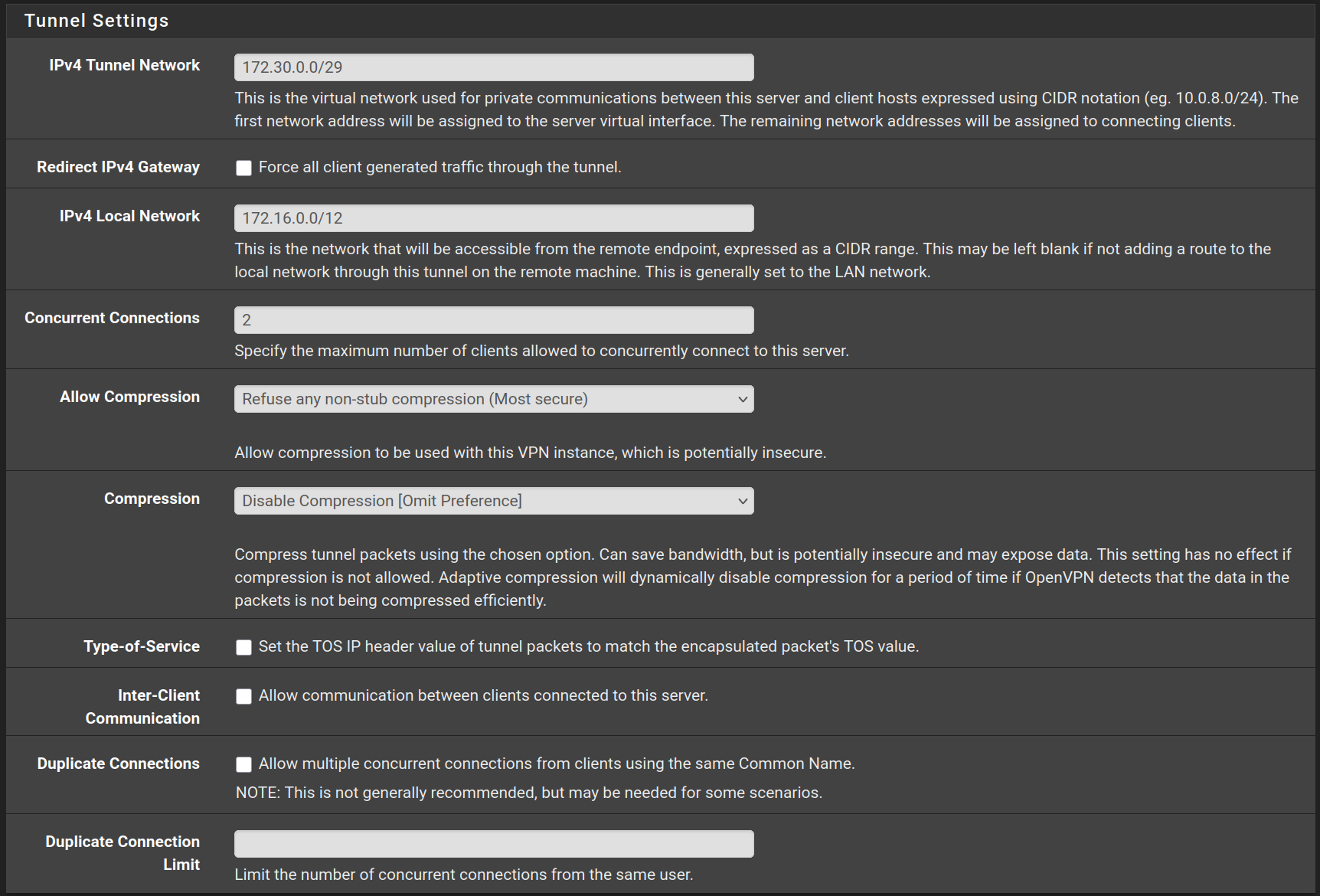
Fill the form with the following values and click on `Next`

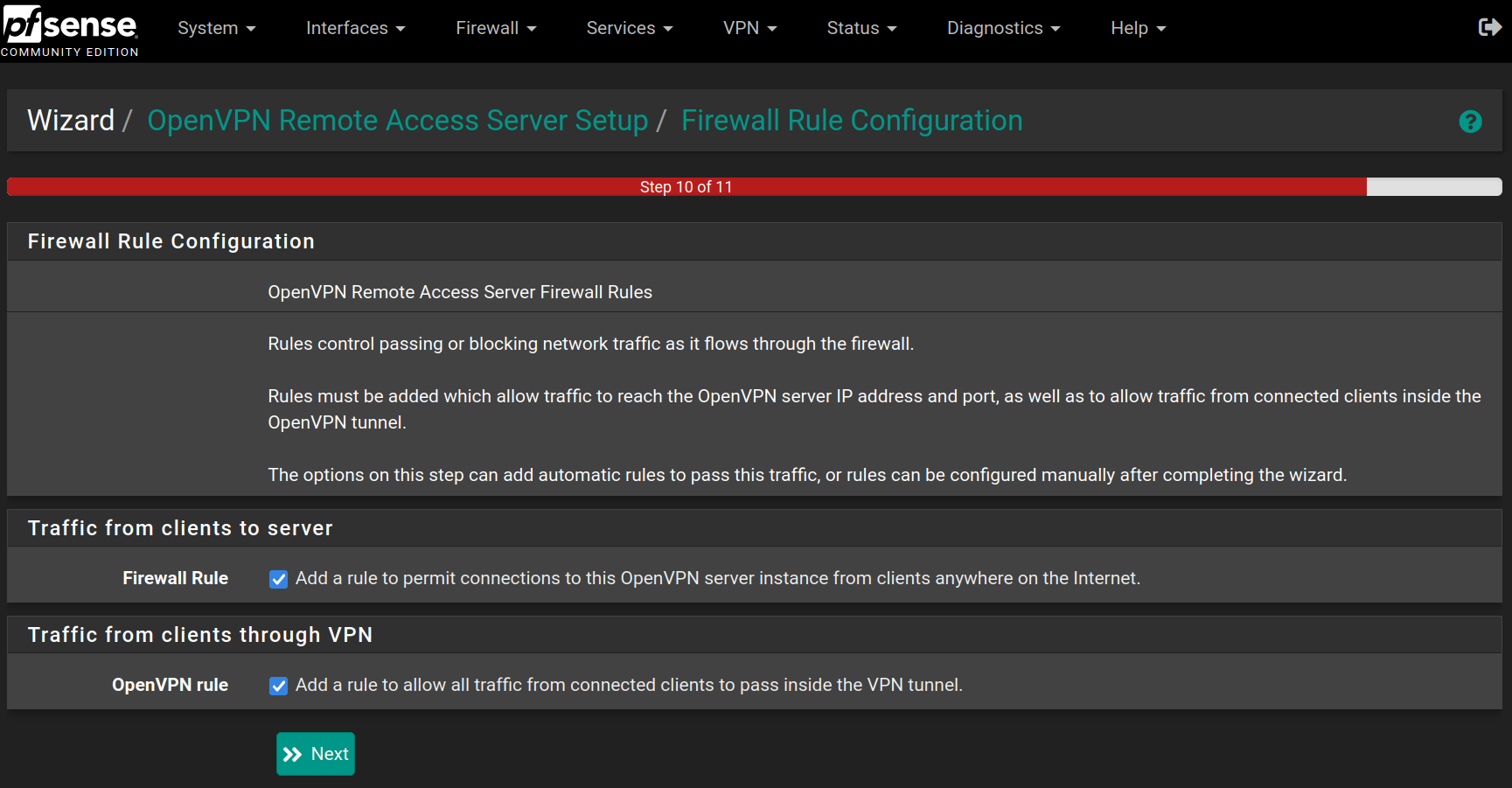
Check the two rules to allow access from wherever to pass through the VPN tunnel and click on `Next`
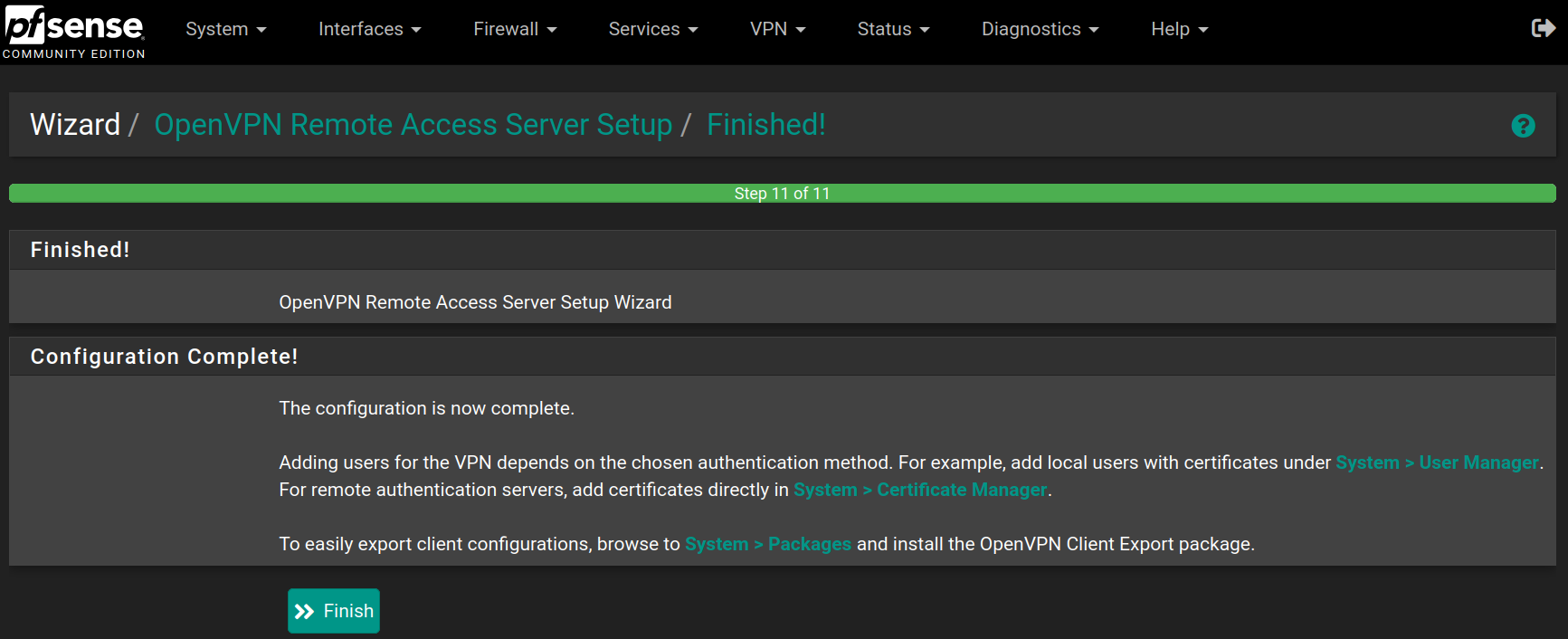
Click on `Finish` to save and apply the OpenVPN Server
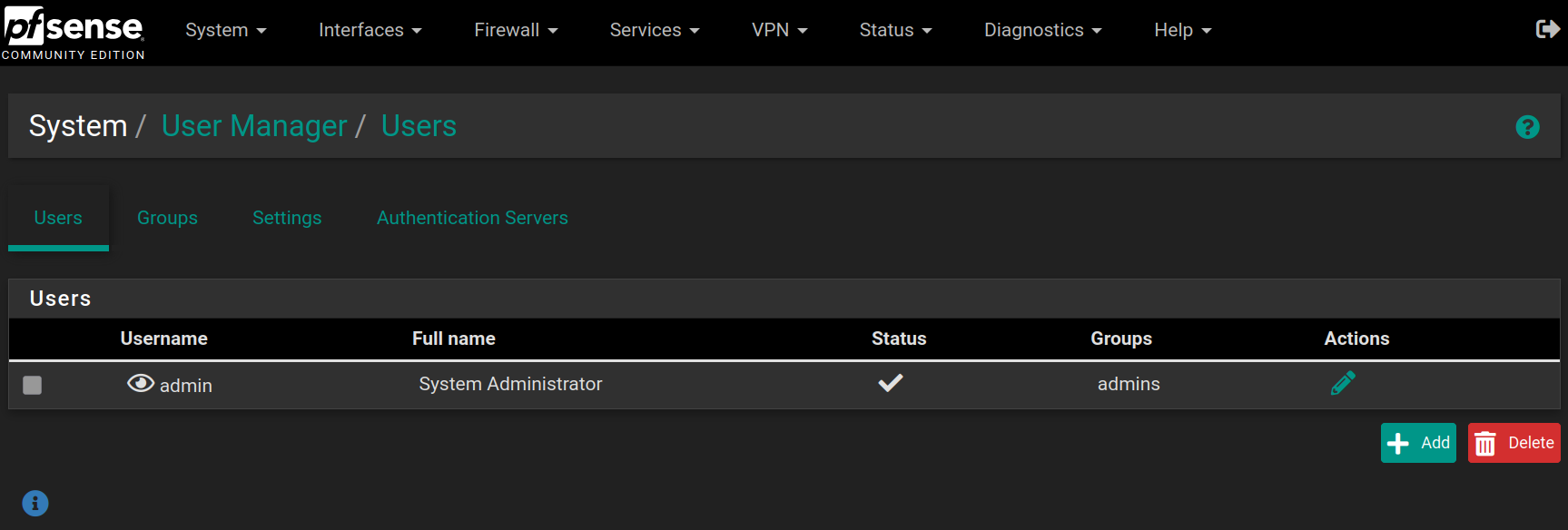
Go to **System > User Manager** and click on `Add`
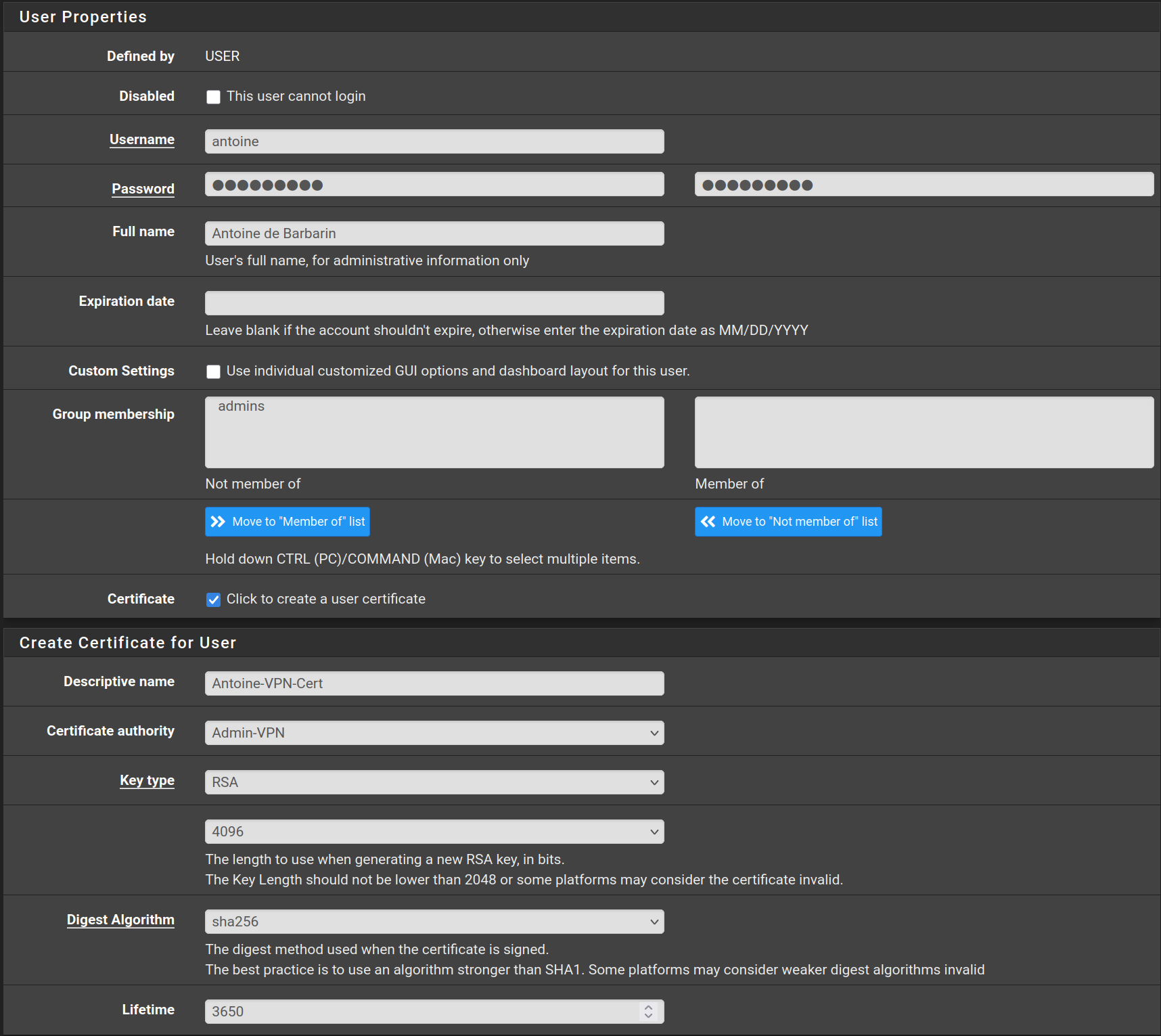
Fill the form with the following values and click on `Save`
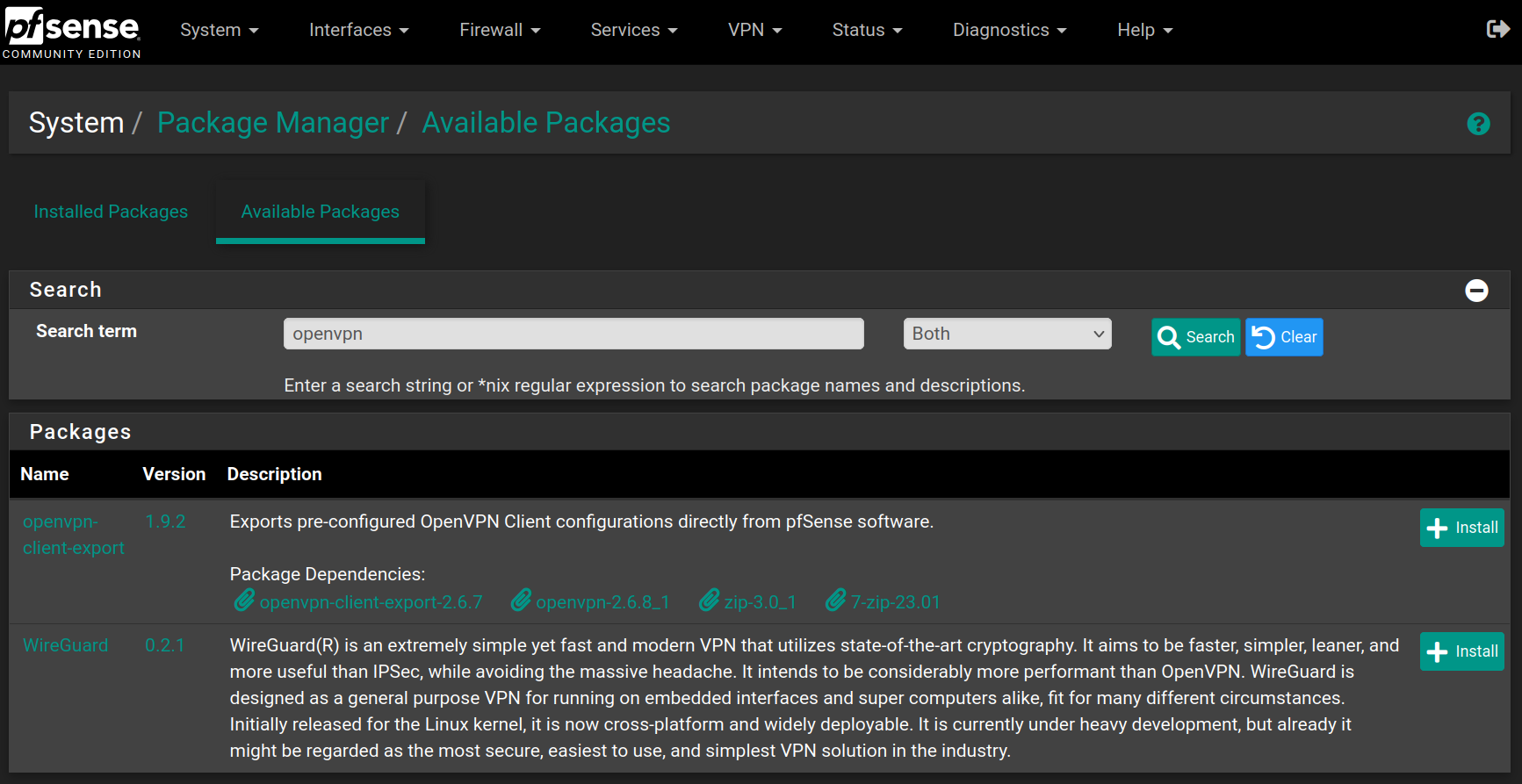
Go to **System > Package Manager > Available Packages** and search for `openvpn`, then on the package named `openvpn-client-export` click on `Install` and `Confirm`
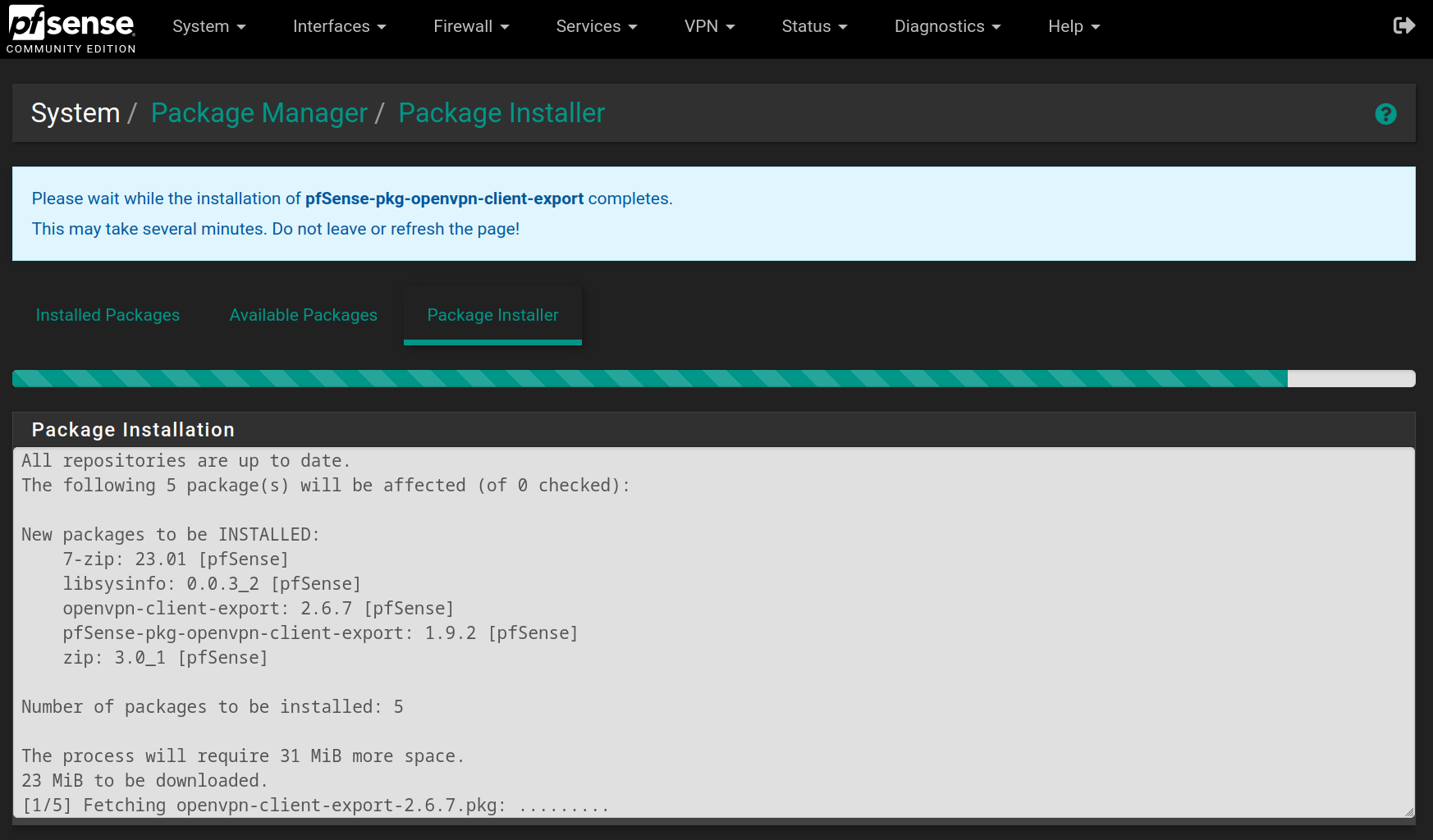
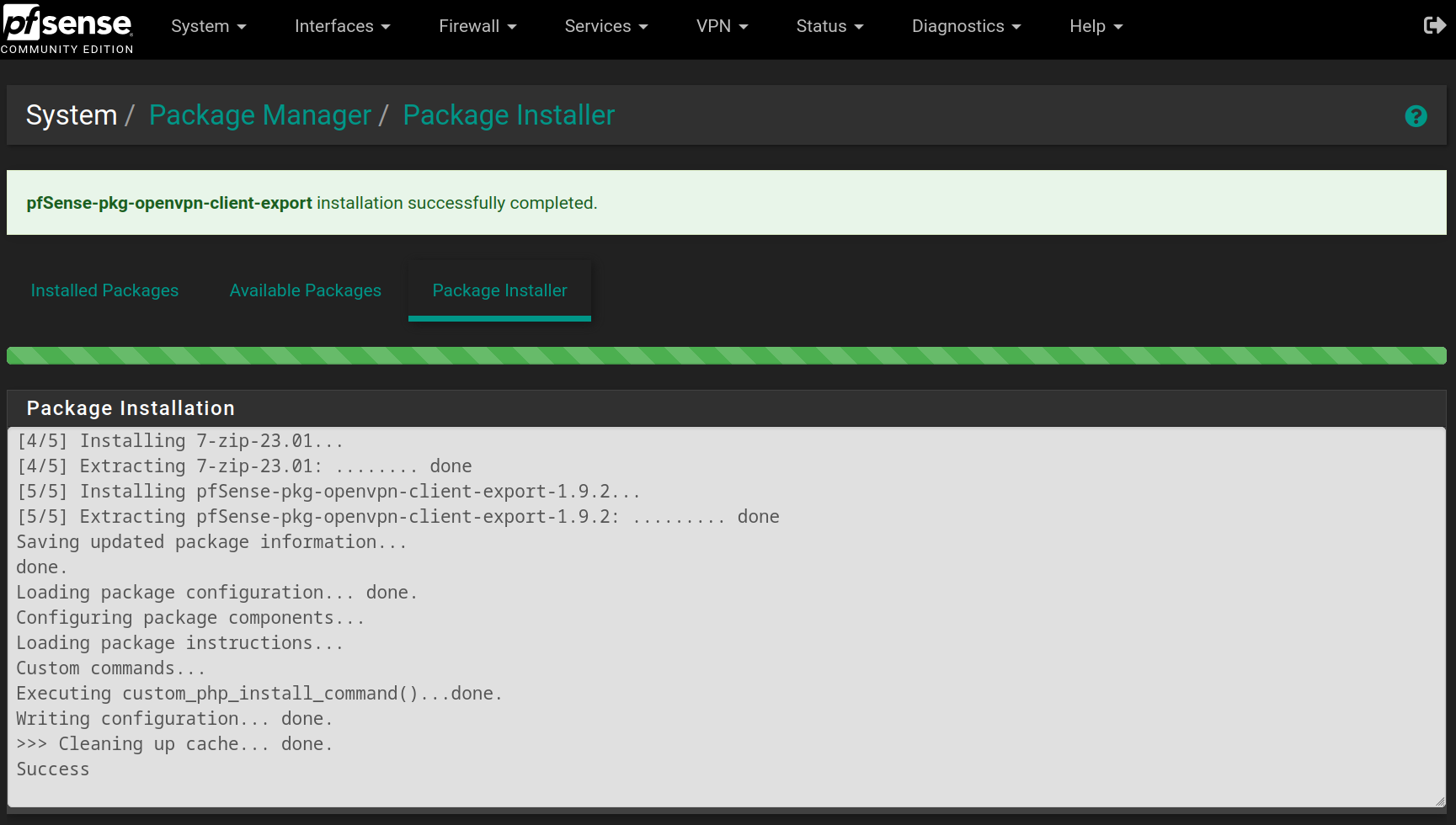
Wait for the installation to finish
Go to **VPN > OpenVPN > Client Export** and at the bottom of the page, you can download the exact configuration to connect to the Admin-VPN.
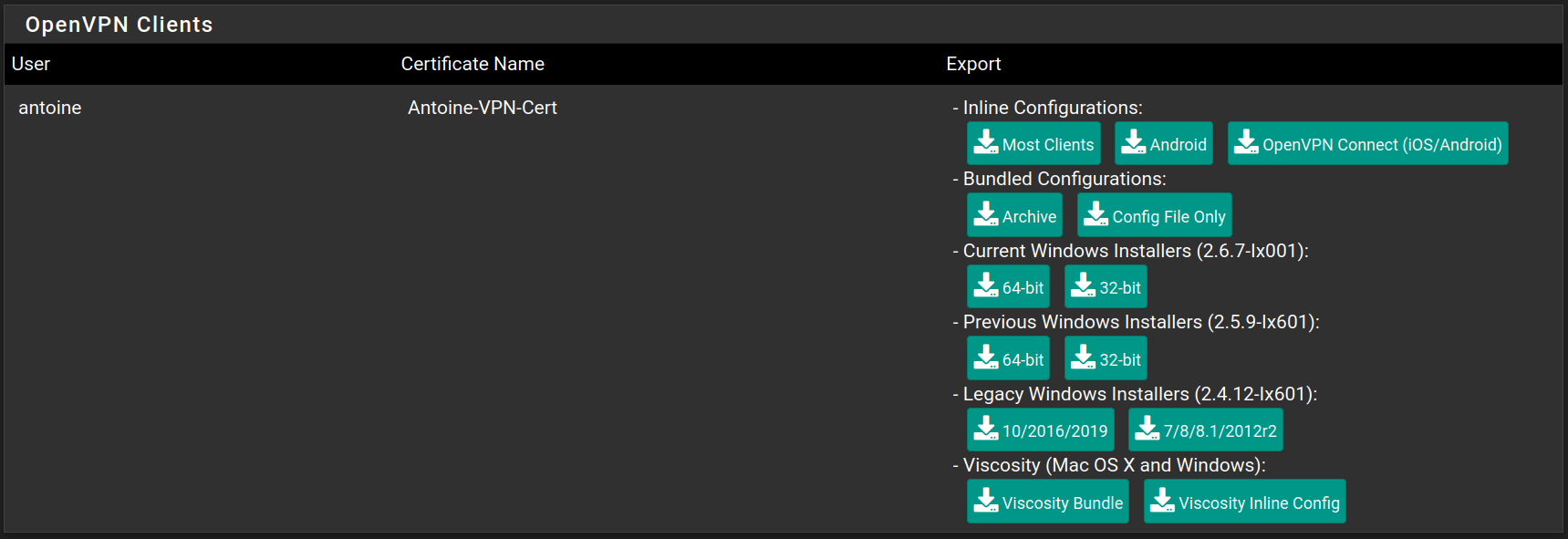
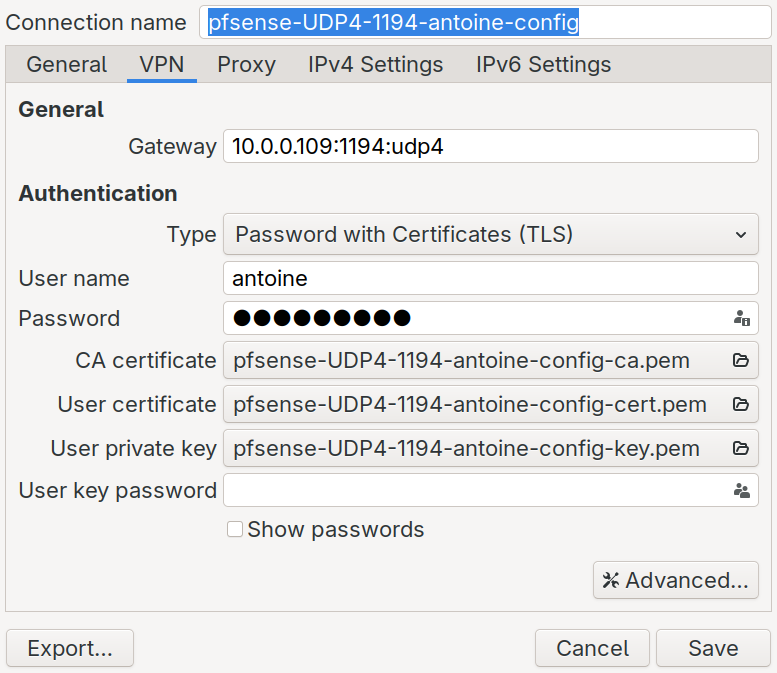
After downloading the configuration (I chose Inline Configuration > Most Clients), you can access it.
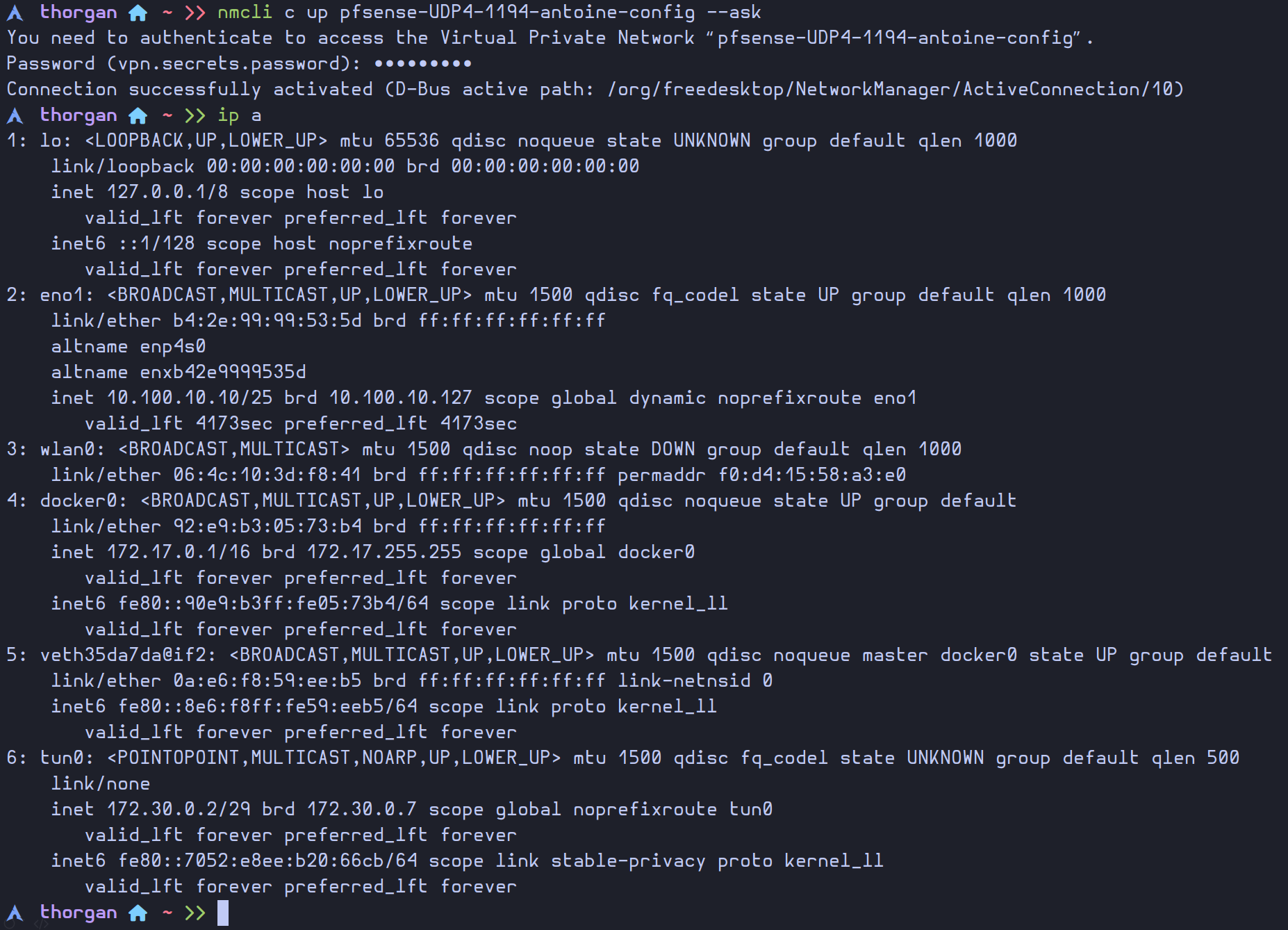
Now that the connection exists, we can easily use it with the command `nmcli`
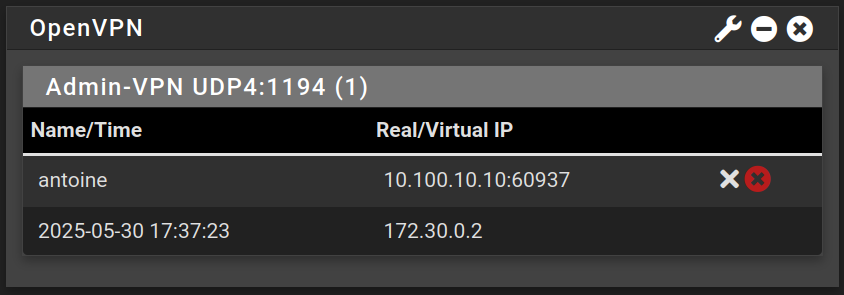
Now we can access the web configurator using the VPN, and we can see our current connection with the OpenVPN widget in the dashboard
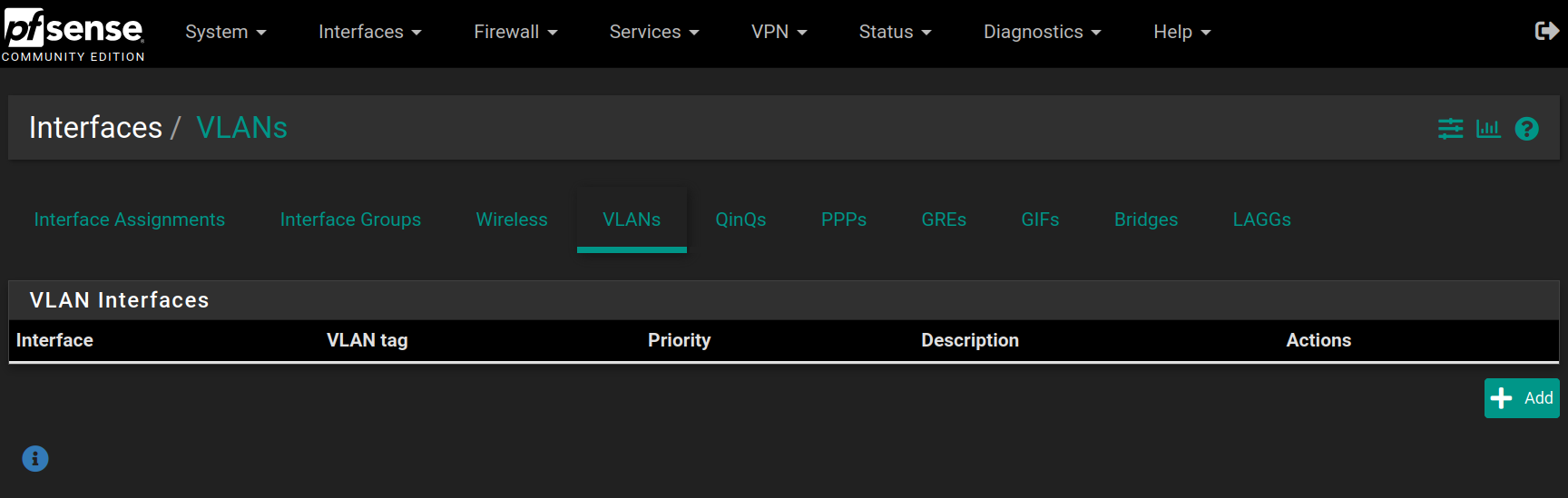
Go to **Interfaces > Assignments > VLANs** and click on `Add`
Choose the `vtnet2` interface (**OPT1**) and set the VLAN at 10 describing it as `Internal Services` and click on `Save`
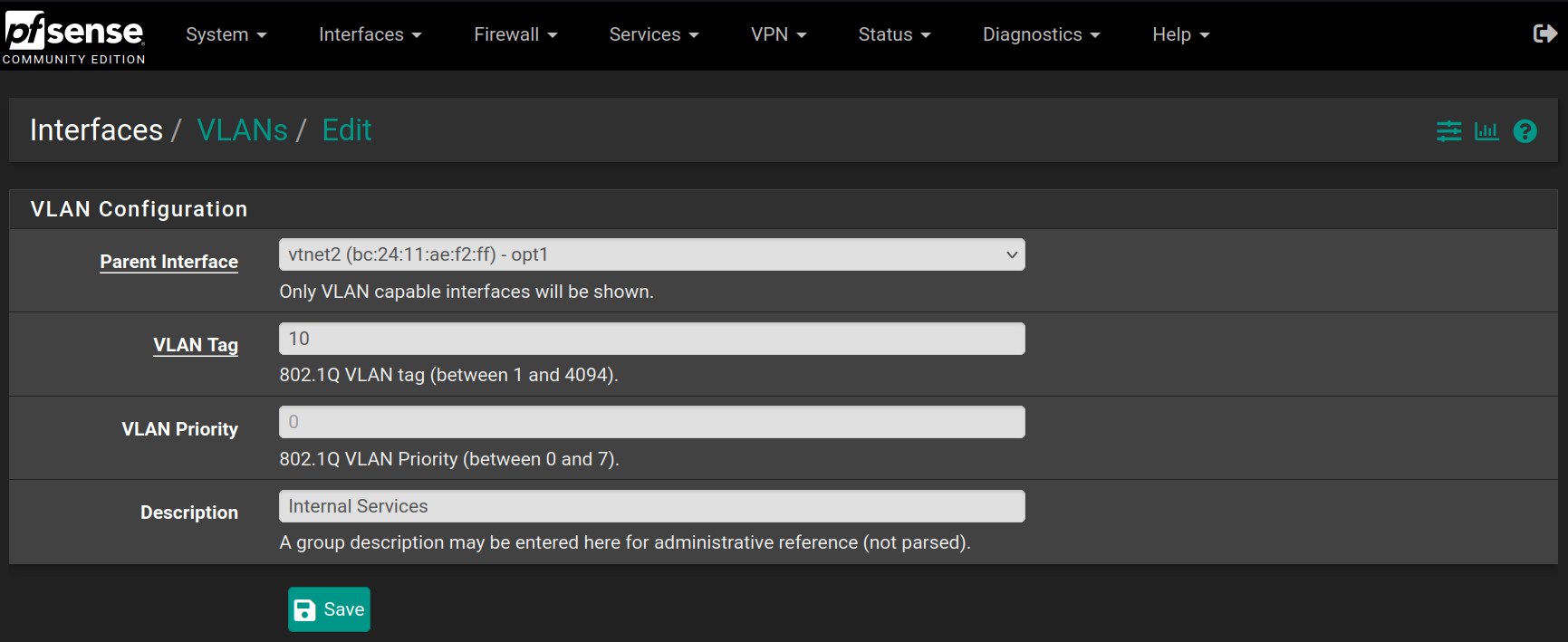
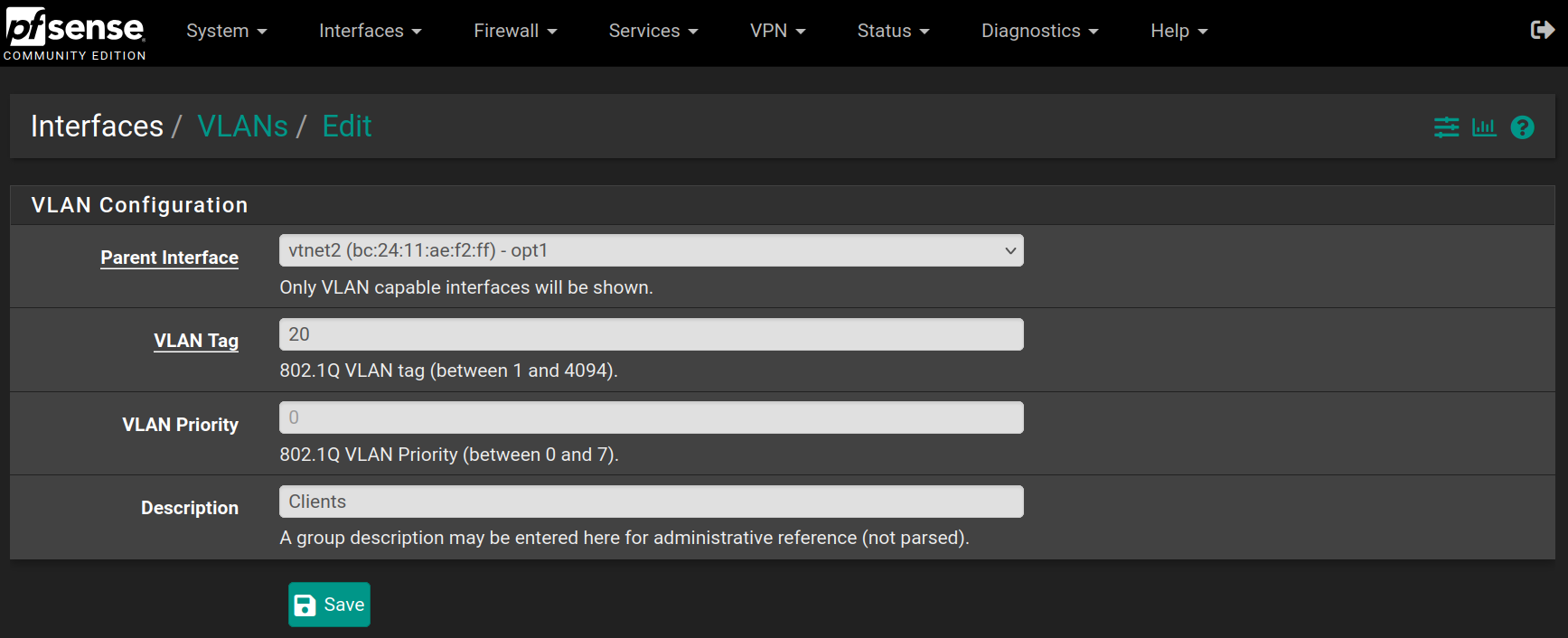
Then do the same for the **Clients** VLAN, with value 20 on the same network interface
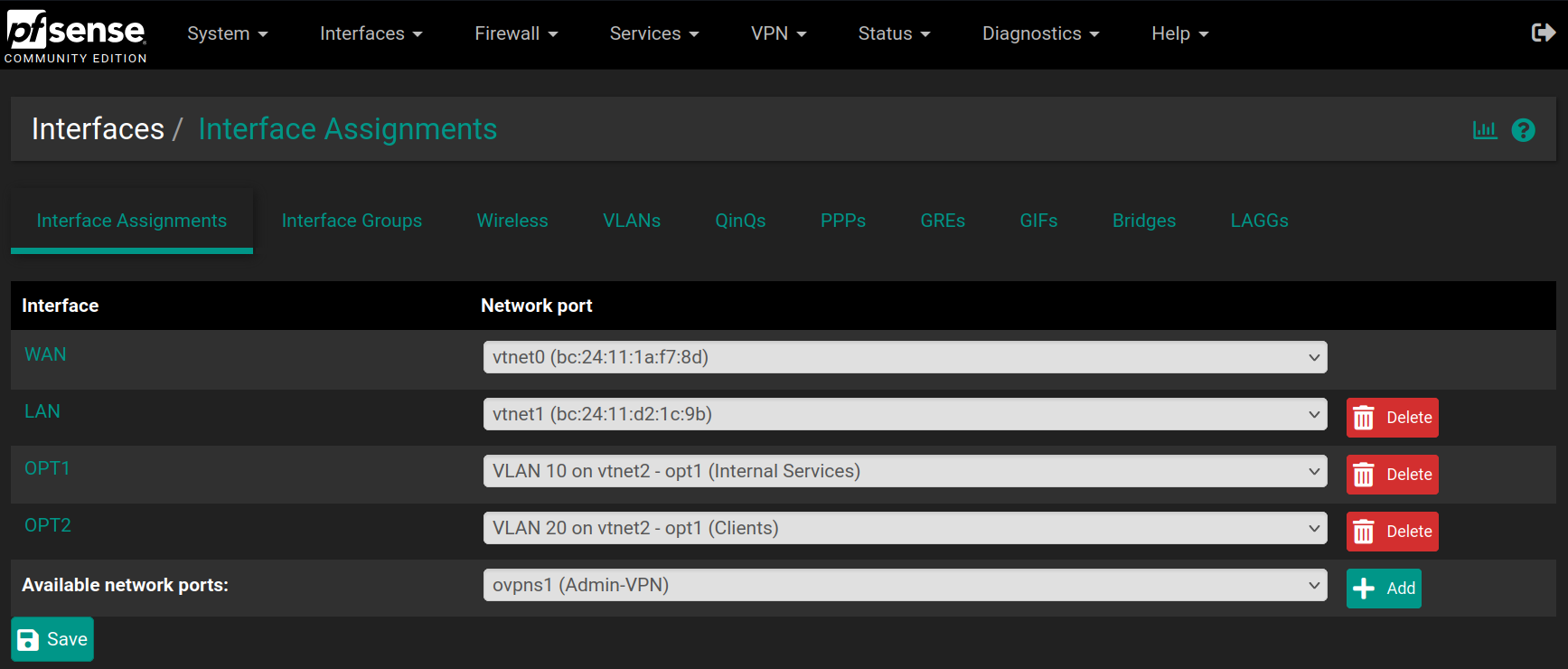
Go back to **Interfaces > Assignments** and set **OPT1** as VLAN10 and add a new **OPT2** as VLAN20 and click on `Save`
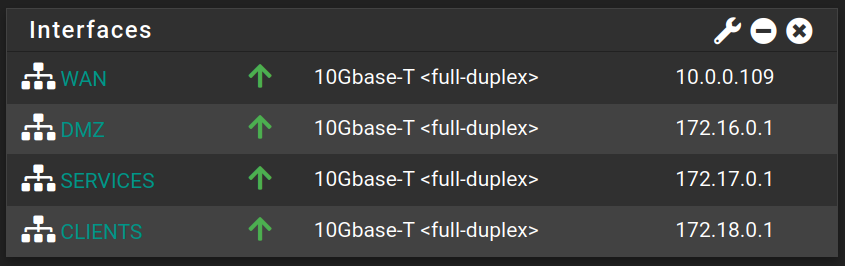
Then go to **Interfaces > LAN**, **Interfaces > OPT1** and **Interfaces > OPT2** to change their names with `DMZ`, `Services` and `Clients`, check the option **Enable interface** if it's not checked already and assign a **Static IP address** if it's not set up already.
| Interface | IP address |
| ------------------ | --------------- |
| DMZ | 172.16.0.1 / 29 |
| Services (VLAN 10) | 172.17.0.1 / 28 |
| Clients (VLAN 20) | 172.18.0.1 / 27 |
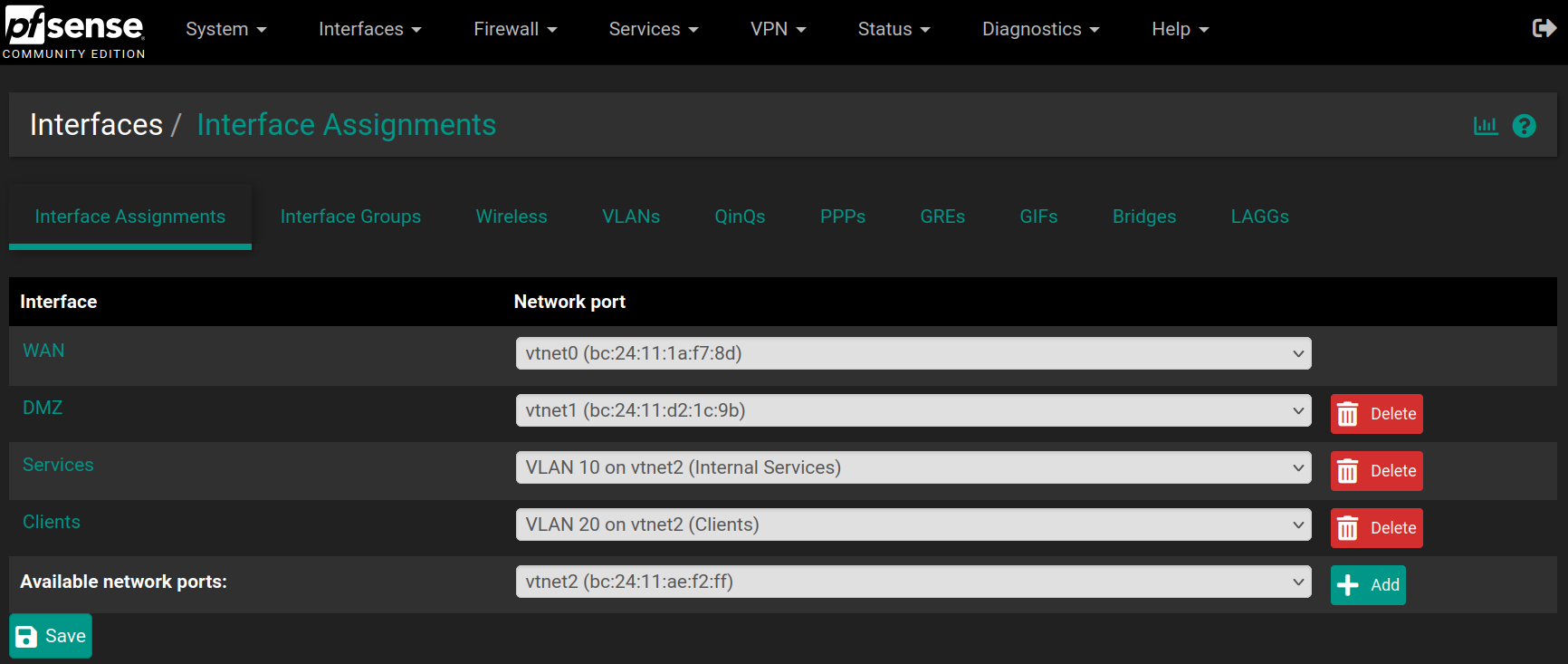
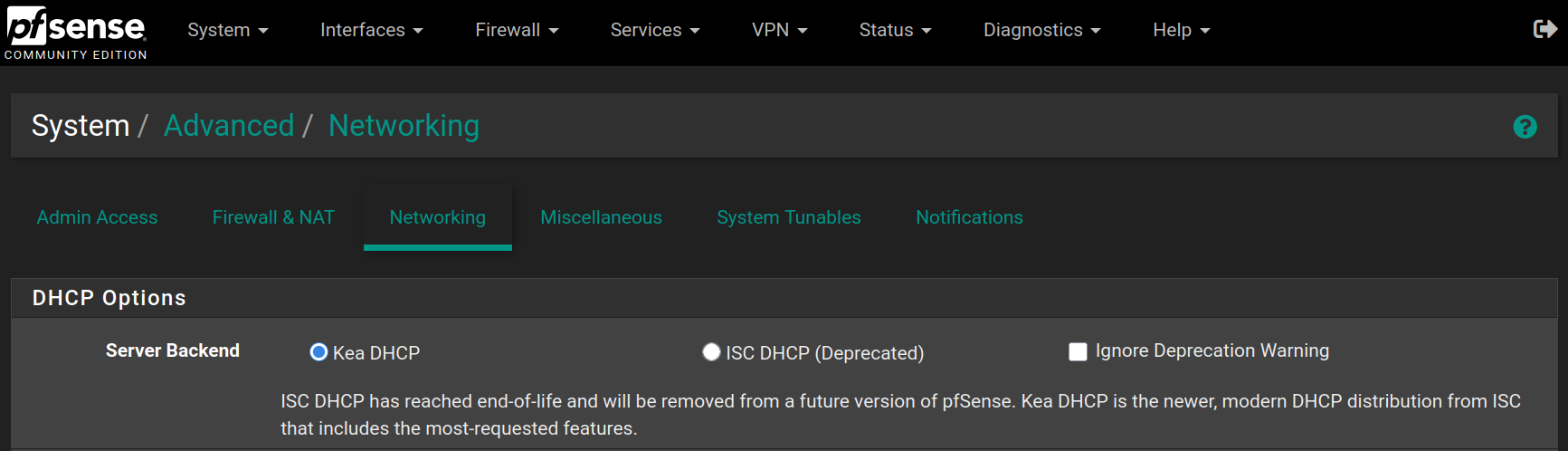
Go to **System > Advanced > Networking** to enable `KEA DHCP` instead of the deprecated `ISC DHCP`
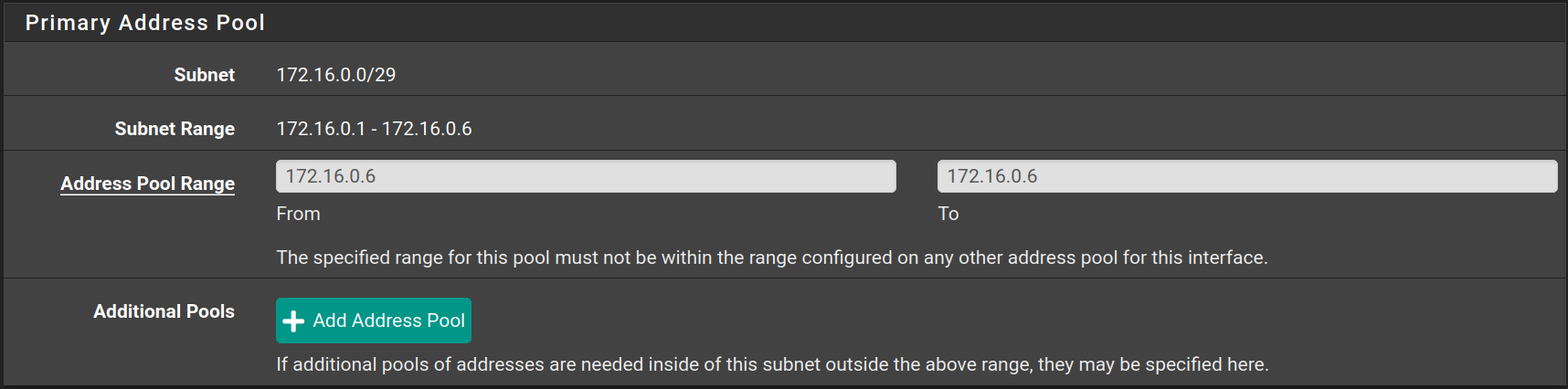
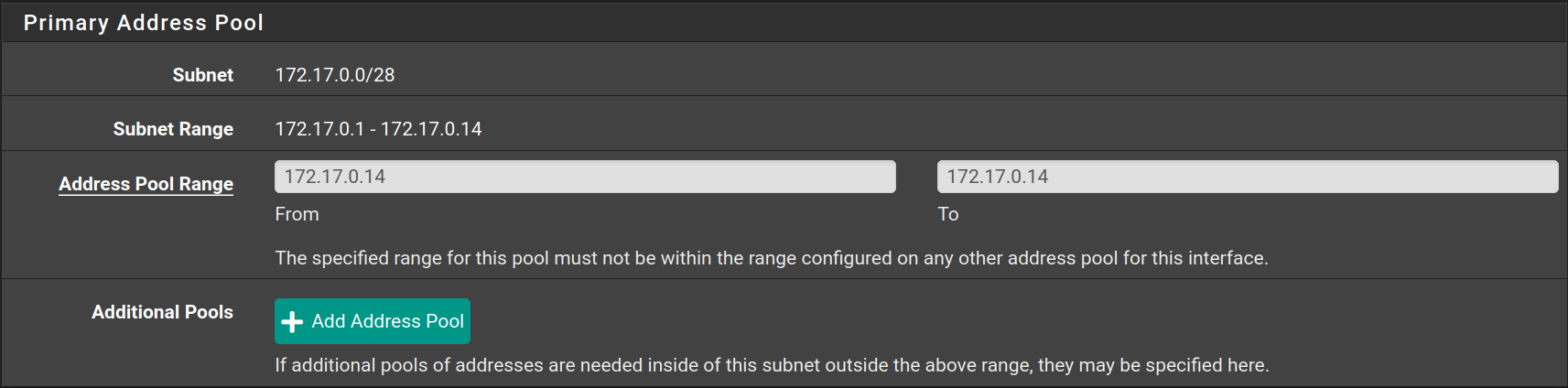
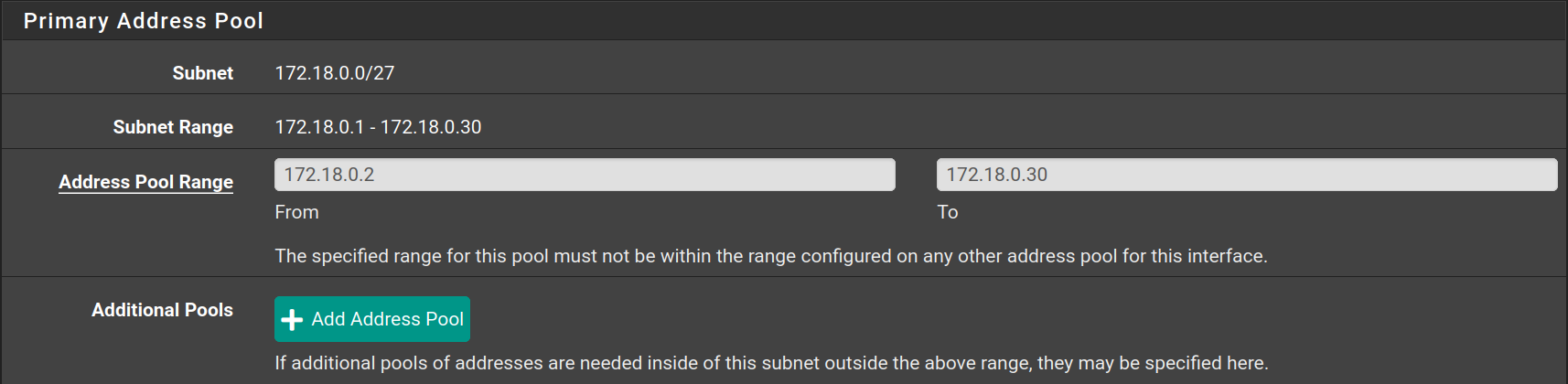
Go to **Services > DHCP Server** to configure the DHCP Server on each interface as following
| Interface | Starting IP | Ending IP |
| --------- | ----------- | ----------- |
| DMZ | 172.16.0.6 | 172.16.0.6 |
| Services | 172.17.0.14 | 172.17.0.14 |
| Clients | 172.18.0.2 | 172.18.0.30 |
### Create aliases
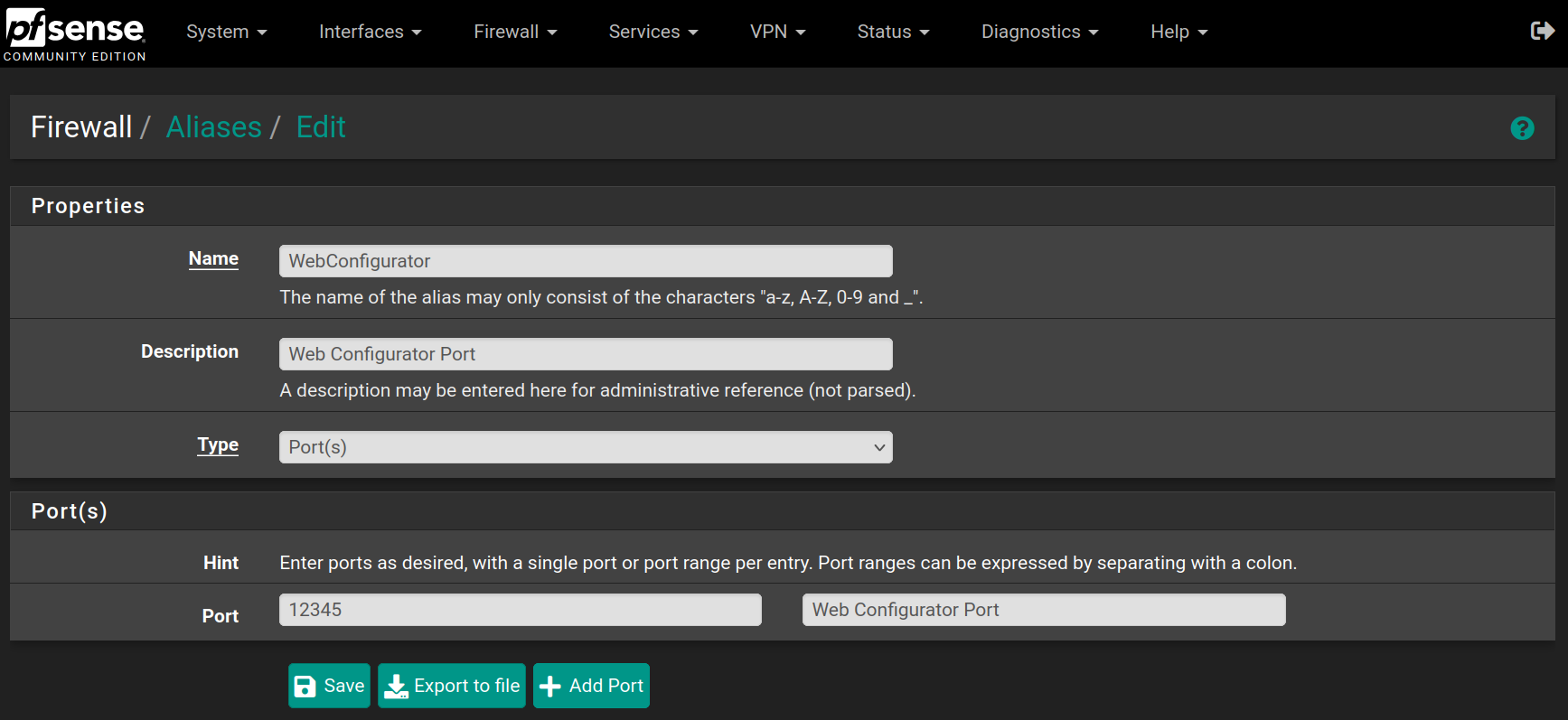
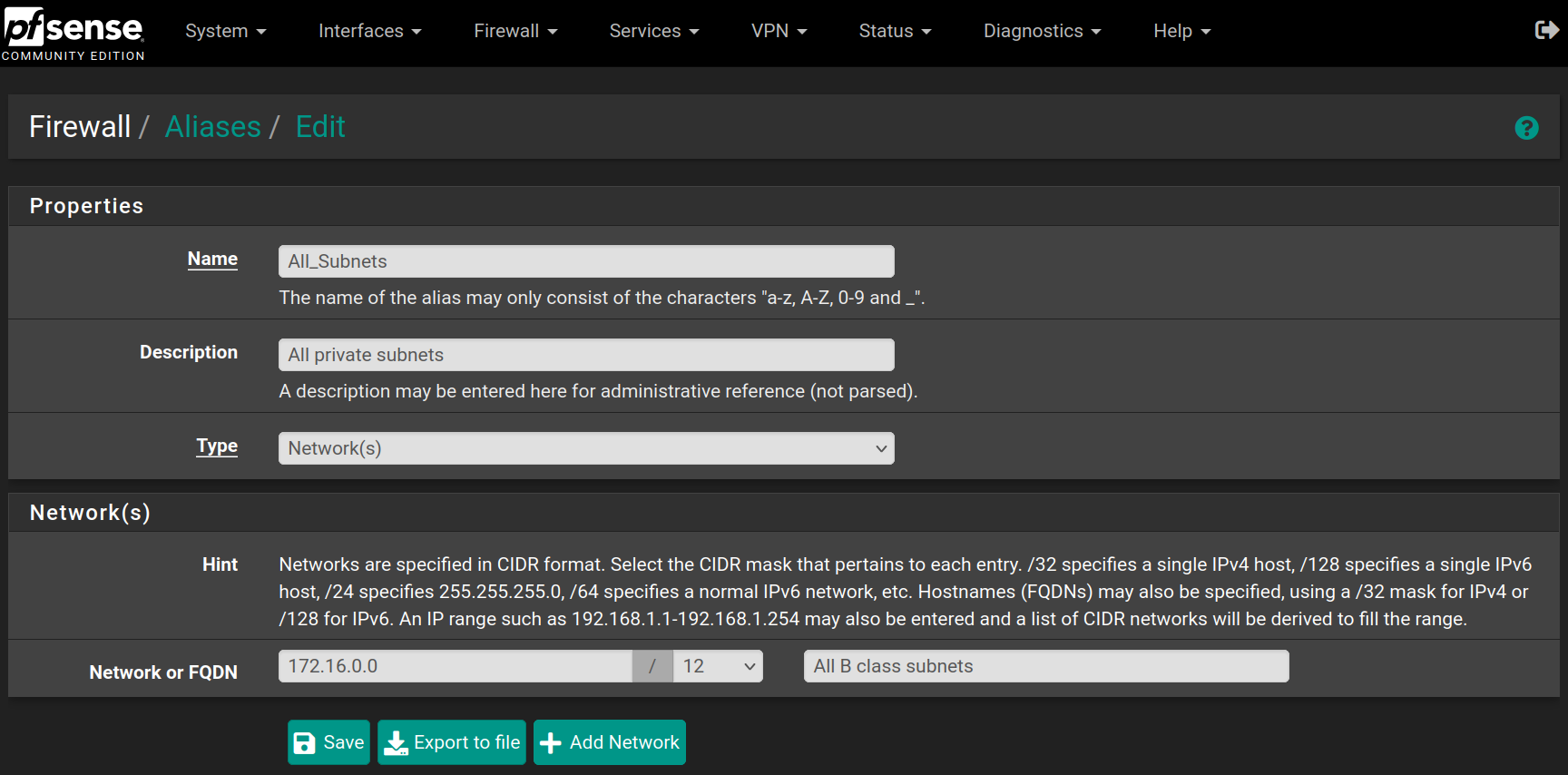
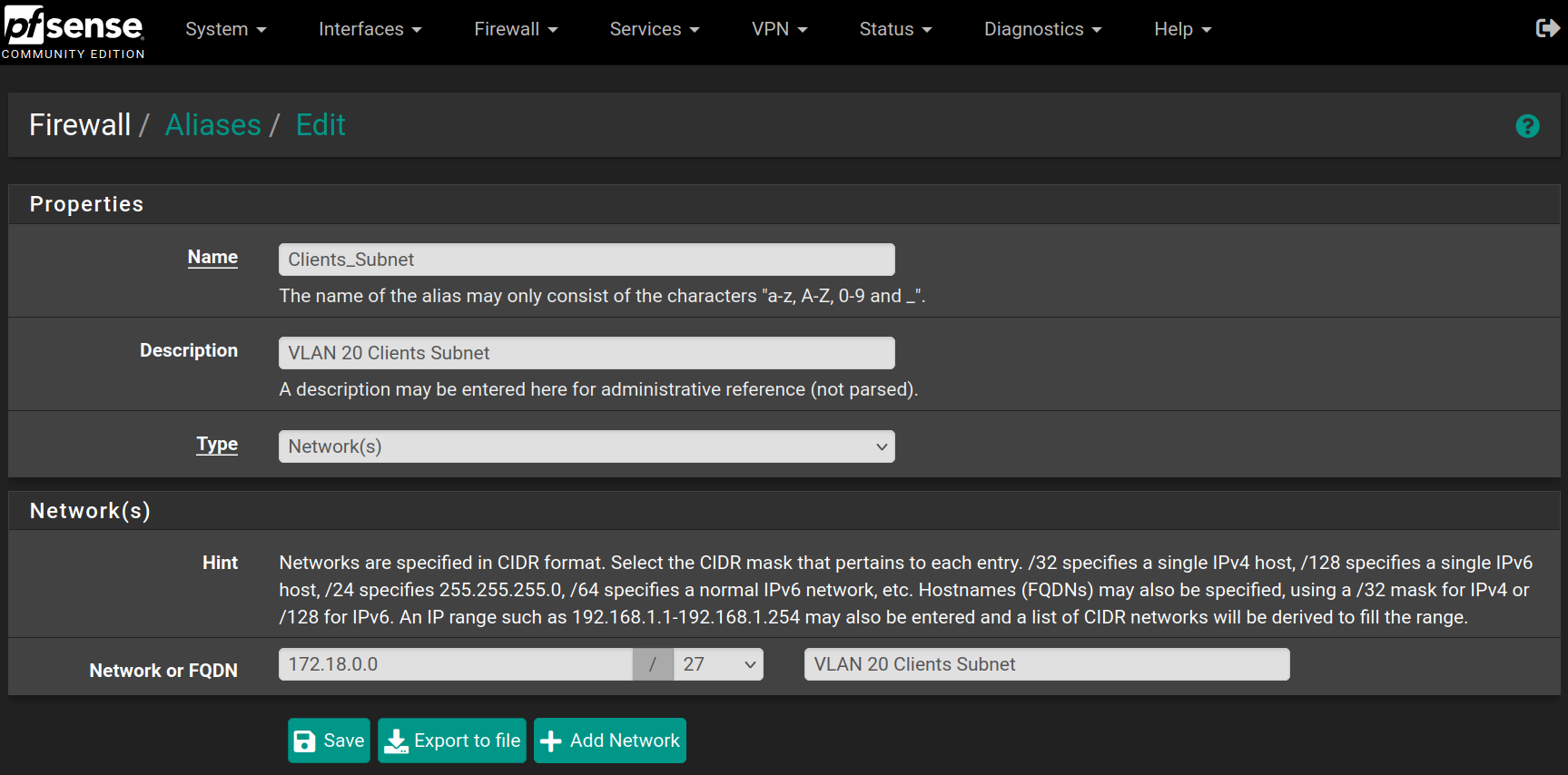
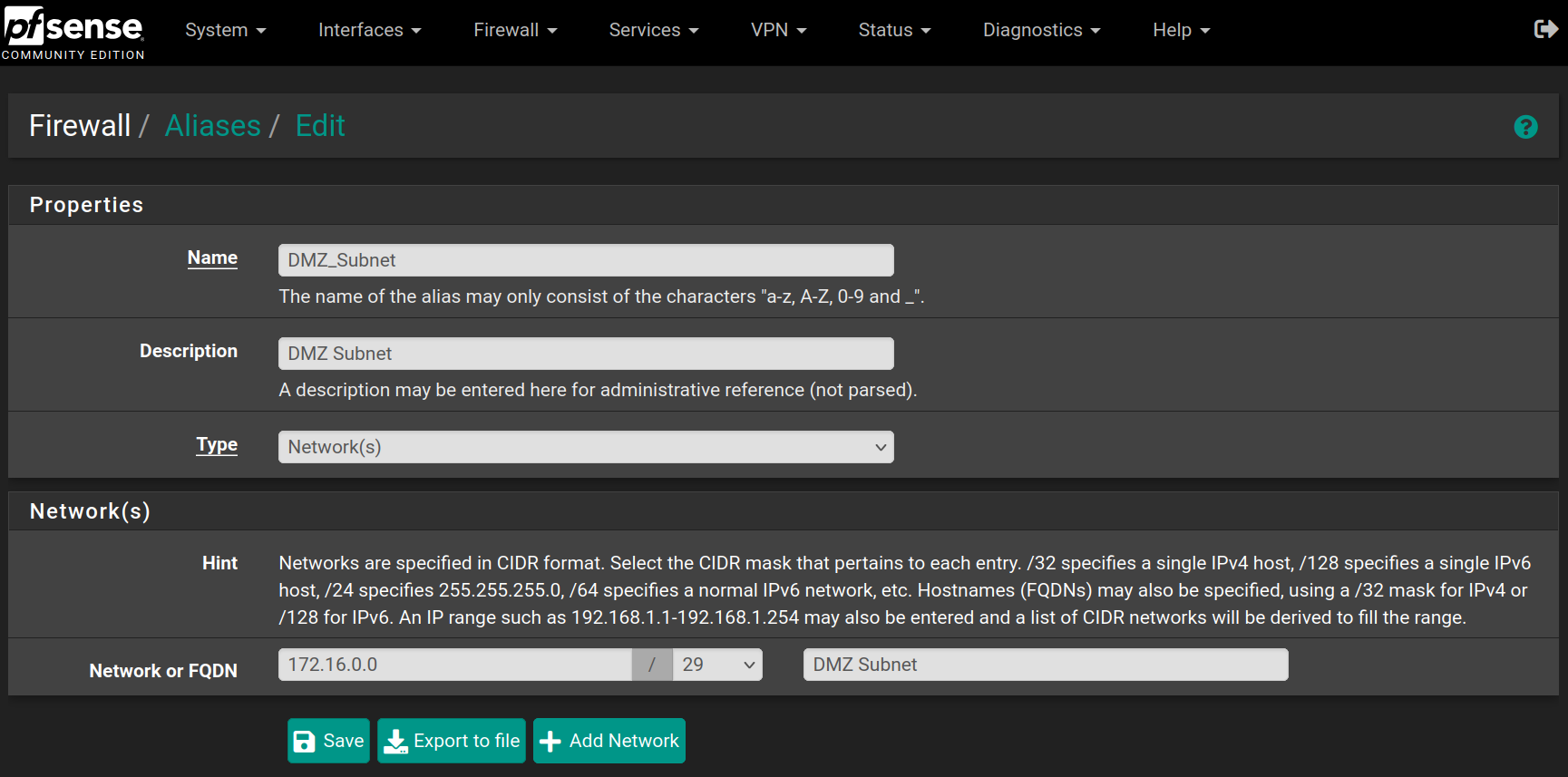
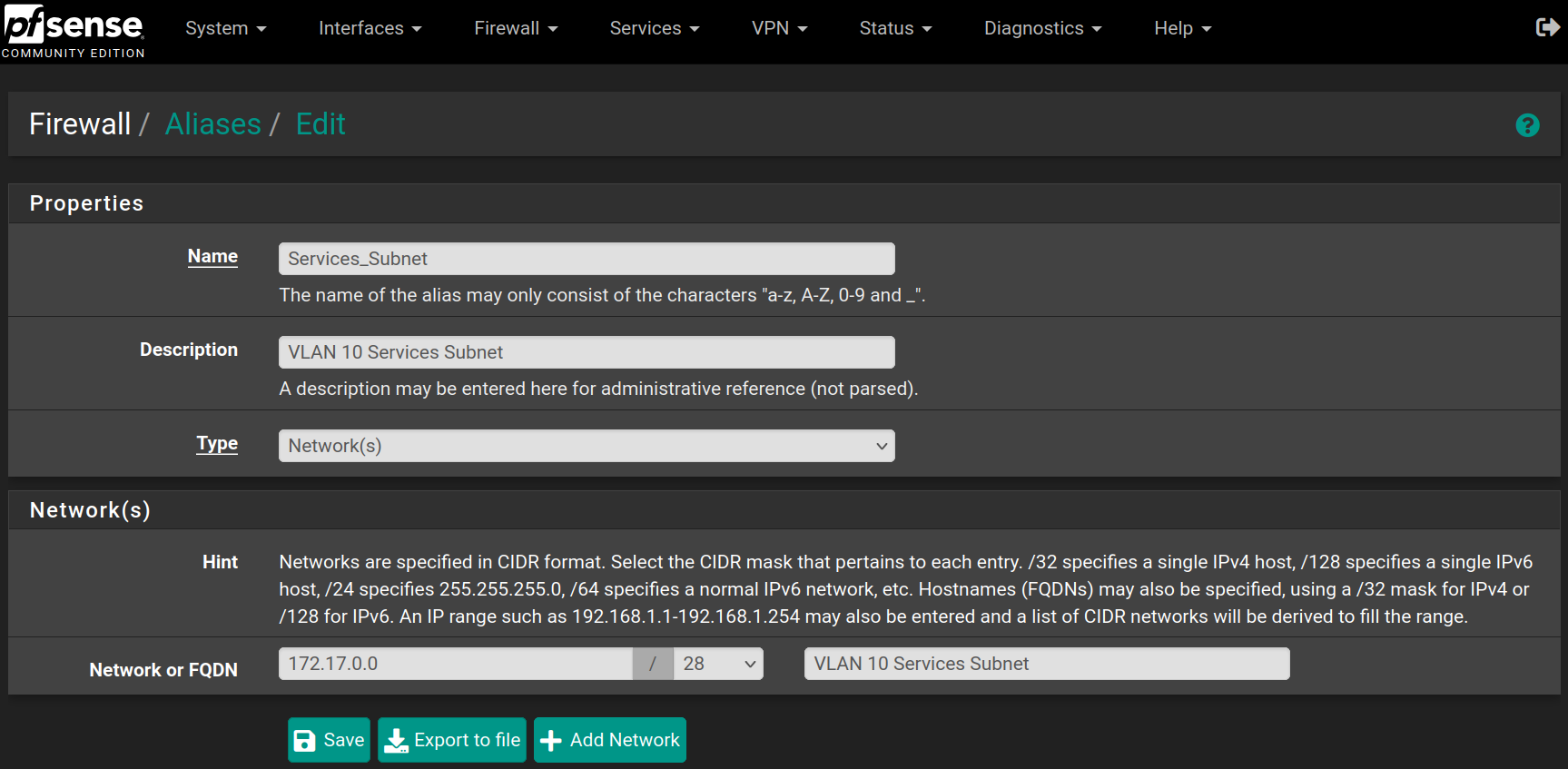
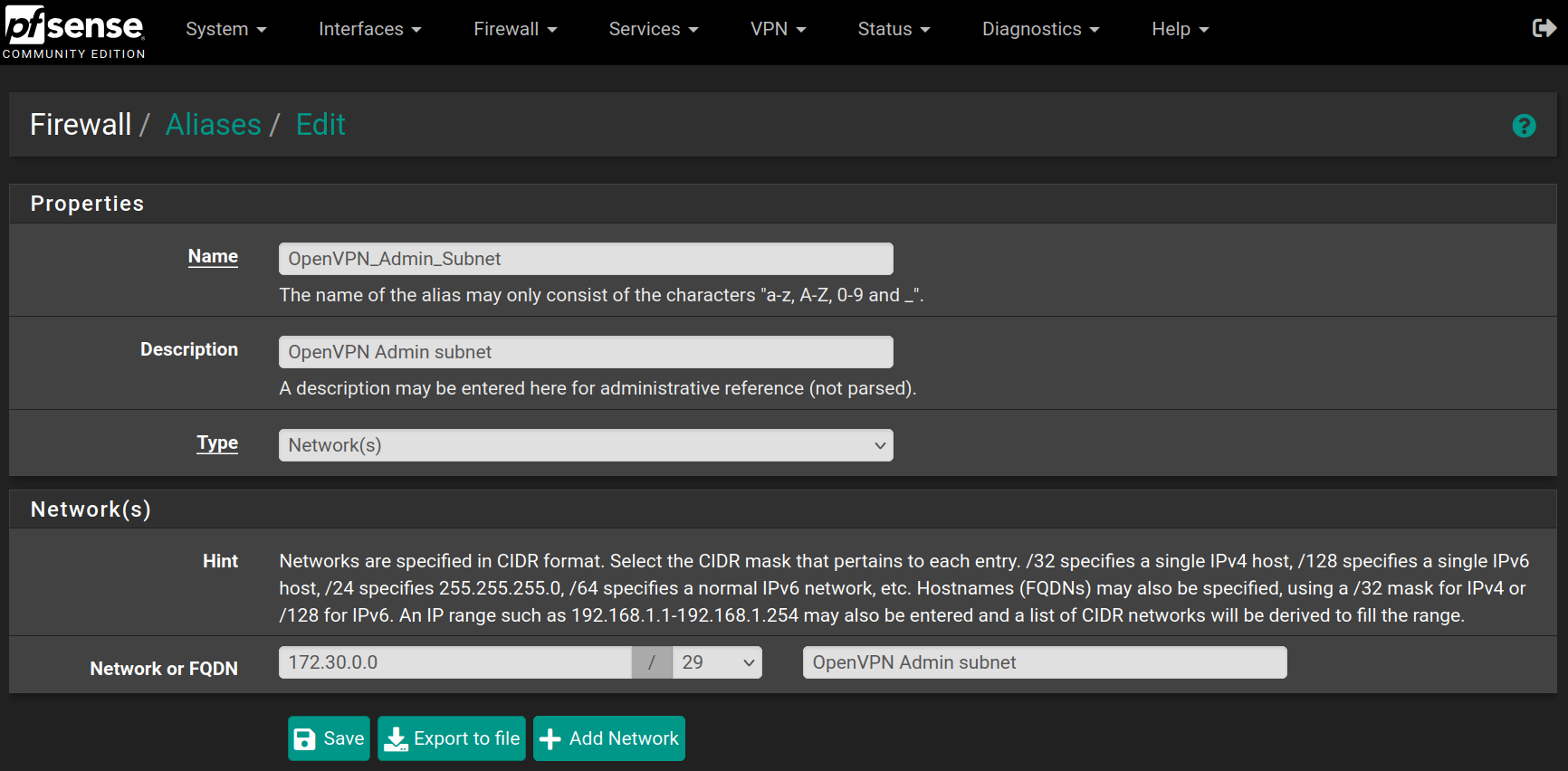
Go to **Firewall > Aliases** and click on `New`, then fill the forms with the values below and click on `Save`
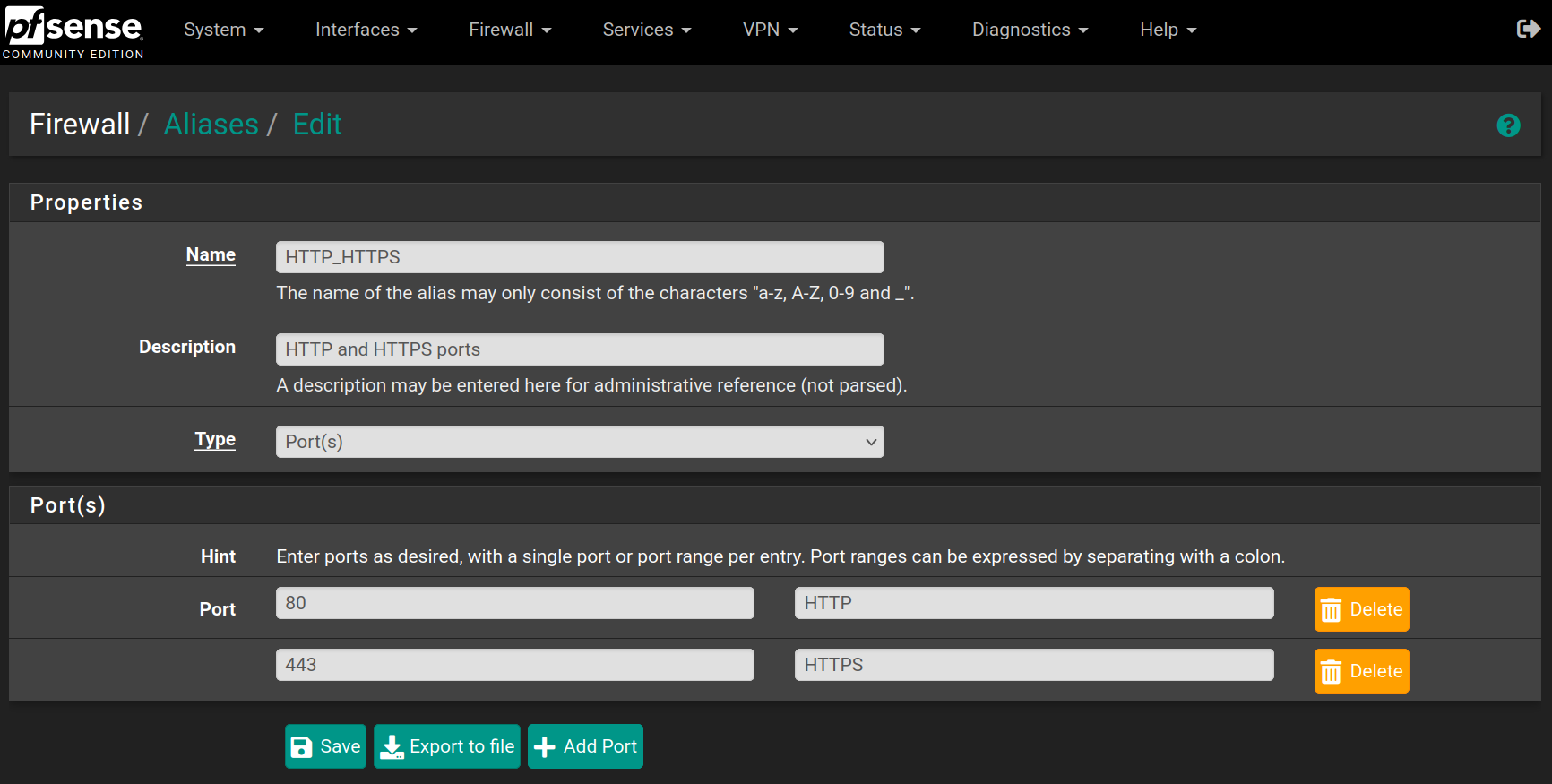
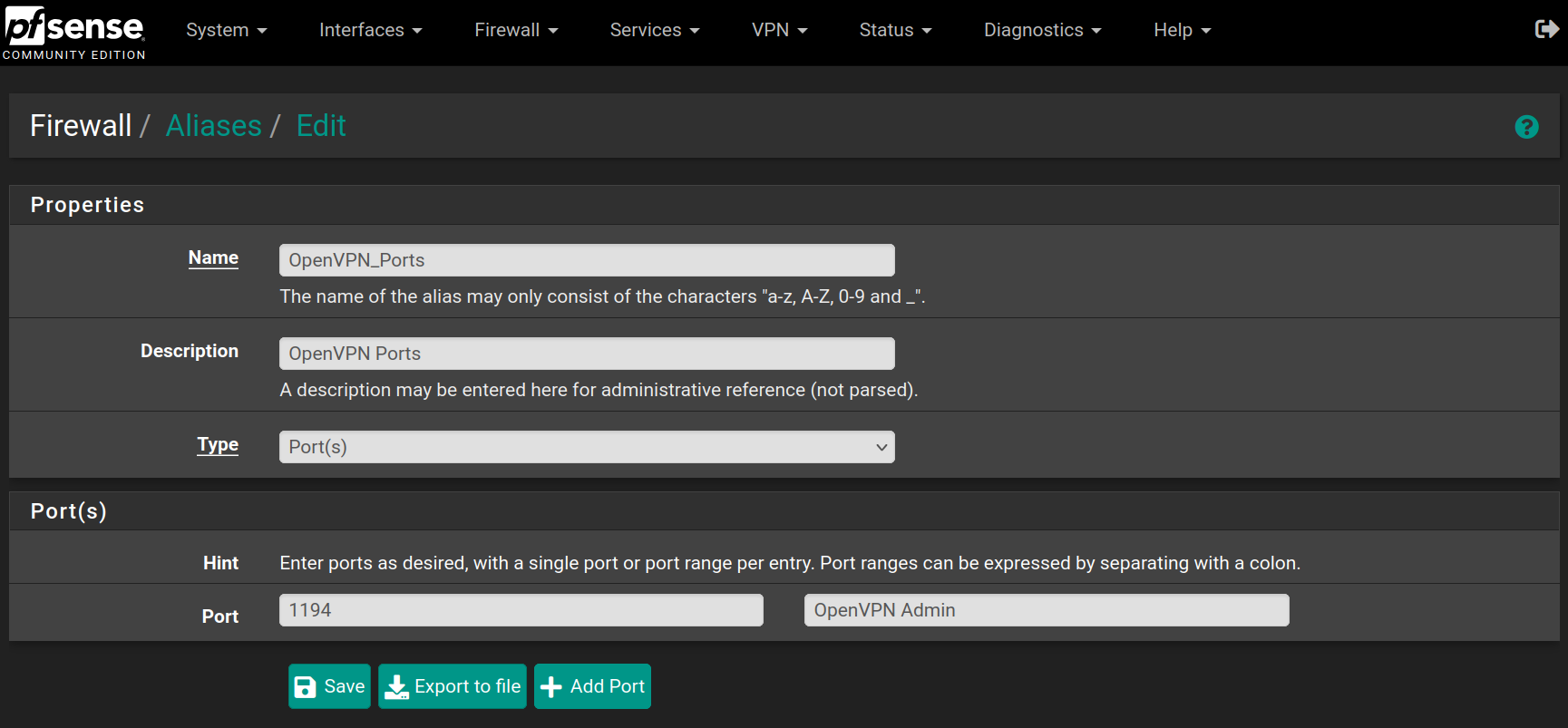
Repeat the process for the following aliases
Then the VM will boot and the installer will start. Accept the license and rights

Press on `Enter` to begin the installation

Accept the default partitioning option `Auto (ZFS)`

Press `Enter` to begin the installation

Press `Enter` to accept the default `Stripe` mode

Press `Space` to select the disk and then `Enter` to go on

Select `Yes` and press `Enter`

Then, the installation will begin

When finished, accept to reboot the VM

While rebooting, you can remove the `.iso` image editing the **CD/DVD Drive** in the **Hardware** section

When the VM has rebooted, some basic configuration will be done in the command line interface.
For the VLANs, type `n` for the moment (they will be created in the web interface)

Type `vtnet0` for the **WAN** interface, `vtnet1` for the **LAN** and `vtnet2` for the **OPT1**

Confirm the network interface configuration

Now the installation is complete. The rest of the configuration will be done on the web interface.

Open the browser and go to pfSense's web interface. Accept the warning to continue.

Then log in the web configurator with the default credentials (`admin` - `pfsense`)

The first thing to do when signing in the web configurator is to follow a setup wizard. Click on `Next`

Type `pfsense` in lowercase for the hostname and `infrasi.lan` for the domain name, then click on `Next`

Select the timezone `Europe/Paris` for the **NTP** configuration

Keep the **WAN** interface set on `DHCP` and uncheck the `Block RFC1918 Private Networks` and `Block bogon networks` rules and click on `Next`



For the **LAN** interface, type the static IP address `172.16.0.1` and the subnet mask `29` to allow 6 hosts for the moment. It will be easily upscaled afterwards. Then click on `Next`

Type a new password and confirm it. Click on `Next`

Click on `Reload` to accept and apply the new configurations.

Click on `Finish`

Accept the license and right.

Go to **System > Advanced** and change the web configurator port to `12345` to free the **HTTPS** port.

If you want, you can go to **System > General Setup** to change the CSS theme of the web configurator

Go to **VPN > OpenVPN** in the **Wizard** tab and click `Next`

Fill the form with the following values and click on `Add new CA`

Then click on Add new Certificate

Fill the form with the following values and click on `Create new Certificate`

Fill the form with the following values and click on `Next`



Check the two rules to allow access from wherever to pass through the VPN tunnel and click on `Next`

Click on `Finish` to save and apply the OpenVPN Server

Go to **System > User Manager** and click on `Add`

Fill the form with the following values and click on `Save`

Go to **System > Package Manager > Available Packages** and search for `openvpn`, then on the package named `openvpn-client-export` click on `Install` and `Confirm`

Wait for the installation to finish


Go to **VPN > OpenVPN > Client Export** and at the bottom of the page, you can download the exact configuration to connect to the Admin-VPN.

After downloading the configuration (I chose Inline Configuration > Most Clients), you can access it.

Now that the connection exists, we can easily use it with the command `nmcli`

Now we can access the web configurator using the VPN, and we can see our current connection with the OpenVPN widget in the dashboard

Go to **Interfaces > Assignments > VLANs** and click on `Add`

Choose the `vtnet2` interface (**OPT1**) and set the VLAN at 10 describing it as `Internal Services` and click on `Save`

Then do the same for the **Clients** VLAN, with value 20 on the same network interface

Go back to **Interfaces > Assignments** and set **OPT1** as VLAN10 and add a new **OPT2** as VLAN20 and click on `Save`

Then go to **Interfaces > LAN**, **Interfaces > OPT1** and **Interfaces > OPT2** to change their names with `DMZ`, `Services` and `Clients`, check the option **Enable interface** if it's not checked already and assign a **Static IP address** if it's not set up already.
| Interface | IP address |
| ------------------ | --------------- |
| DMZ | 172.16.0.1 / 29 |
| Services (VLAN 10) | 172.17.0.1 / 28 |
| Clients (VLAN 20) | 172.18.0.1 / 27 |


Go to **System > Advanced > Networking** to enable `KEA DHCP` instead of the deprecated `ISC DHCP`

Go to **Services > DHCP Server** to configure the DHCP Server on each interface as following
| Interface | Starting IP | Ending IP |
| --------- | ----------- | ----------- |
| DMZ | 172.16.0.6 | 172.16.0.6 |
| Services | 172.17.0.14 | 172.17.0.14 |
| Clients | 172.18.0.2 | 172.18.0.30 |



### Create aliases
Go to **Firewall > Aliases** and click on `New`, then fill the forms with the values below and click on `Save`

Repeat the process for the following aliases






