# InfraSI B2

# Reverse Proxy Installation

<div id="bkmrk-antoine-de-barbarin" style="text-align: right">Antoine de Barbarin</div>---

## Certificate

In the **pfSense** web configurator, go to **System &gt; Certificates &gt; Authorities** and click on `Add`, then fill it with the following values and click on `Save`
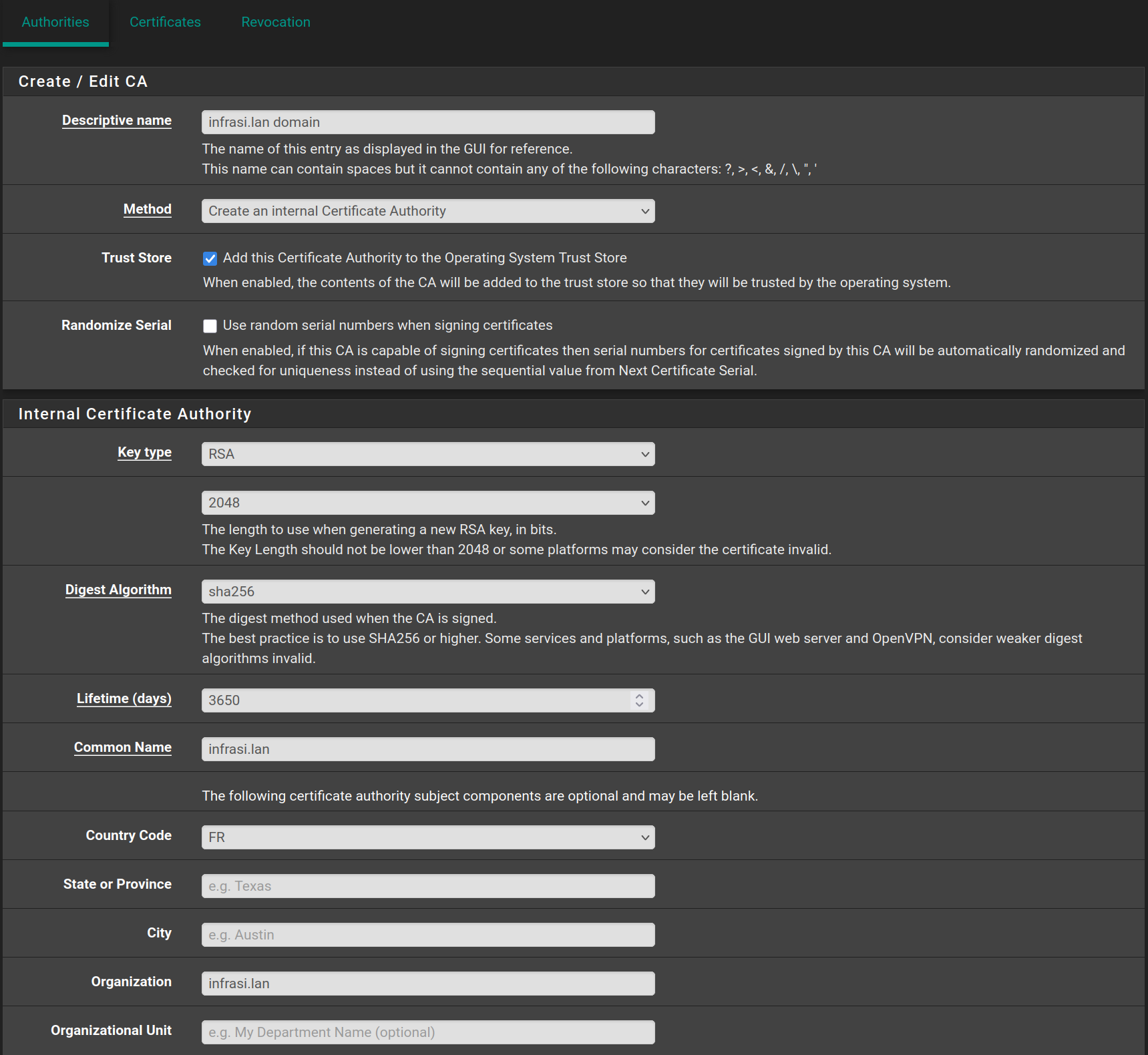
![image-20250601150743814](https://docs.adebarbarin.com/uploads/images/gallery/2025-06/scaled-1680-/web-certificate-01.png)

Then go to **Certificates** and click on `Add/Sign` then fill the form with the following values and click on `Save`
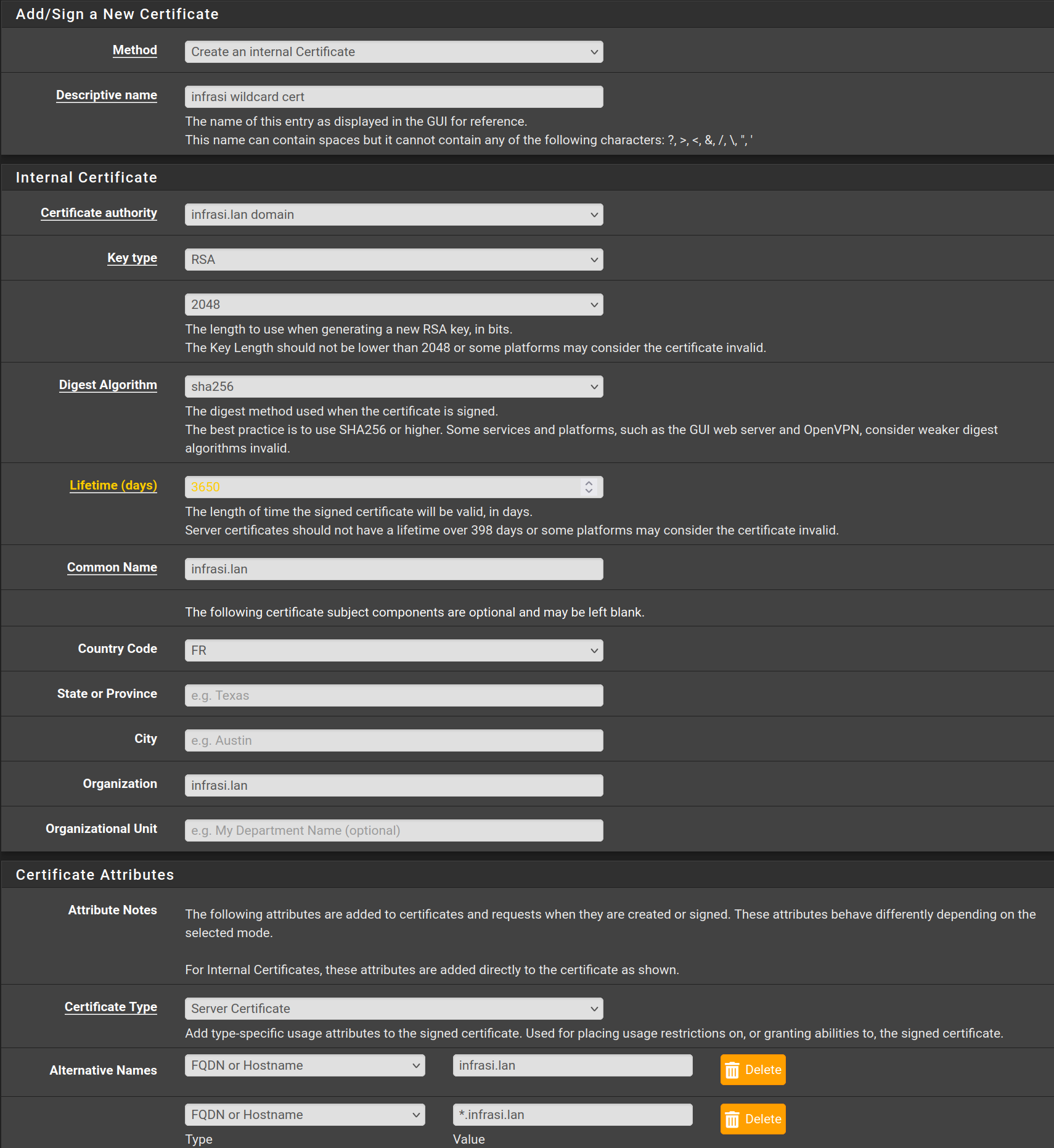
![image-20250601151103072](https://docs.adebarbarin.com/uploads/images/gallery/2025-06/scaled-1680-/web-certificate-02.png)

---

## HAProxy

Go to **System &gt; Package Manager &gt; Available Packages** and search for `HAProxy` and click on `Install`
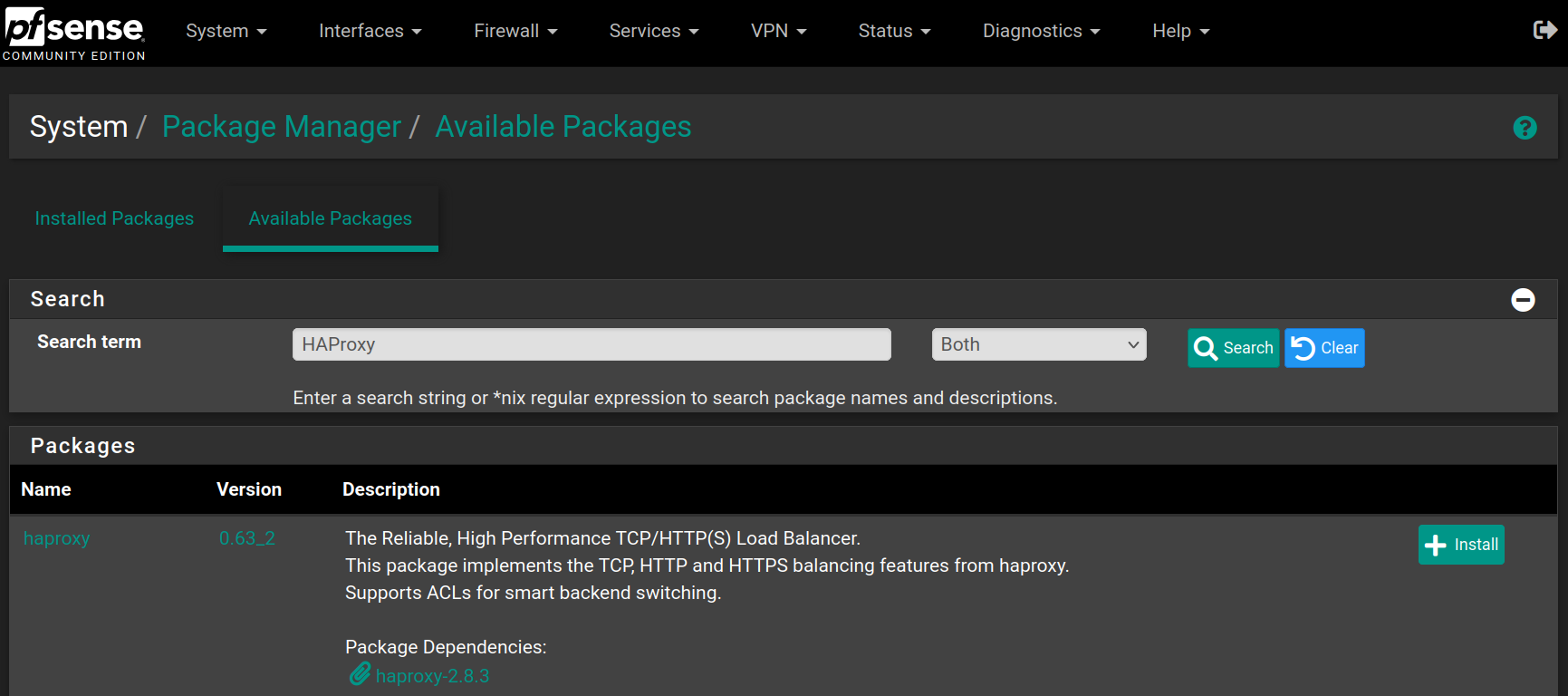
![image-20250601150147787](https://docs.adebarbarin.com/uploads/images/gallery/2025-06/scaled-1680-/haproxy-01.png)

Click on `Confirm` to begin the installation

![image-20250601150300998](https://docs.adebarbarin.com/uploads/images/gallery/2025-06/scaled-1680-/haproxy-02.png)

When the installation is complete, you will have the following result
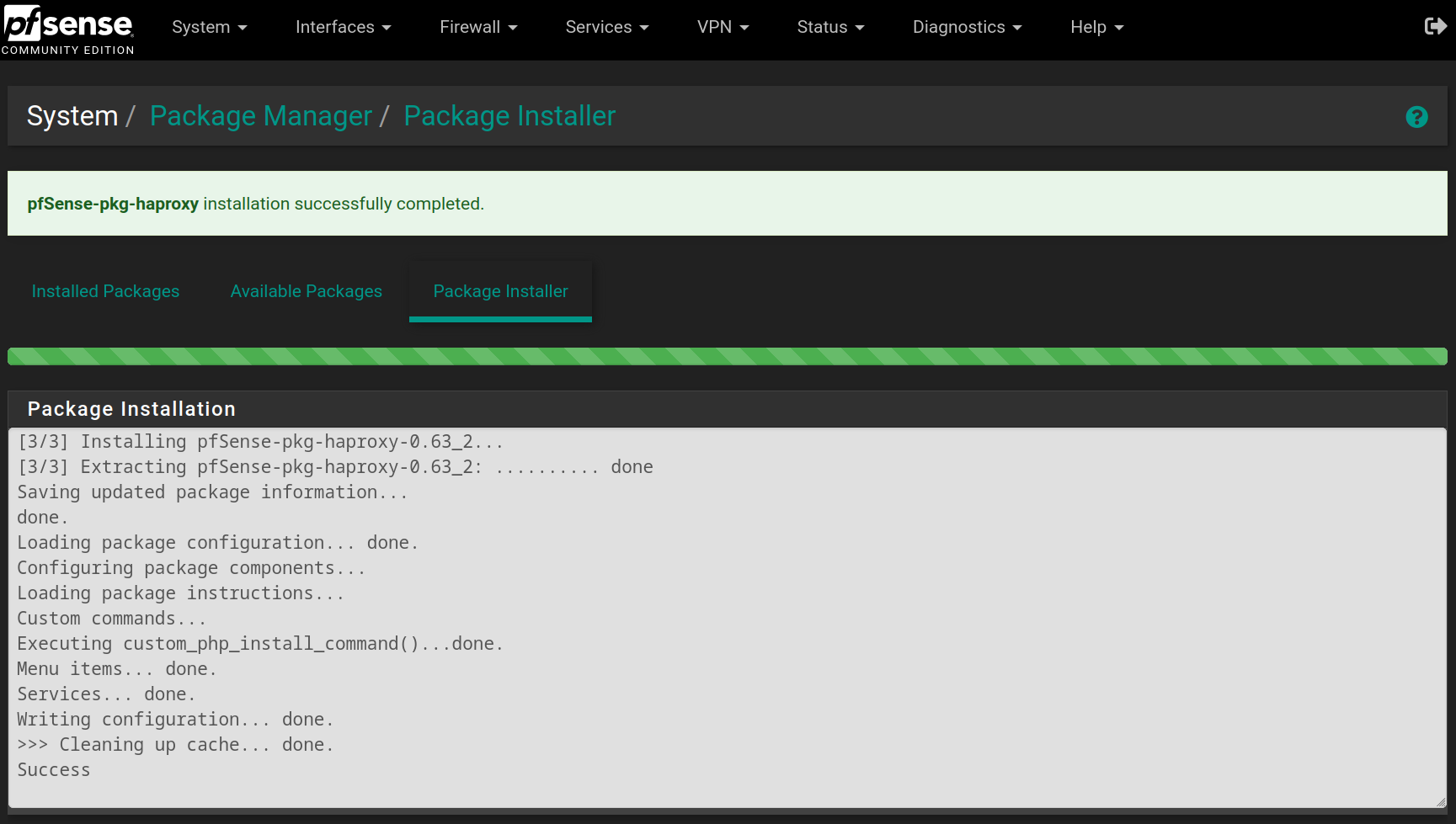
![image-20250601150429856](https://docs.adebarbarin.com/uploads/images/gallery/2025-06/scaled-1680-/haproxy-03.png)

Go to **Services &gt; HAProxy &gt; Backend** and click on ![image-20250601151302432](https://docs.adebarbarin.com/uploads/images/gallery/2025-06/scaled-1680-/pfsense-add-button.png), then fill the form with the following values and click on `Save`
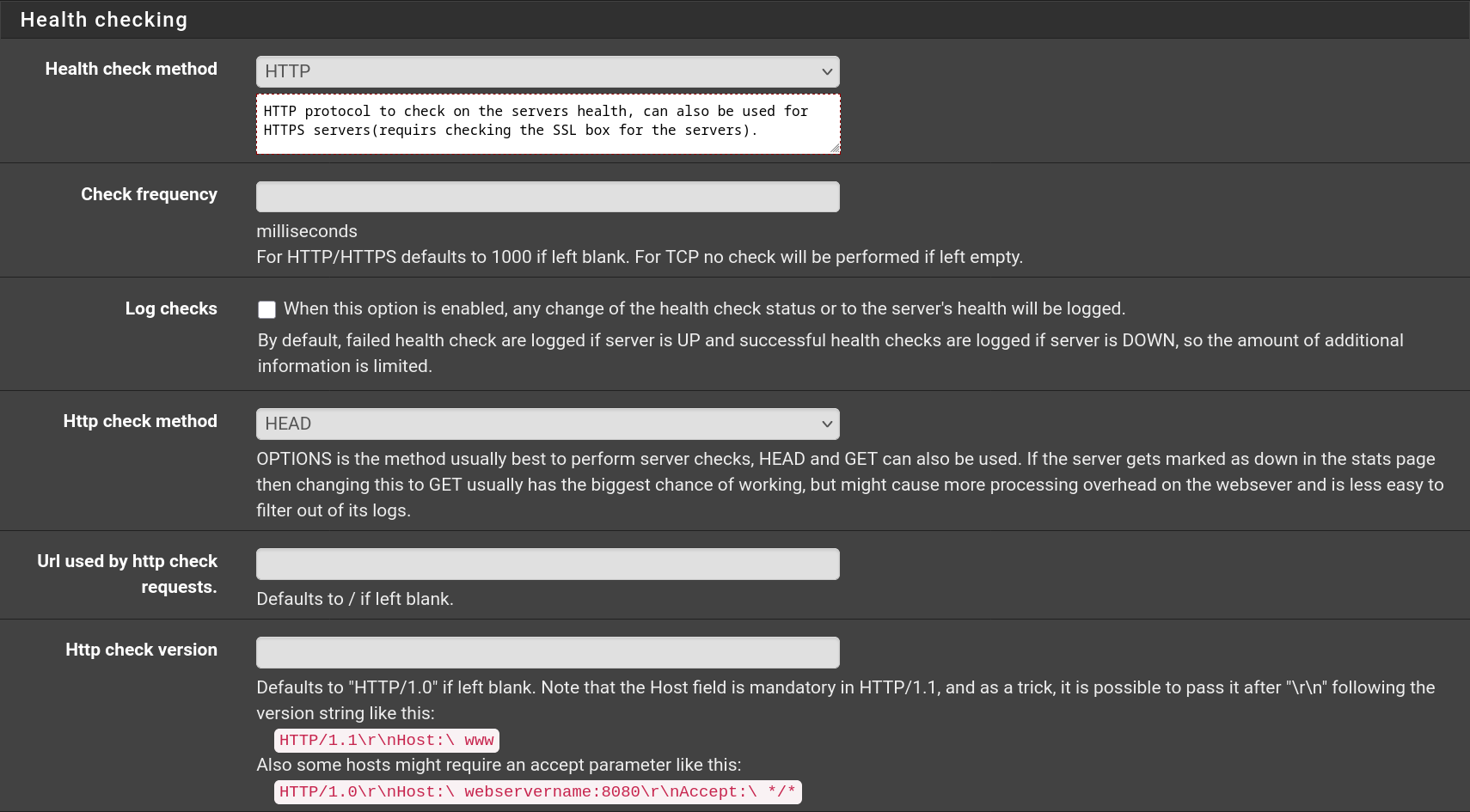
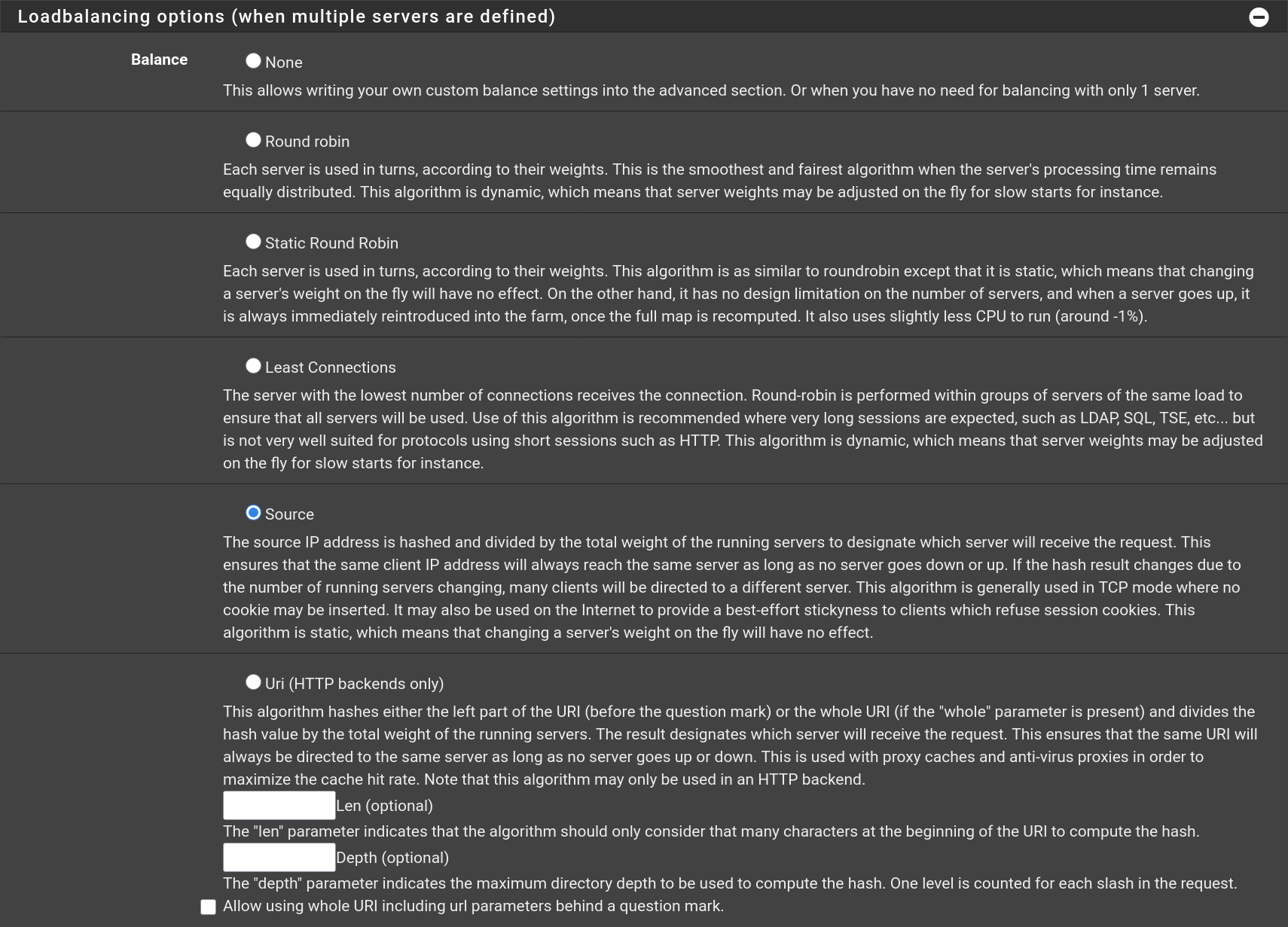
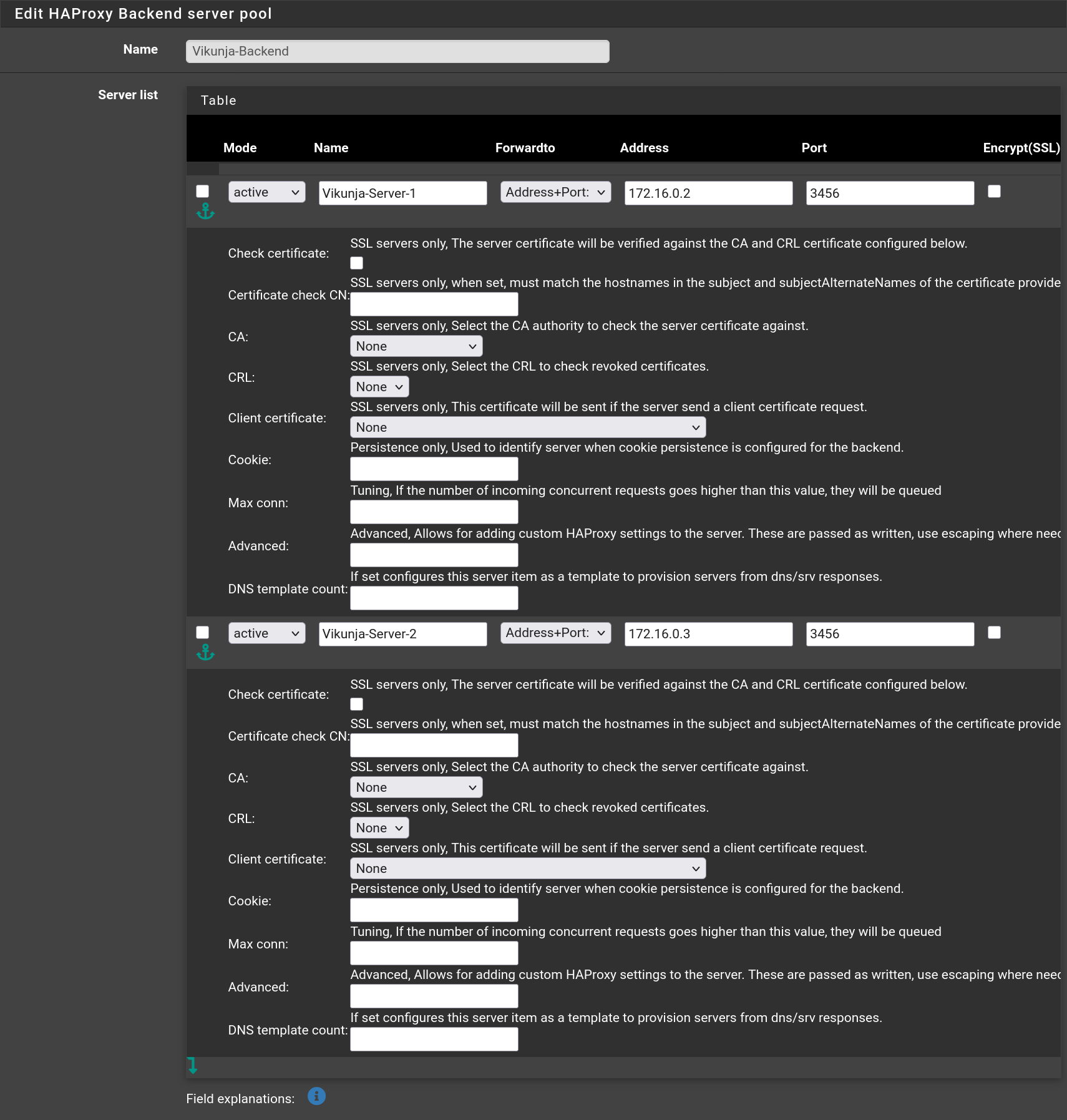
![image-20250601151849403](https://docs.adebarbarin.com/uploads/images/gallery/2025-06/scaled-1680-/haproxy-04.png)![image-20250601151927418](https://docs.adebarbarin.com/uploads/images/gallery/2025-06/scaled-1680-/haproxy-05.png)![image-20250601152041673](https://docs.adebarbarin.com/uploads/images/gallery/2025-06/scaled-1680-/haproxy-06.png)

Do the same for **Wiki.js** with the port being `3000` instead of `3456`.
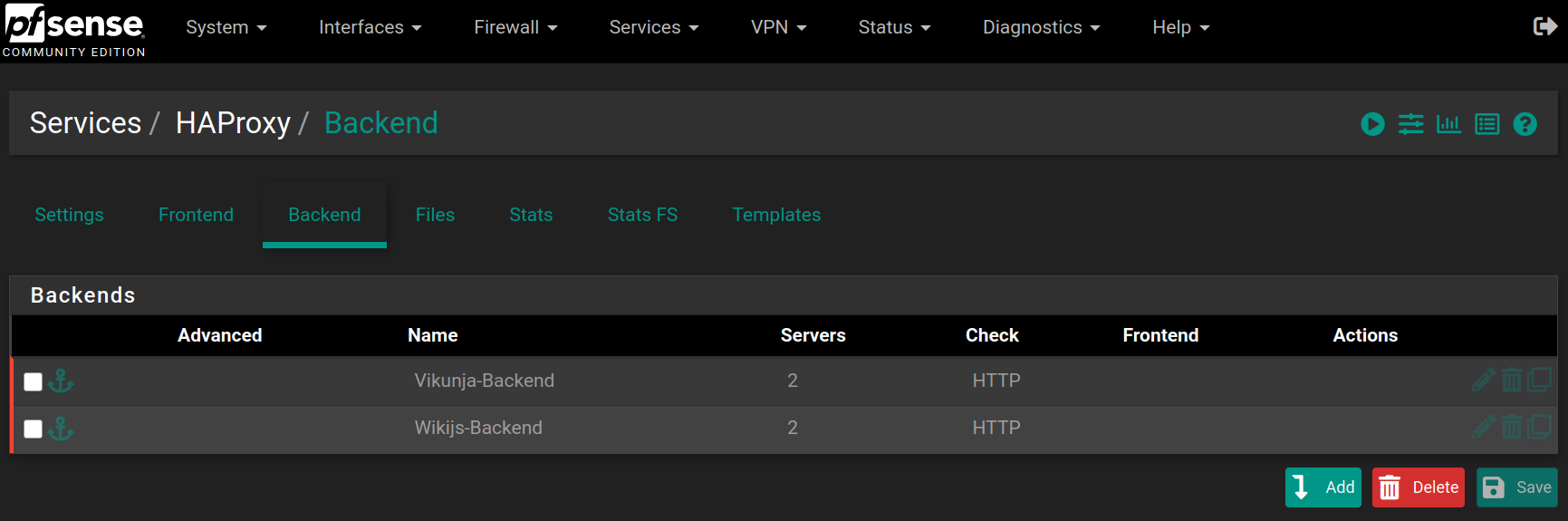
![image-20250601152425585](https://docs.adebarbarin.com/uploads/images/gallery/2025-06/scaled-1680-/haproxy-07.png)

Then go to **Frontend** and click on ![Add button](https://docs.adebarbarin.com/uploads/images/gallery/2025-06/scaled-1680-/pfsense-add-button.png), then fill the form with the following values and click on `Save`
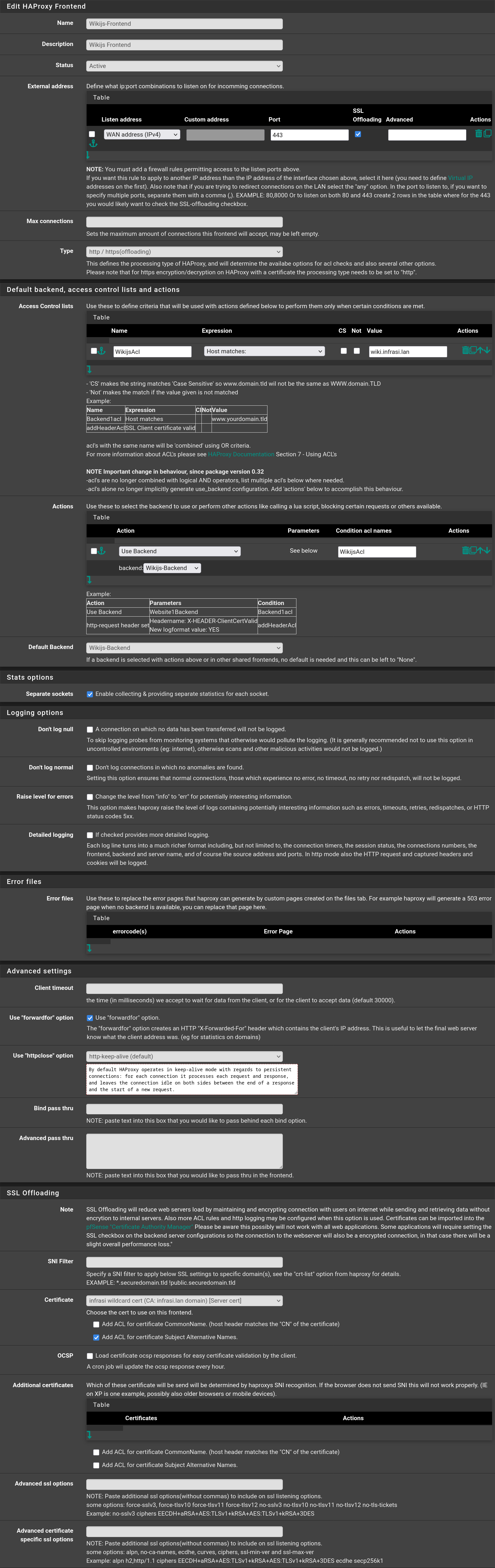
![image-20250601153306981](https://docs.adebarbarin.com/uploads/images/gallery/2025-06/scaled-1680-/haproxy-08.png)

Repeat the process with `Vikunja` checking the option `Shared Frontend` selecting the `Wikijs-Frontend` and click on `Save`
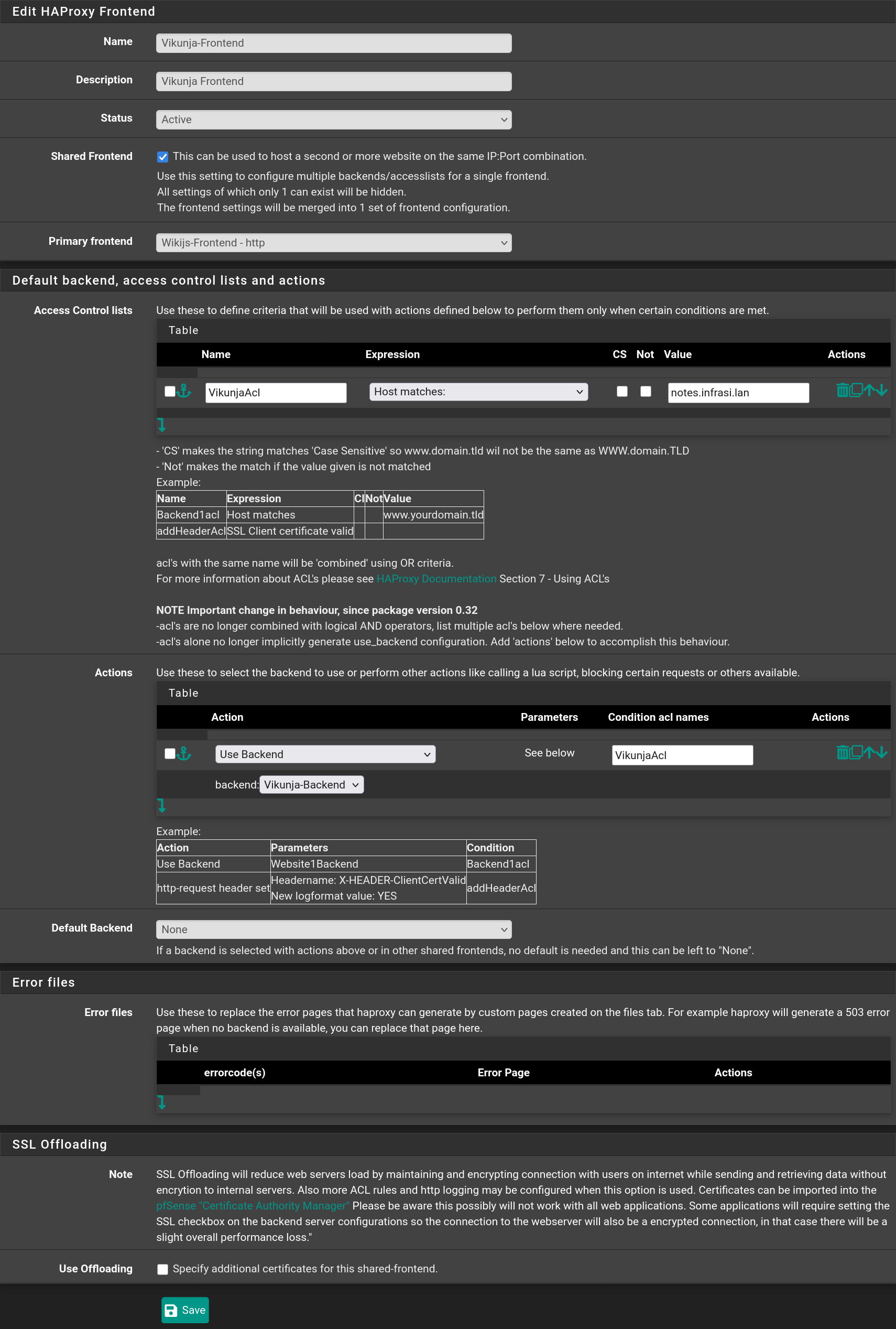
![image-20250601153556929](https://docs.adebarbarin.com/uploads/images/gallery/2025-06/scaled-1680-/haproxy-09.png)

Then add a third frontend to redirect requests from **HTTP** to **HTTPS** when in the `infrasi.lan` domain
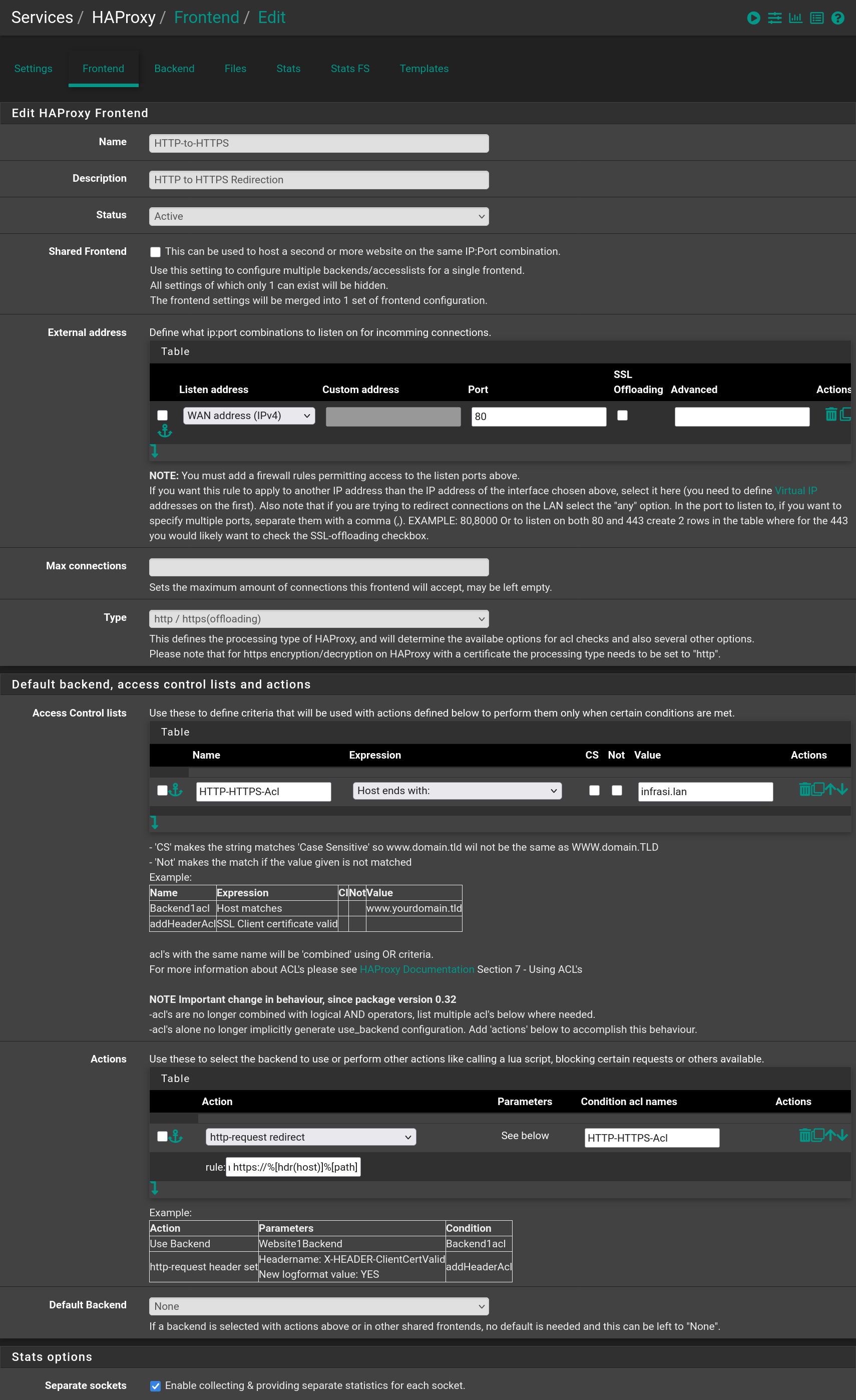
![image-20250601154215170](https://docs.adebarbarin.com/uploads/images/gallery/2025-06/haproxy-10.png)

You should have the following frontends
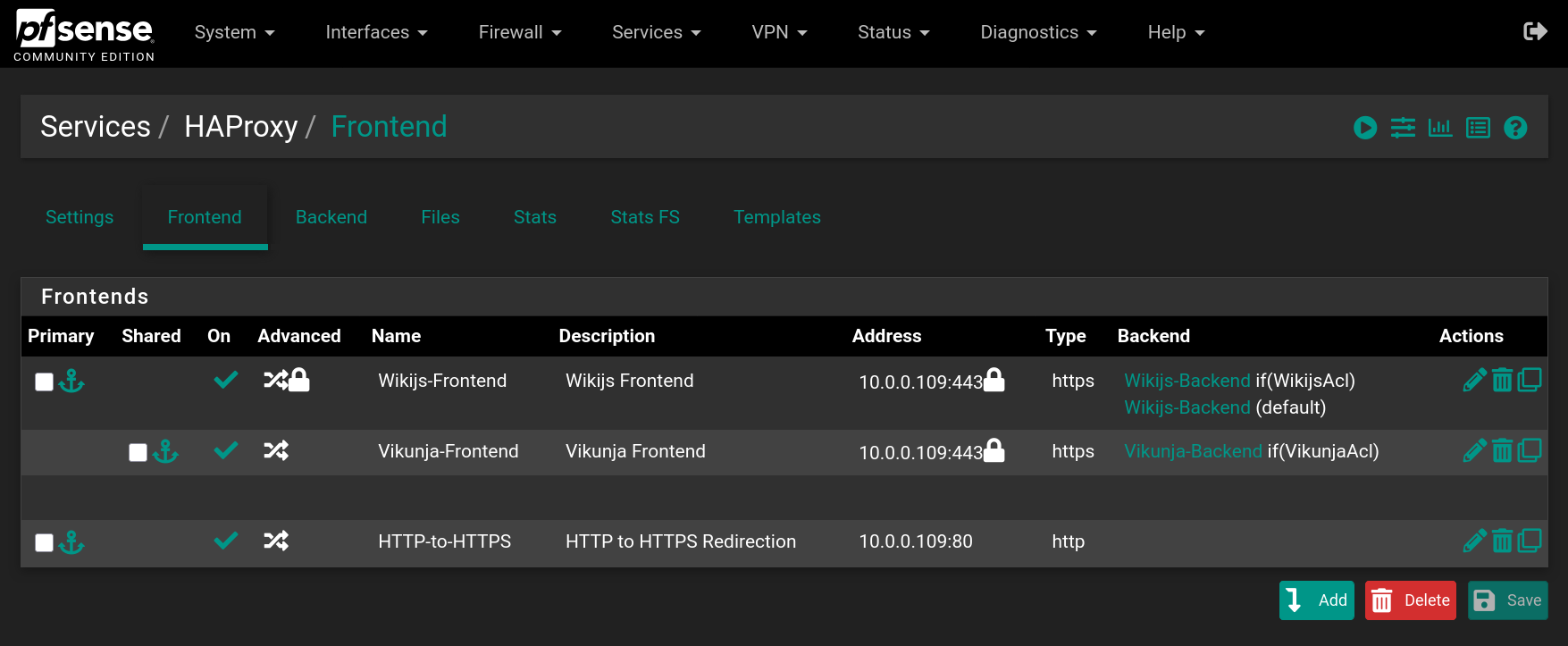
![image-20250601154325962](https://docs.adebarbarin.com/uploads/images/gallery/2025-06/scaled-1680-/haproxy-11.png)

Go to **Settings** to enable **HAProxy** filling the form with the following values and click on `Save`
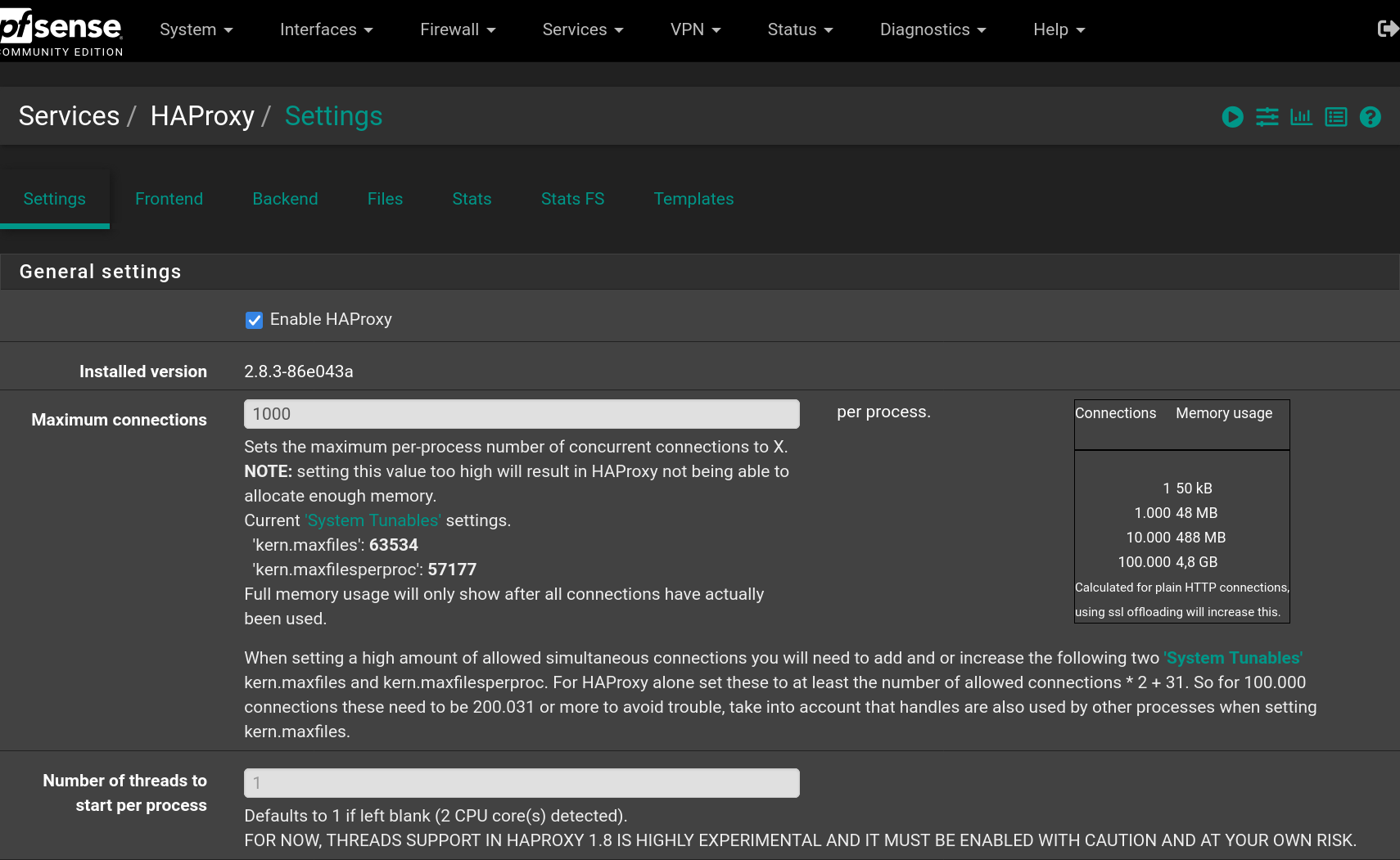
![image-20250601154653757](https://docs.adebarbarin.com/uploads/images/gallery/2025-06/scaled-1680-/haproxy-12.png)

Go to **Firewall &gt; Rules &gt; WAN** and add a rule to accept `IPv4 TCP` requests on `HTTP` and `HTTPS` ports
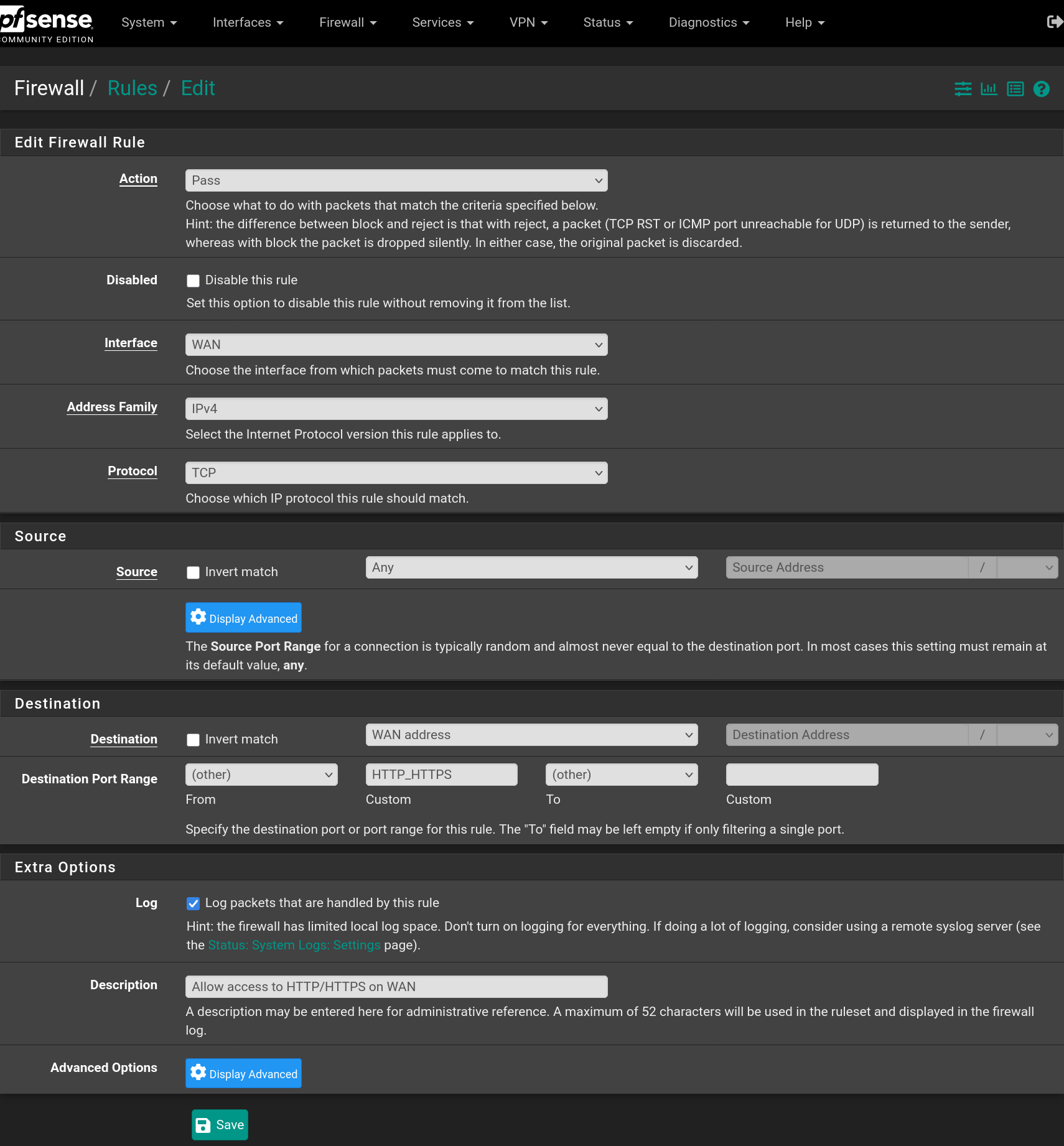
![image-20250601155104637](https://docs.adebarbarin.com/uploads/images/gallery/2025-06/scaled-1680-/haproxy-13.png)

Now the websites are available from the outside using **HTTPS** and the domain name `infrasi.lan`

> ⓘ You need to have **DNS** entries in the **WAN network** that points to your **WAN address** for the `infrasi.lan` domain and the `notes.infrasi.lan` and `wiki.infrasi.lan` sub-domains.

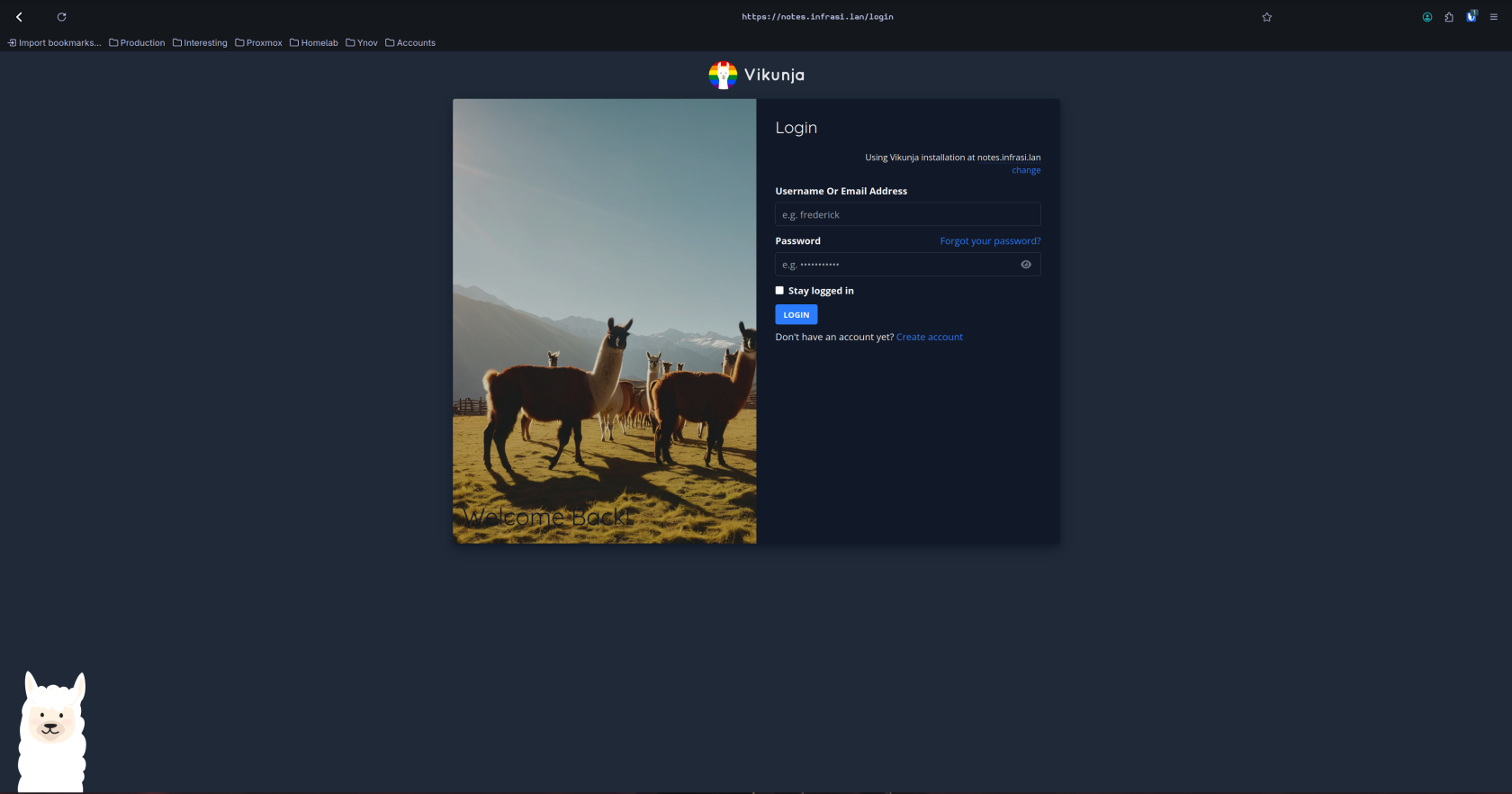
![image-20250601155938838](https://docs.adebarbarin.com/uploads/images/gallery/2025-06/scaled-1680-/haproxy-14.png)

![image-20250601160046244](https://docs.adebarbarin.com/uploads/images/gallery/2025-06/scaled-1680-/haproxy-15.png)

# pfSense Installation

<div id="bkmrk-antoine-de-barbarin" style="text-align: right">Antoine de Barbarin</div>---

Click on ![create VM button](https://docs.adebarbarin.com/uploads/images/gallery/2025-06/proxmox-createvm-button.png) on the top right of the screen

![image-20250530145934733](https://docs.adebarbarin.com/uploads/images/gallery/2025-06/proxmox-interface-pfsense-install-00.png)

Fill the form with the name of the VM `pfSense-infraSI` and click Next
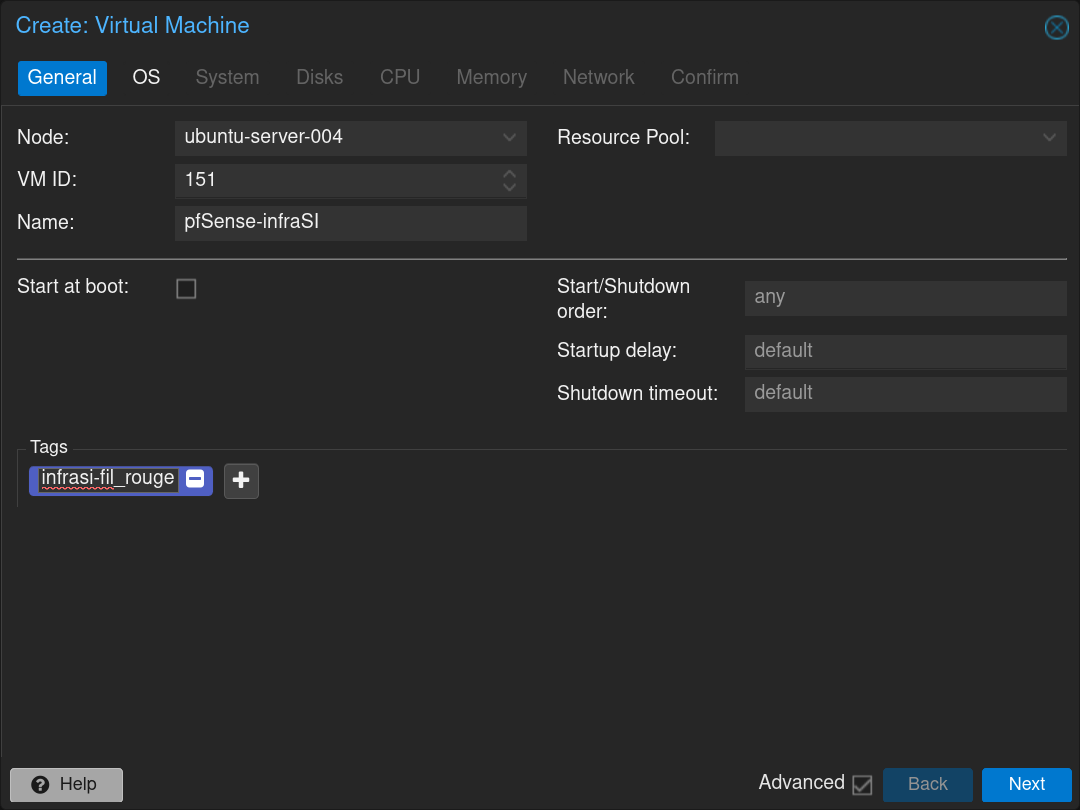
![image-20250530150345411](https://docs.adebarbarin.com/uploads/images/gallery/2025-06/proxmox-interface-pfsense-install-01.png)

Select the pfSense `.iso` image and click Next
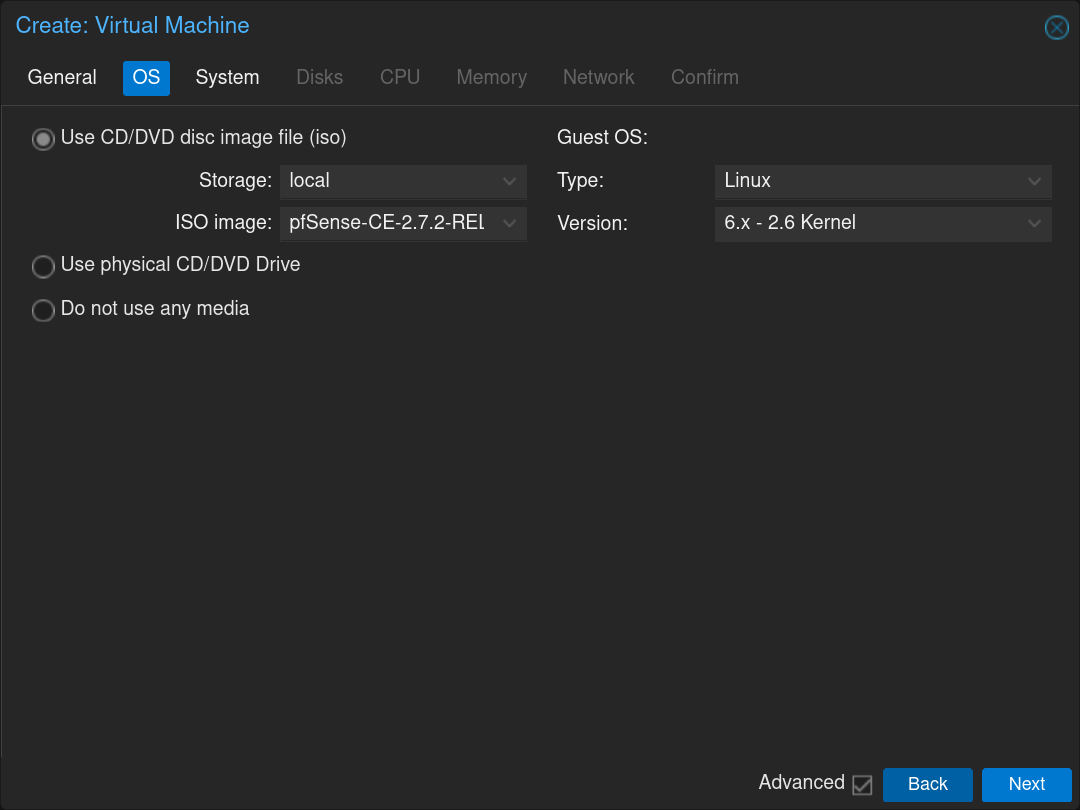
![image-20250530150619090](https://docs.adebarbarin.com/uploads/images/gallery/2025-06/proxmox-interface-pfsense-install-02.png)

Click Next

![image-20250530150709665](https://docs.adebarbarin.com/uploads/images/gallery/2025-06/proxmox-interface-pfsense-install-03.png)

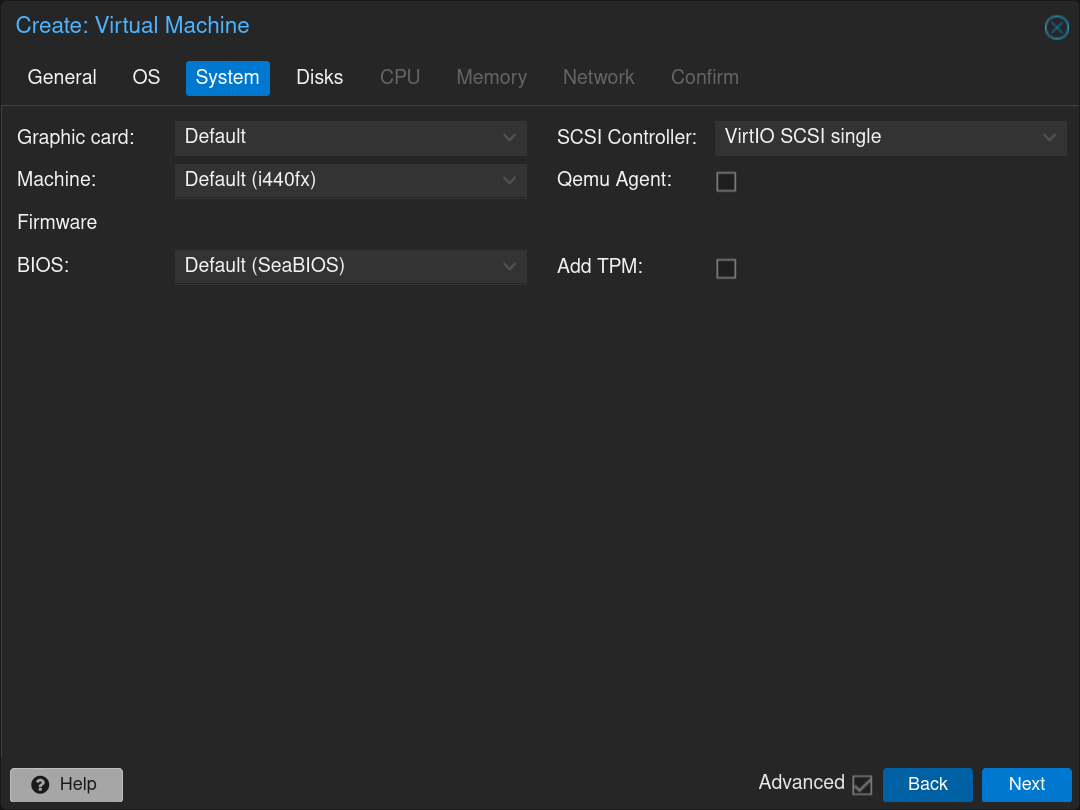
Select the disk in which install it and the size of the partition `32GiB` and click Next
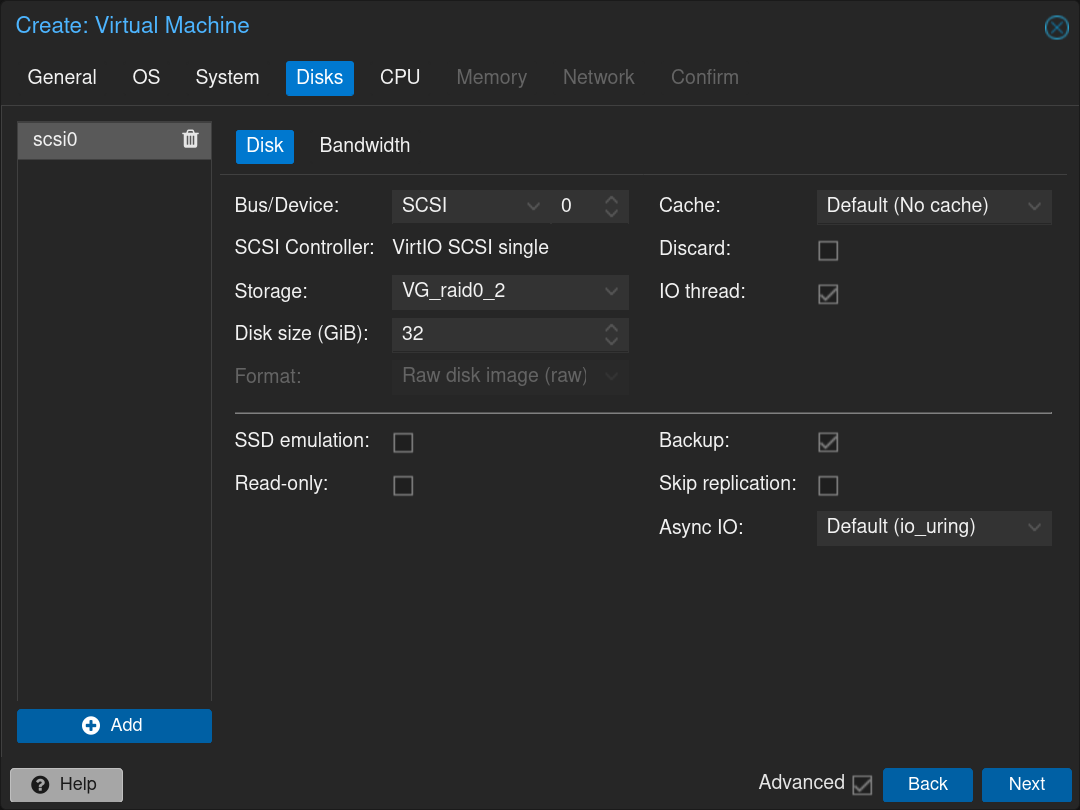
![image-20250530150848076](https://docs.adebarbarin.com/uploads/images/gallery/2025-06/proxmox-interface-pfsense-install-04.png)

Select the number of CPUs to allocate: 1 CPU with 2 cores and click Next
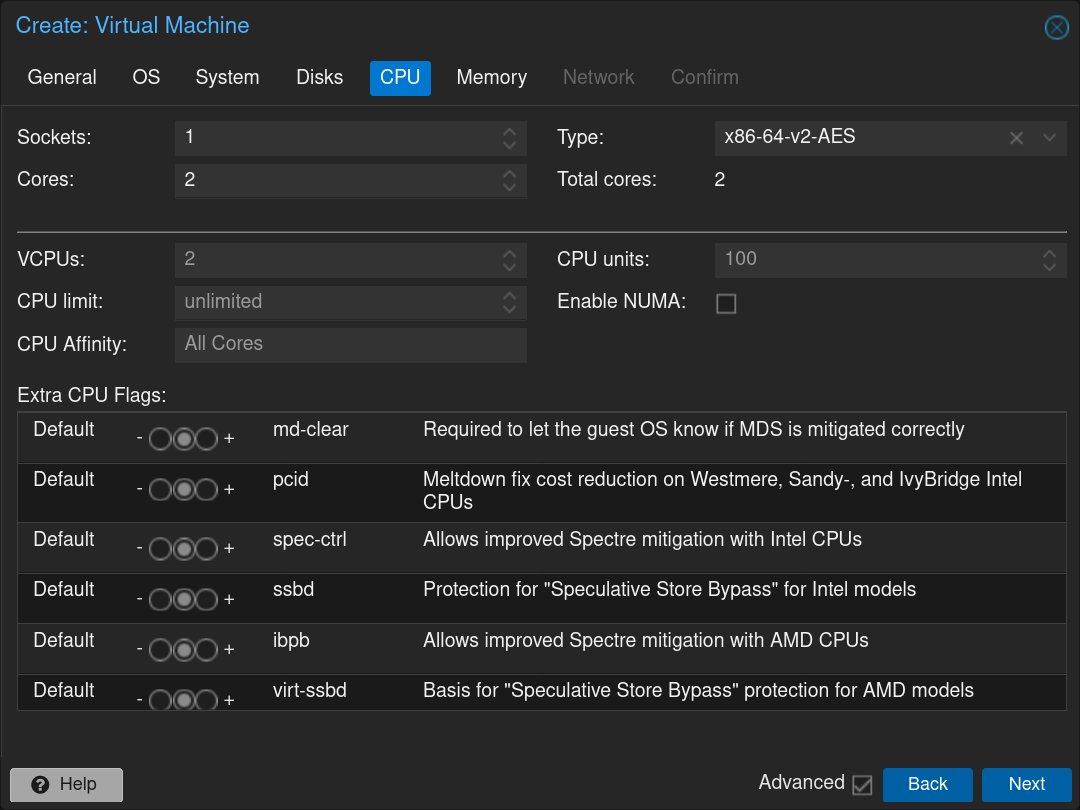
![image-20250530151014186](https://docs.adebarbarin.com/uploads/images/gallery/2025-06/proxmox-interface-pfsense-install-05.png)

Select the RAM to allocate: `2048MB` and click Next
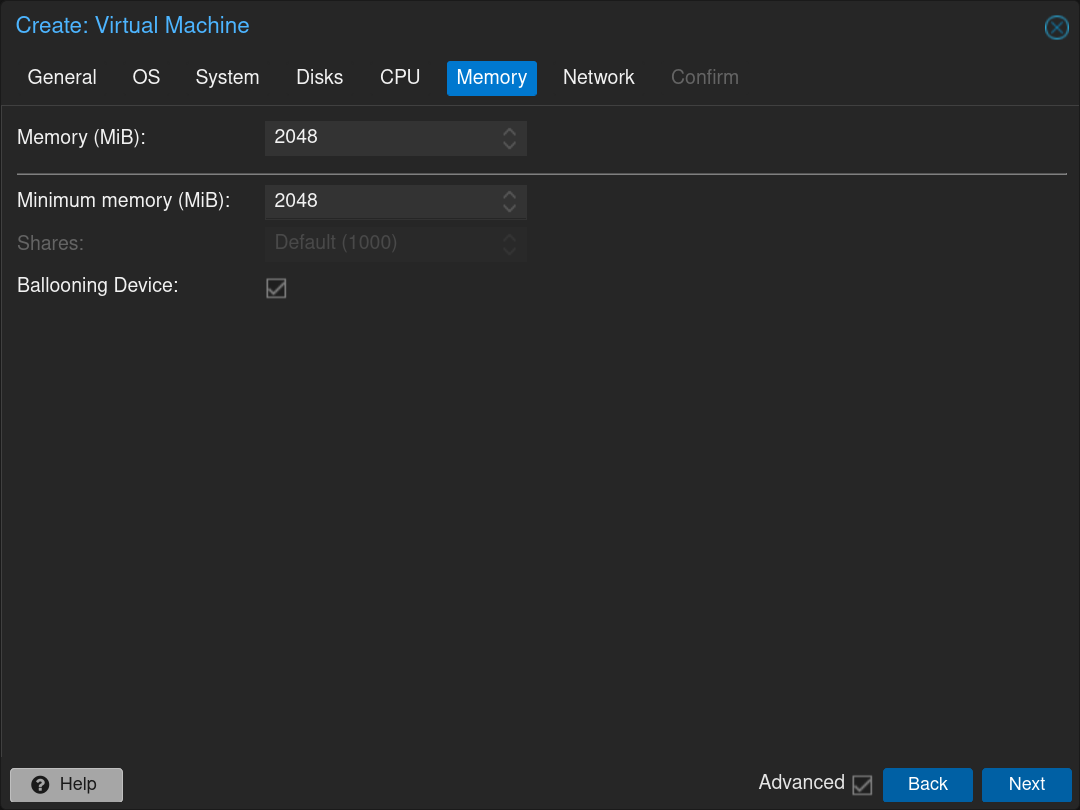
![image-20250530151126781](https://docs.adebarbarin.com/uploads/images/gallery/2025-06/proxmox-interface-pfsense-install-06.png)

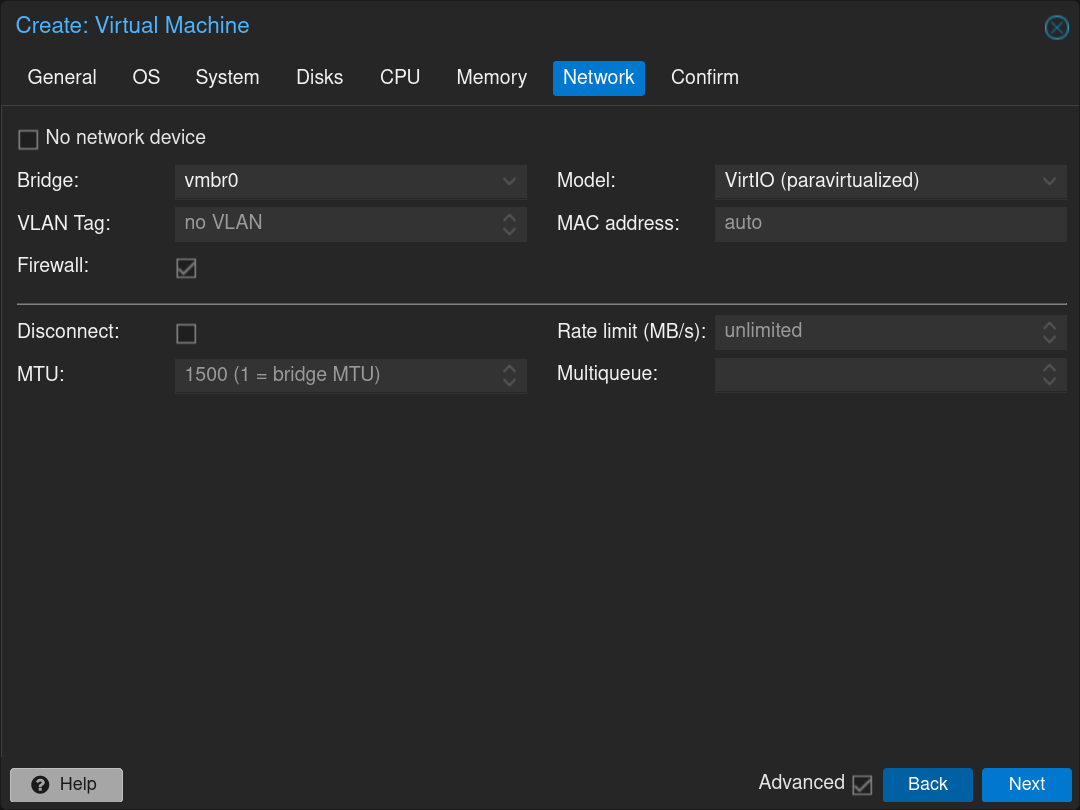
Select the first network interface: `vmbr0` (WAN interface) and click Next
![image-20250530151411843](https://docs.adebarbarin.com/uploads/images/gallery/2025-06/proxmox-interface-pfsense-install-07.png)

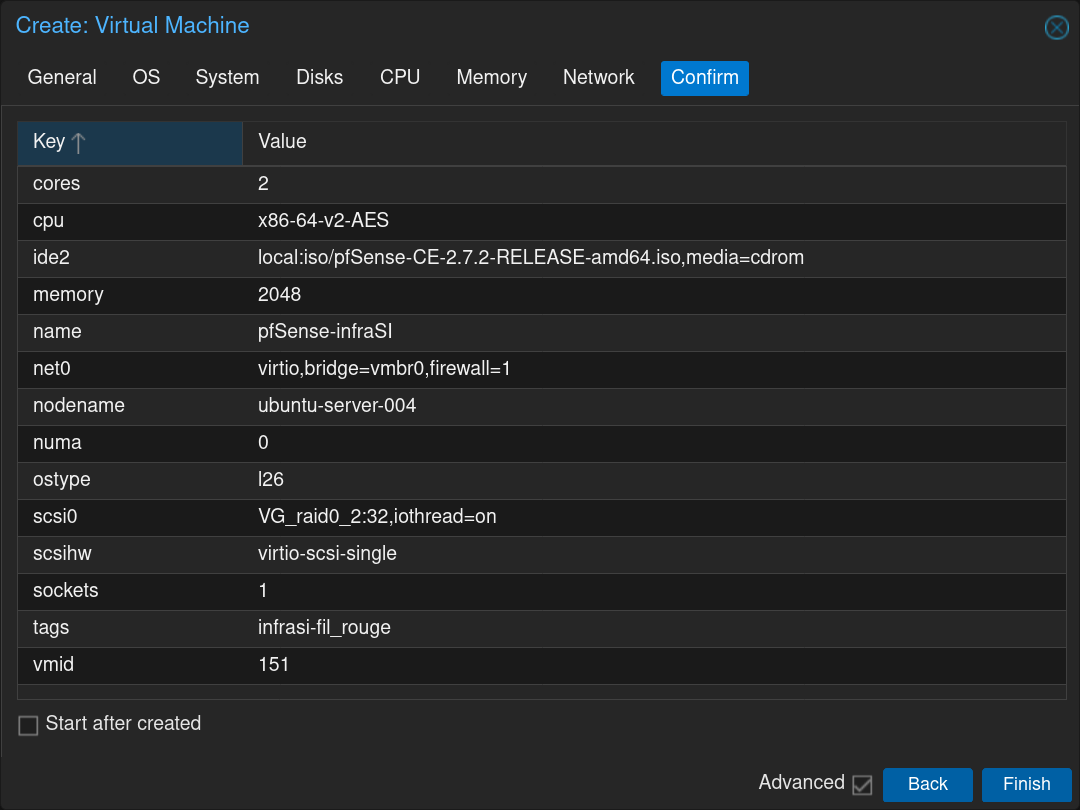
Confirm the creation of the pfSense VM
![image-20250530151457604](https://docs.adebarbarin.com/uploads/images/gallery/2025-06/proxmox-interface-pfsense-install-08.png)

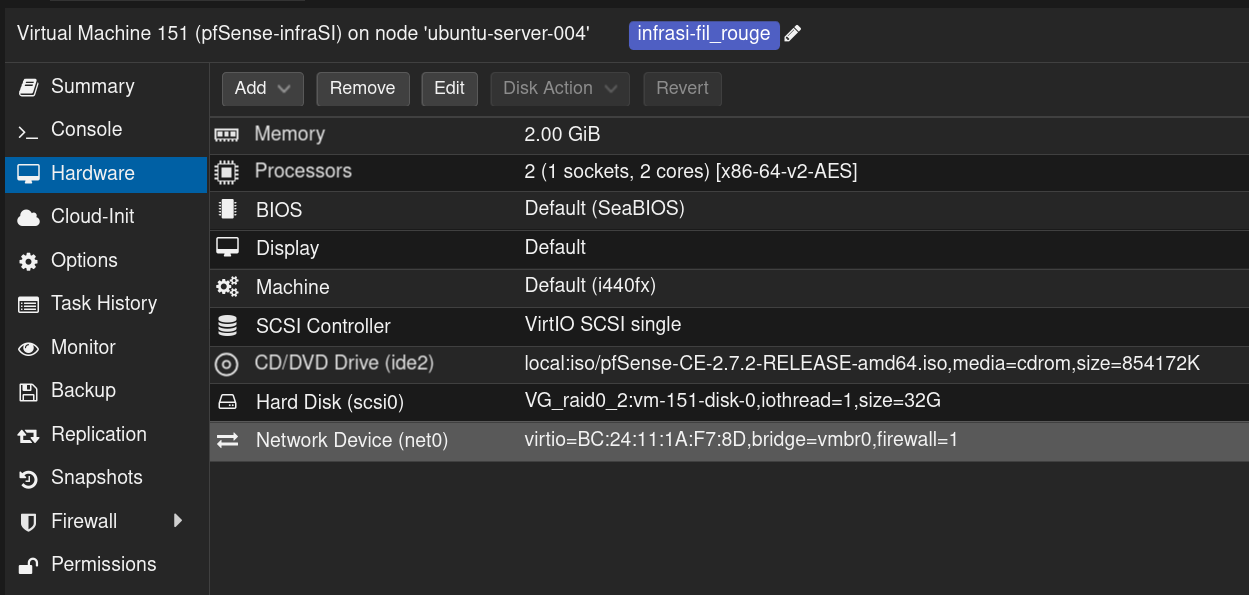
Click on the newly created VM and then click on the tab **Hardware**
![image-20250530152209431](https://docs.adebarbarin.com/uploads/images/gallery/2025-06/proxmox-interface-pfsense-install-09.png)

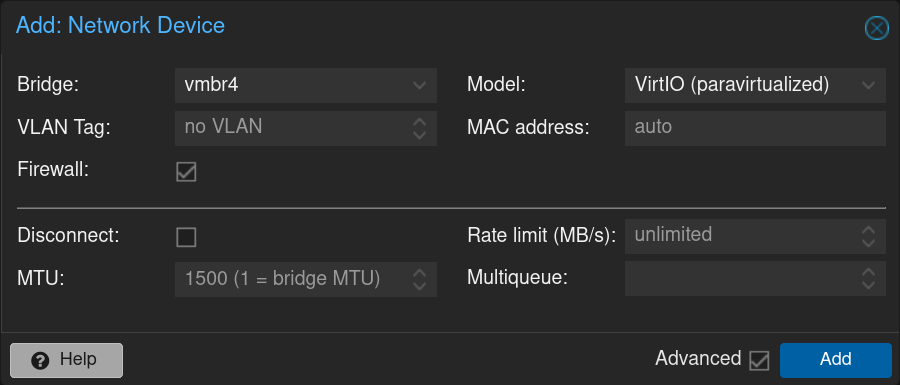
Click on **Add** and then on **Network Device** and select the Bridge `vmbr4` dedicated to the **DMZ** network then click on the **Add** button
![image-20250530152421769](https://docs.adebarbarin.com/uploads/images/gallery/2025-06/proxmox-interface-pfsense-install-10.png)

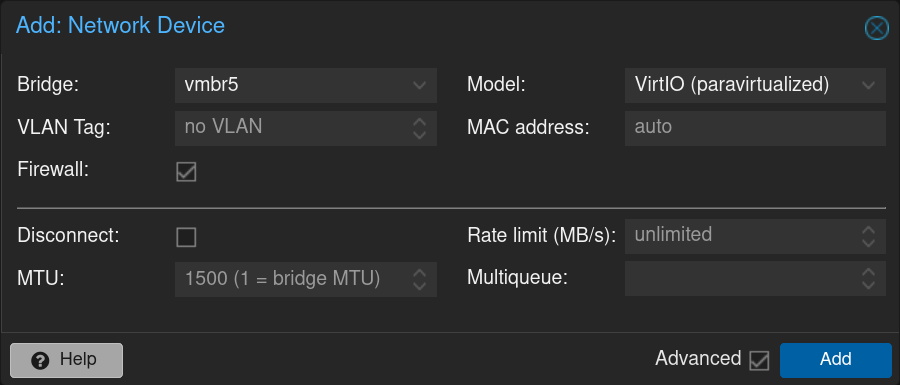
Repeat the process with the Bridge `vmbr5` dedicated to the **LAN** network with the VLANs
![image-20250530152640972](https://docs.adebarbarin.com/uploads/images/gallery/2025-06/proxmox-interface-pfsense-install-11.png)

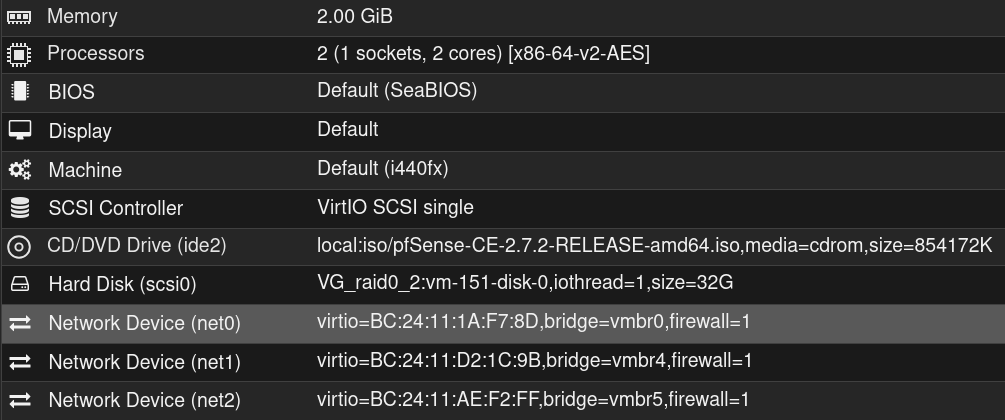
Here is the result

![image-20250530152743545](https://docs.adebarbarin.com/uploads/images/gallery/2025-06/proxmox-interface-pfsense-install-12.png)

Click on ![image-20250530153132435](https://docs.adebarbarin.com/uploads/images/gallery/2025-06/proxmox-console-button.png) and then on ![image-20250530153132435](https://docs.adebarbarin.com/uploads/images/gallery/2025-06/proxmox-start-big-button.png)

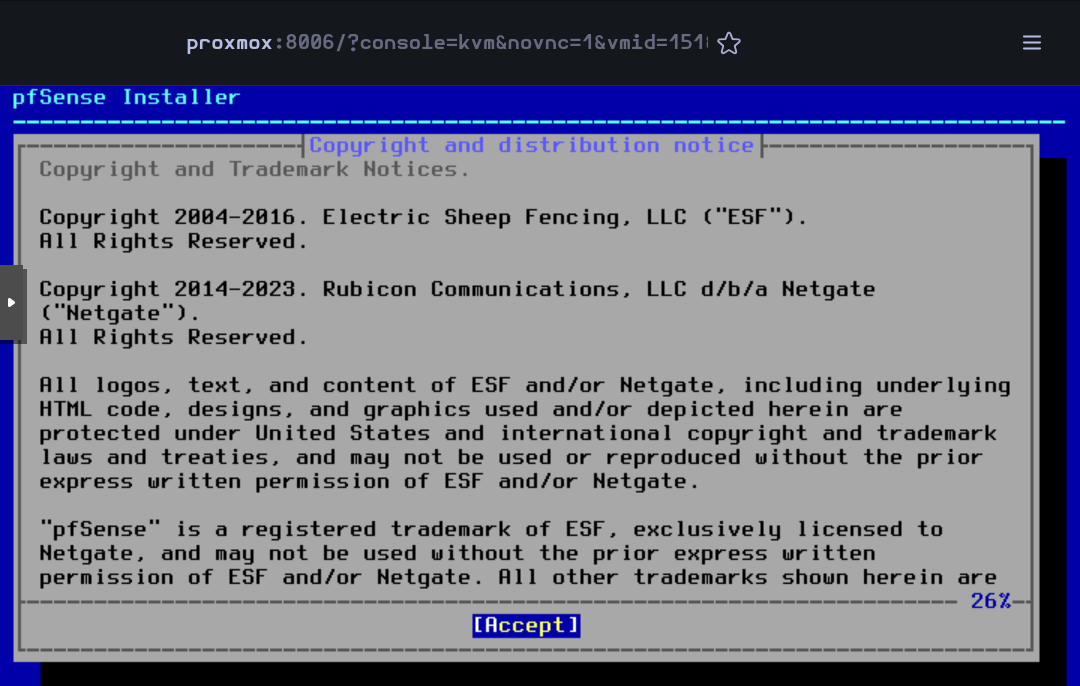
Then the VM will boot and the installer will start. Accept the license and rights
![image-20250530153419335](https://docs.adebarbarin.com/uploads/images/gallery/2025-06/proxmox-interface-pfsense-install-13.png)

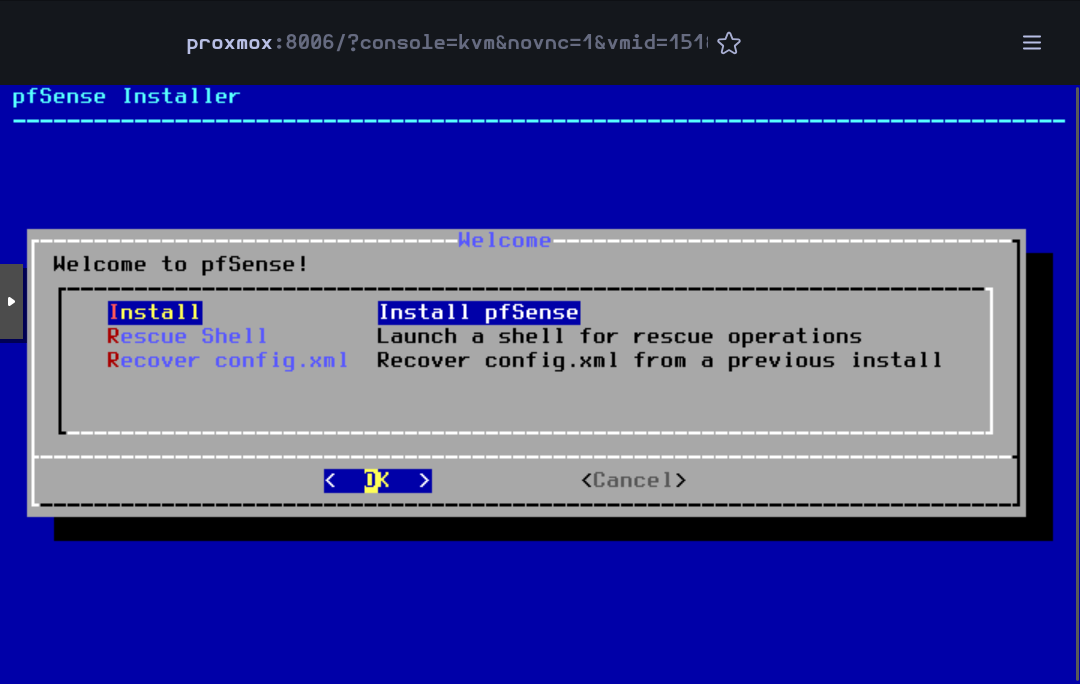
Press on `Enter` to begin the installation
![image-20250530153517372](https://docs.adebarbarin.com/uploads/images/gallery/2025-06/proxmox-interface-pfsense-install-14.png)

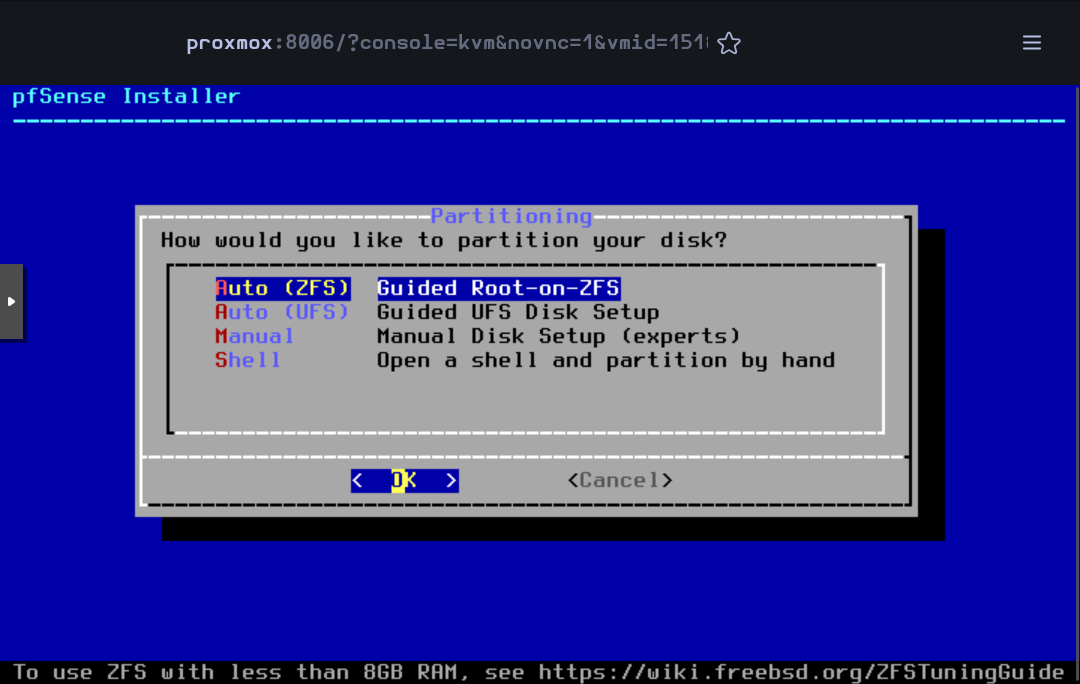
Accept the default partitioning option `Auto (ZFS)`
![image-20250530153634966](https://docs.adebarbarin.com/uploads/images/gallery/2025-06/proxmox-interface-pfsense-install-15.png)

Press `Enter` to begin the installation
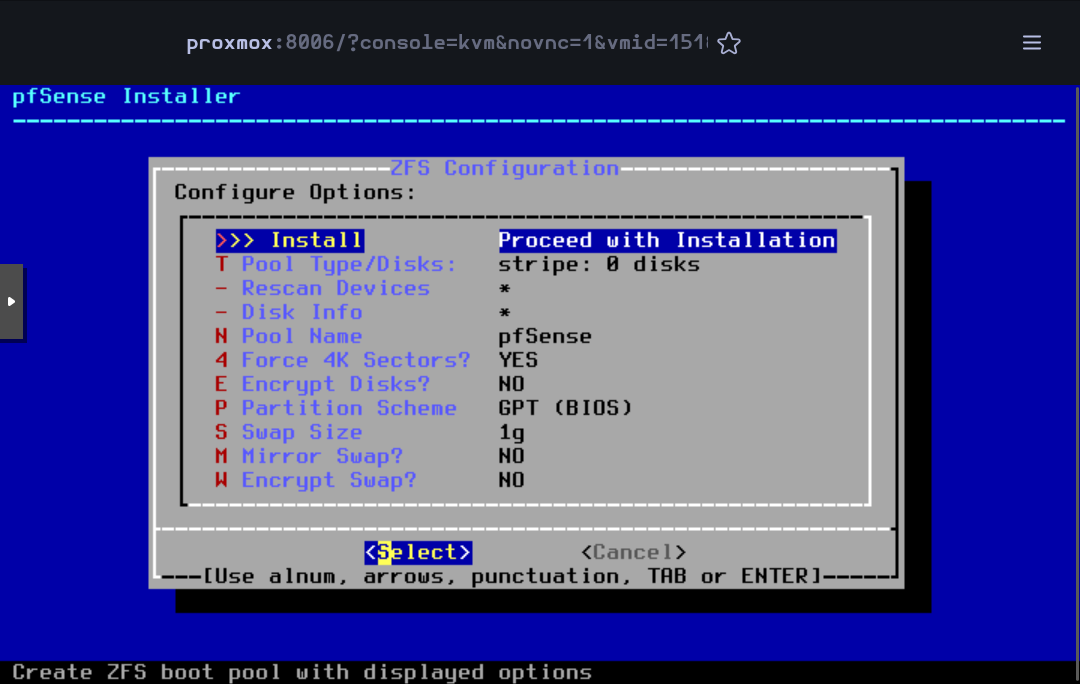
![image-20250530153711489](https://docs.adebarbarin.com/uploads/images/gallery/2025-06/proxmox-interface-pfsense-install-16.png)

Press `Enter` to accept the default `Stripe` mode
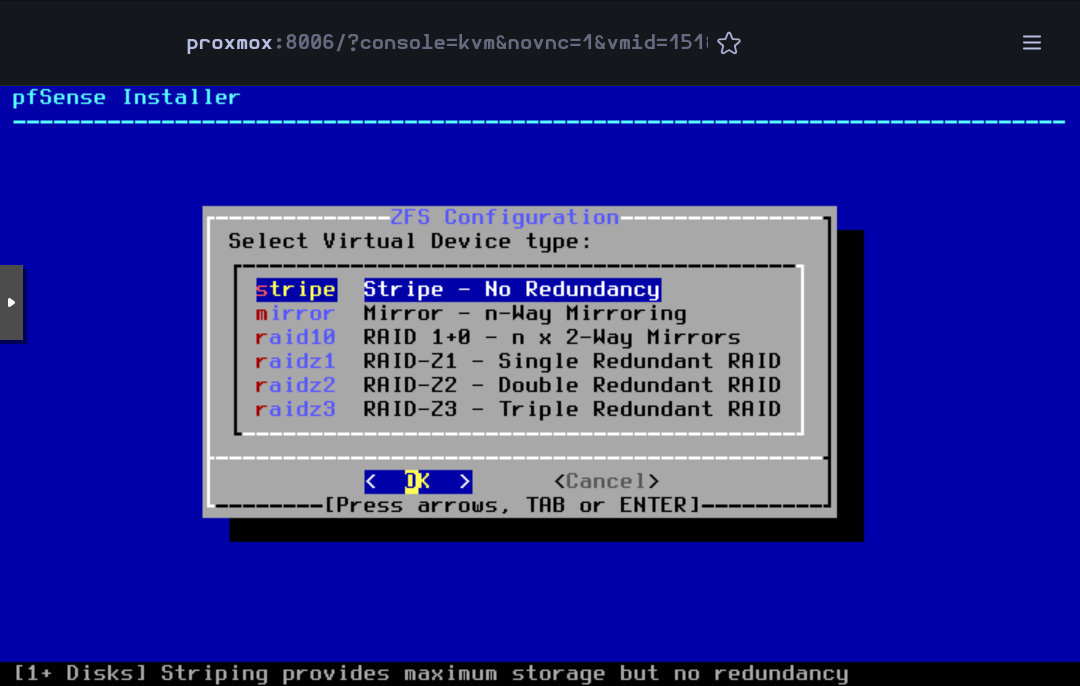
![image-20250530153808916](https://docs.adebarbarin.com/uploads/images/gallery/2025-06/proxmox-interface-pfsense-install-17.png)

Press `Space` to select the disk and then `Enter` to go on
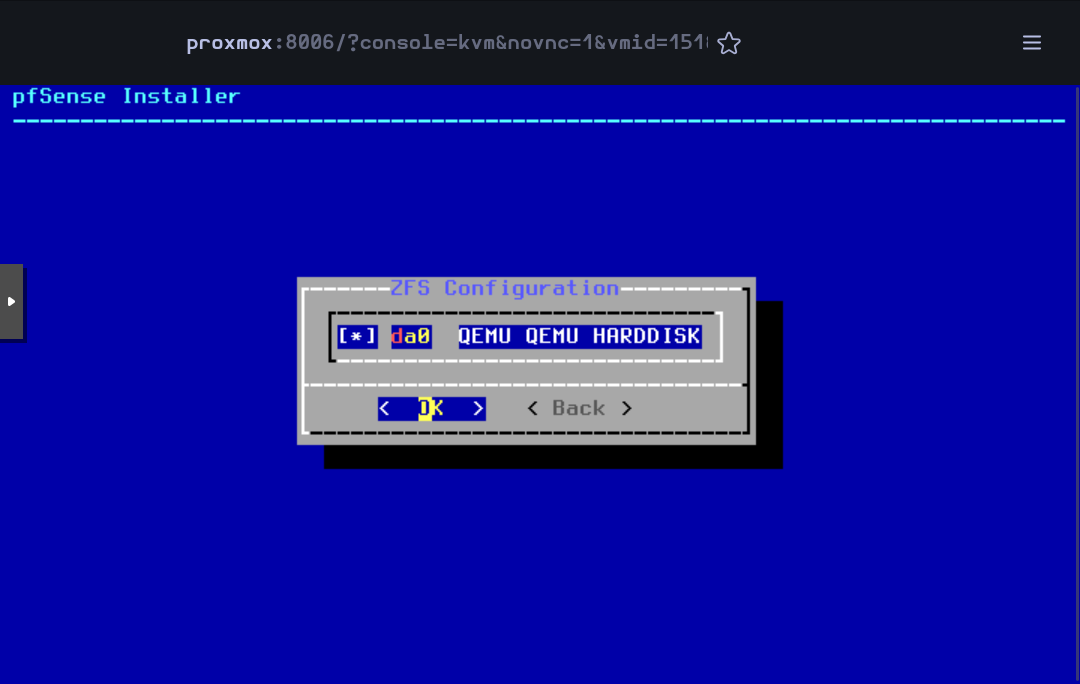
![image-20250530153857558](https://docs.adebarbarin.com/uploads/images/gallery/2025-06/proxmox-interface-pfsense-install-18.png)

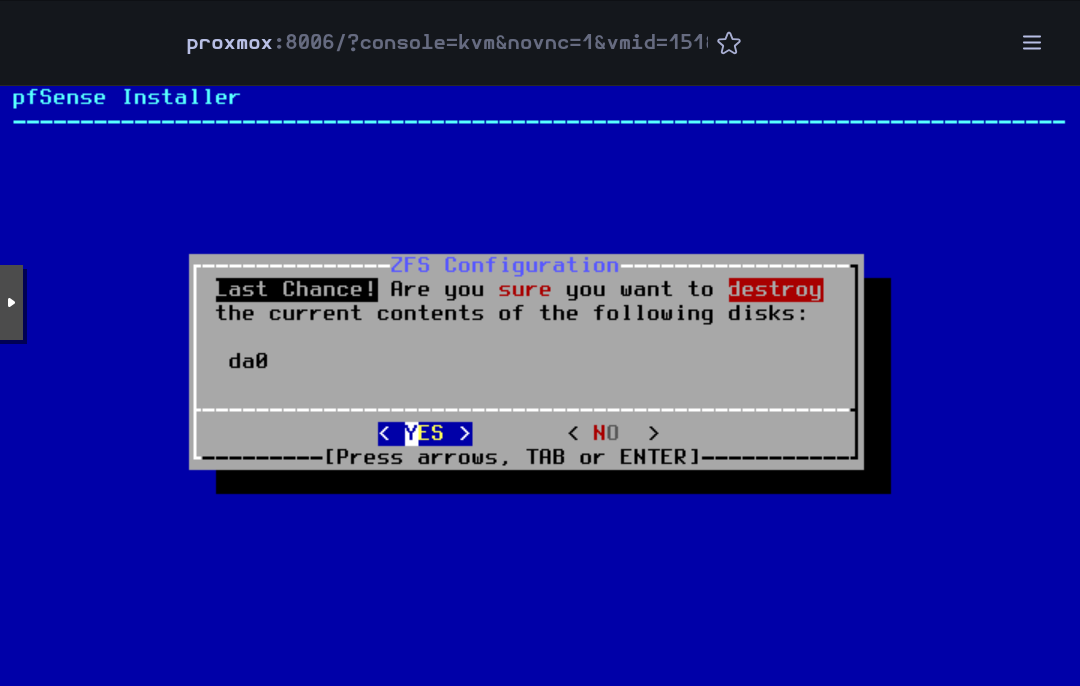
Select `Yes` and press `Enter`

![image-20250530153955079](https://docs.adebarbarin.com/uploads/images/gallery/2025-06/proxmox-interface-pfsense-install-19.png)

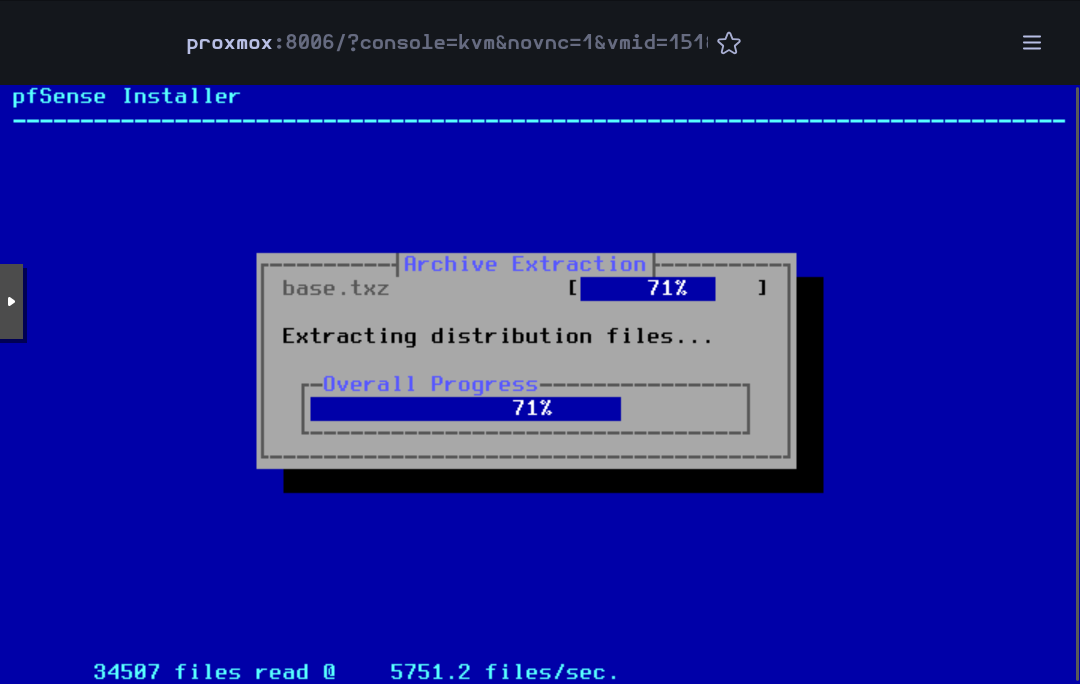
Then, the installation will begin

![image-20250530154039333](https://docs.adebarbarin.com/uploads/images/gallery/2025-06/proxmox-interface-pfsense-install-20.png)

When finished, accept to reboot the VM
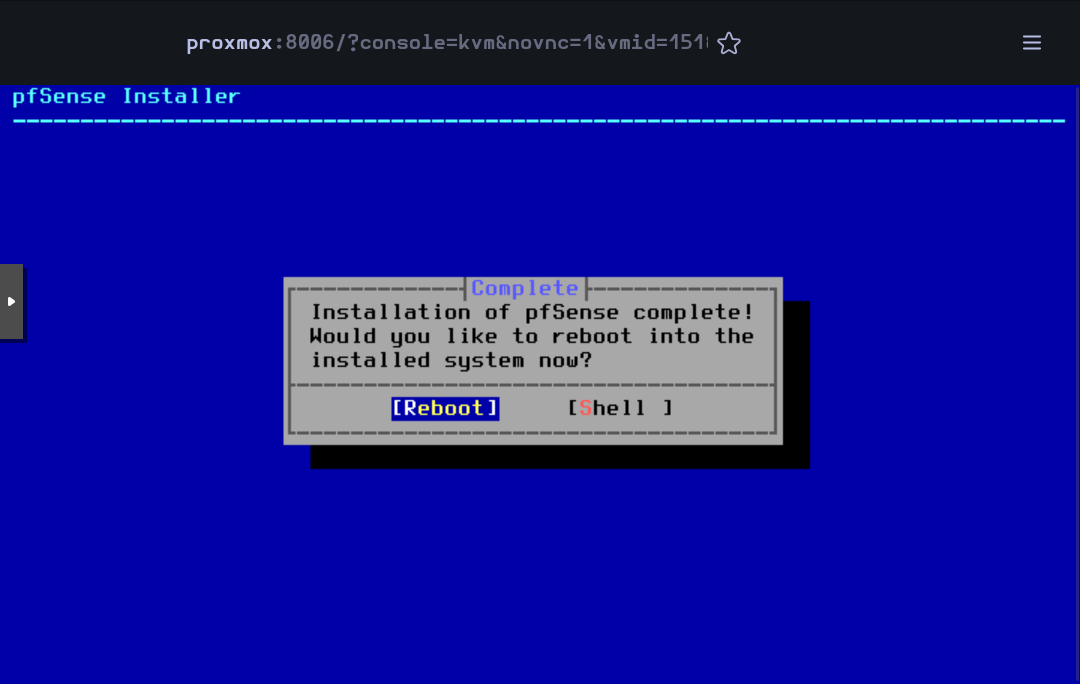
![image-20250530154117692](https://docs.adebarbarin.com/uploads/images/gallery/2025-06/proxmox-interface-pfsense-install-21.png)

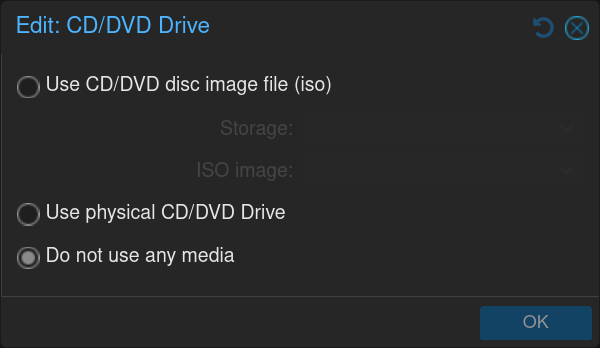
While rebooting, you can remove the `.iso` image editing the **CD/DVD Drive** in the **Hardware** section
![image-20250530154330979](https://docs.adebarbarin.com/uploads/images/gallery/2025-06/proxmox-interface-pfsense-install-22.png)

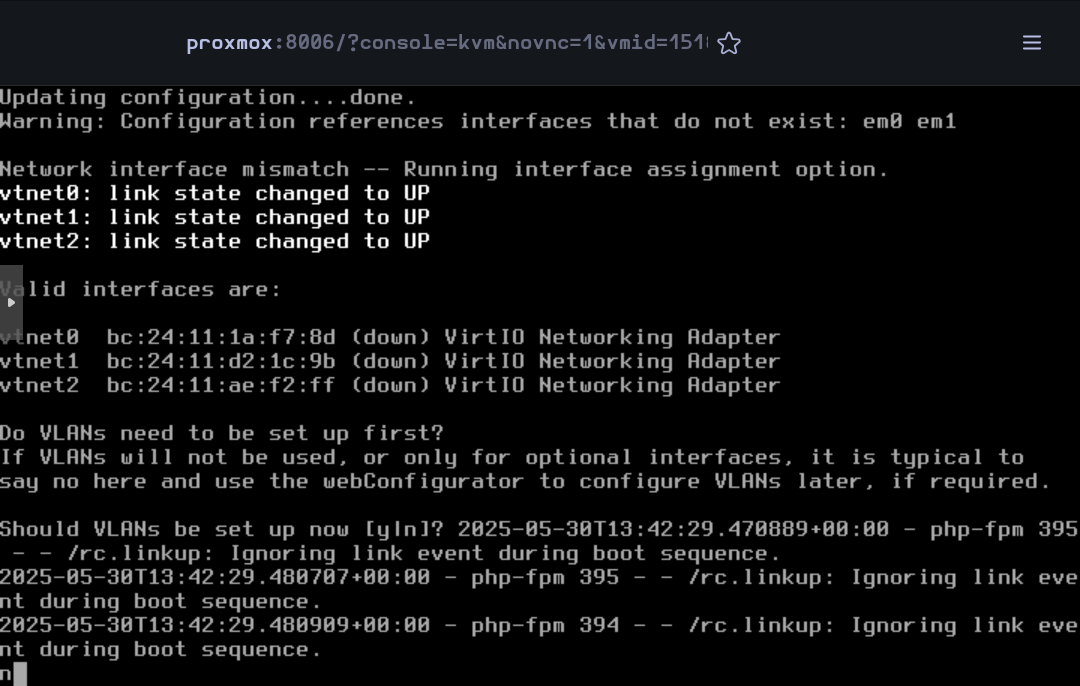
When the VM has rebooted, some basic configuration will be done in the command line interface.

For the VLANs, type `n` for the moment (they will be created in the web interface)
![image-20250530154618405](https://docs.adebarbarin.com/uploads/images/gallery/2025-06/proxmox-interface-pfsense-install-23.png)

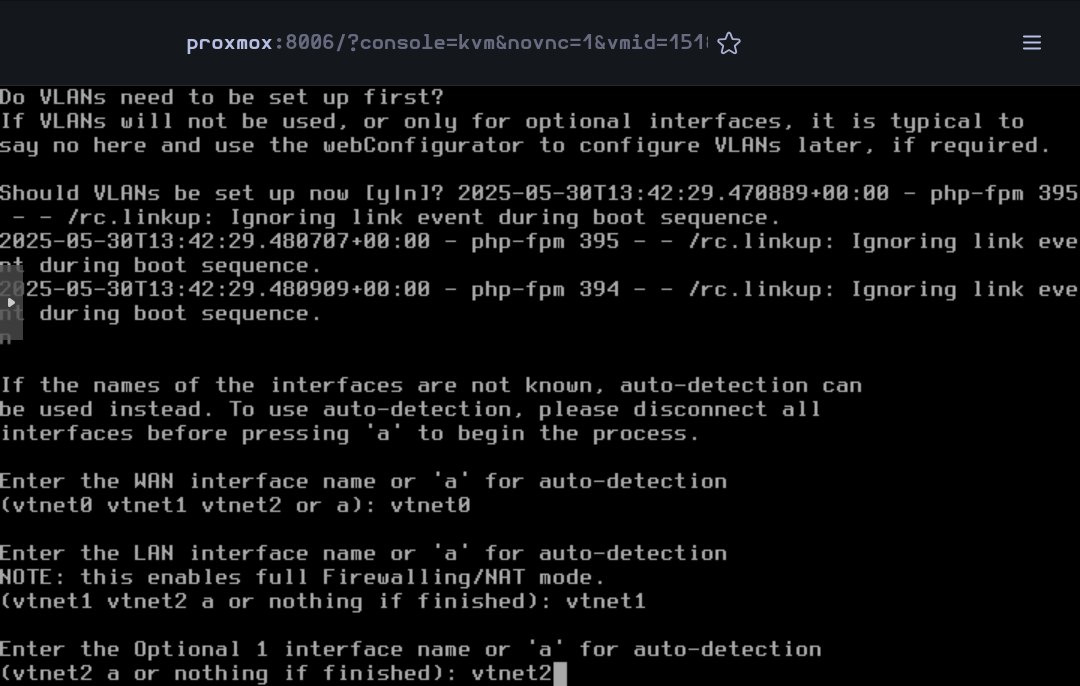
Type `vtnet0` for the **WAN** interface, `vtnet1` for the **LAN** and `vtnet2` for the **OPT1**
![image-20250530154920491](https://docs.adebarbarin.com/uploads/images/gallery/2025-06/proxmox-interface-pfsense-install-24.png)

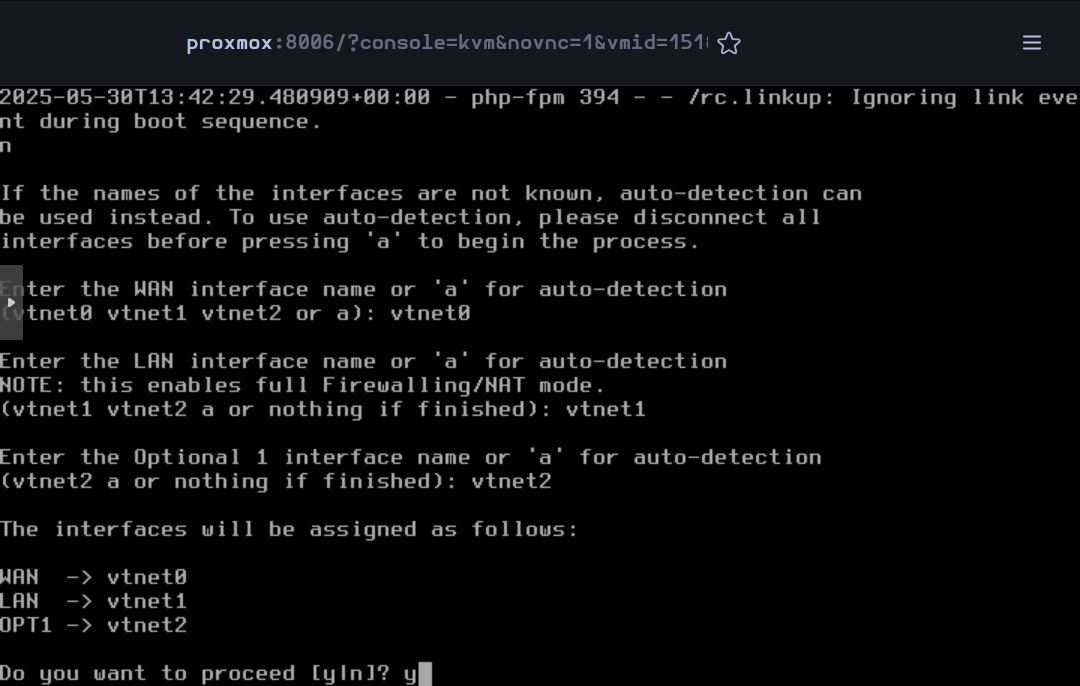
Confirm the network interface configuration
![image-20250530155035819](https://docs.adebarbarin.com/uploads/images/gallery/2025-06/proxmox-interface-pfsense-install-25.png)

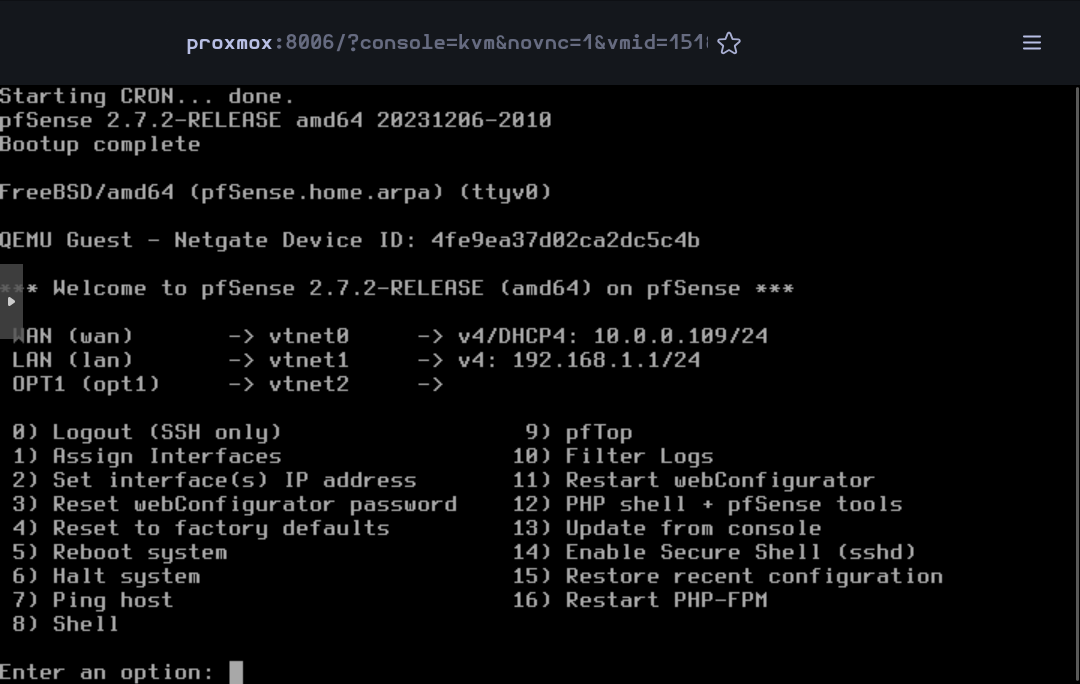
Now the installation is complete. The rest of the configuration will be done on the web interface.
![image-20250530155228955](https://docs.adebarbarin.com/uploads/images/gallery/2025-06/proxmox-interface-pfsense-install-26.png)

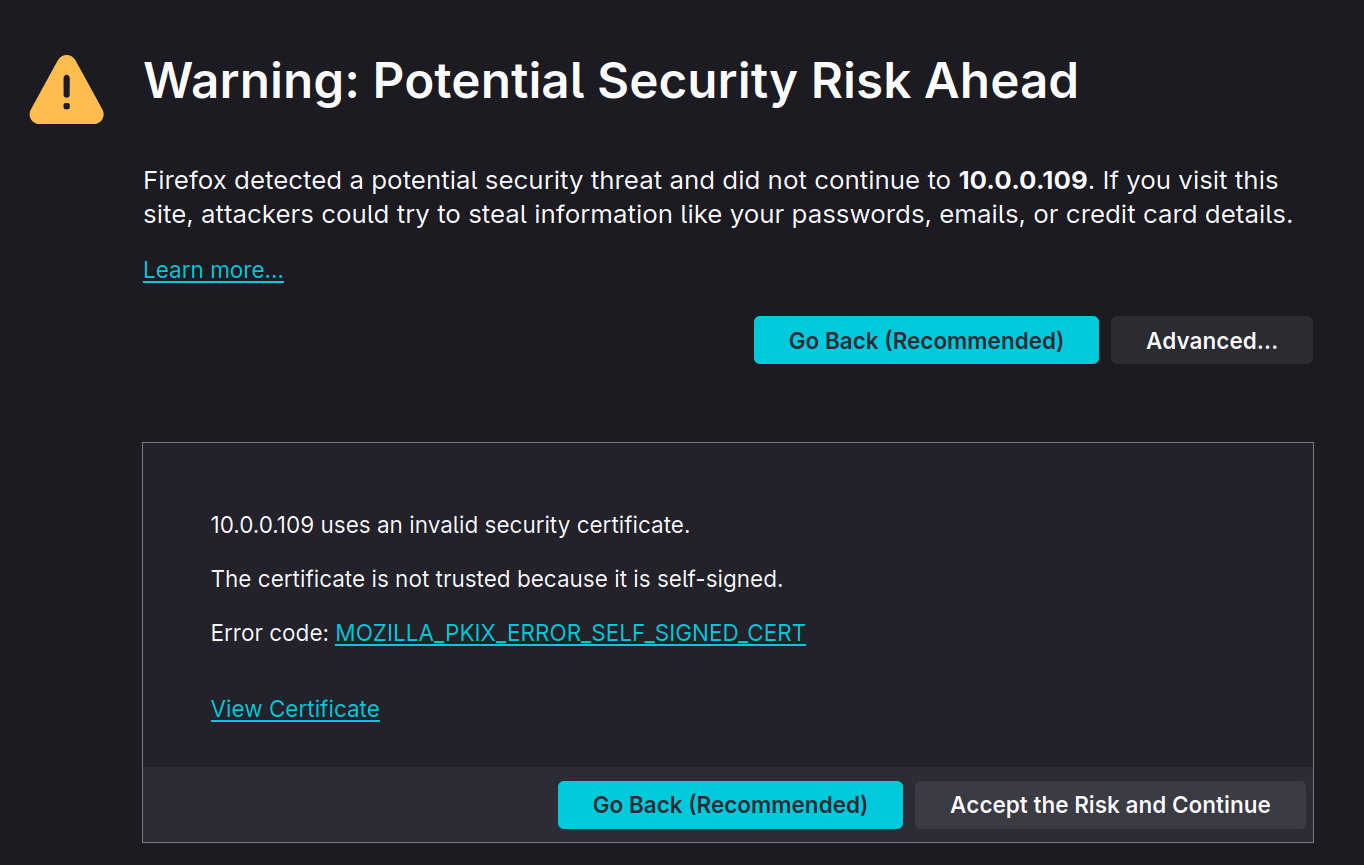
Open the browser and go to pfSense's web interface. Accept the warning to continue.
![image-20250530155345674](https://docs.adebarbarin.com/uploads/images/gallery/2025-06/proxmox-interface-pfsense-install-27.png)

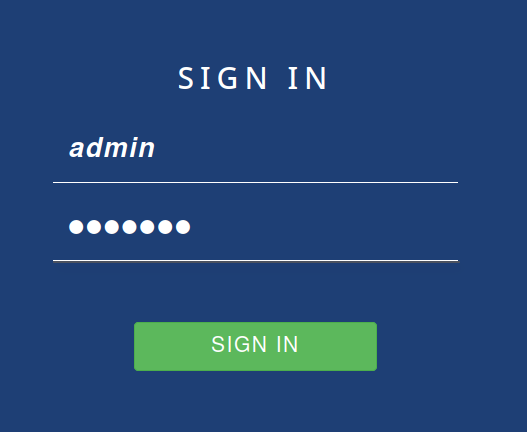
Then log in the web configurator with the default credentials (`admin` - `pfsense`)
![image-20250530155625929](https://docs.adebarbarin.com/uploads/images/gallery/2025-06/proxmox-interface-pfsense-install-28.png)

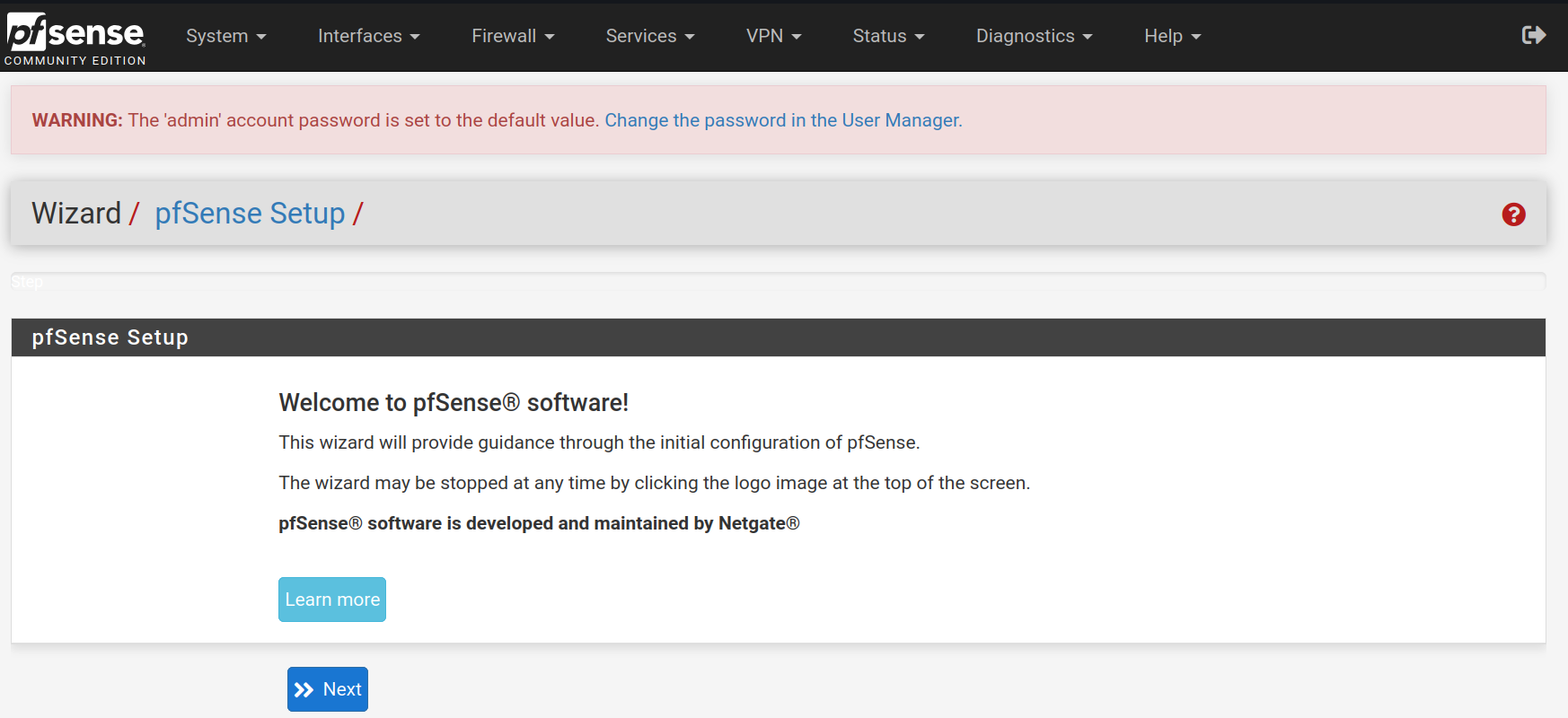
The first thing to do when signing in the web configurator is to follow a setup wizard. Click on `Next`
![image-20250530155820018](https://docs.adebarbarin.com/uploads/images/gallery/2025-06/proxmox-interface-pfsense-install-29.png)

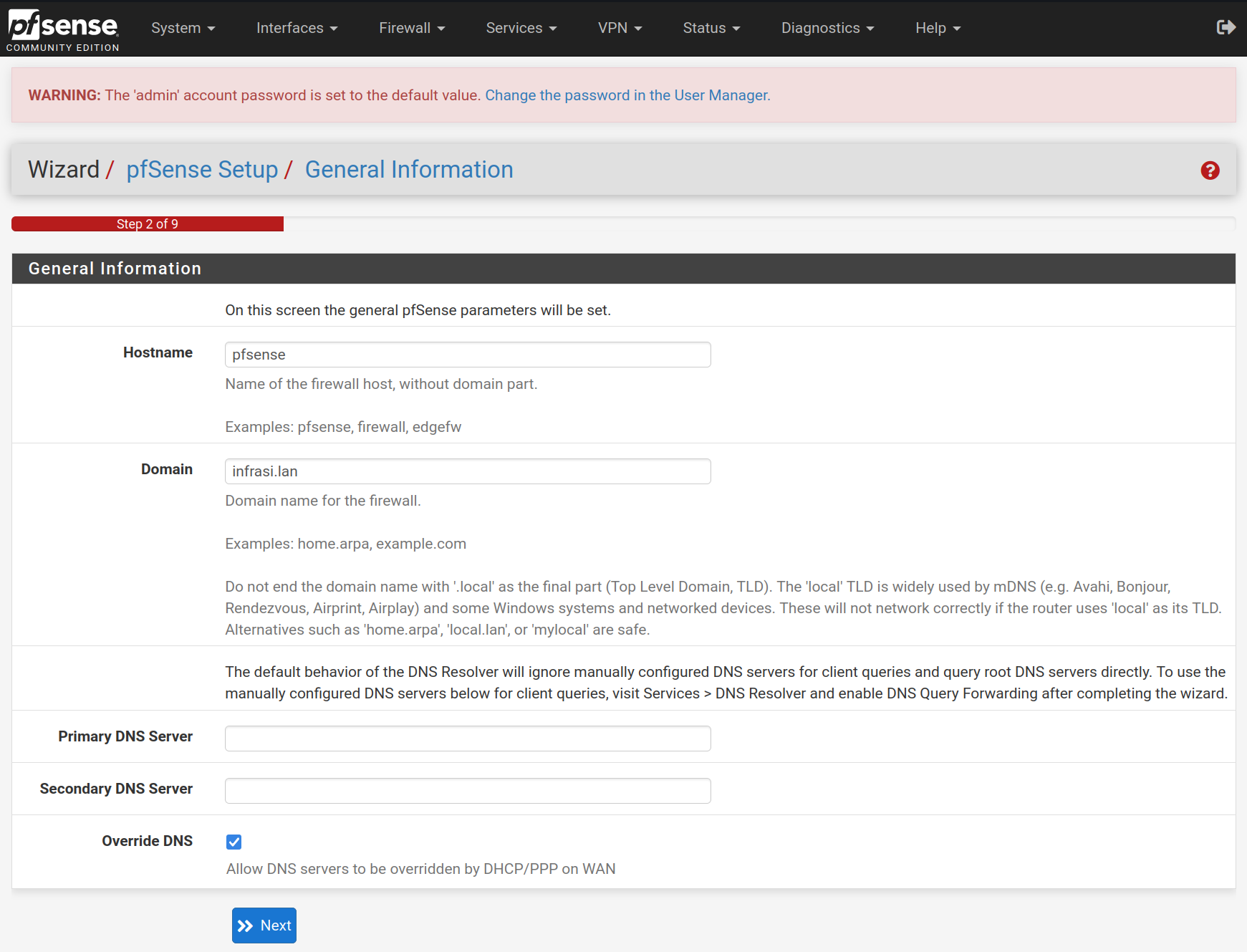
Type `pfsense` in lowercase for the hostname and `infrasi.lan` for the domain name, then click on `Next`
![image-20250530160213234](https://docs.adebarbarin.com/uploads/images/gallery/2025-06/proxmox-interface-pfsense-install-30.png)

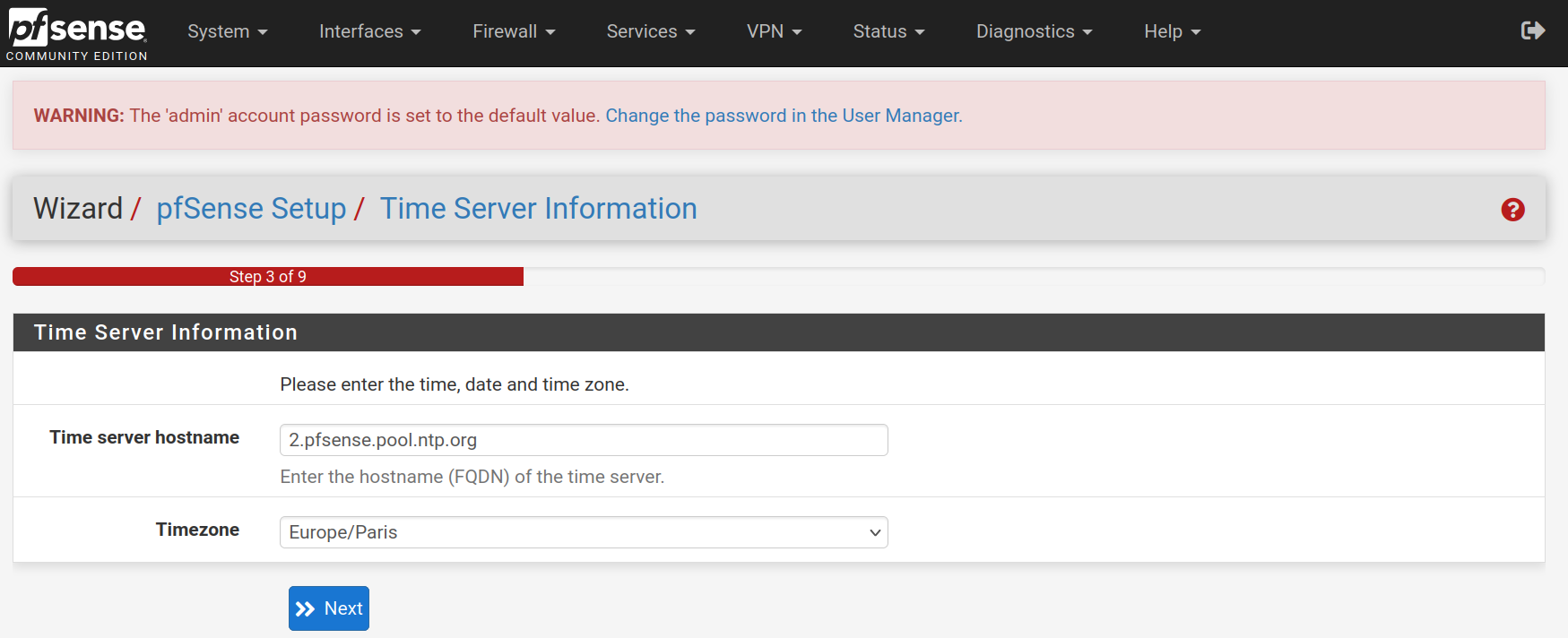
Select the timezone `Europe/Paris` for the **NTP** configuration
![image-20250530160314592](https://docs.adebarbarin.com/uploads/images/gallery/2025-06/proxmox-interface-pfsense-install-31.png)

Keep the **WAN** interface set on `DHCP` and uncheck the `Block RFC1918 Private Networks` and `Block bogon networks` rules and click on `Next`


![image-20250530160621175](https://docs.adebarbarin.com/uploads/images/gallery/2025-06/proxmox-interface-pfsense-install-32.png)

![image-20250530160540863](https://docs.adebarbarin.com/uploads/images/gallery/2025-06/proxmox-interface-pfsense-install-33.png)

![image-20250530163016276](https://docs.adebarbarin.com/uploads/images/gallery/2025-06/proxmox-interface-pfsense-install-43.png)

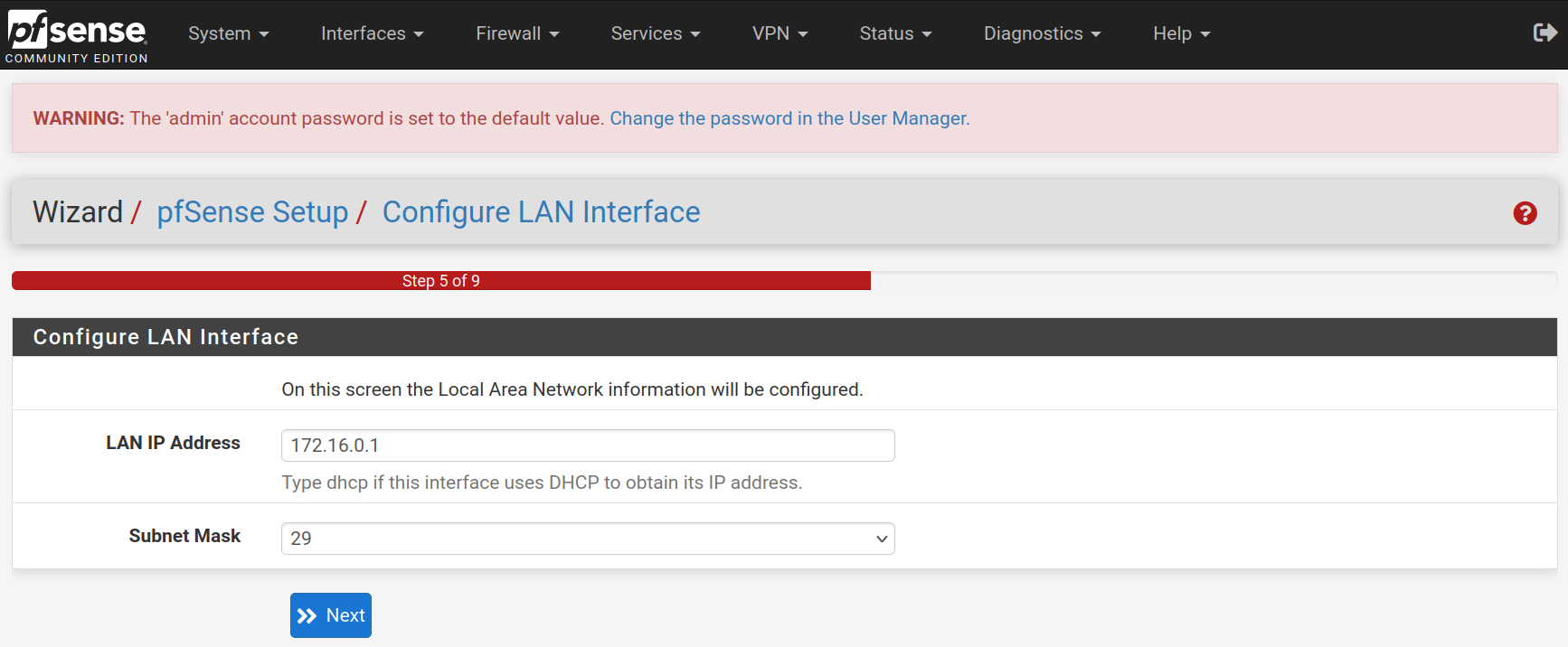
For the **LAN** interface, type the static IP address `172.16.0.1` and the subnet mask `29` to allow 6 hosts for the moment. It will be easily upscaled afterwards. Then click on `Next`
![image-20250530161231799](https://docs.adebarbarin.com/uploads/images/gallery/2025-06/proxmox-interface-pfsense-install-34.png)

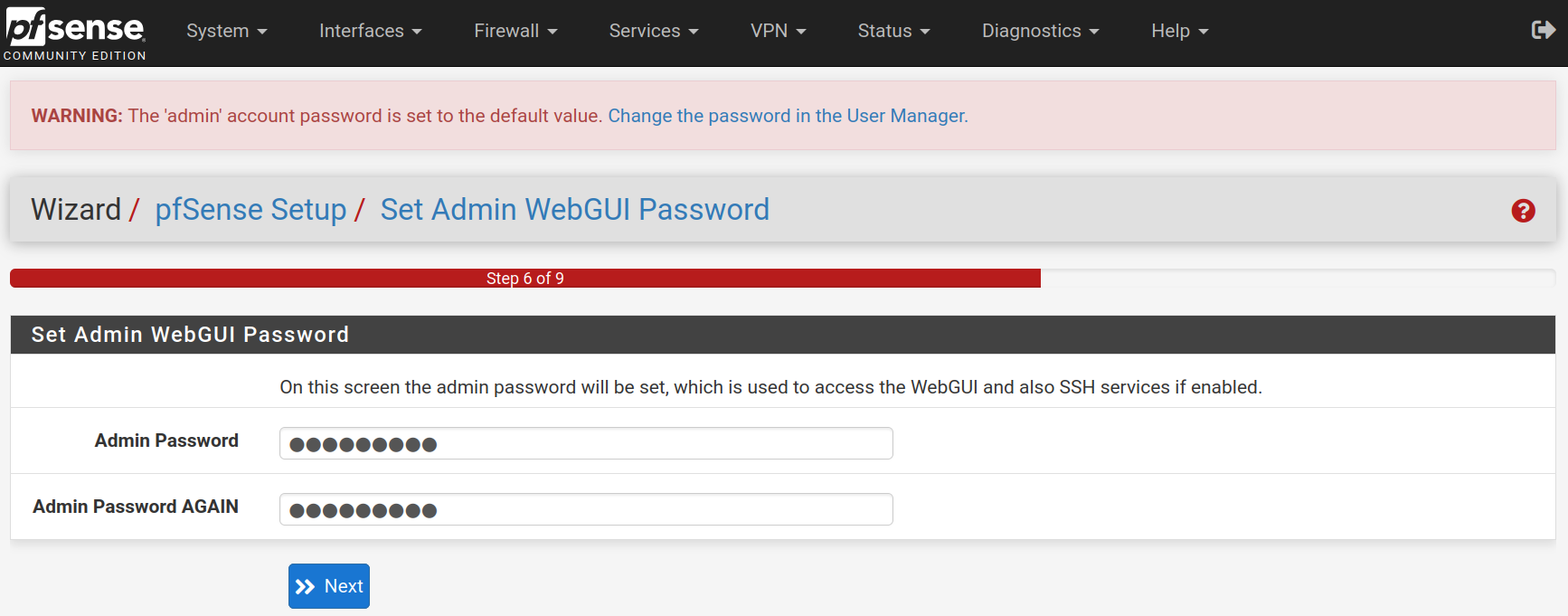
Type a new password and confirm it. Click on `Next`
![image-20250530161417917](https://docs.adebarbarin.com/uploads/images/gallery/2025-06/proxmox-interface-pfsense-install-35.png)

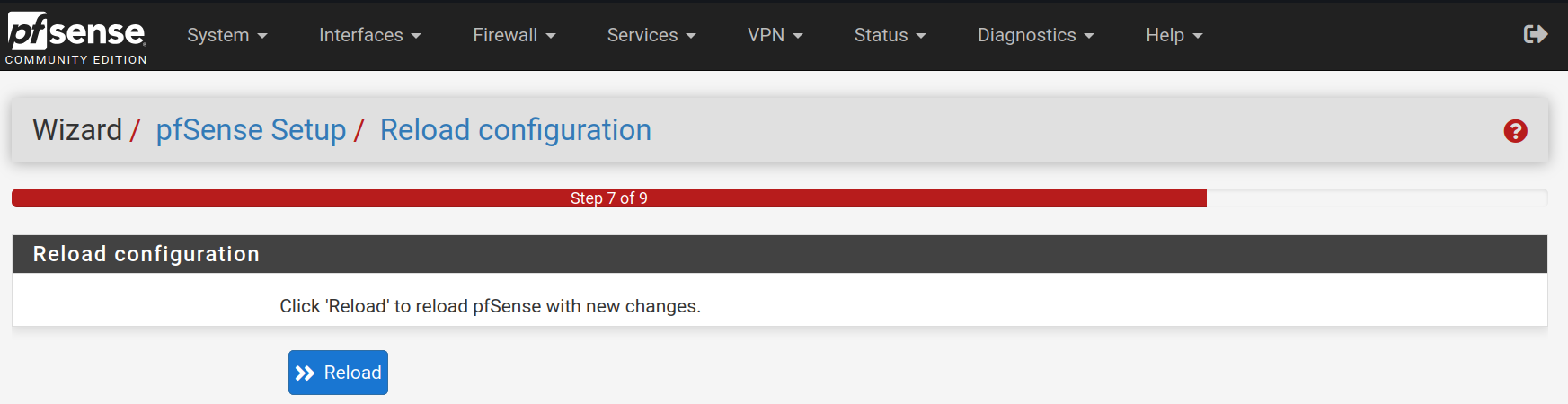
Click on `Reload` to accept and apply the new configurations.
![image-20250530161525561](https://docs.adebarbarin.com/uploads/images/gallery/2025-06/proxmox-interface-pfsense-install-36.png)

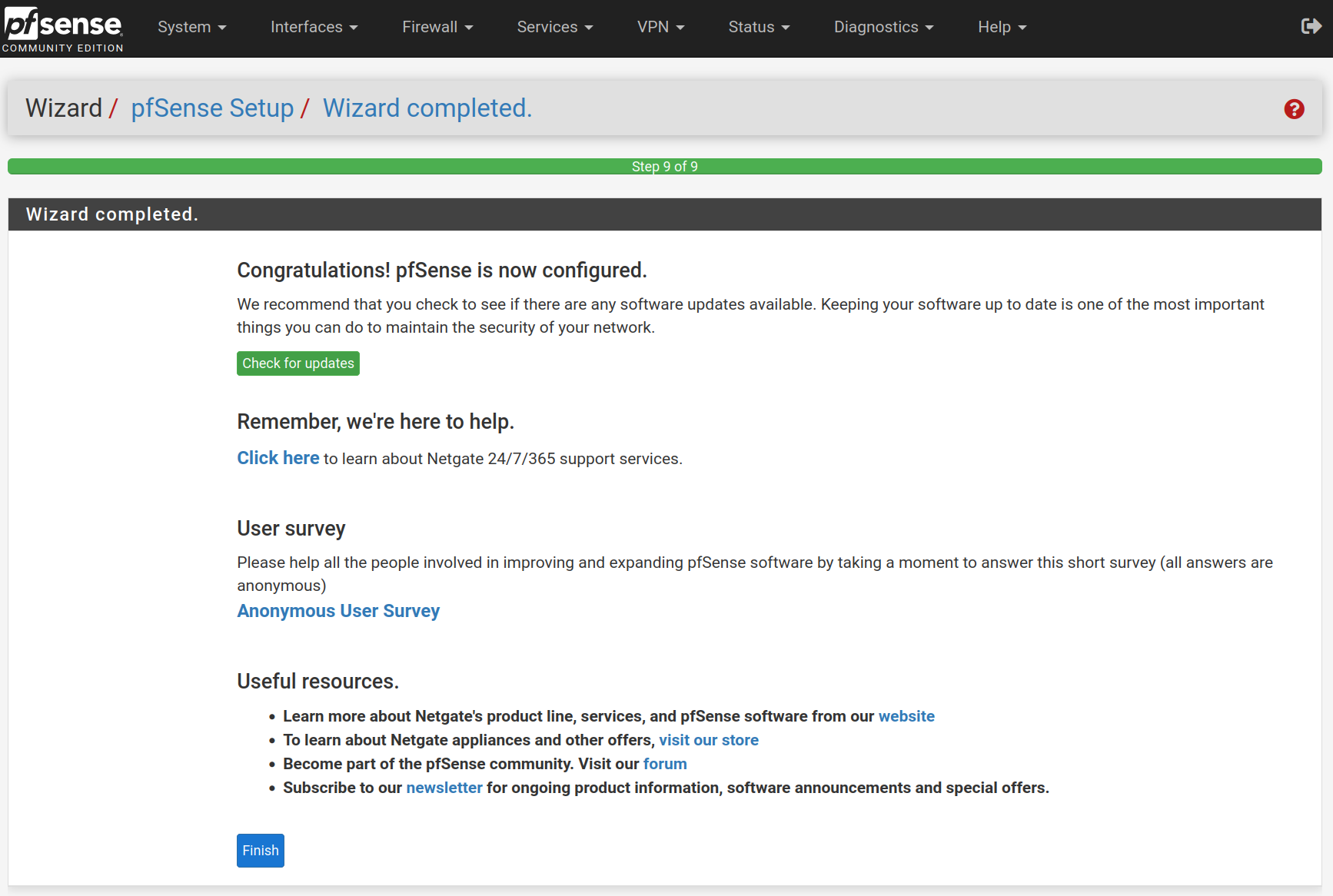
Click on `Finish`

![image-20250530161615893](https://docs.adebarbarin.com/uploads/images/gallery/2025-06/proxmox-interface-pfsense-install-37.png)

Accept the license and right.

![image-20250530161720007](https://docs.adebarbarin.com/uploads/images/gallery/2025-06/proxmox-interface-pfsense-install-38.png)

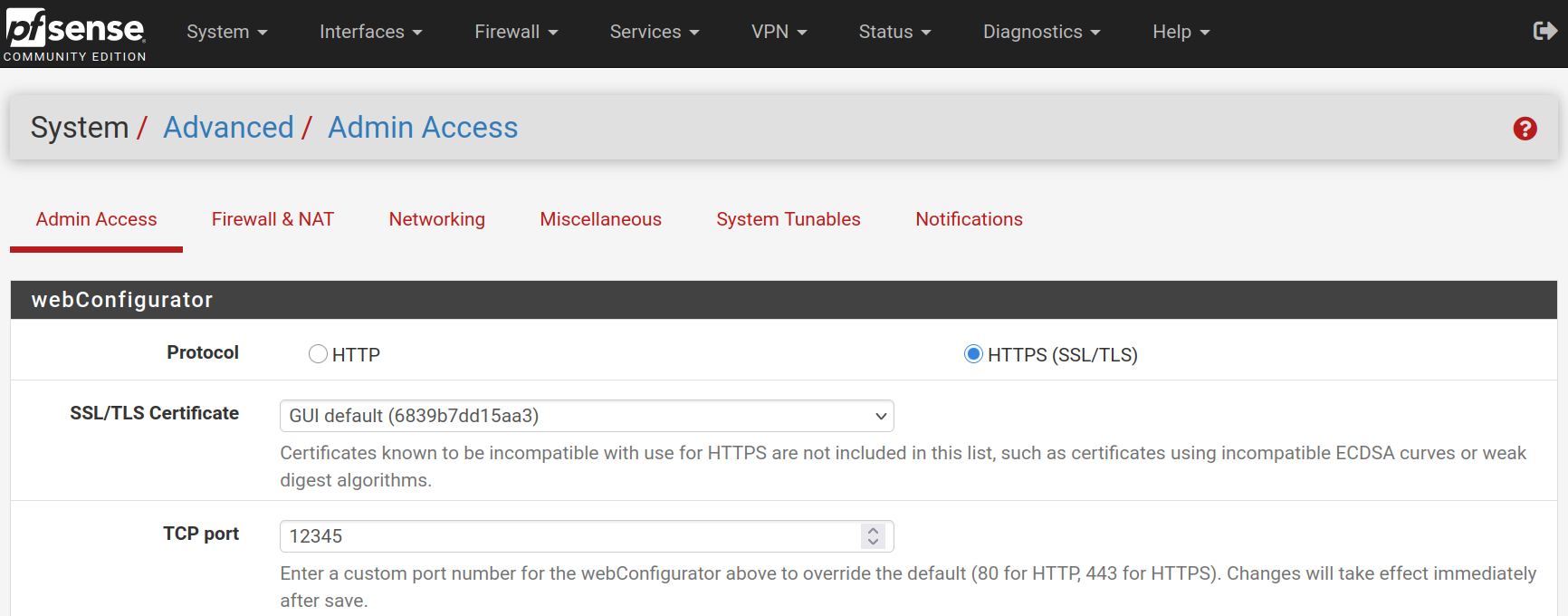
Go to **System &gt; Advanced** and change the web configurator port to `12345` to free the **HTTPS** port.
![image-20250530162031105](https://docs.adebarbarin.com/uploads/images/gallery/2025-06/proxmox-interface-pfsense-install-39.png)

If you want, you can go to **System &gt; General Setup** to change the CSS theme of the web configurator

![image-20250530162634648](https://docs.adebarbarin.com/uploads/images/gallery/2025-06/proxmox-interface-pfsense-install-42.png)

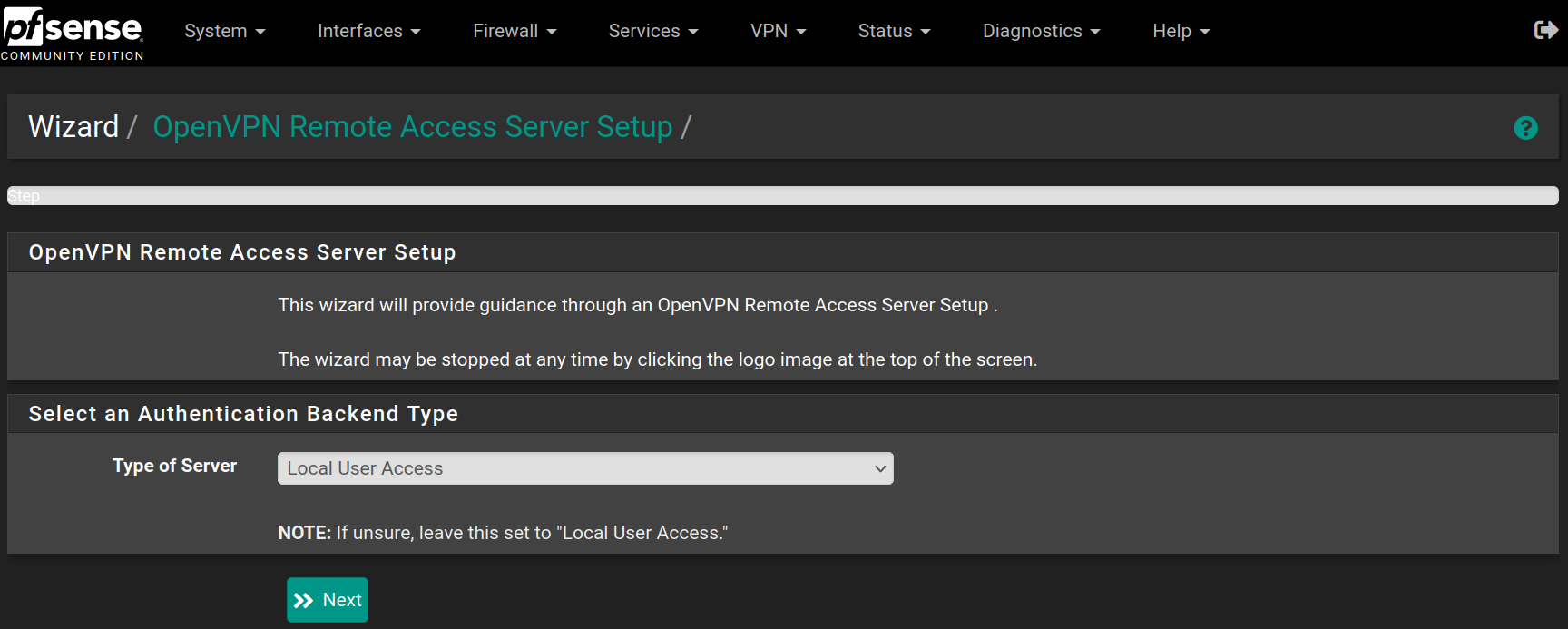
Go to **VPN &gt; OpenVPN** in the **Wizard** tab and click `Next`
![image-20250530165520932](https://docs.adebarbarin.com/uploads/images/gallery/2025-06/proxmox-interface-pfsense-install-45.png)

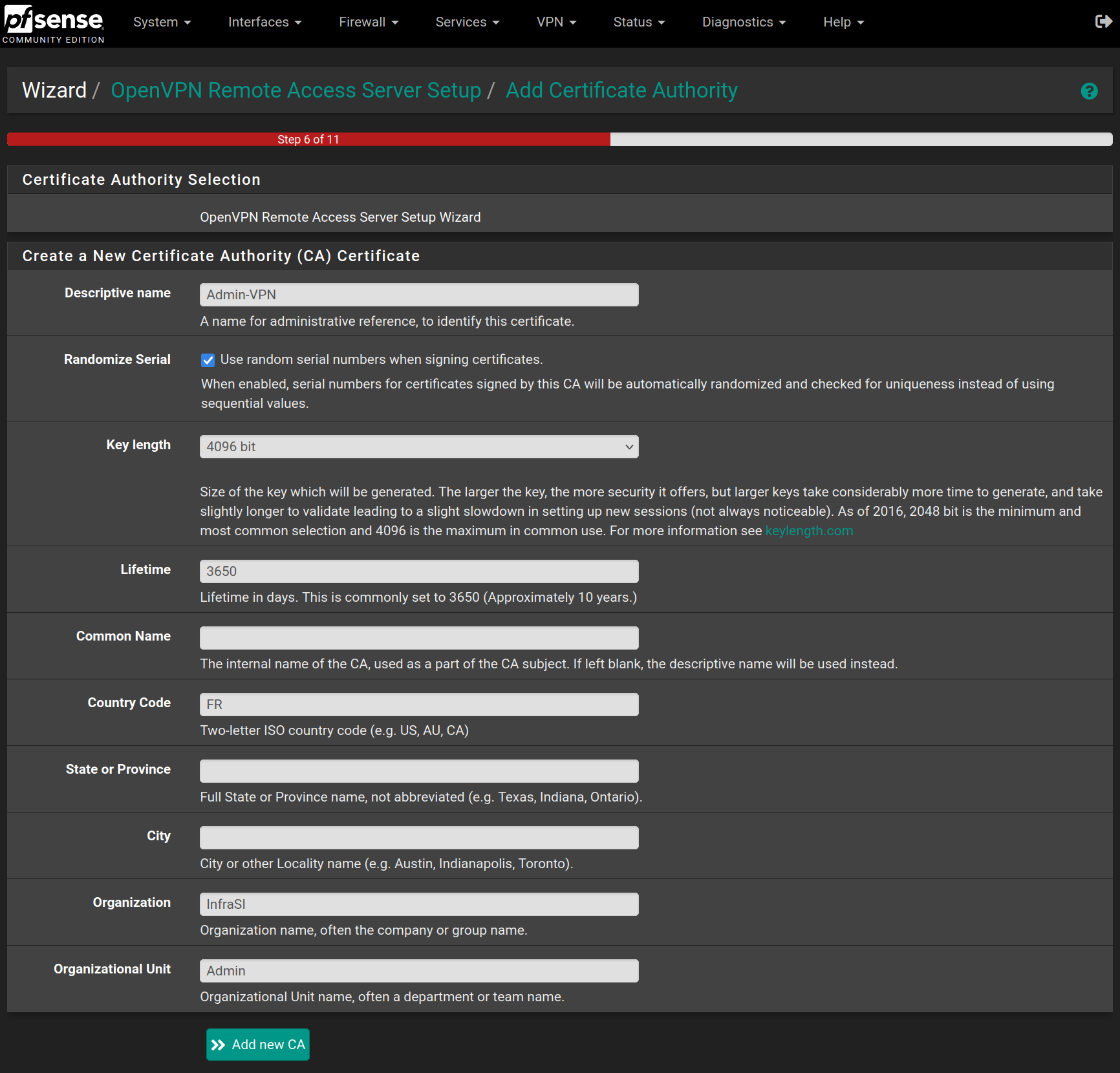
Fill the form with the following values and click on `Add new CA`
![image-20250530165805930](https://docs.adebarbarin.com/uploads/images/gallery/2025-06/proxmox-interface-pfsense-install-46.png)

Then click on Add new Certificate

![image-20250530165913221](https://docs.adebarbarin.com/uploads/images/gallery/2025-06/proxmox-interface-pfsense-install-47.png)

Fill the form with the following values and click on `Create new Certificate`
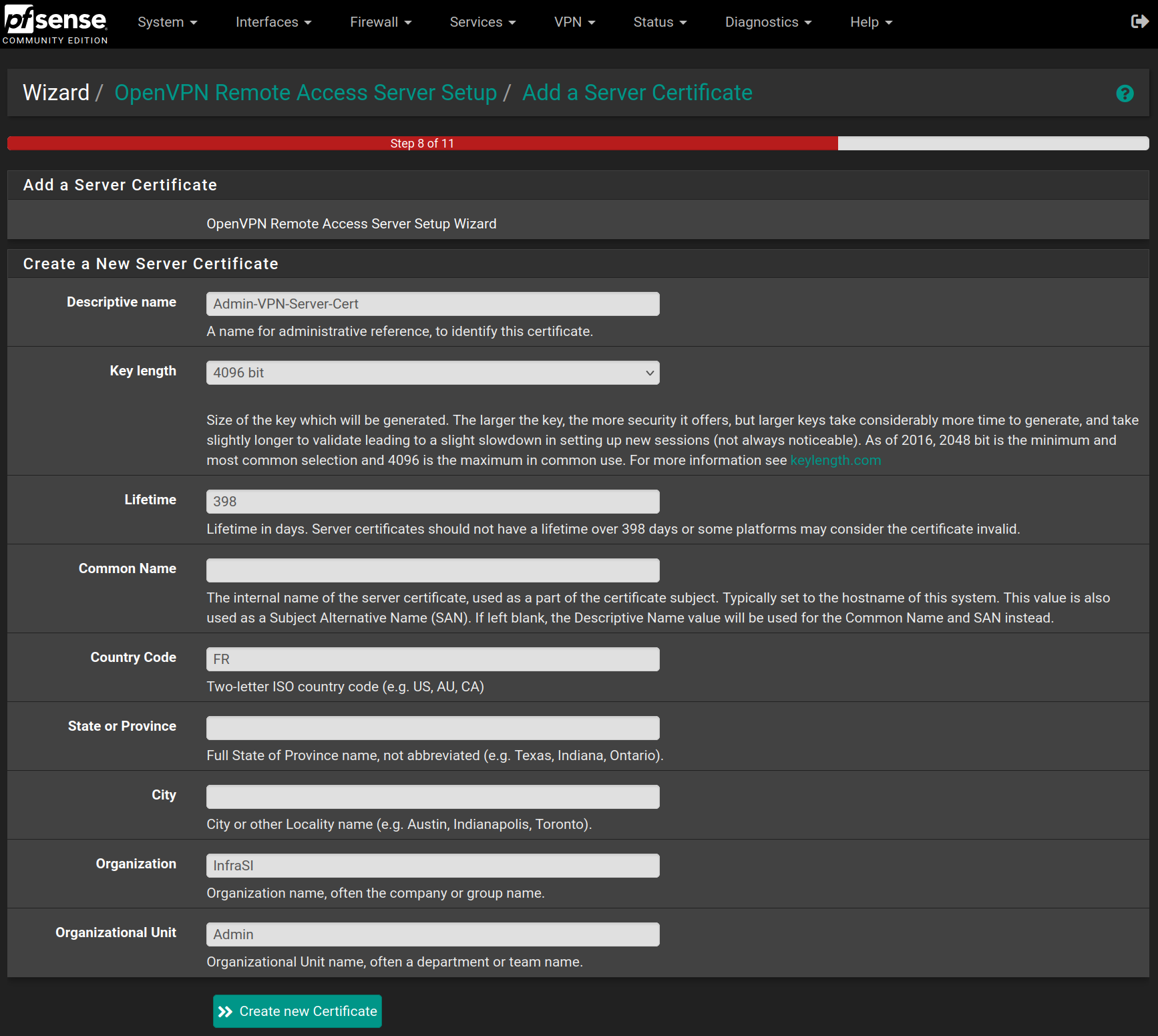
![image-20250530170052918](https://docs.adebarbarin.com/uploads/images/gallery/2025-06/proxmox-interface-pfsense-install-48.png)

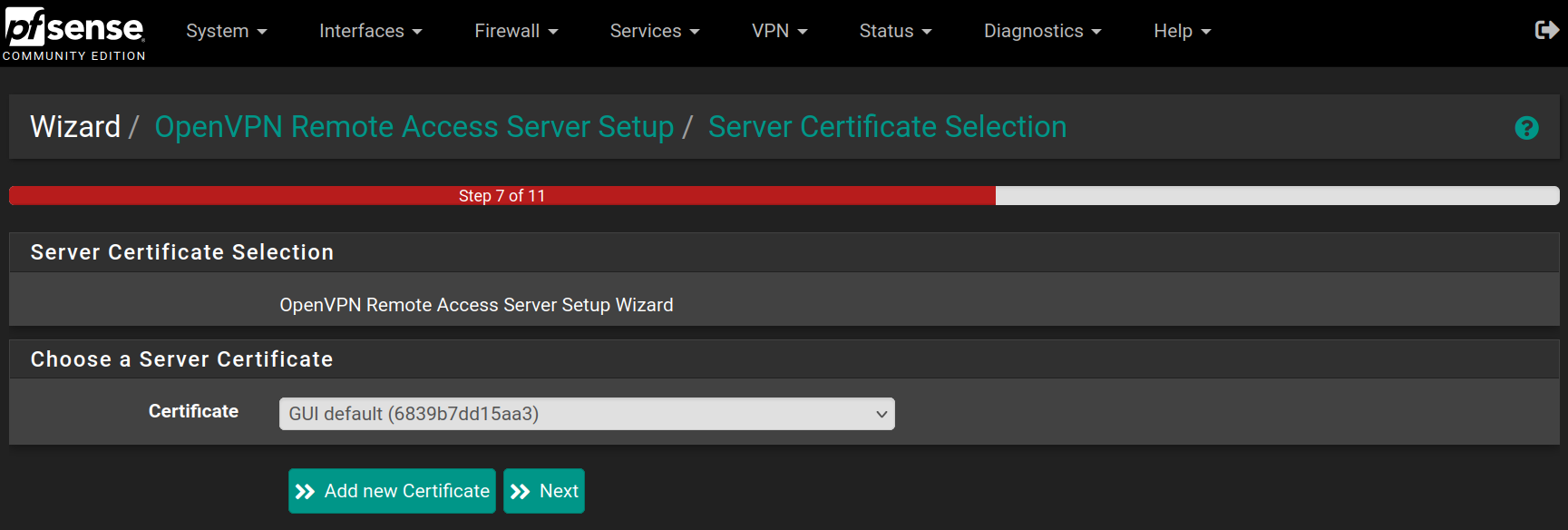
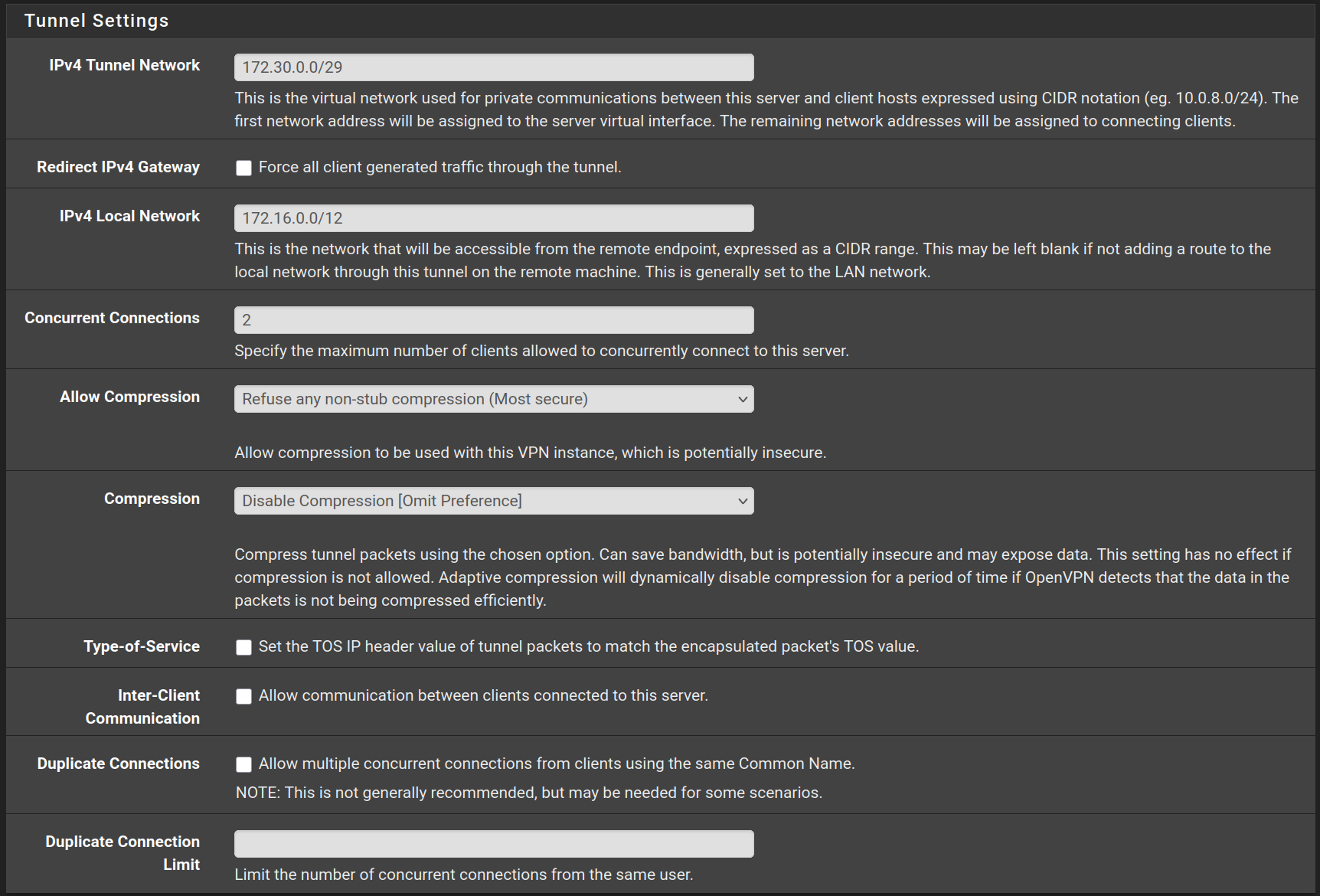
Fill the form with the following values and click on `Next`
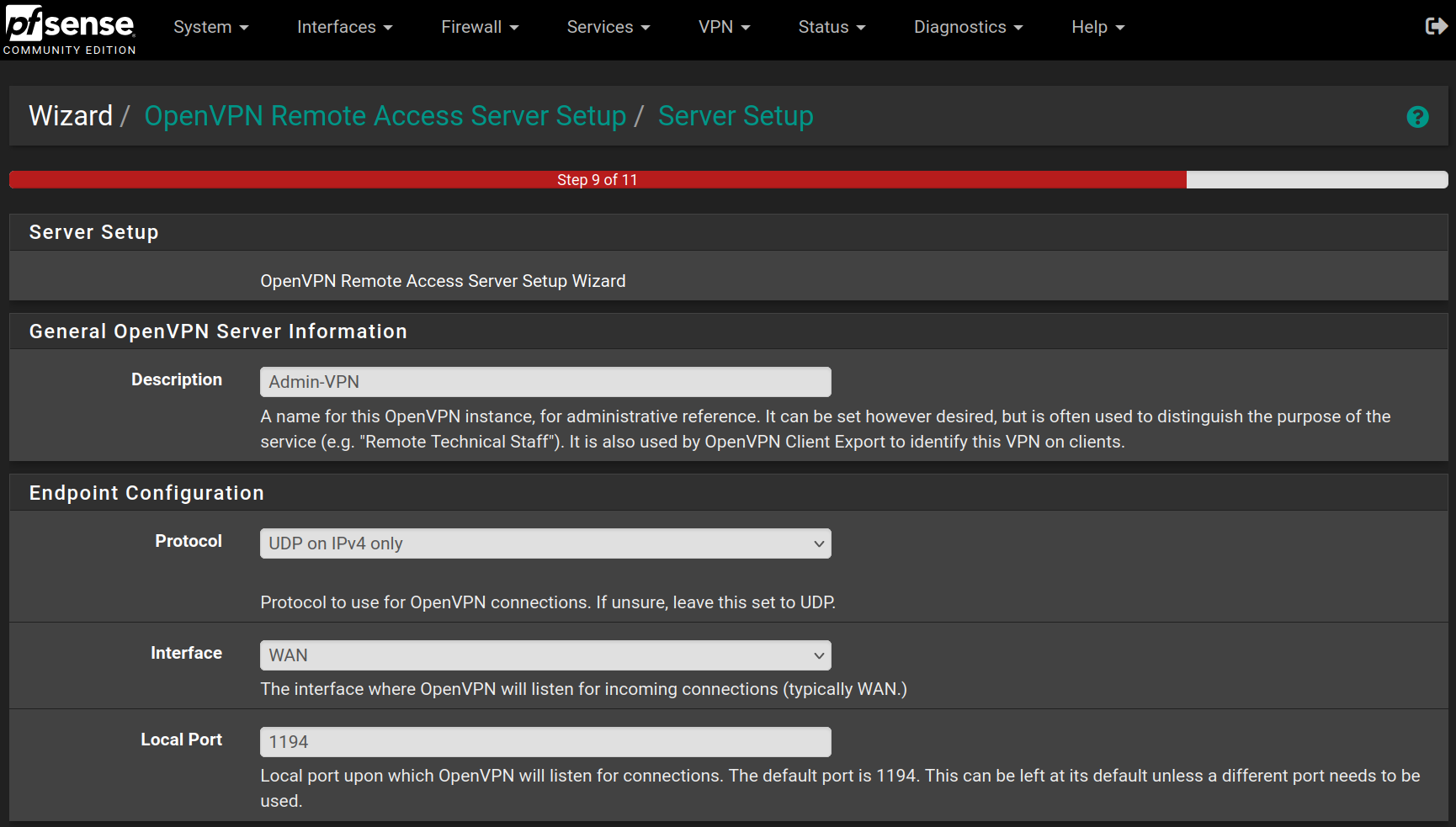
![image-20250530170629577](https://docs.adebarbarin.com/uploads/images/gallery/2025-06/proxmox-interface-pfsense-install-49.png)

![image-20250530170718654](https://docs.adebarbarin.com/uploads/images/gallery/2025-06/proxmox-interface-pfsense-install-50.png)

![image-20250530170831924](https://docs.adebarbarin.com/uploads/images/gallery/2025-06/proxmox-interface-pfsense-install-51.png)

Check the two rules to allow access from wherever to pass through the VPN tunnel and click on `Next`
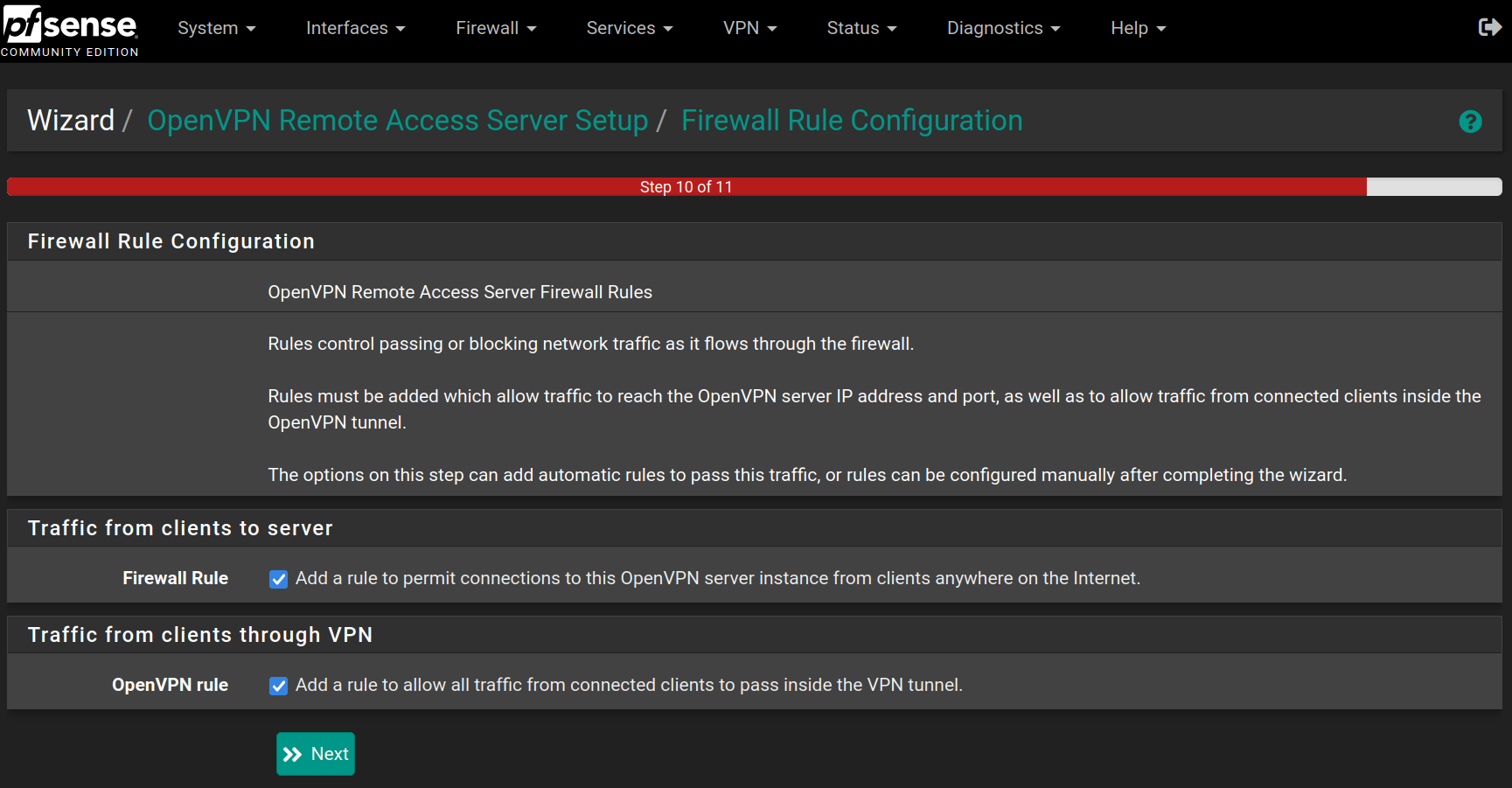
![image-20250530171007137](https://docs.adebarbarin.com/uploads/images/gallery/2025-06/proxmox-interface-pfsense-install-52.png)

Click on `Finish` to save and apply the OpenVPN Server
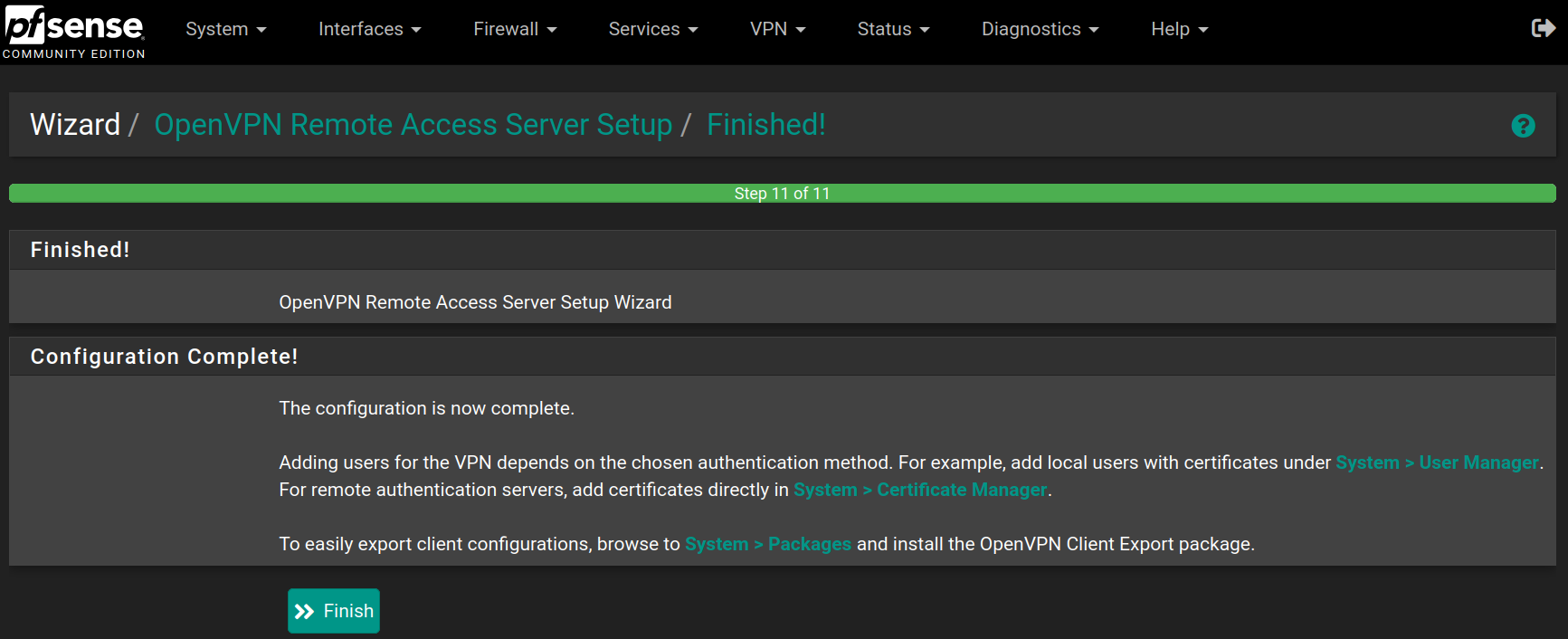
![image-20250530171117092](https://docs.adebarbarin.com/uploads/images/gallery/2025-06/proxmox-interface-pfsense-install-53.png)

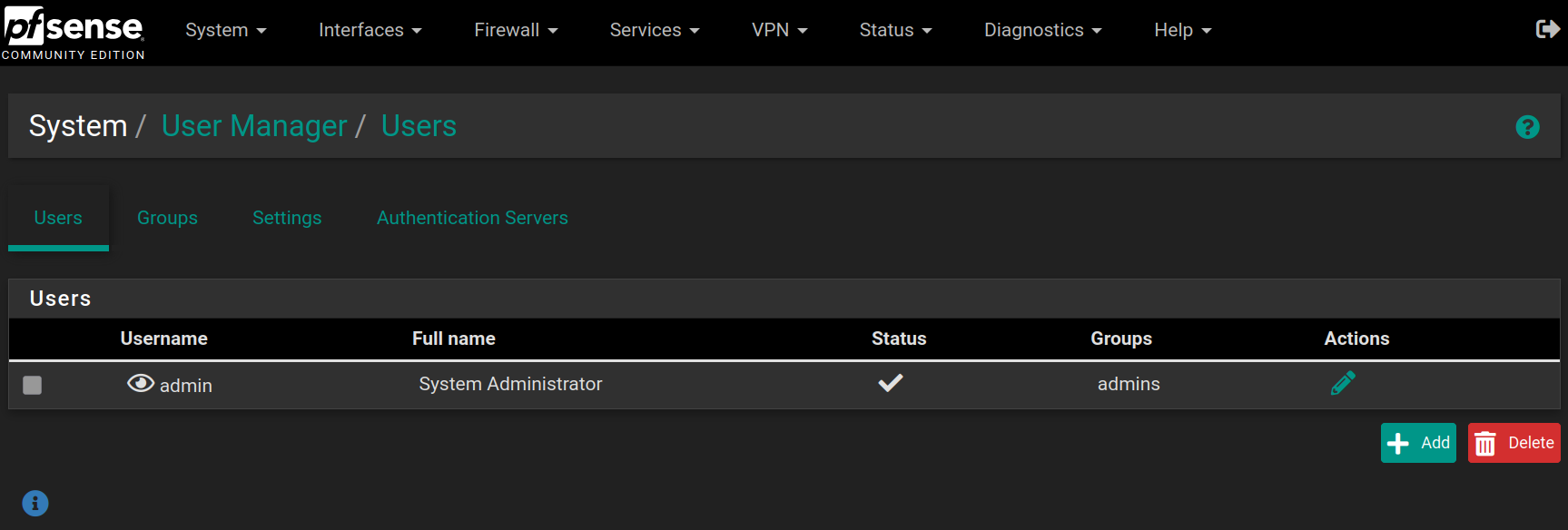
Go to **System &gt; User Manager** and click on `Add`

![image-20250530171359459](https://docs.adebarbarin.com/uploads/images/gallery/2025-06/proxmox-interface-pfsense-install-54.png)

Fill the form with the following values and click on `Save`
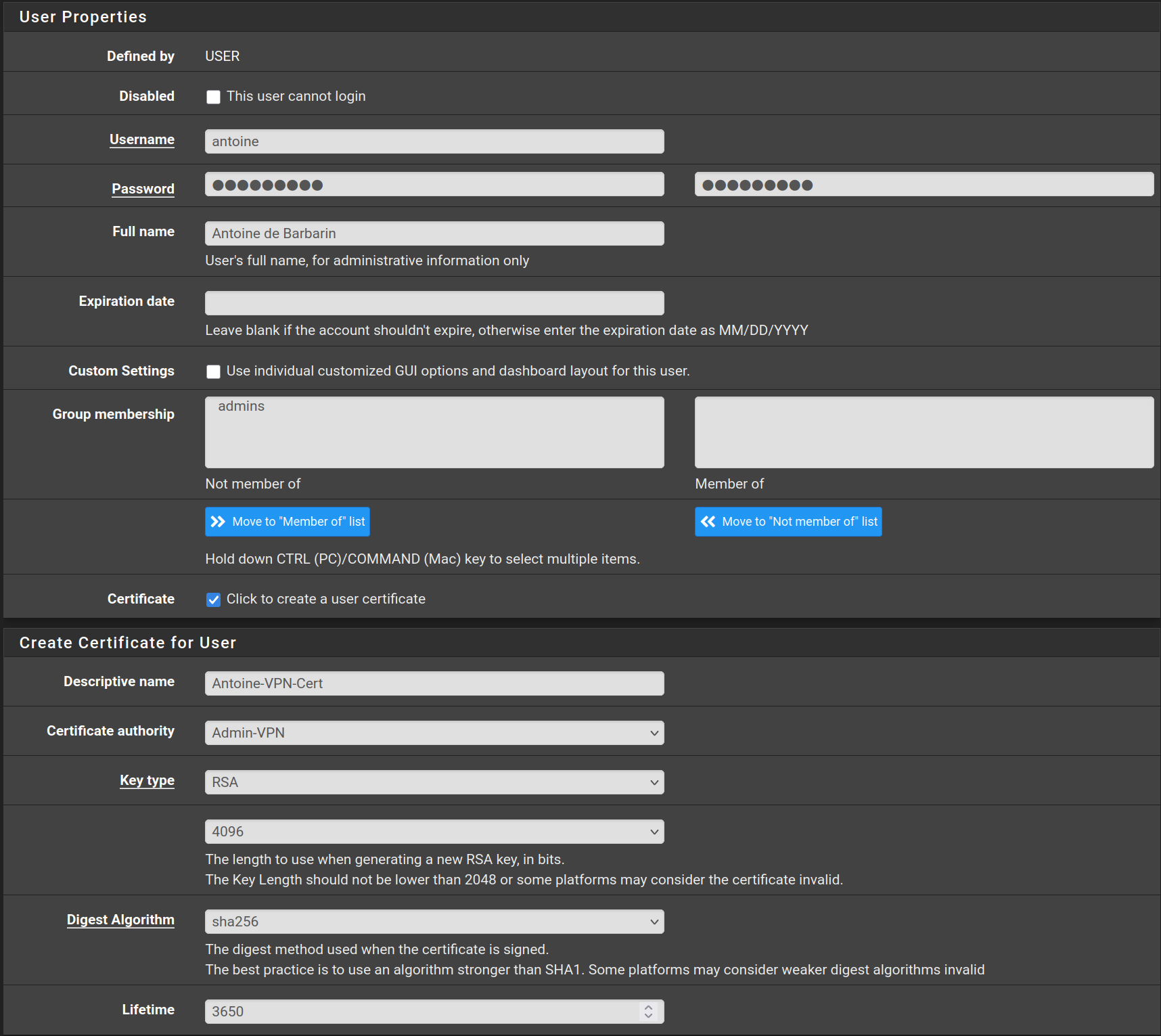
![image-20250530171557279](https://docs.adebarbarin.com/uploads/images/gallery/2025-06/proxmox-interface-pfsense-install-55.png)

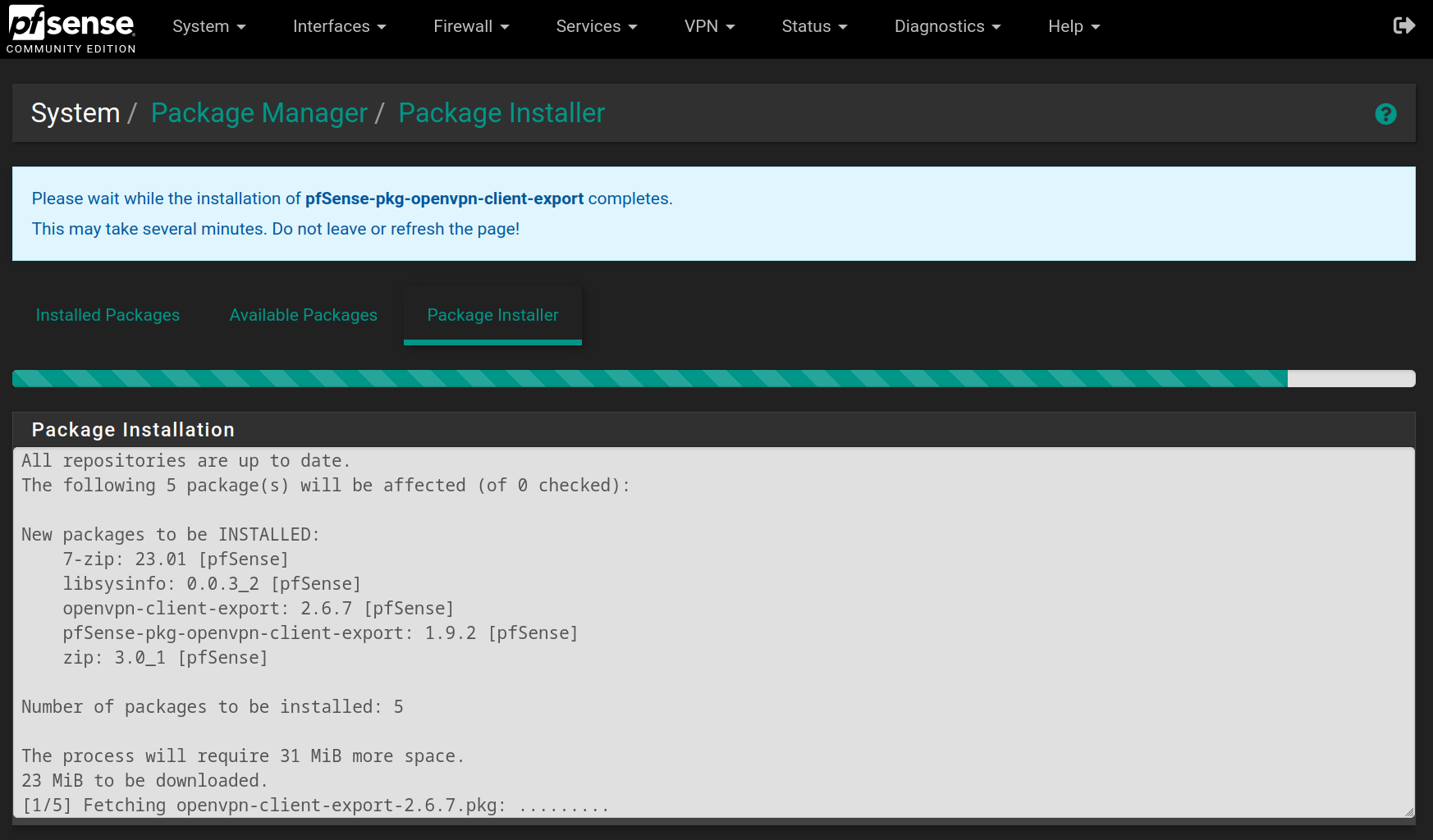
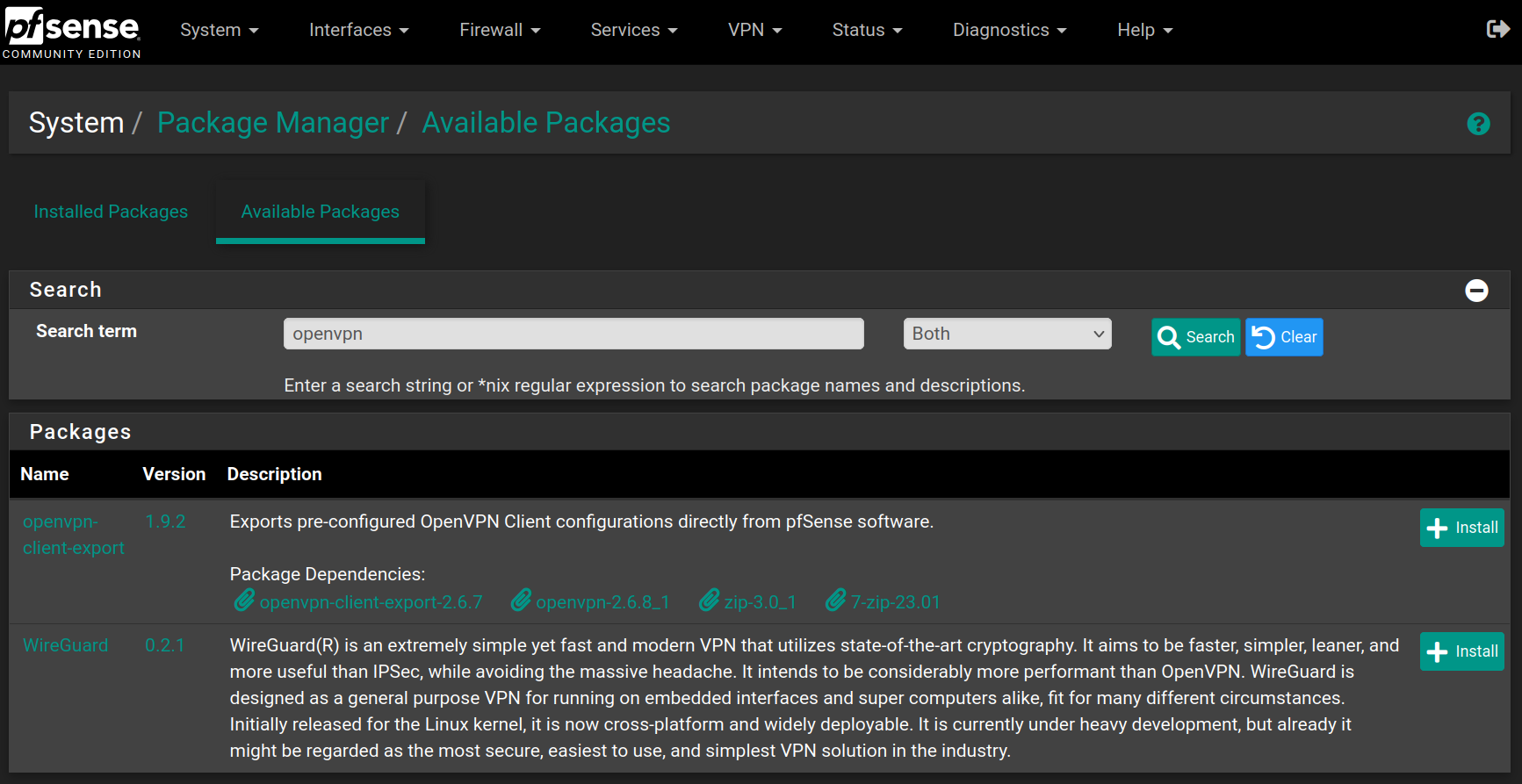
Go to **System &gt; Package Manager &gt; Available Packages** and search for `openvpn`, then on the package named `openvpn-client-export` click on `Install` and `Confirm`
![image-20250530171834205](https://docs.adebarbarin.com/uploads/images/gallery/2025-06/proxmox-interface-pfsense-install-56.png)

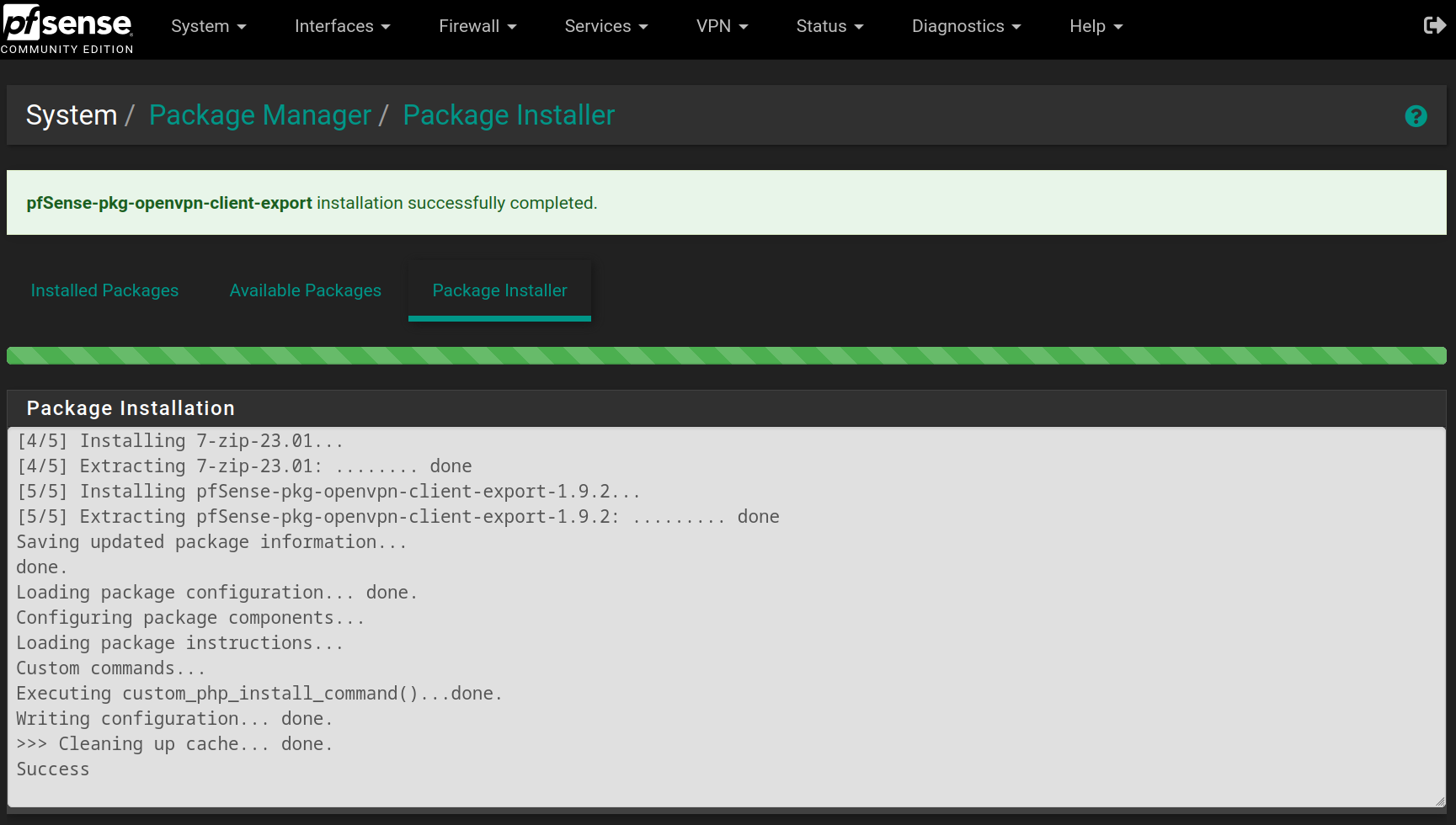
Wait for the installation to finish

![image-20250530171947747](https://docs.adebarbarin.com/uploads/images/gallery/2025-06/proxmox-interface-pfsense-install-57.png)

![image-20250530172014718](https://docs.adebarbarin.com/uploads/images/gallery/2025-06/proxmox-interface-pfsense-install-58.png)

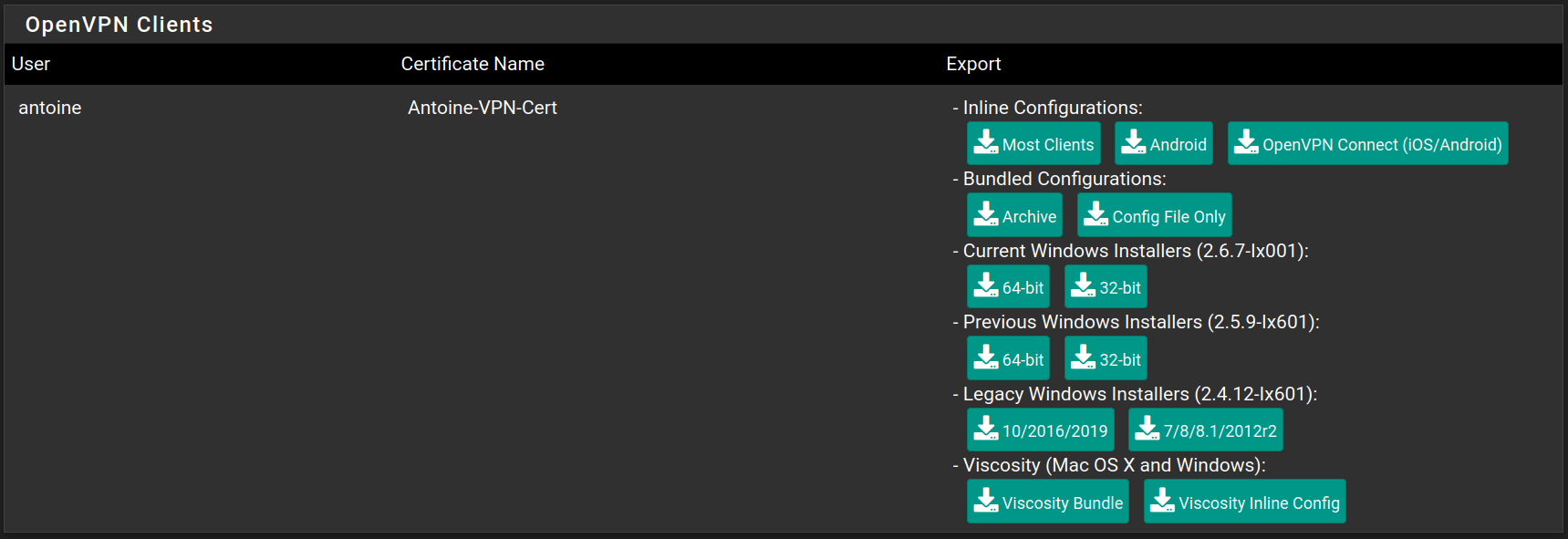
Go to **VPN &gt; OpenVPN &gt; Client Export** and at the bottom of the page, you can download the exact configuration to connect to the Admin-VPN.
![image-20250530172316219](https://docs.adebarbarin.com/uploads/images/gallery/2025-06/proxmox-interface-pfsense-install-59.png)

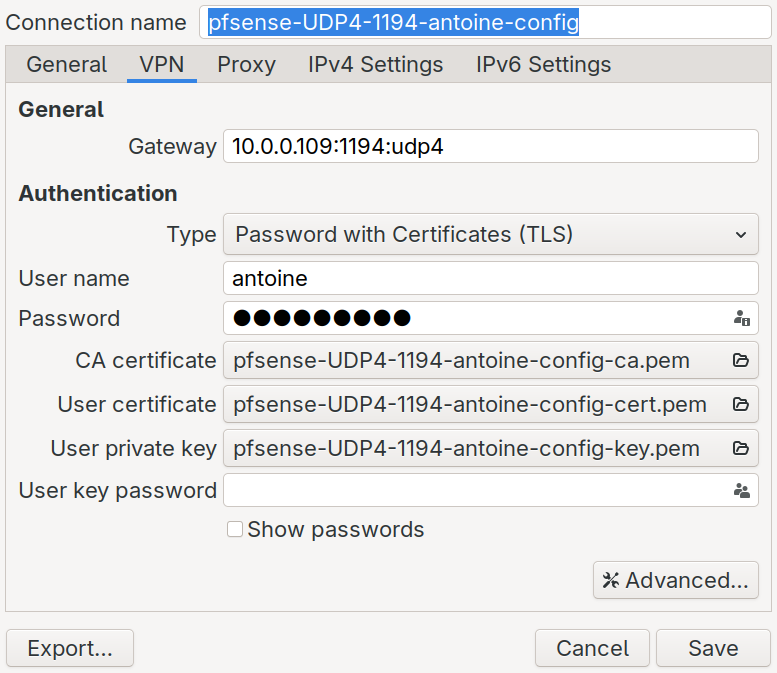
After downloading the configuration (I chose Inline Configuration &gt; Most Clients), you can access it.

![image-20250530172721786](https://docs.adebarbarin.com/uploads/images/gallery/2025-06/openvpn-connection-1.png)

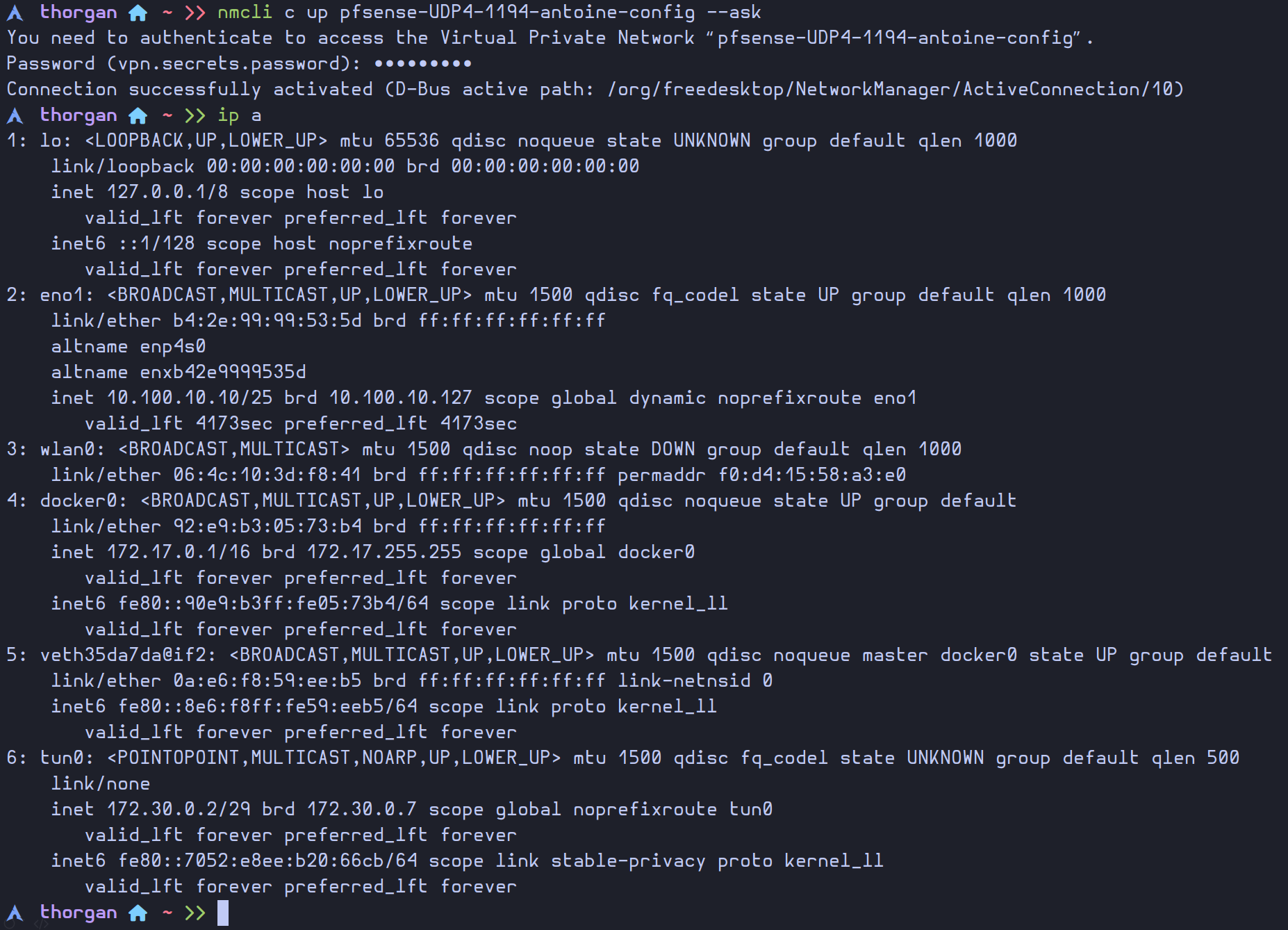
Now that the connection exists, we can easily use it with the command `nmcli`
![image-20250530174019700](https://docs.adebarbarin.com/uploads/images/gallery/2025-06/openvpn-connection-2.png)

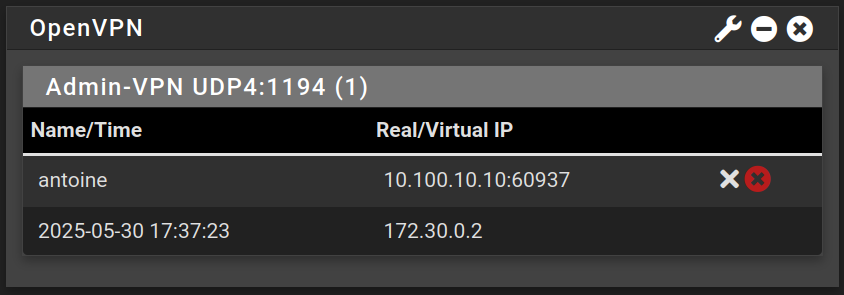
Now we can access the web configurator using the VPN, and we can see our current connection with the OpenVPN widget in the dashboard
![image-20250530174529637](https://docs.adebarbarin.com/uploads/images/gallery/2025-06/openvpn-connection-3.png)

Go to **Interfaces &gt; Assignments &gt; VLANs** and click on `Add`

![image-20250531000222671](https://docs.adebarbarin.com/uploads/images/gallery/2025-06/proxmox-interface-pfsense-install-60.png)

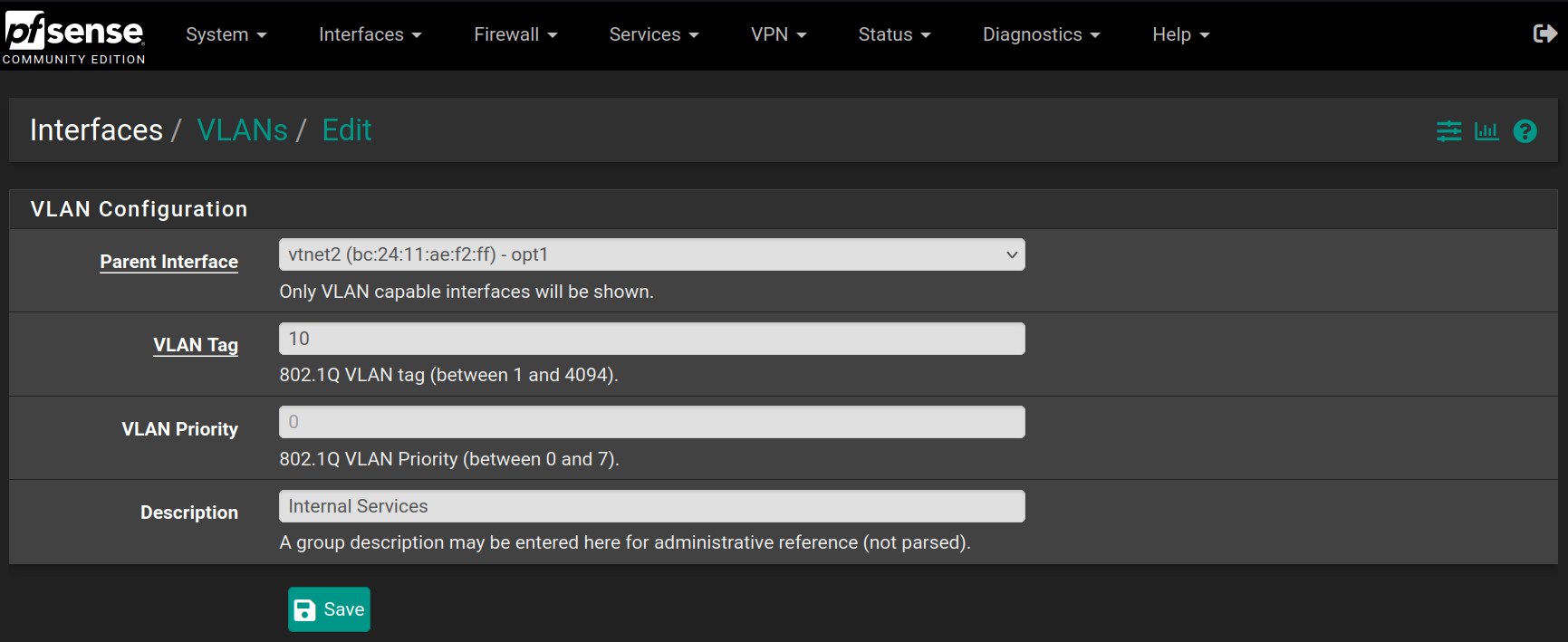
Choose the `vtnet2` interface (**OPT1**) and set the VLAN at 10 describing it as `Internal Services` and click on `Save`
![image-20250531000433410](https://docs.adebarbarin.com/uploads/images/gallery/2025-06/proxmox-interface-pfsense-install-61.png)

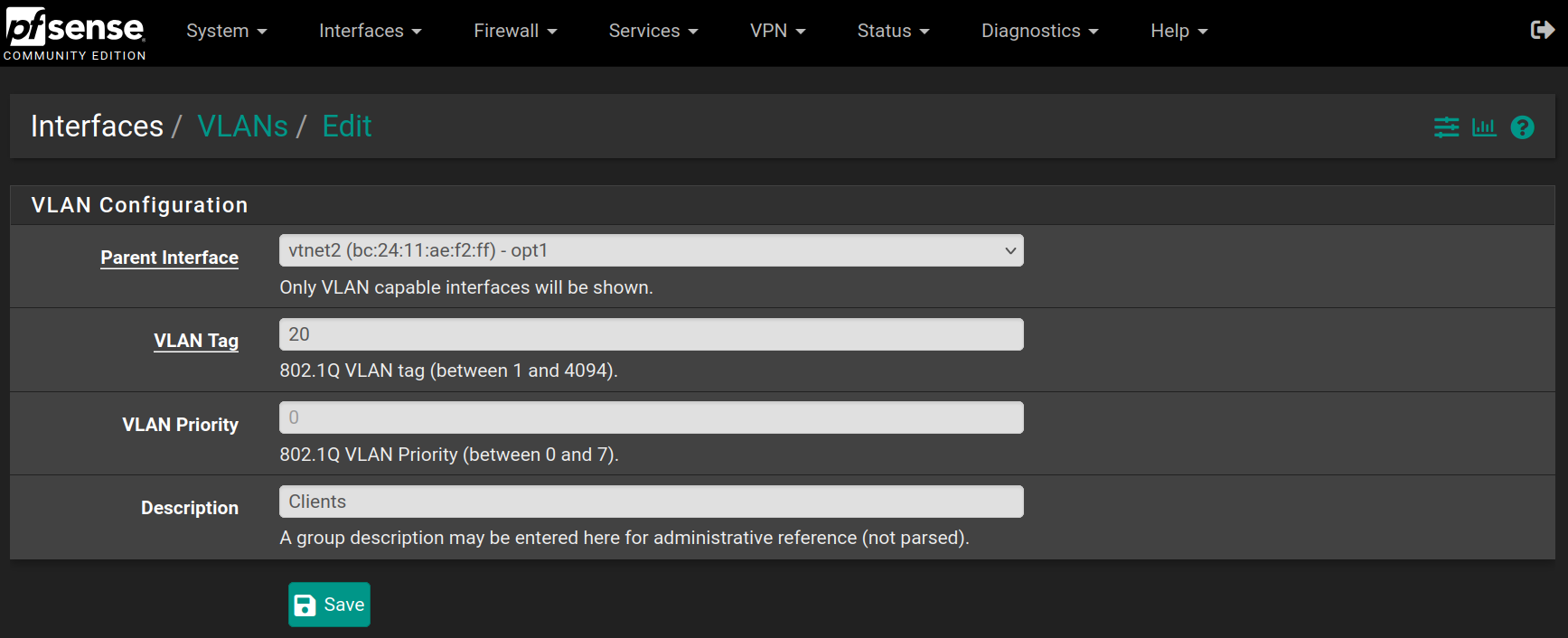
Then do the same for the **Clients** VLAN, with value 20 on the same network interface
![image-20250531000614339](https://docs.adebarbarin.com/uploads/images/gallery/2025-06/proxmox-interface-pfsense-install-62.png)

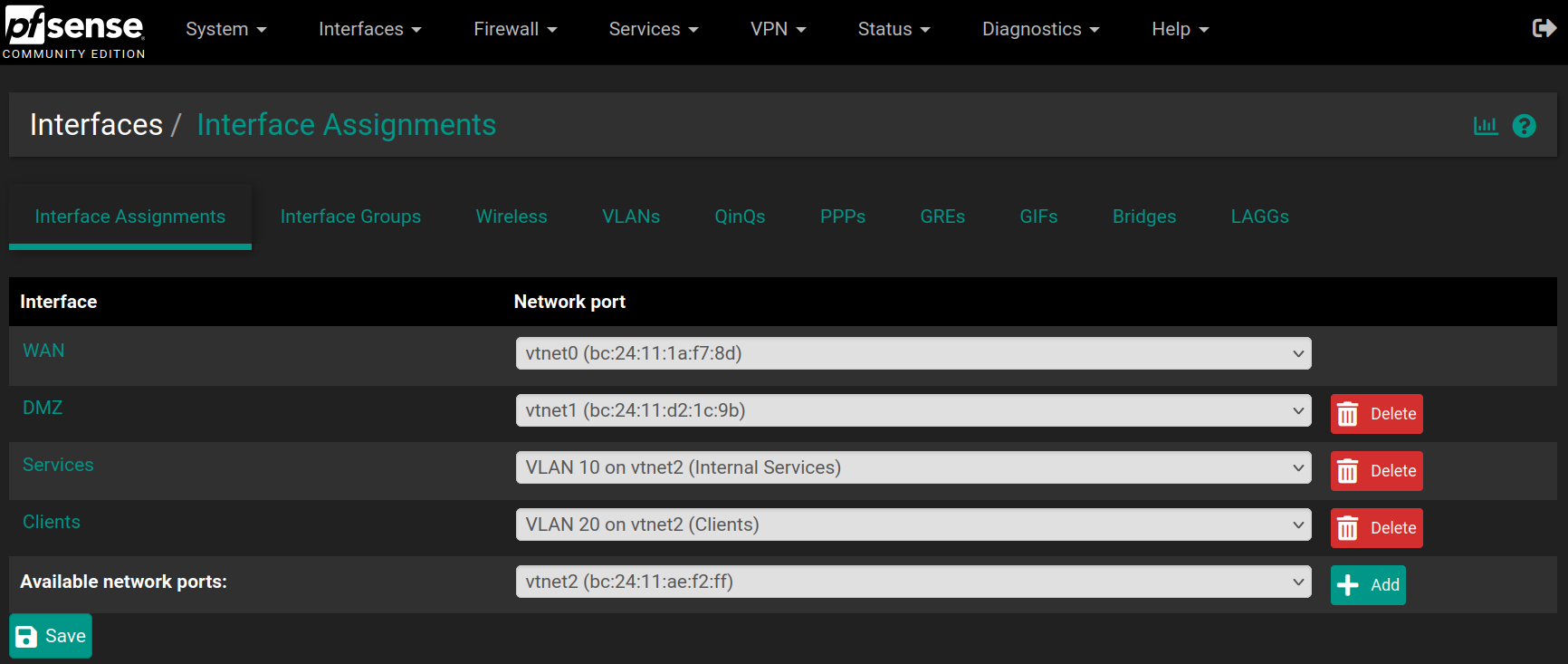
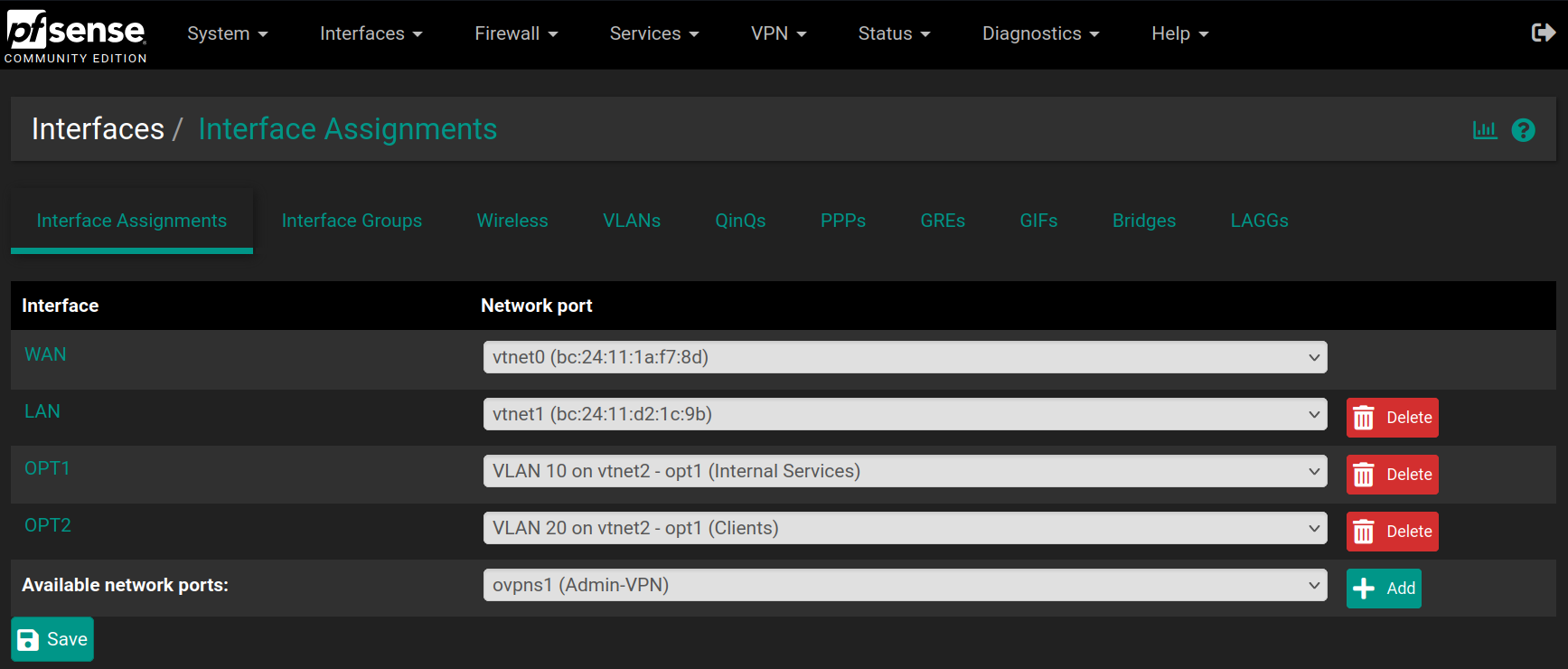
Go back to **Interfaces &gt; Assignments** and set **OPT1** as VLAN10 and add a new **OPT2** as VLAN20 and click on `Save`
![image-20250531000924519](https://docs.adebarbarin.com/uploads/images/gallery/2025-06/proxmox-interface-pfsense-install-63.png)

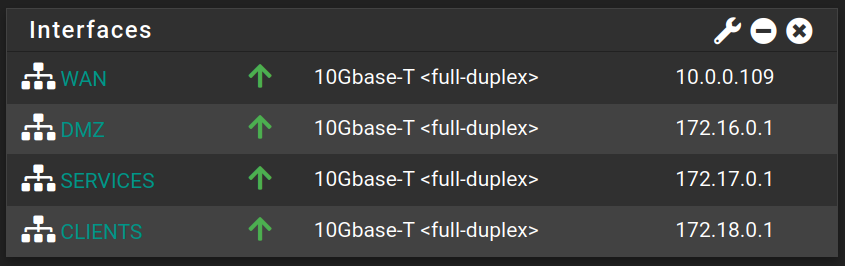
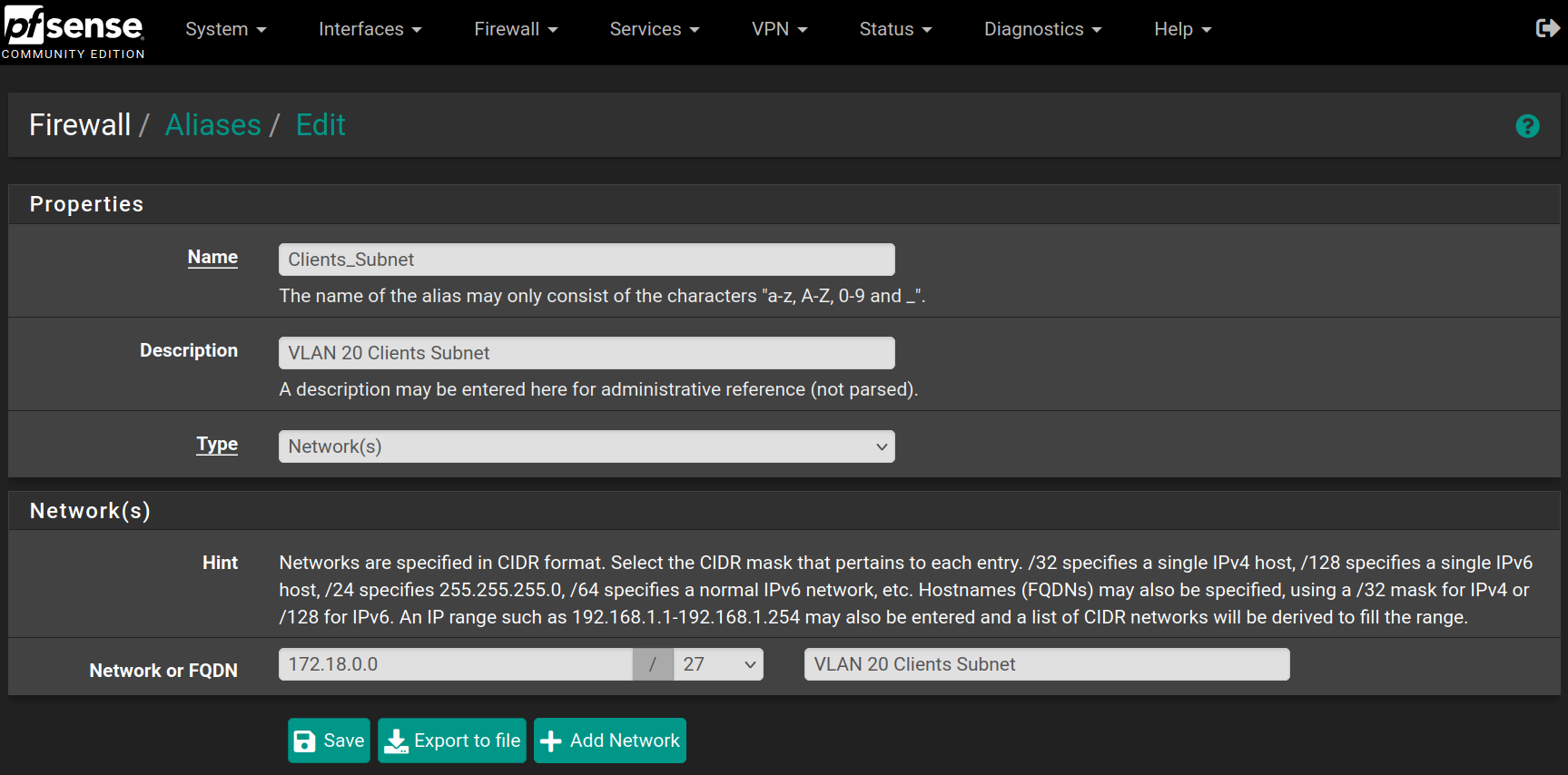
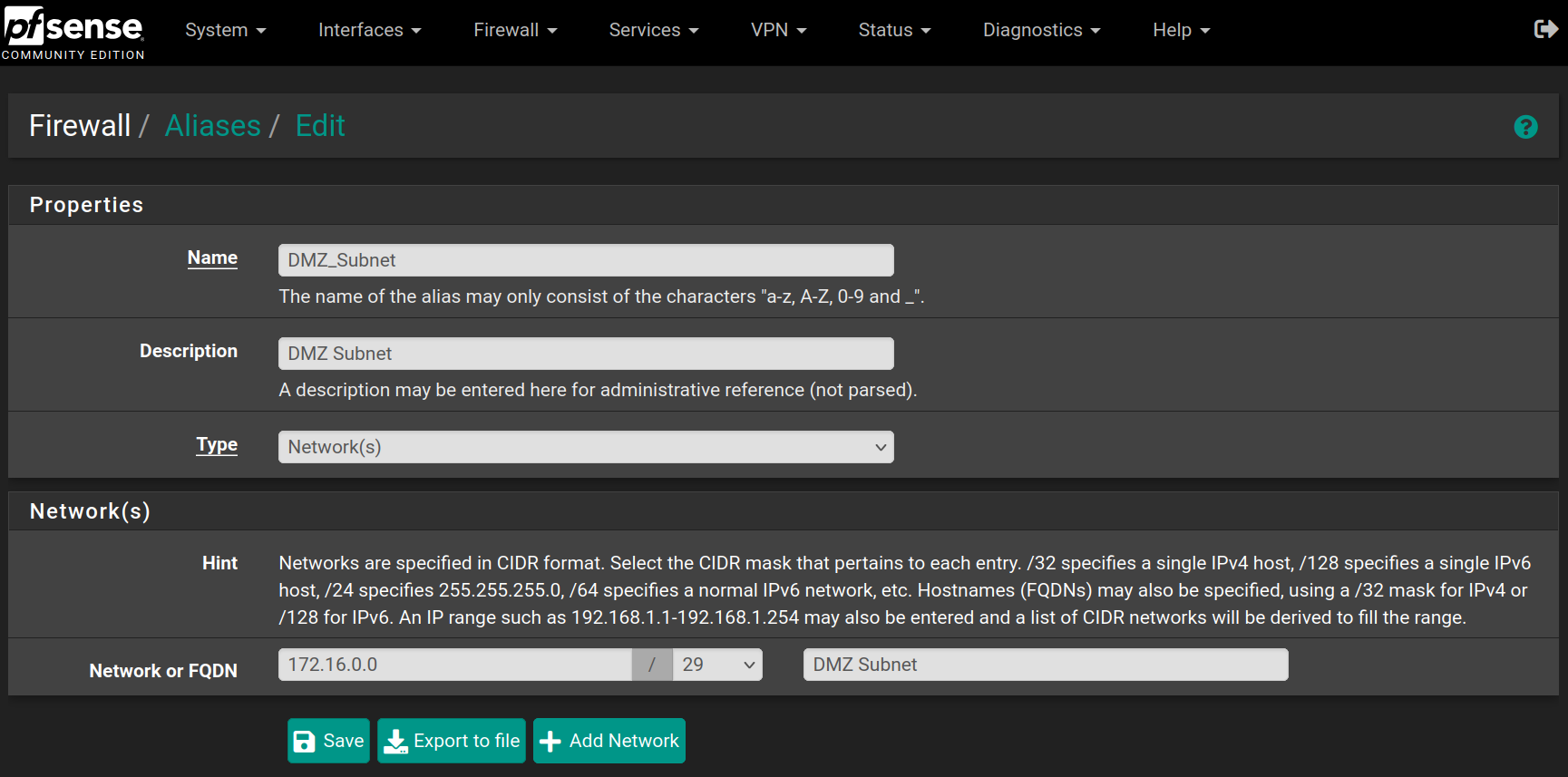
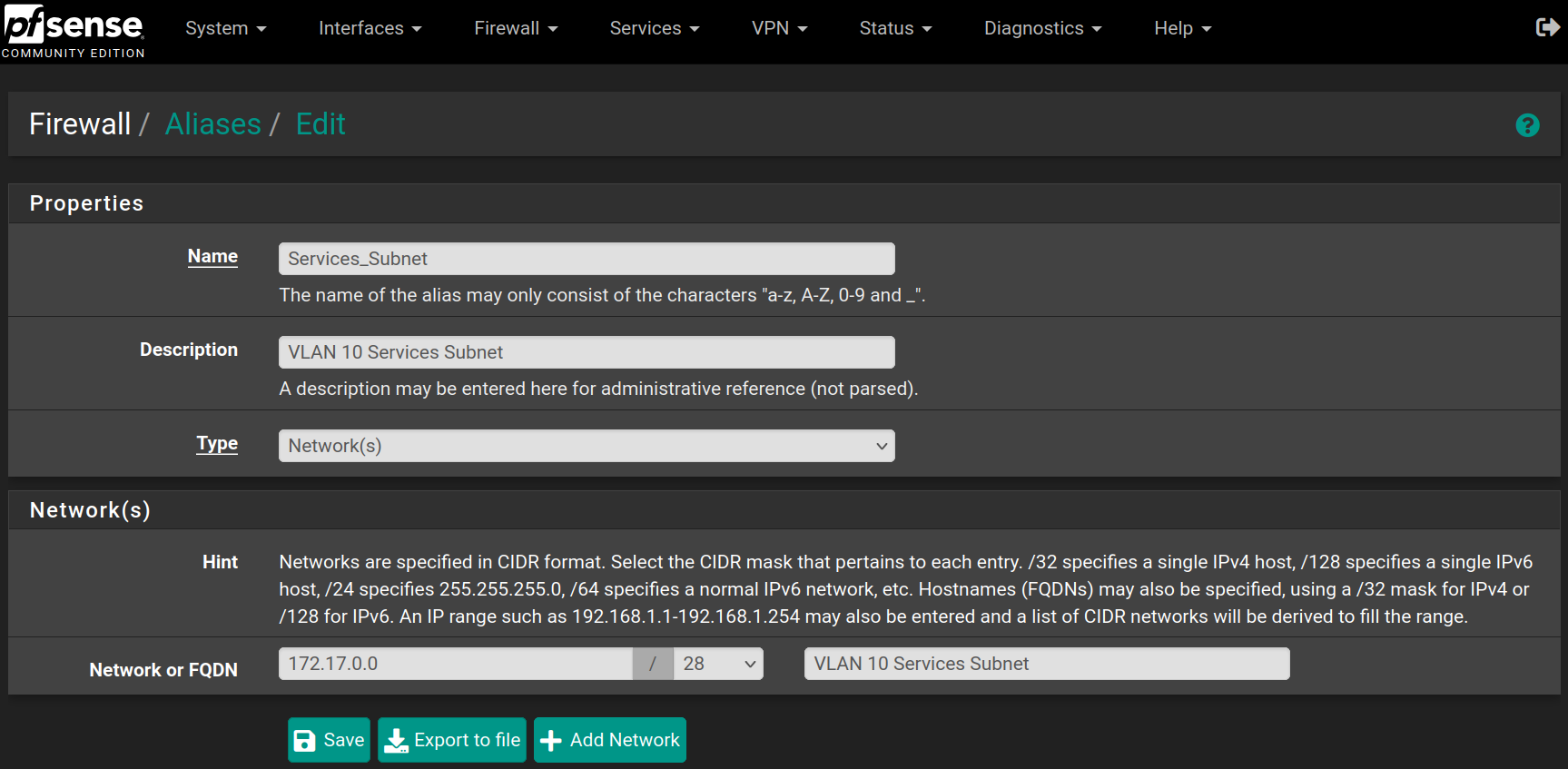
Then go to **Interfaces &gt; LAN**, **Interfaces &gt; OPT1** and **Interfaces &gt; OPT2** to change their names with `DMZ`, `Services` and `Clients`, check the option **Enable interface** if it's not checked already and assign a **Static IP address** if it's not set up already.

<table id="bkmrk-interface-ip-address"><thead><tr><th>Interface</th><th>IP address</th></tr></thead><tbody><tr><td>DMZ</td><td>172.16.0.1 / 29</td></tr><tr><td>Services (VLAN 10)</td><td>172.17.0.1 / 28</td></tr><tr><td>Clients (VLAN 20)</td><td>172.18.0.1 / 27</td></tr></tbody></table>

![image-20250531001425188](https://docs.adebarbarin.com/uploads/images/gallery/2025-06/proxmox-interface-pfsense-install-64.png)

![image-20250531002247771](https://docs.adebarbarin.com/uploads/images/gallery/2025-06/proxmox-interface-pfsense-install-65.png)

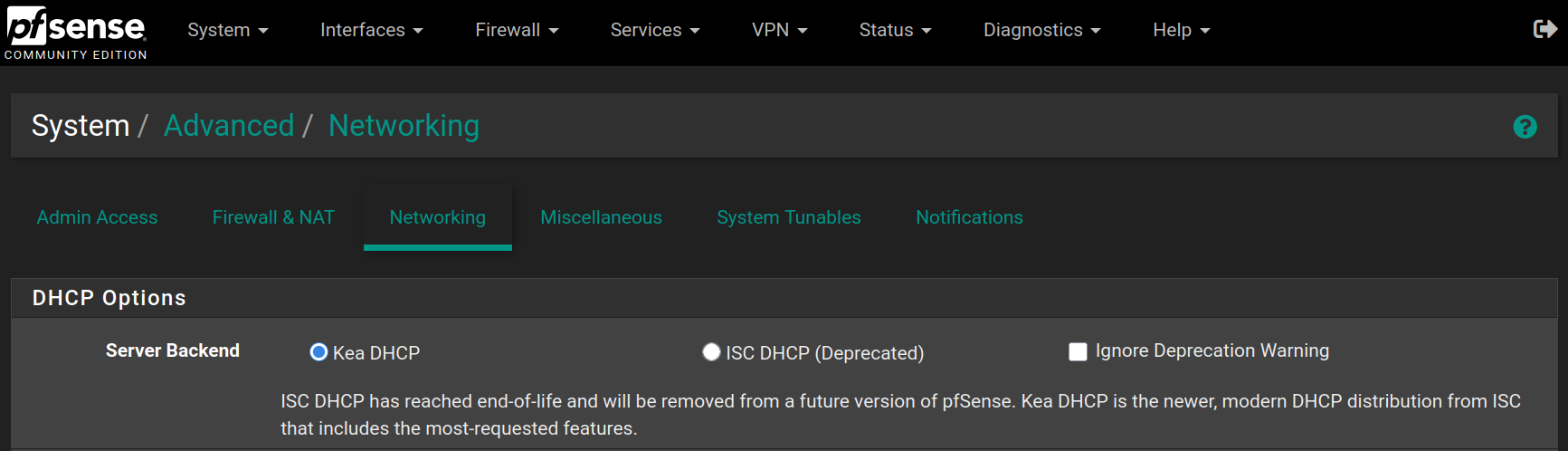
Go to **System &gt; Advanced &gt; Networking** to enable `KEA DHCP` instead of the deprecated `ISC DHCP`
![image-20250531002525032](https://docs.adebarbarin.com/uploads/images/gallery/2025-06/proxmox-interface-pfsense-install-66.png)

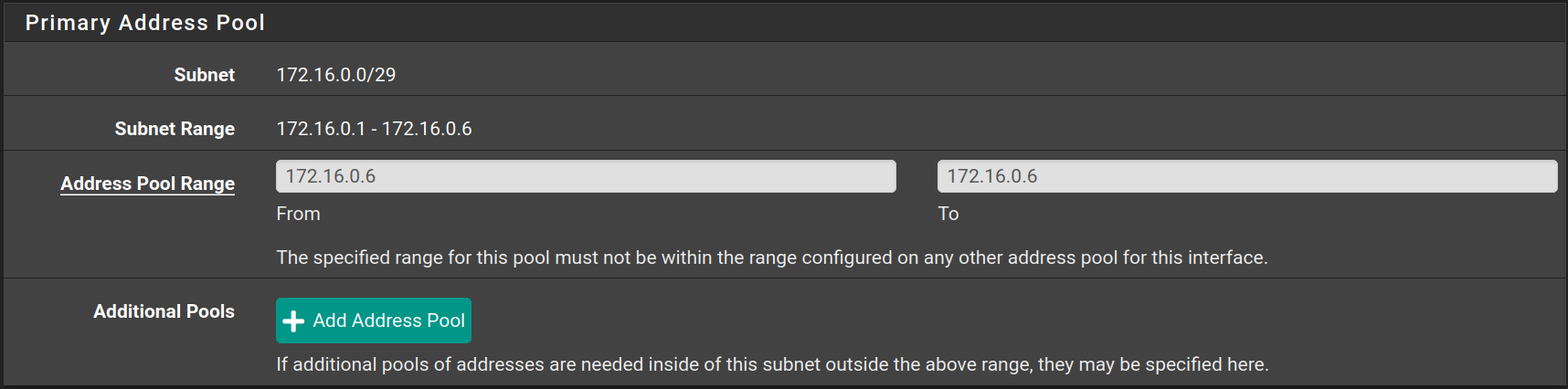
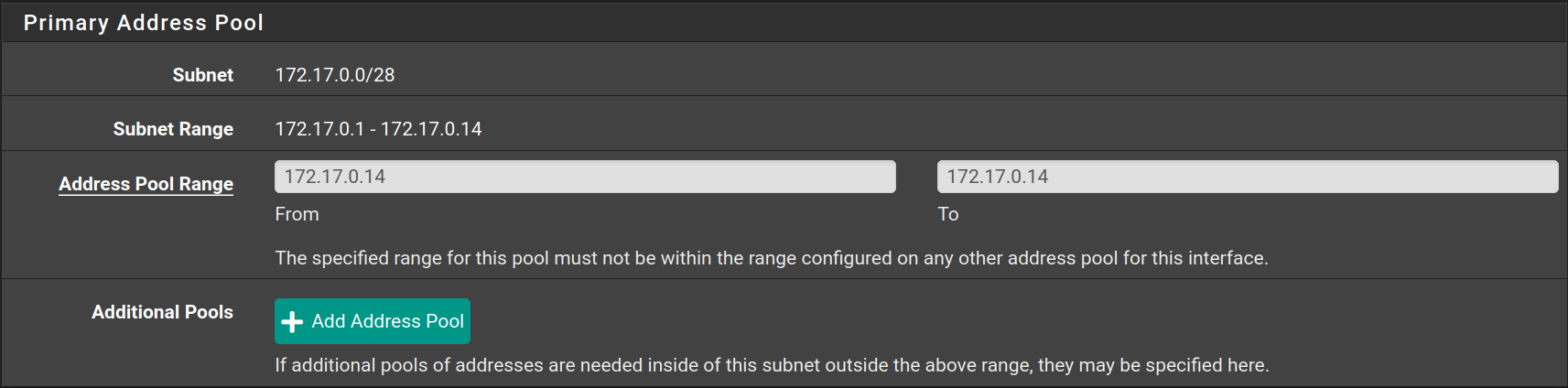
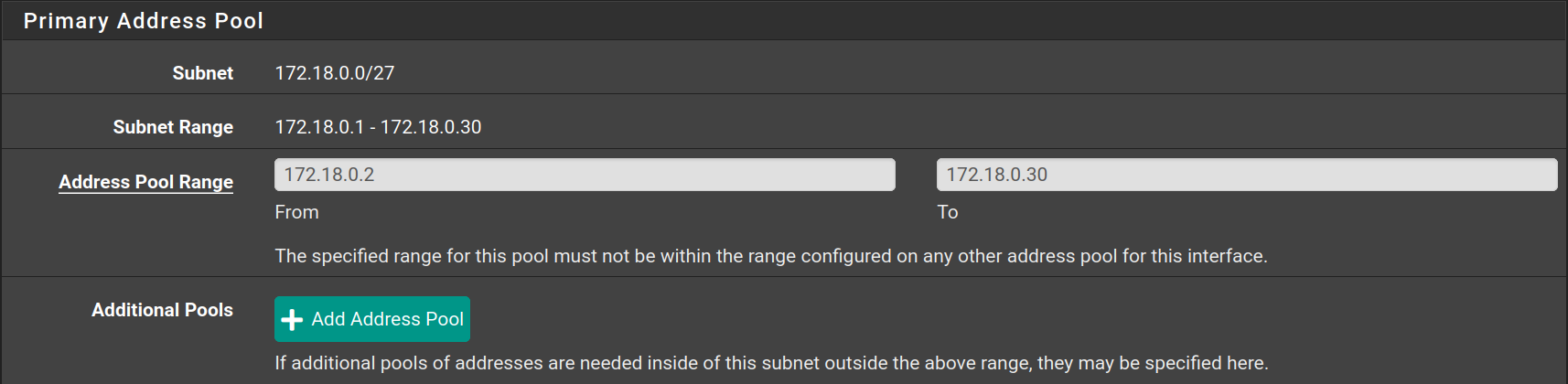
Go to **Services &gt; DHCP Server** to configure the DHCP Server on each interface as following

<table id="bkmrk-interface-starting-i"><thead><tr><th>Interface</th><th>Starting IP</th><th>Ending IP</th></tr></thead><tbody><tr><td>DMZ</td><td>172.16.0.6</td><td>172.16.0.6</td></tr><tr><td>Services</td><td>172.17.0.14</td><td>172.17.0.14</td></tr><tr><td>Clients</td><td>172.18.0.2</td><td>172.18.0.30</td></tr></tbody></table>

![image-20250531003259604](https://docs.adebarbarin.com/uploads/images/gallery/2025-06/proxmox-interface-pfsense-install-67.png)

![image-20250531003404975](https://docs.adebarbarin.com/uploads/images/gallery/2025-06/proxmox-interface-pfsense-install-68.png)

![image-20250531003520225](https://docs.adebarbarin.com/uploads/images/gallery/2025-06/proxmox-interface-pfsense-install-69.png)

### Create aliases

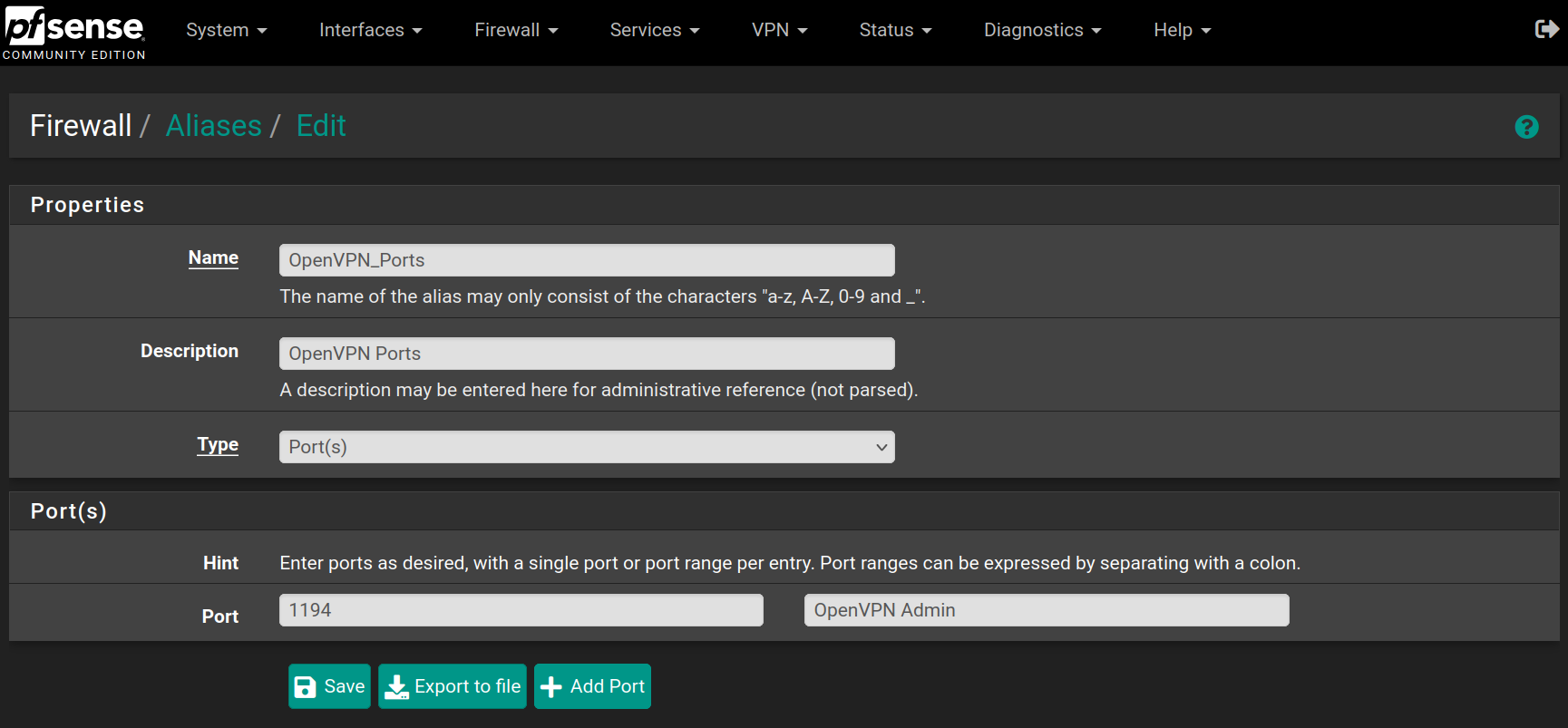
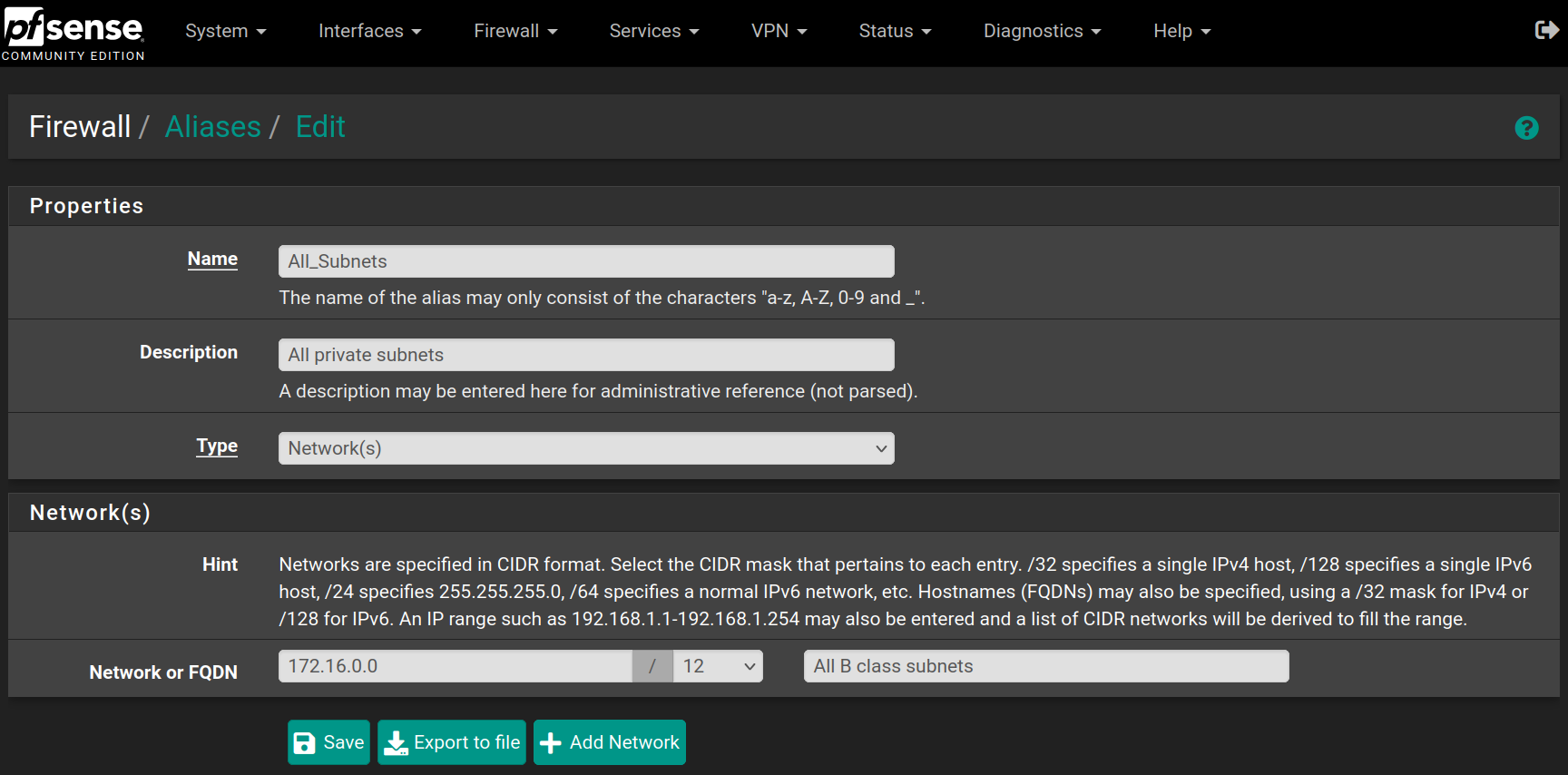
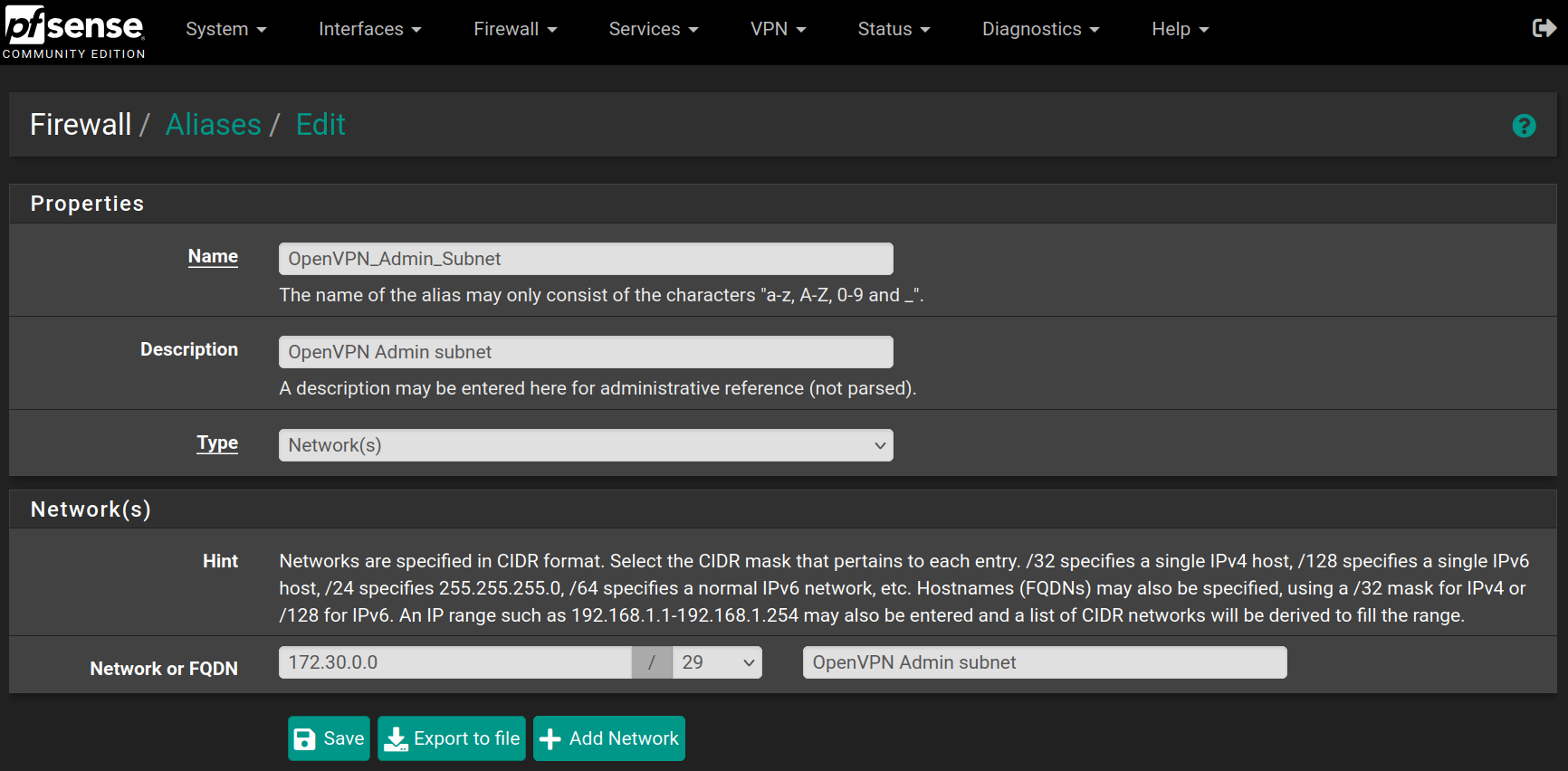
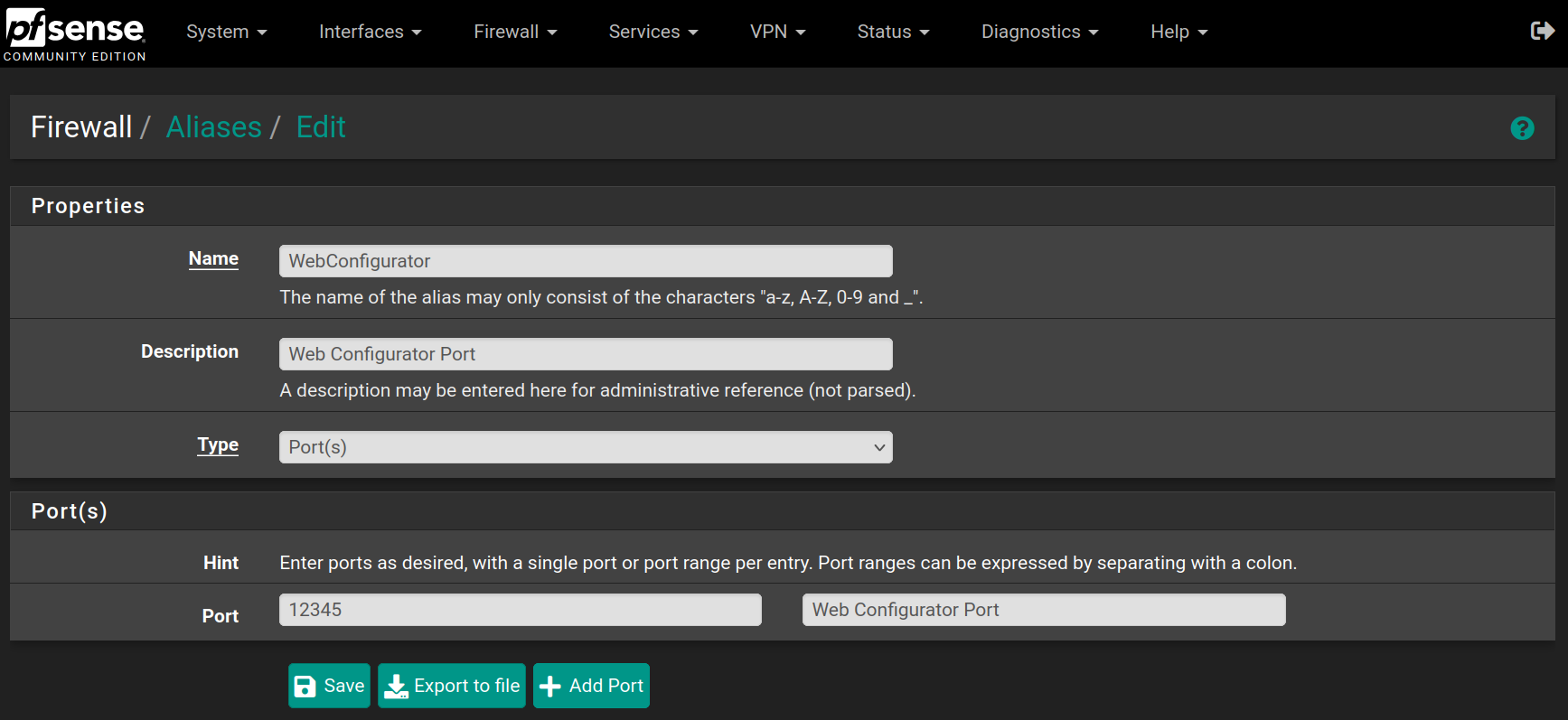
Go to **Firewall &gt; Aliases** and click on `New`, then fill the forms with the values below and click on `Save`
![image-20250531142204445](https://docs.adebarbarin.com/uploads/images/gallery/2025-06/proxmox-interface-pfsense-install-70.png)

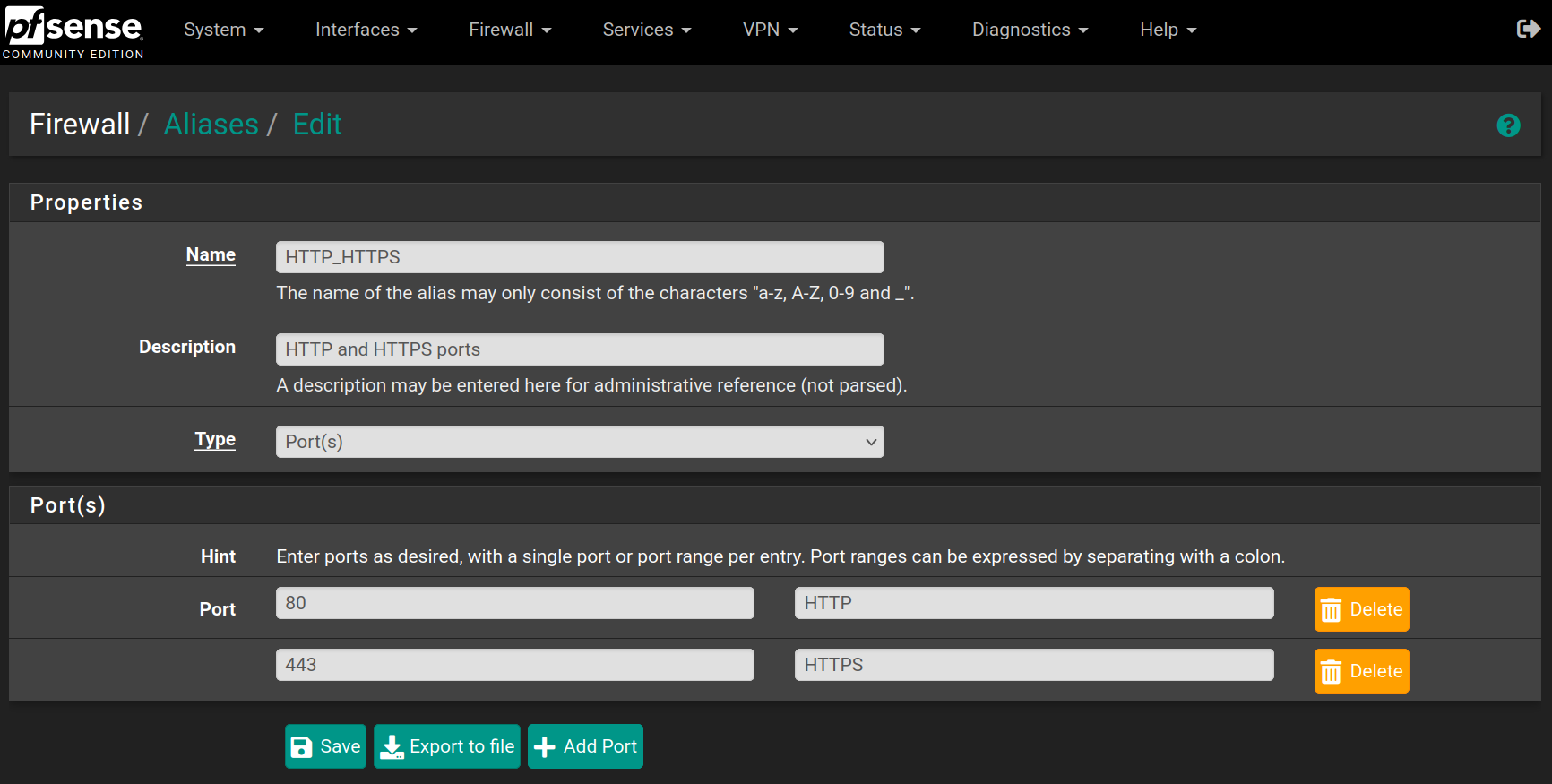
Repeat the process for the following aliases
![image-20250531142323105](https://docs.adebarbarin.com/uploads/images/gallery/2025-06/proxmox-interface-pfsense-install-71.png)

![image-20250531142414100](https://docs.adebarbarin.com/uploads/images/gallery/2025-06/proxmox-interface-pfsense-install-72.png)

![image-20250531142500135](https://docs.adebarbarin.com/uploads/images/gallery/2025-06/proxmox-interface-pfsense-install-73.png)

![image-20250531142534507](https://docs.adebarbarin.com/uploads/images/gallery/2025-06/proxmox-interface-pfsense-install-74.png)

![image-20250531142609653](https://docs.adebarbarin.com/uploads/images/gallery/2025-06/proxmox-interface-pfsense-install-75.png)

![image-20250531142654861](https://docs.adebarbarin.com/uploads/images/gallery/2025-06/proxmox-interface-pfsense-install-76.png)

![image-20250531142731779](https://docs.adebarbarin.com/uploads/images/gallery/2025-06/proxmox-interface-pfsense-install-77.png)

# AlmalinuxOS LXC Installation

<div id="bkmrk-antoine-de-barbarin" style="text-align: right;">Antoine de Barbarin</div>---

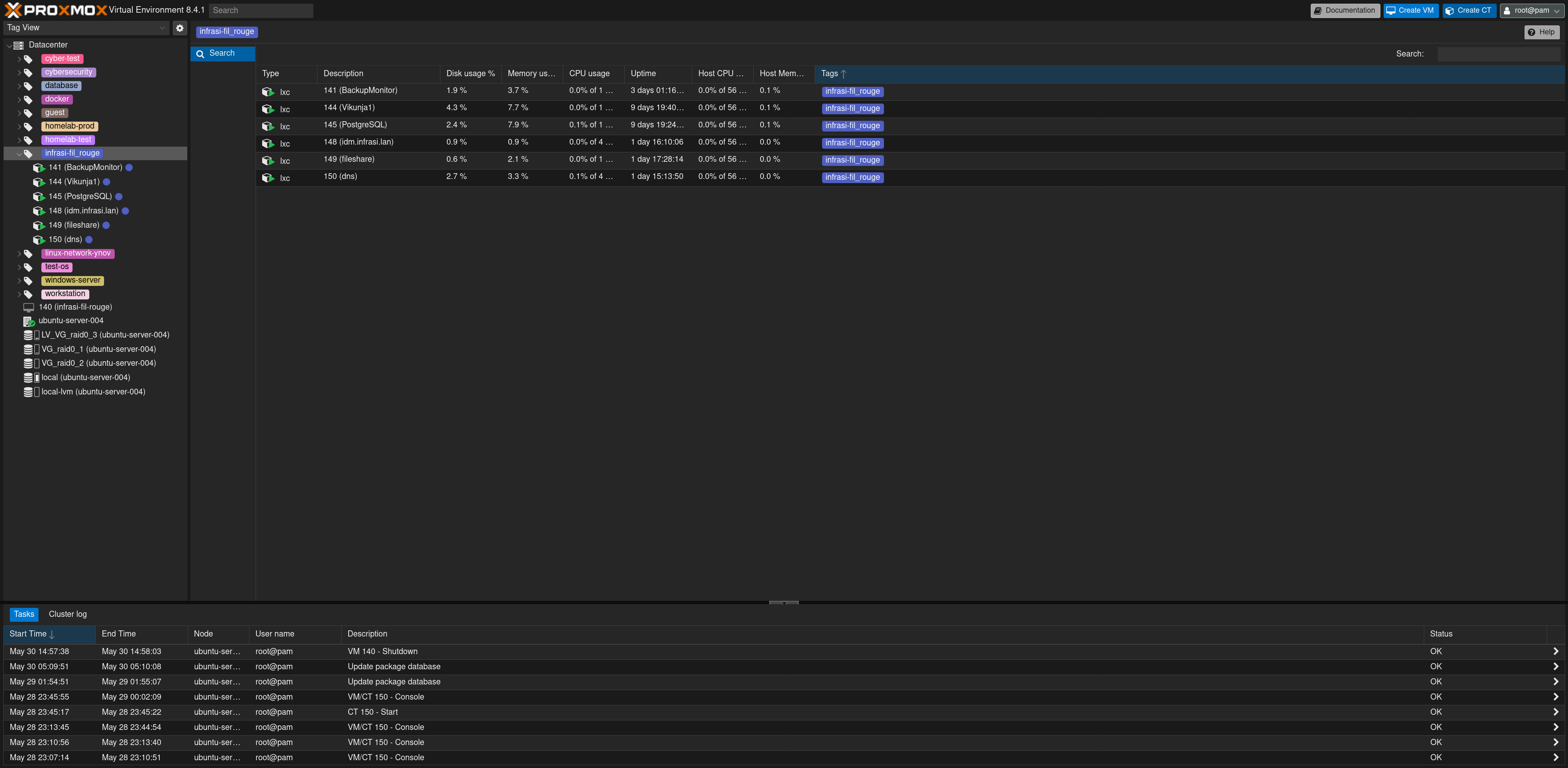
On the Proxmox web interface, click on the ![image-20250531211759646](screenshots/Proxmox-createCT-button.png) button to create a new **LXC** (Linux container).
![proxmox view](https://docs.adebarbarin.com/uploads/images/gallery/2025-06/proxmox-interface-pfsense-install-00.png)

Fill the form with the hostname, passwords and the tag, then click on `Next`
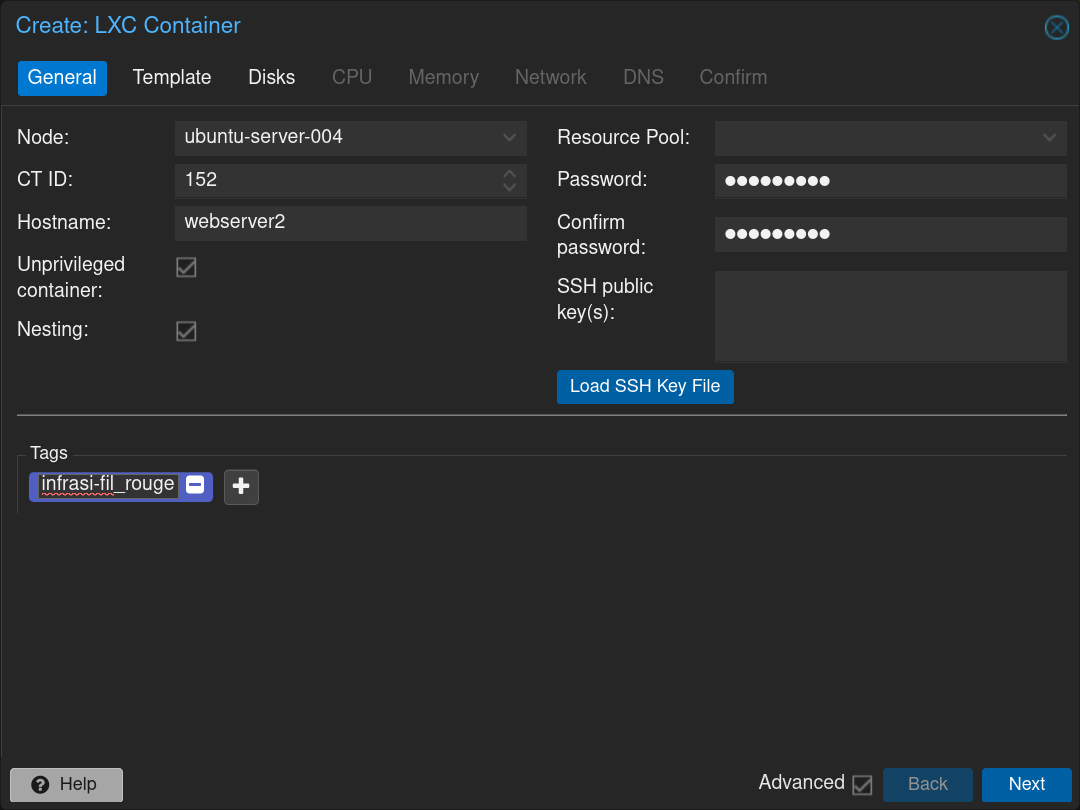
![image-20250531212605350](https://docs.adebarbarin.com/uploads/images/gallery/2025-06/proxmox-lxc-01.png)

Then choose the almalinux image and click on `Next`
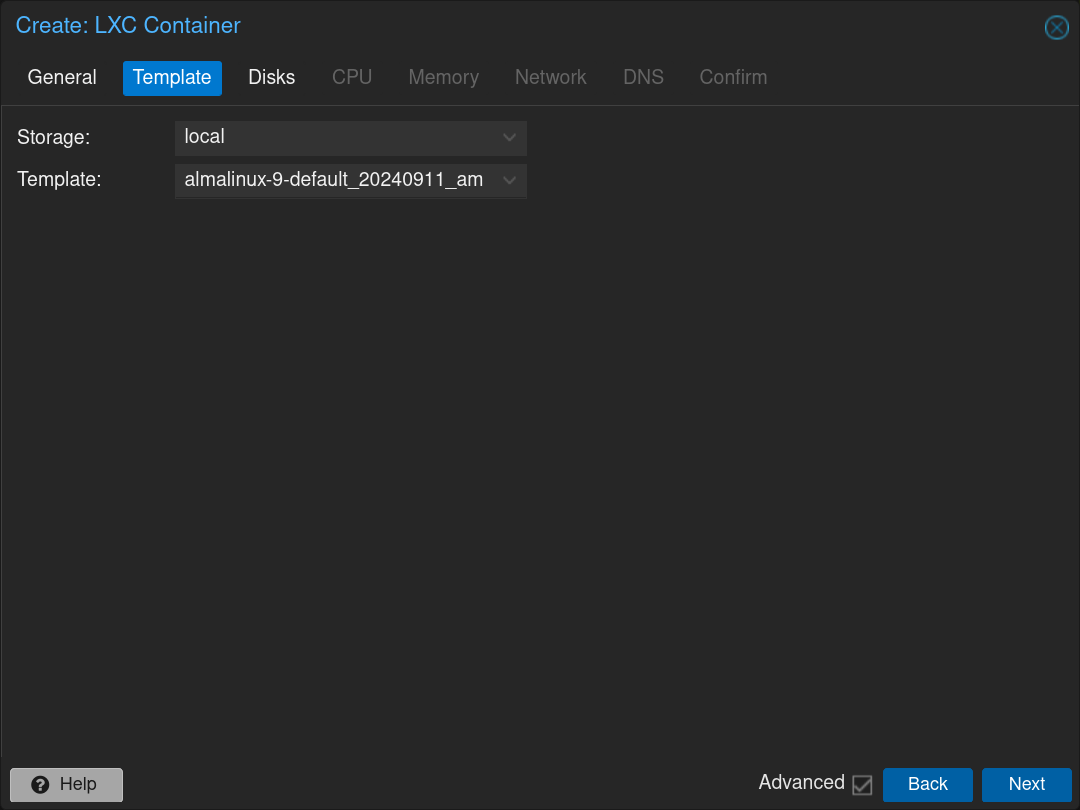
![image-20250531212219502](https://docs.adebarbarin.com/uploads/images/gallery/2025-06/proxmox-lxc-02.png)

Set the disk configuration and click on `Next`
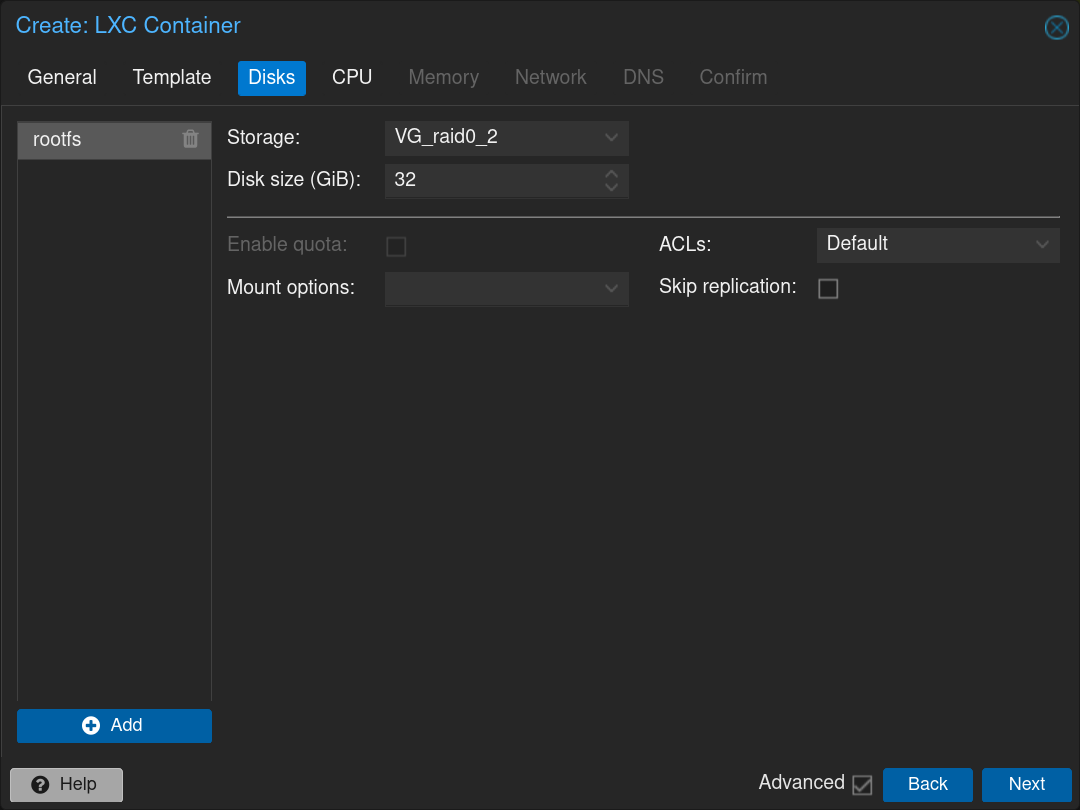
![image-20250531212757016](https://docs.adebarbarin.com/uploads/images/gallery/2025-06/proxmox-lxc-03.png)

Keep a single CPU and click on `Next`
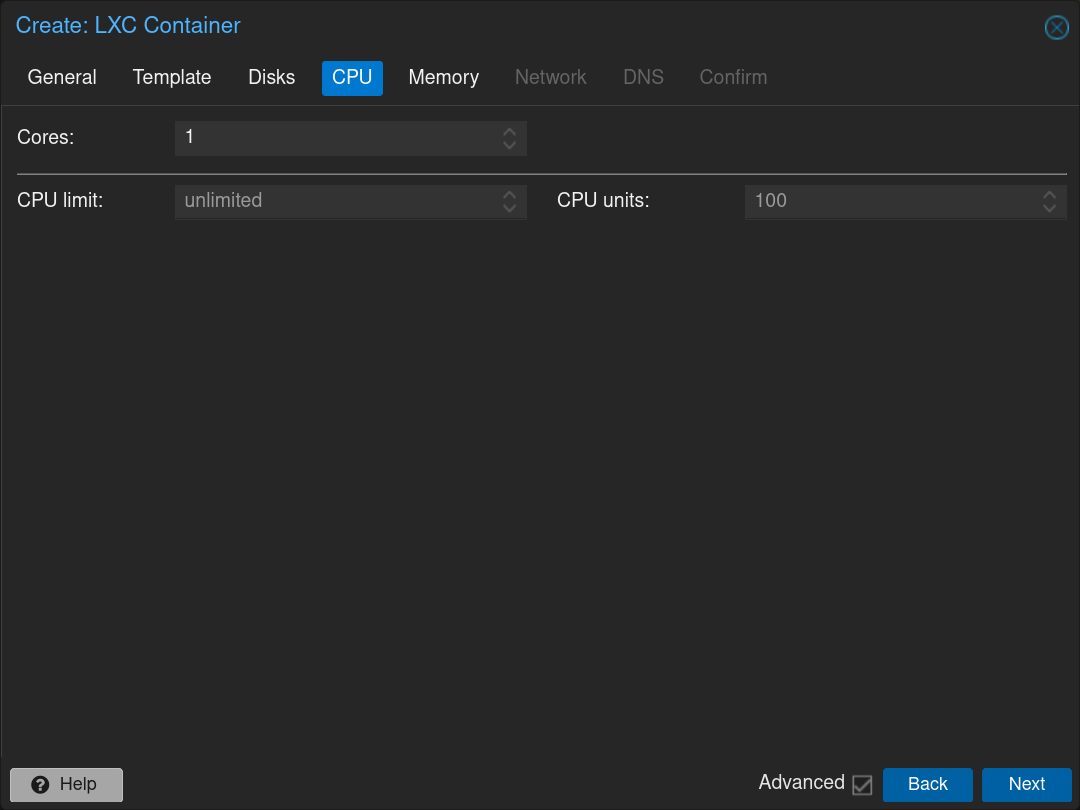
![image-20250531212859155](https://docs.adebarbarin.com/uploads/images/gallery/2025-06/proxmox-lxc-04.png)

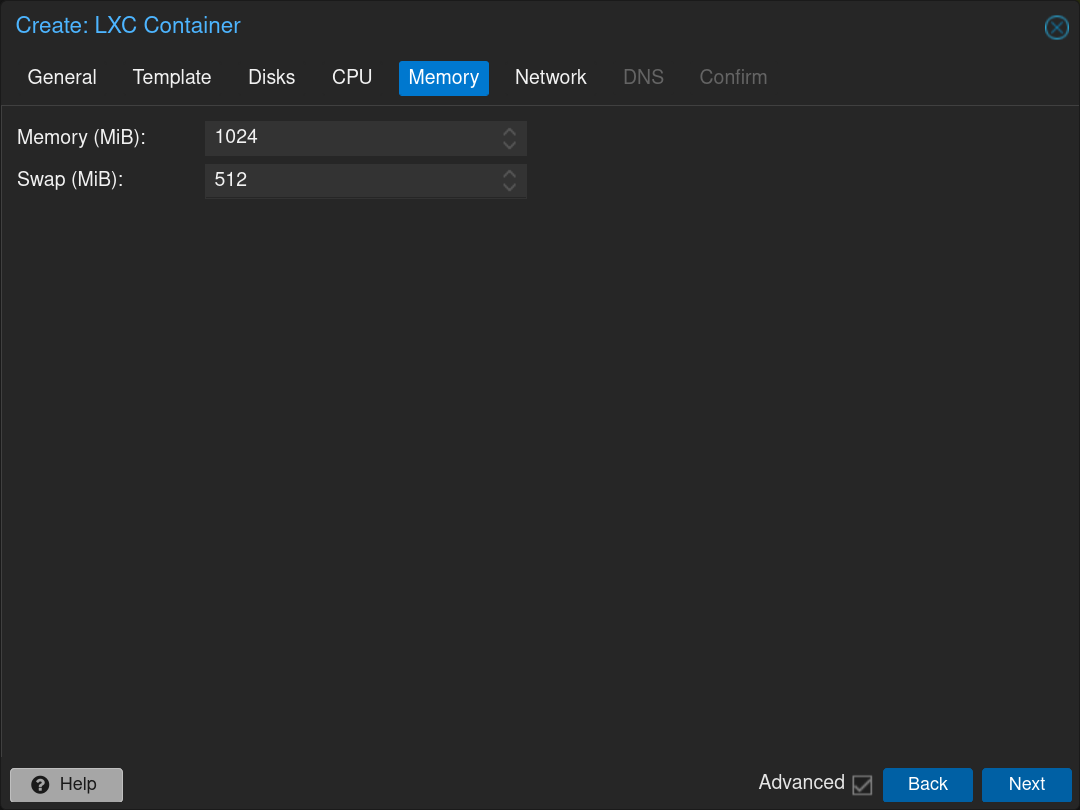
Set the **RAM** at `1024MB` and the **SWAP** at `512MB` and click on `Next`
![image-20250531213026196](https://docs.adebarbarin.com/uploads/images/gallery/2025-06/proxmox-lxc-05.png)

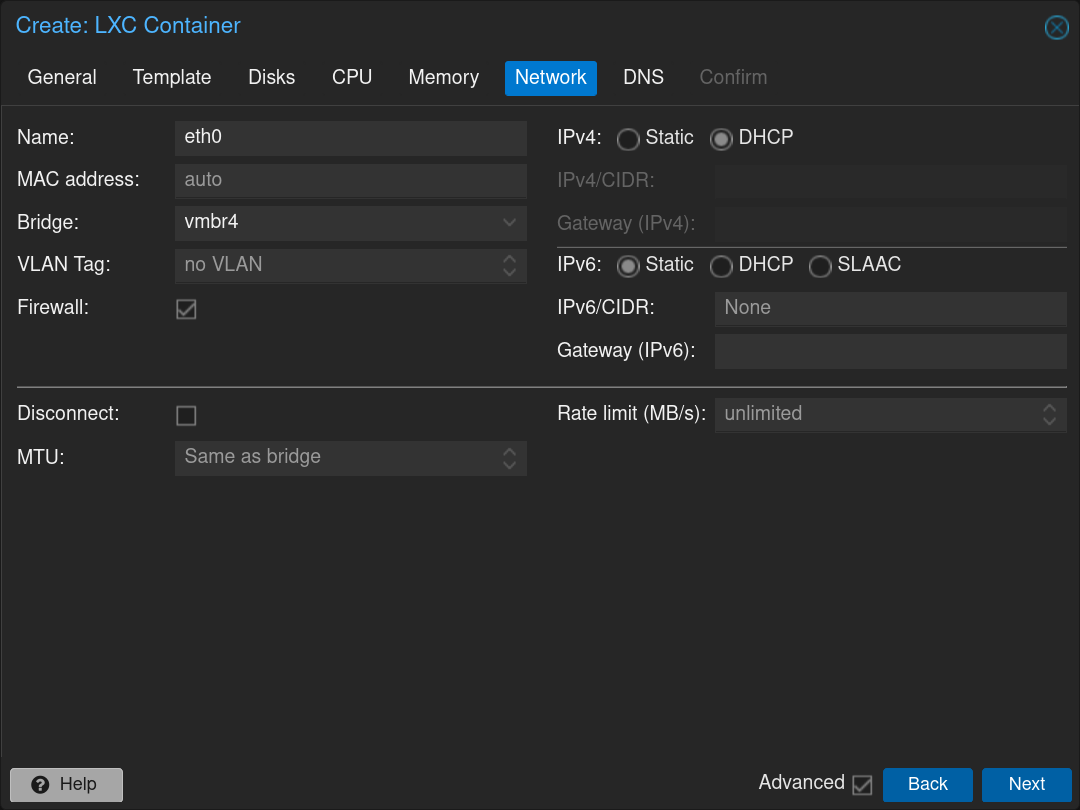
Set the network at `vmbr4` corresponding to the **DMZ** interface and check `DHCP` on **IPv4**, then click on `Next`
![image-20250531213219760](https://docs.adebarbarin.com/uploads/images/gallery/2025-06/proxmox-lxc-06.png)

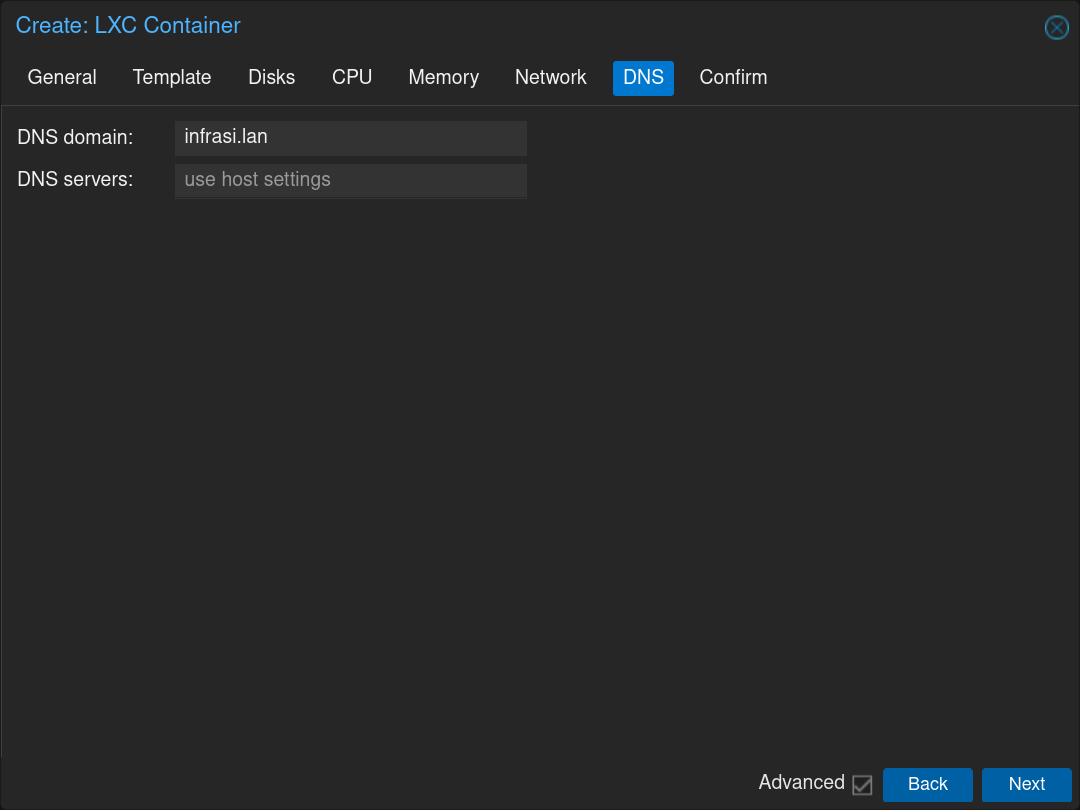
Set the **Domain** to `infrasi.lan` and keep the **DNS** to the default value, then click on `Next`
![image-20250531213354761](https://docs.adebarbarin.com/uploads/images/gallery/2025-06/proxmox-lxc-07.png)

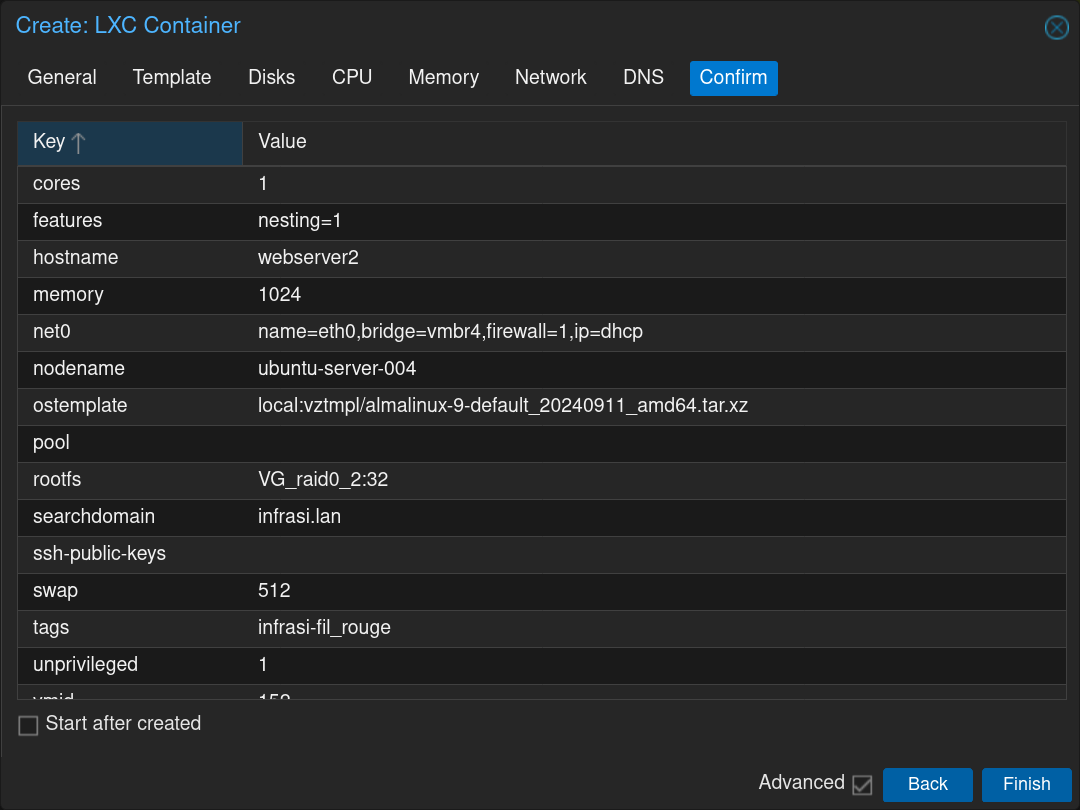
Click on `Finish` to validate the configurations and create the **LXC**
![image-20250531213509856](https://docs.adebarbarin.com/uploads/images/gallery/2025-06/proxmox-lxc-08.png)

When it is finished, you can close the window
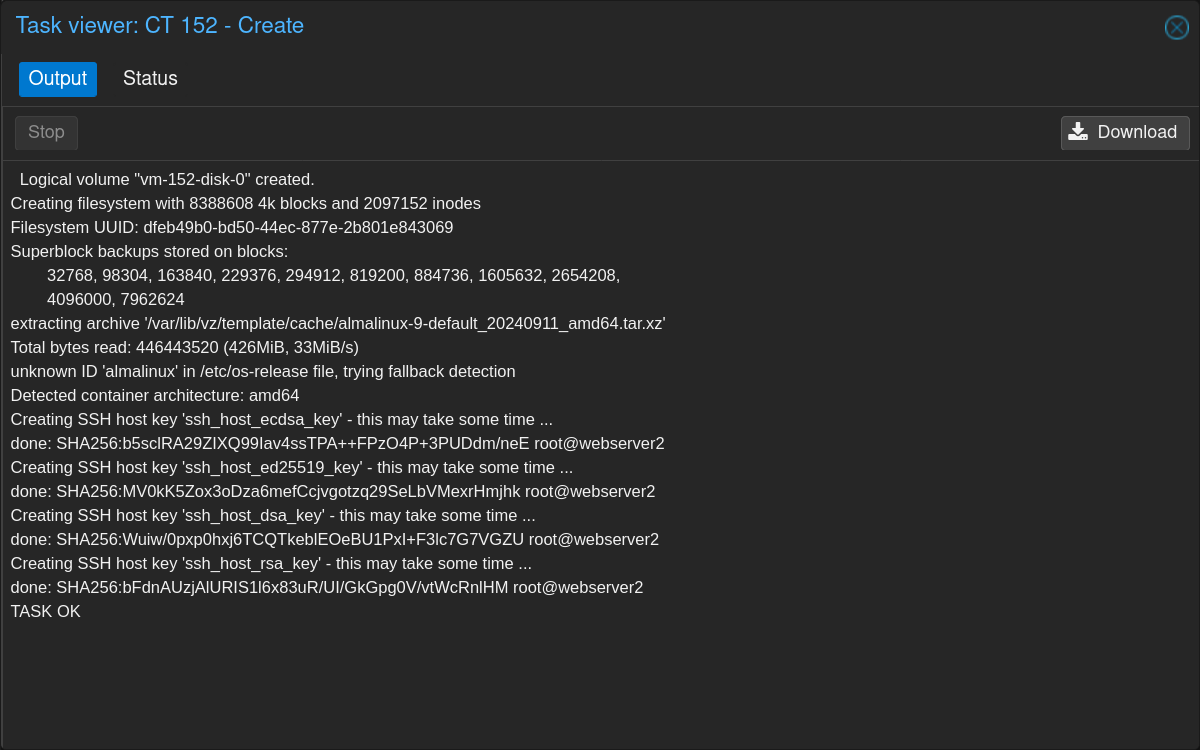
![image-20250531213620589](https://docs.adebarbarin.com/uploads/images/gallery/2025-06/proxmox-lxc-09.png)

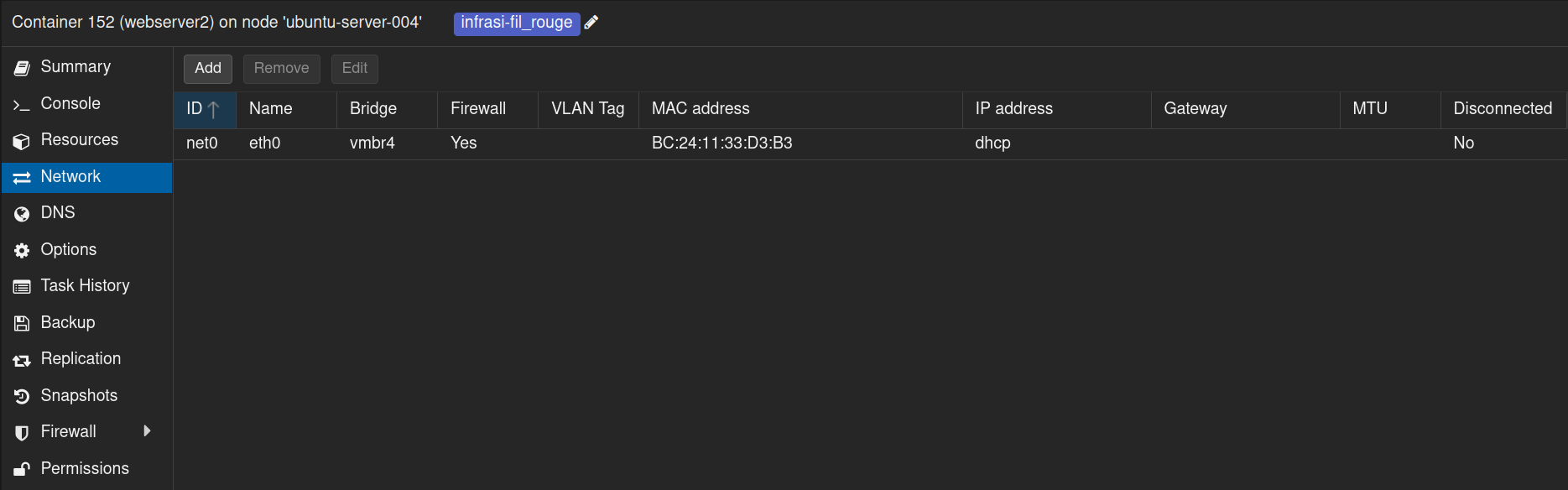
Now we can see our newly created **LXC** appear, and going to **Network**, we can take note of its **MAC address** to add it to the static leases in the **DMZ DHCP** on **pfSense**
![image-20250531213843177](https://docs.adebarbarin.com/uploads/images/gallery/2025-06/proxmox-lxc-10.png)

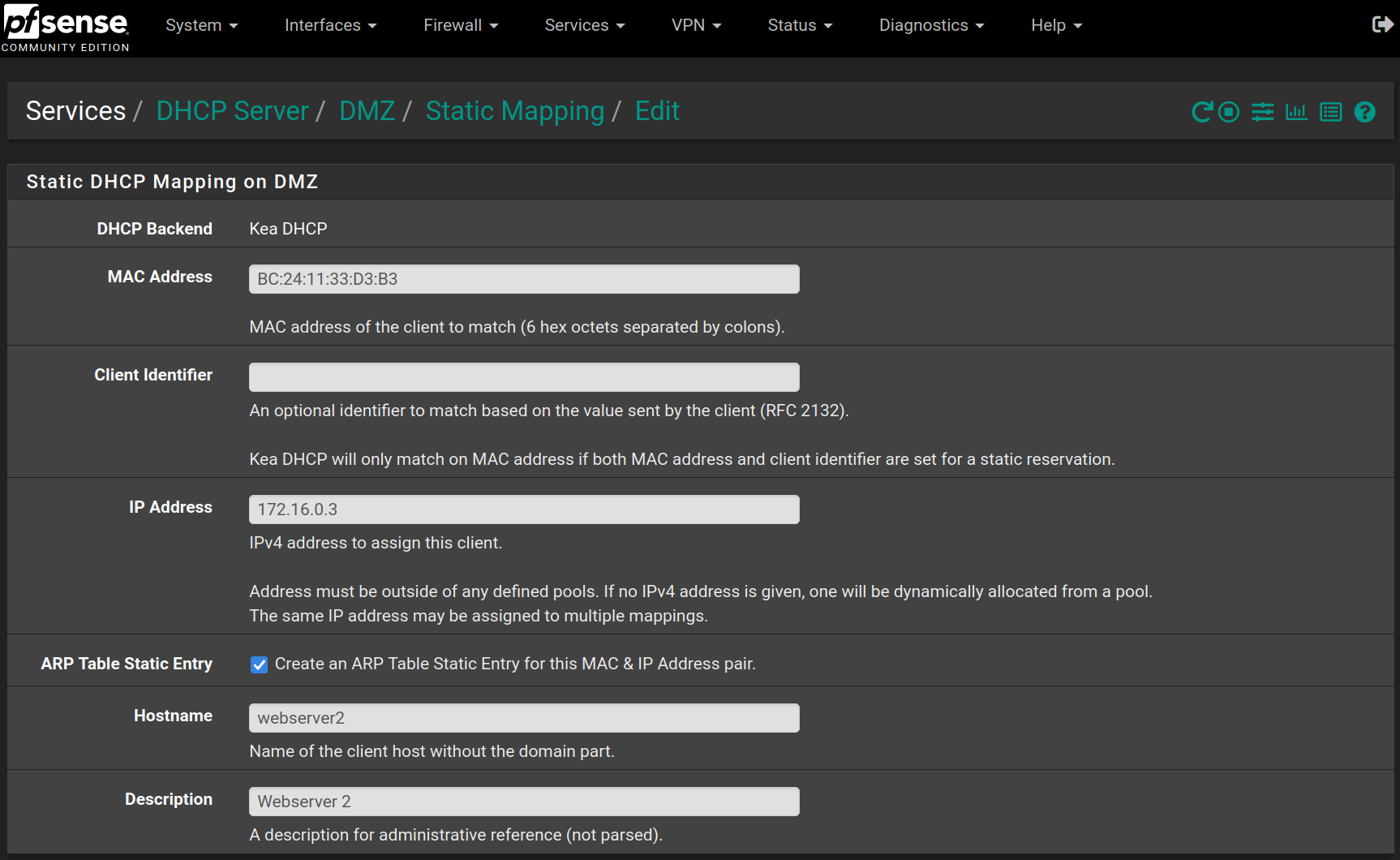
To add it to the static leases, go to **Services &gt; DHCP Server &gt; DMZ** and click on `Add` at the bottom of the page, then fill the form like the following image
![image-20250531214521723](https://docs.adebarbarin.com/uploads/images/gallery/2025-06/proxmox-lxc-11.png)

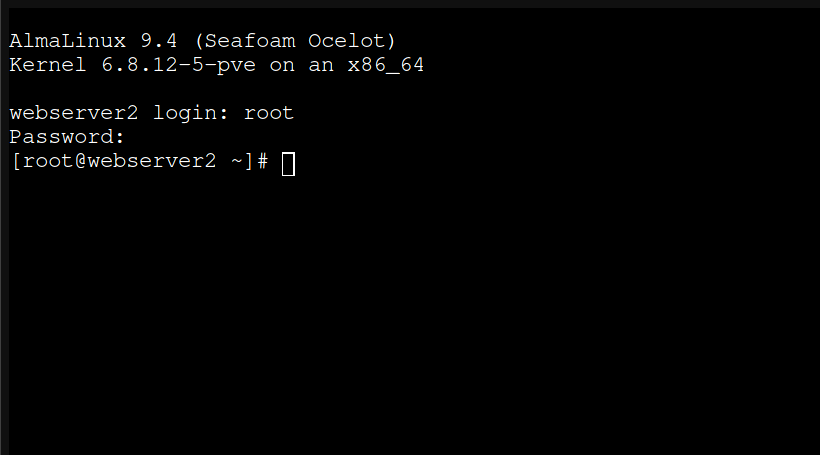
Then you can click on ![console button](https://docs.adebarbarin.com/uploads/images/gallery/2025-06/proxmox-console-button.png) and then on ![start button](https://docs.adebarbarin.com/uploads/images/gallery/2025-06/proxmox-start-big-button.png) to start the **LXC**. When the system has booted, log in as `root` with the password provided in the creation form.
![image-20250531214738003](https://docs.adebarbarin.com/uploads/images/gallery/2025-06/proxmox-lxc-12.png)

Now that we are logged in, we can run the initial setup script:

```bash
#!/bin/bash

# update all packages and upgrade system
dnf update -y && dnf upgrade -y
# install basic and usefull packages
dnf install -y vim tar git wget bind-utils net-tools openssh-server

# add manager user with sudo privileges and modify the password
adduser manager
usermod -aG wheel manager
passwd manager

# start SSH server and enable it at boot
service sshd start && systemctl enable sshd

```

The only thing to do will be to type the manager's password when asked. All the rest is automatic.

After the upgrade from Almalinux 9.4 to Almalinux 9.6, reboot the **LXC** with the `reboot` command.

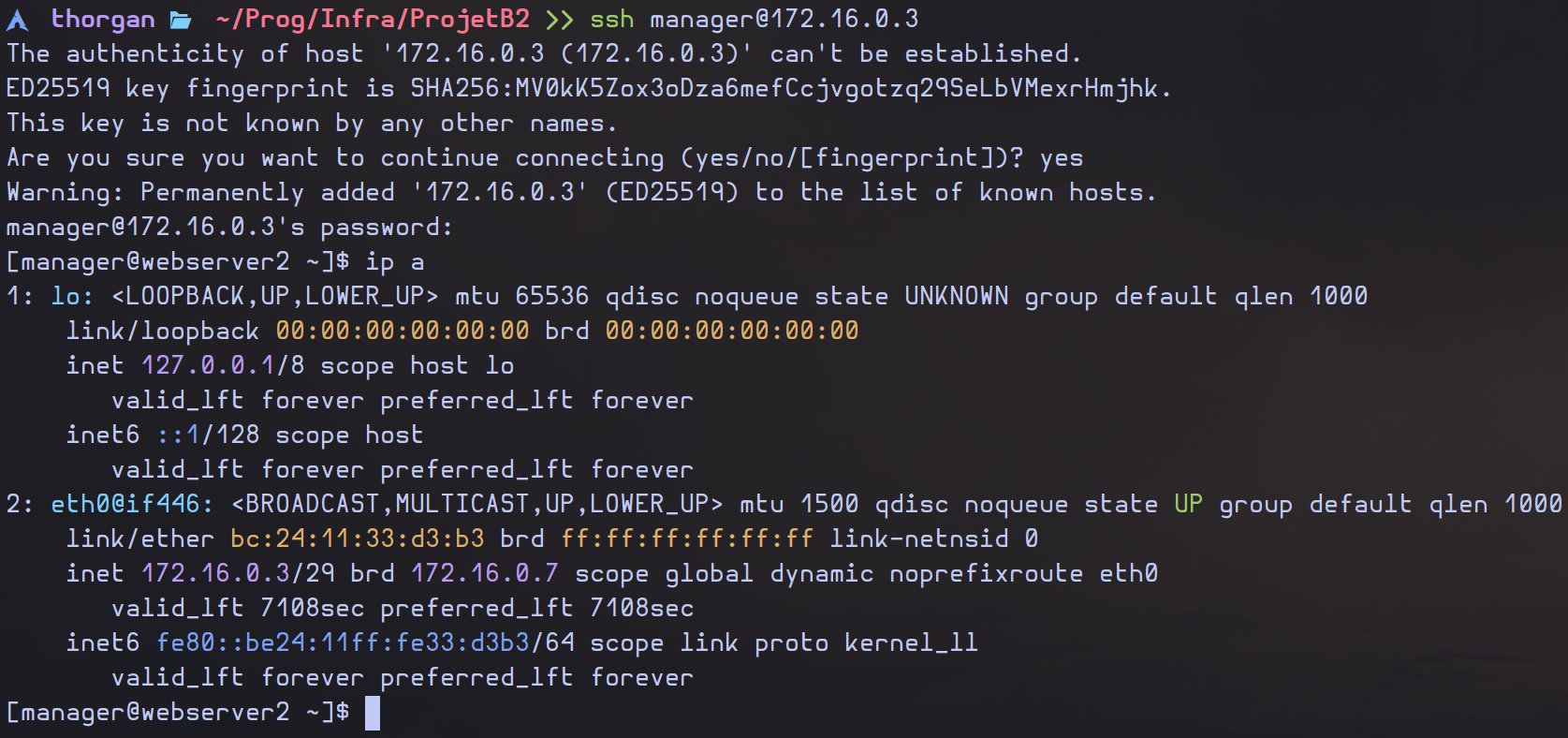
Now the **LXC** is setup and accessible via **SSH** using the **IP address** specified in **pfSense**.
![image-20250531215935772](https://docs.adebarbarin.com/uploads/images/gallery/2025-06/proxmox-lxc-13.png)

# Wiki.js Setup

<div id="bkmrk-antoine-de-barbarin" style="text-align: right">Antoine de Barbarin</div>---

## Install *nodejs*

Enable **nodejs v22** in the **dnf** repository:

```bash
dnf module enable nodejs:22

```

The result should be like that (type `y` when asked for confirmation):

```bash
Last metadata expiration check: 2:29:44 ago on Sun 01 Jun 2025 07:37:42 AM UTC.
Dependencies resolved.
==================================================================================================================
 Package                    Architecture              Version                    Repository                  Size
==================================================================================================================
Enabling module streams:
 nodejs                                               22

Transaction Summary
==================================================================================================================

Is this ok [y/N]: y
Complete!

```

Install nodejs and npm

```bash
dnf install -y nodejs npm

```

## Wiki.js Installation

Download the latest version of Wiki.js:

```bash
wget https://github.com/Requarks/wiki/releases/latest/download/wiki-js.tar.gz

```

Extract the package to a new folder `/srv/wikijs`:

```bash
mkdir /srv/wikijs
tar xzf wiki-js.tar.gz -C /srv/wikijs
cd /srv/wikijs

```

Rename the sample config file to `config.yml`:

```bash
mv config.sample.yml config.yml

```

Edit the config file and fill in your database and port settings (host: `172.17.0.6`, port: `5432`, user: `wikijs`, database: `wikijs`) and set `ha`to true:

```bash
vim config.yml

```

On the **PostgreSQL** Server, give access to the user `wikijs` on the database `wikijs` from both web servers. Add the following text in the file `/var/lib/pgsql/17/data/pg_hba.conf`

```
host    wikijs          wikijs          172.16.0.2/32            scram-sha-256
host    wikijs          wikijs          172.16.0.3/32            scram-sha-256

```

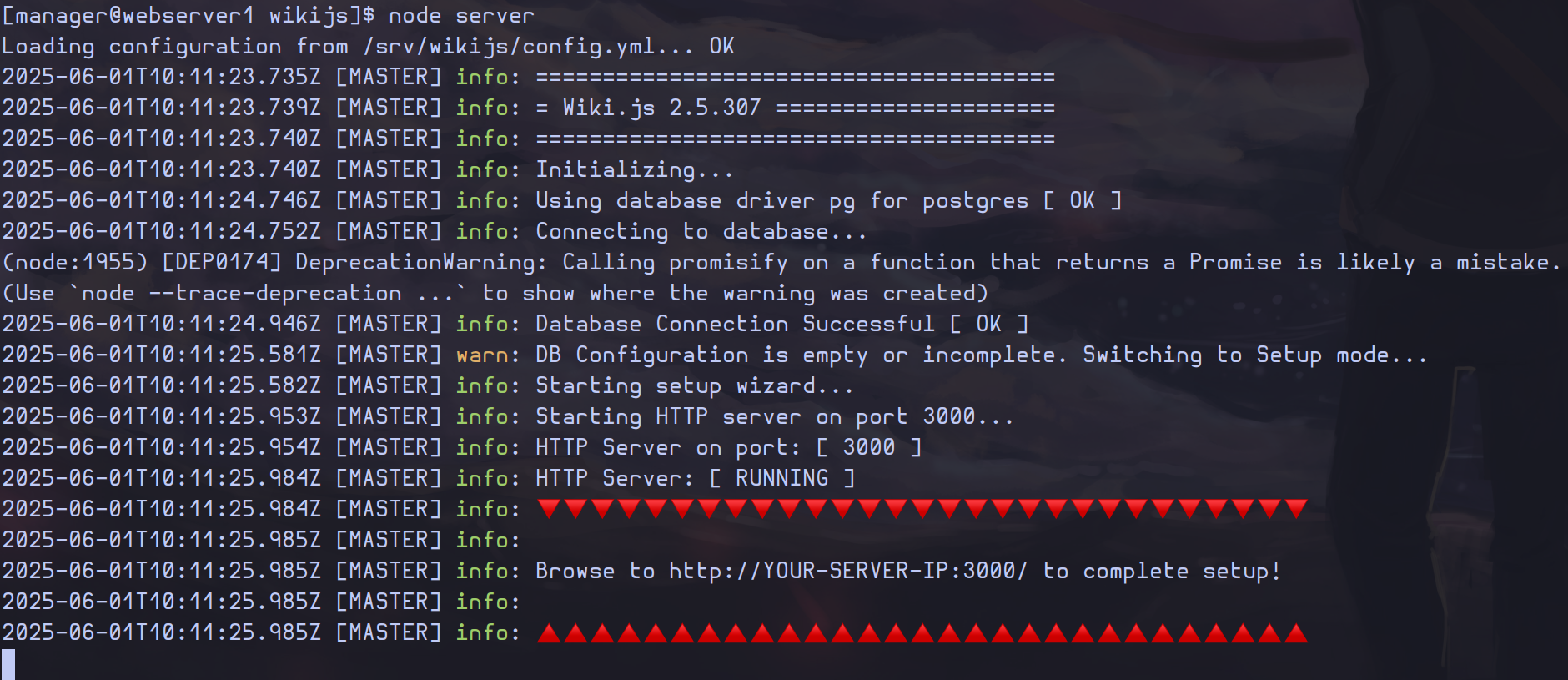
Back to our webserver, run Wiki.js with the command

```bash
node server

```
![image-20250601121248319](https://docs.adebarbarin.com/uploads/images/gallery/2025-06/wikijs-01.png)

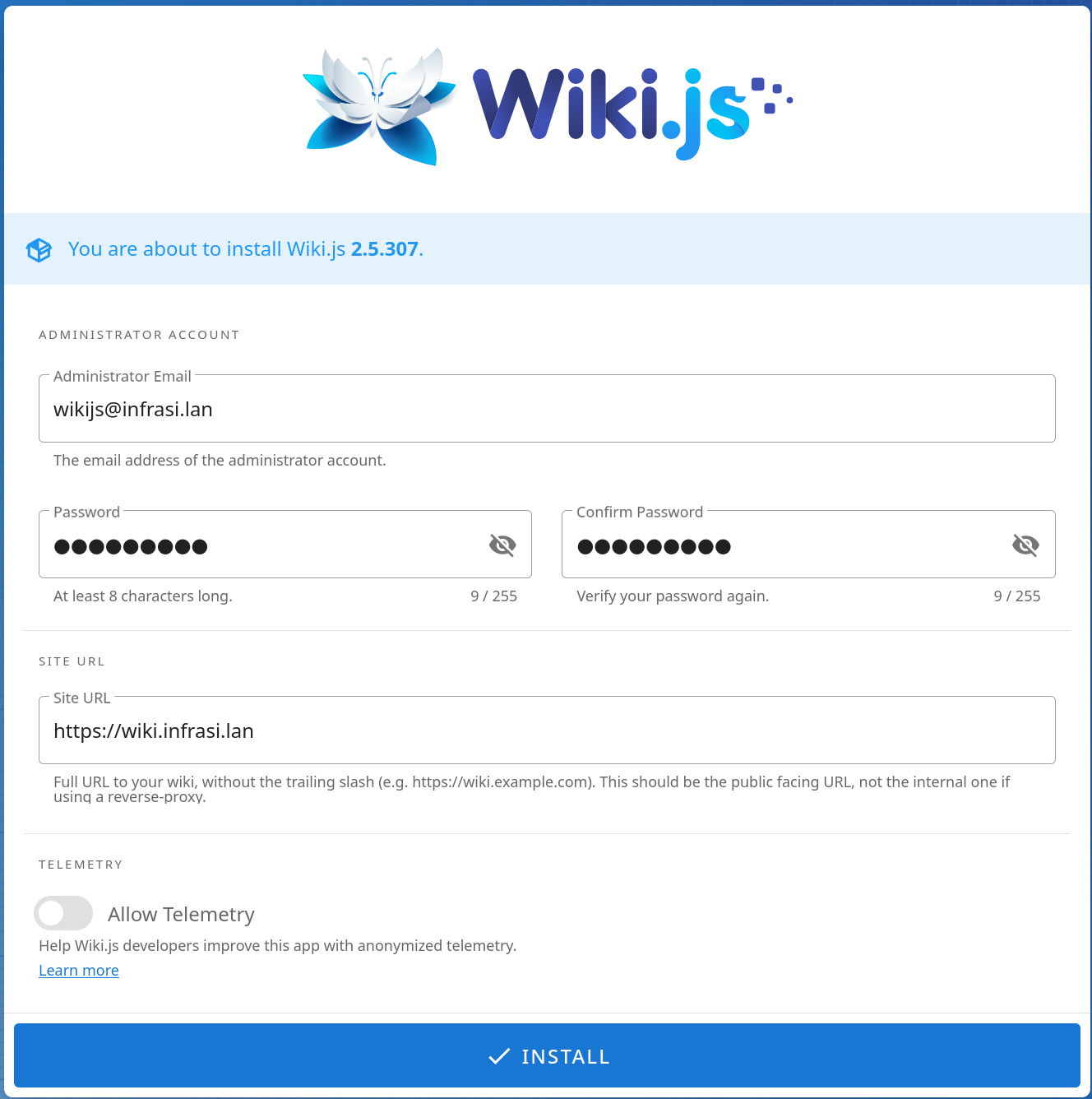
Open the browser with the **URL** `http://172.16.0.2:3000/` and fill the form
![image-20250601121540857](https://docs.adebarbarin.com/uploads/images/gallery/2025-06/wikijs-02.png)

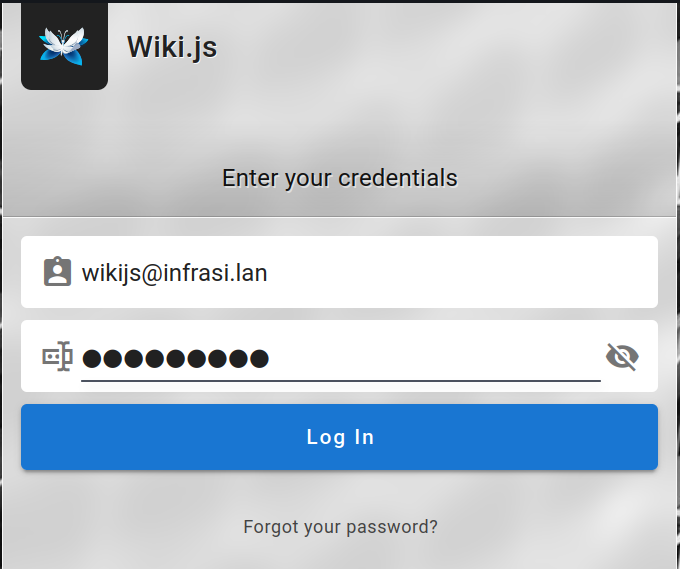
When the installation is complete, you will be redirected to the login page. The setup is complete, you can log in with the administrator account.

![image-20250601122843218](https://docs.adebarbarin.com/uploads/images/gallery/2025-06/wikijs-03.png)

![image-20250601122914711](https://docs.adebarbarin.com/uploads/images/gallery/2025-06/wikijs-04.png)

## Run as service

Create a new system user to run wikijs and give complete ownership of `/srv/wikijs` to it

```bash
useradd -r wikijs -s /bin/false -d /srv/wikijs
chown -R wikijs:wikijs /srv/wikijs

```

Running the command `cat /etc/passwd | grep wikijs`, you should see something similar

```bash
wikijs:x:998:995::/srv/wikijs:/bin/false

```

And running `ll /srv & ll /srv/wikijs`, you should also see

```bash
total 4
drwxr-xr-x 6 wikijs wikijs 4096 Jun  1 09:56 wikijs
total 104
drwxr-xr-x   8 wikijs wikijs  4096 Mar 24 01:36 assets
-rw-r--r--   1 wikijs wikijs  4974 Jun  1 09:56 config.yml
drwxr-xr-x   5 wikijs wikijs  4096 Jun  1 10:26 data
-rw-r--r--   1 wikijs wikijs 34520 Mar 24 01:33 LICENSE
drwxr-xr-x 953 wikijs wikijs 36864 Mar 24 01:37 node_modules
-rw-r--r--   1 wikijs wikijs 12267 Mar 24 01:33 package.json
drwxr-xr-x  17 wikijs wikijs  4096 Mar 24 01:33 server

```

Create a new file named `wikijs.service` inside directory `/etc/systemd/system`.

```bash
vim /etc/systemd/system/wikijs.service

```

Paste the following contents (assuming your wiki is installed at `/var/wiki`):

```ini
[Unit]
Description=Wiki.js
After=network.target

[Service]
Type=simple
ExecStart=/usr/bin/node server
Restart=always
User=wikijs
Environment=NODE_ENV=production
WorkingDirectory=/srv/wikijs

[Install]
WantedBy=multi-user.target

```

Reload **systemd**:

```bash
systemctl daemon-reload

```

Run the service:

```bash
systemctl start wikijs

```

Enable the service on system boot.

```bash
systemctl enable wikijs

```

# Vikunja Setup

<div id="bkmrk-antoine-de-barbarin" style="text-align: right;">Antoine de Barbarin</div>---

Download the RPM image of Vikunja and install it using the `dnf` package manager

```bash
wget https://dl.vikunja.io/vikunja/0.24.6/vikunja-0.24.6-x86_64.rpm
dnf install ./vikunja-0.24.6-x86_64.rpm

```

In the configuration file of Vikunja, change the database to `postgres` with user `vikunja`, the correct password, the IP address and the name of the database `vikunja`.

```bash
vim /etc/vikunja/config.yml

```

#### Example:

```yaml
database:
  # Database type to use. Supported values are mysql, postgres and sqlite. Vikunja is able to run with MySQL 8.0+, Mariadb 10.2+, PostgreSQL 12+, and sqlite.
  type: "postgres"
  # Database user which is used to connect to the database.
  user: "vikunja"
  # Database password
  password: "<password>"
  # Database host
  host: "172.17.0.6"
  # Database to use
  database: "vikunja"
  # When using sqlite, this is the path where to store the data
  #path: "./vikunja.db"
  # Sets the max open connections to the database. Only used when using mysql and postgres.
  maxopenconnections: 100
  # Sets the maximum number of idle connections to the db.
  maxidleconnections: 50
  # The maximum lifetime of a single db connection in milliseconds.
  maxconnectionlifetime: 10000
  # Secure connection mode. Only used with postgres.
  # (see https://pkg.go.dev/github.com/lib/pq?tab=doc#hdr-Connection_String_Parameters)
  sslmode: disable
  # The path to the client cert. Only used with postgres.
sslcert: ""
  # The path to the client key. Only used with postgres.
  sslkey: ""
  # The path to the ca cert. Only used with postgres.
  sslrootcert: ""
  # Enable SSL/TLS for mysql connections. Options: false, true, skip-verify, preferred
  tls: false

```

Log in the PostgreSQL Server VM and modify some configuration files (`postgresql.conf` and `pg_hba.conf`)

```bash
vim /var/lib/pgsql/17/data/postgresql.conf
vim /var/lib/pgsql/17/data/pg_hba.conf

```

In `postgresql.conf`, set `listen_addresses` to `172.17.0.6`, the IP address of the PostgreSQL server. In `pg_hba.conf`, add the two following lines at the end of the file:

```
host    vikunja         vikunja         172.16.0.2/32            scram-sha-256
host    vikunja         vikunja         172.16.0.3/32            scram-sha-256

```

That way, both webservers will be able to connect to the `vikunja` database with the `vikunja` user.

# PostgreSQL Installation

<div id="bkmrk-antoine-de-barbarin" style="text-align: right;">Antoine de Barbarin</div>---

Run the following script

```bash
#!/bin/sh

# Install the RPM repository:
sudo dnf install -y https://download.postgresql.org/pub/repos/yum/reporpms/EL-9-x86_64/pgdg-redhat-repo-latest.noarch.rpm

# Disable the built-in PostgreSQL module:
sudo dnf -qy module disable postgresql

# Install PostgreSQL:
sudo dnf install -y postgresql17-server

# Optionally initialize the database and enable automatic start:
sudo /usr/pgsql-17/bin/postgresql-17-setup initdb
sudo systemctl enable postgresql-17
sudo systemctl start postgresql-17

```